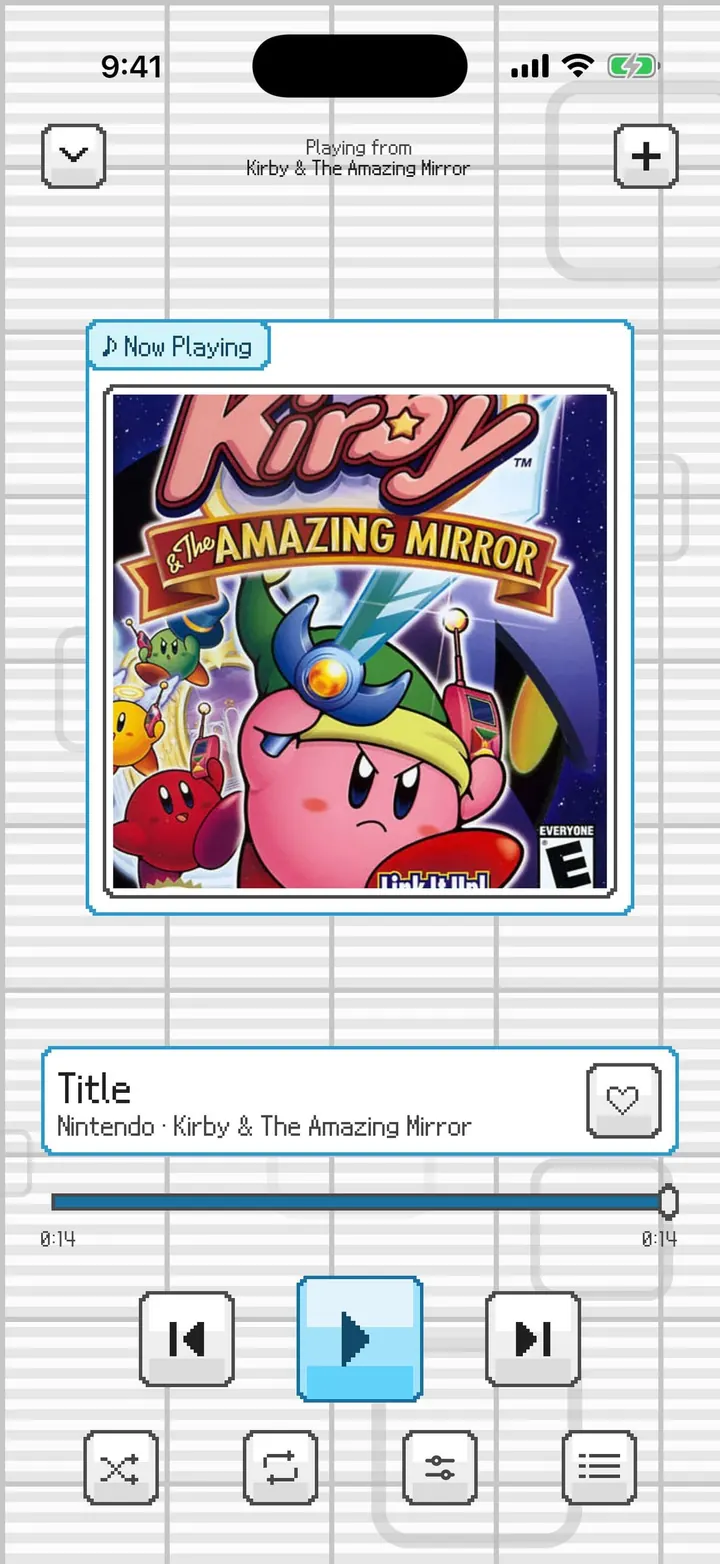
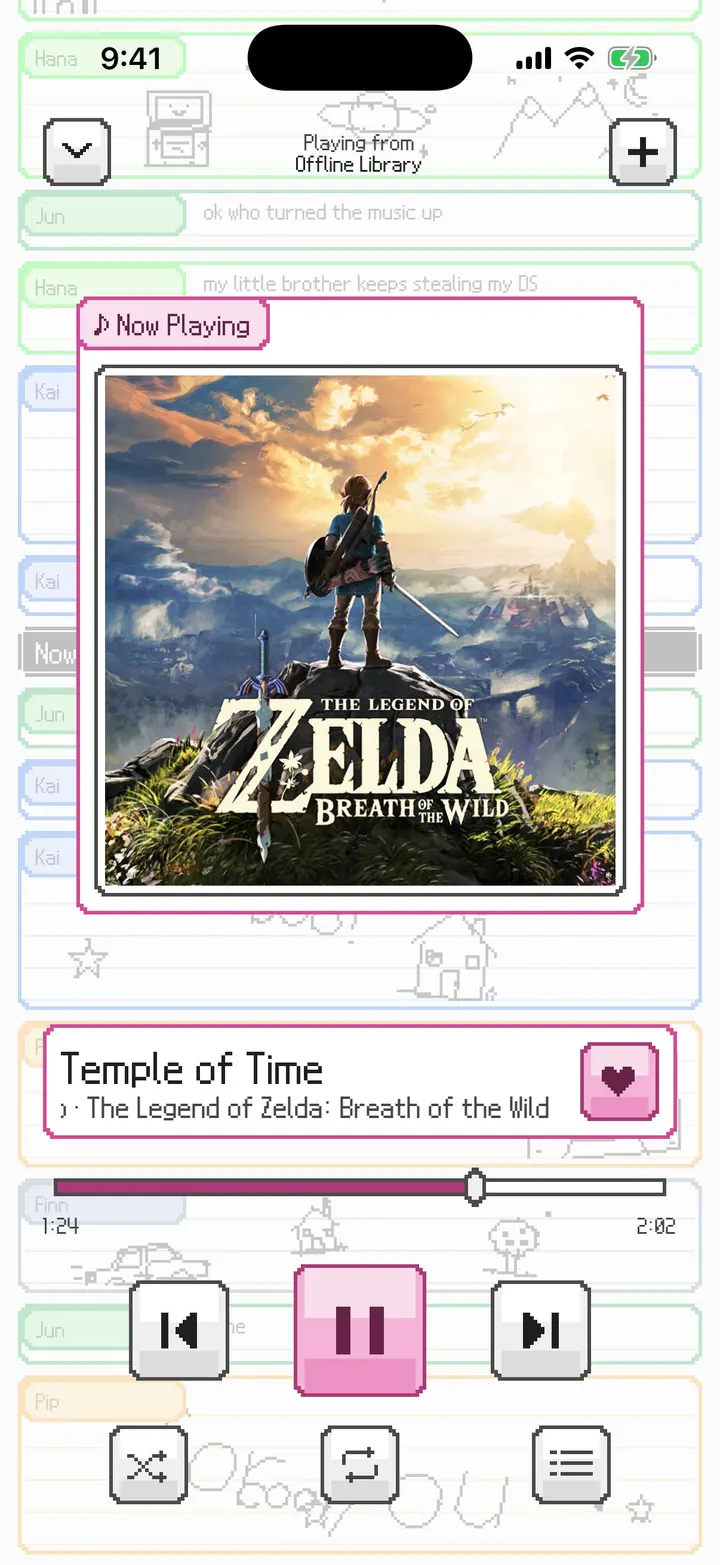
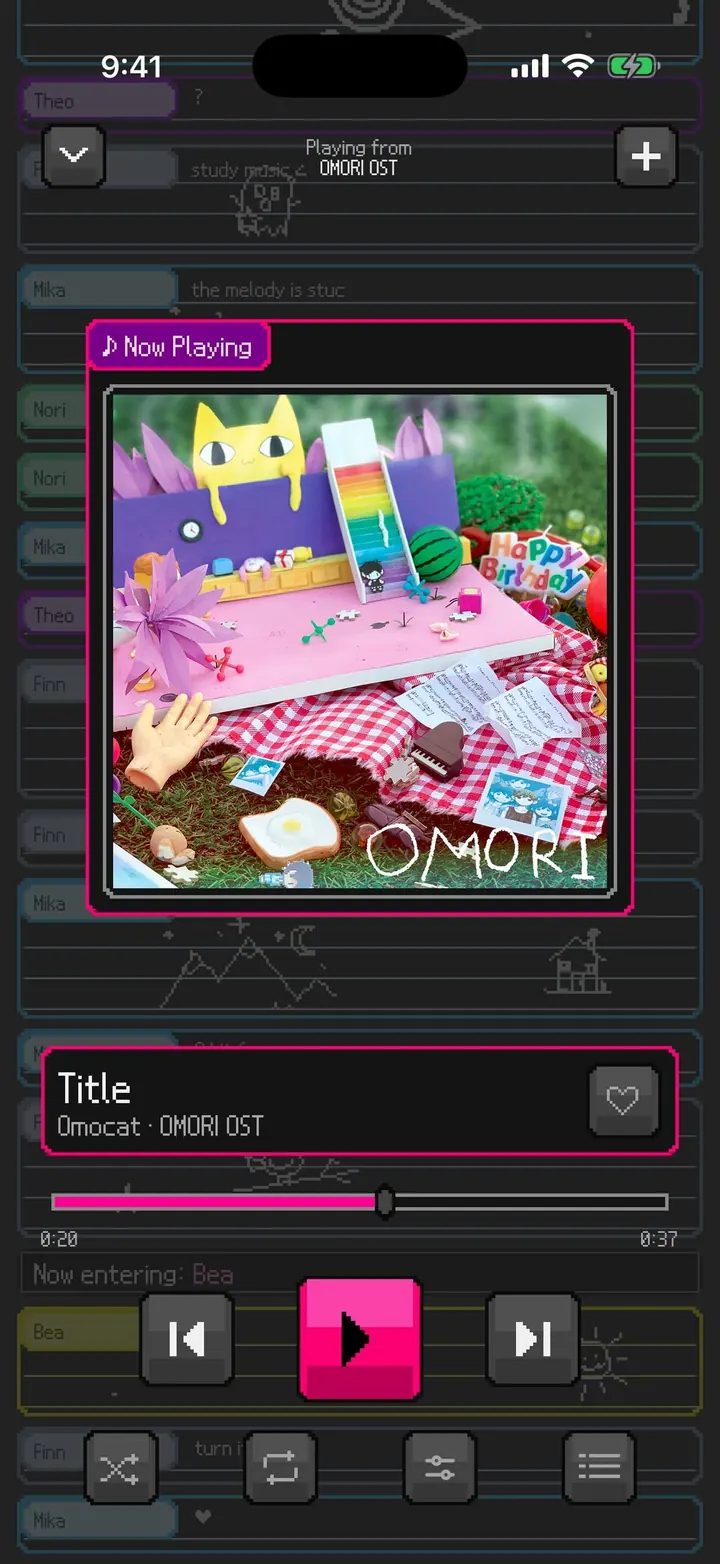
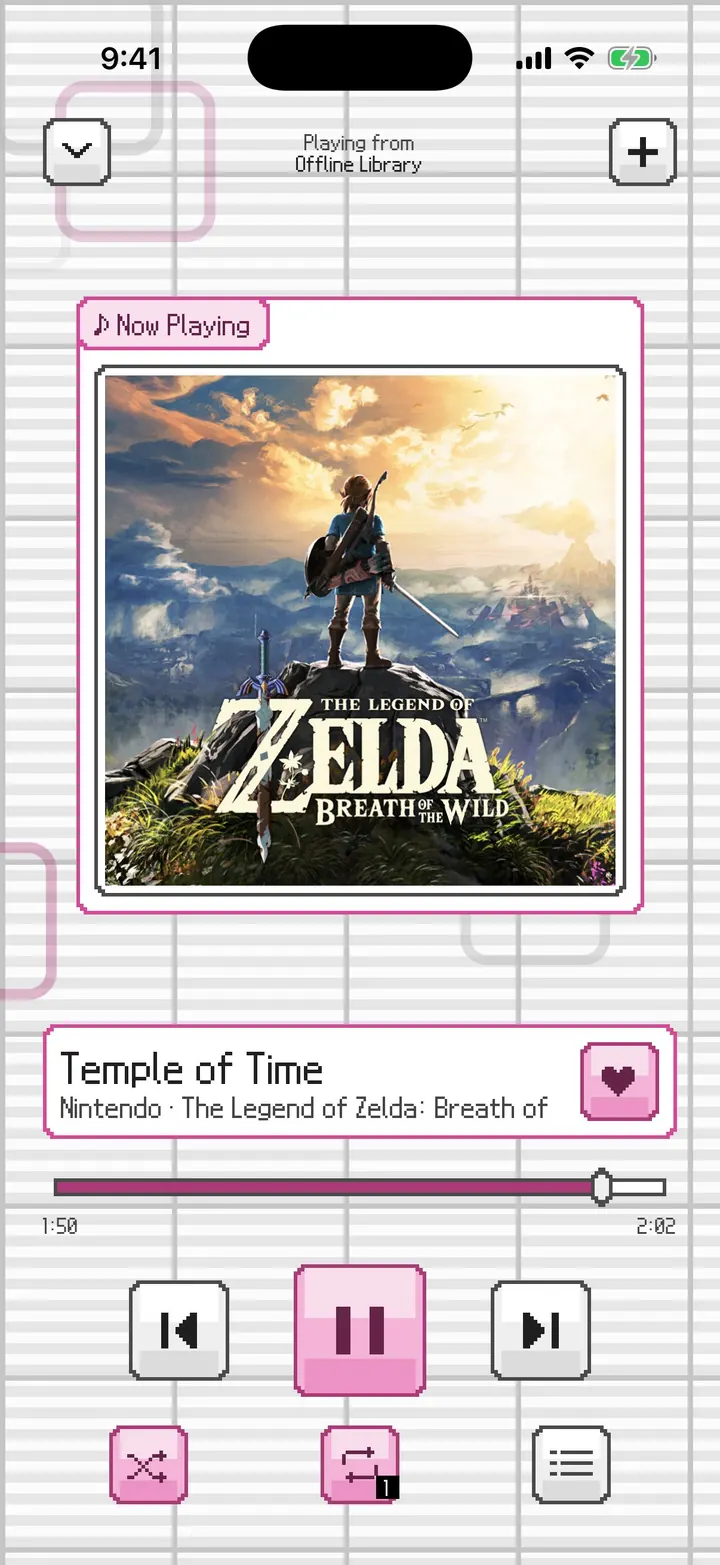
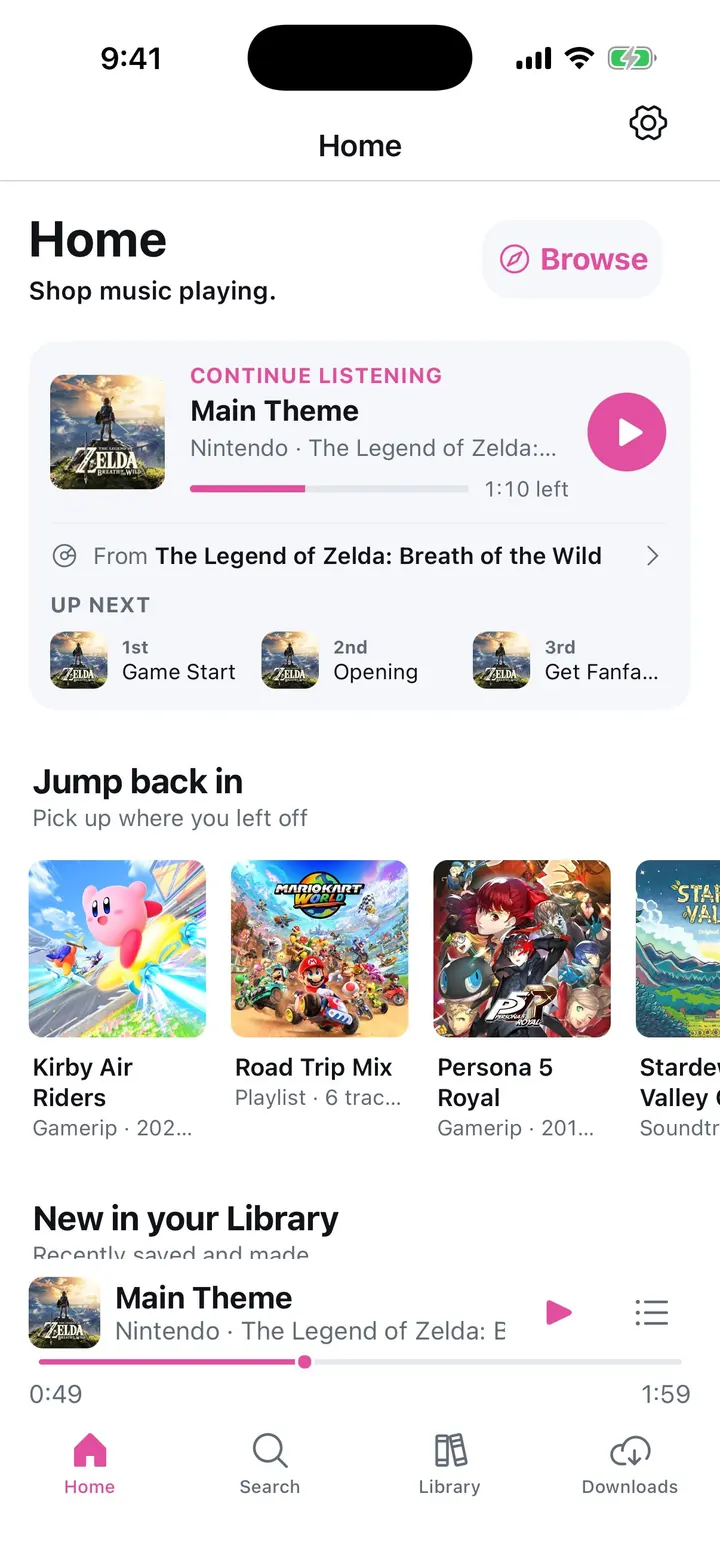
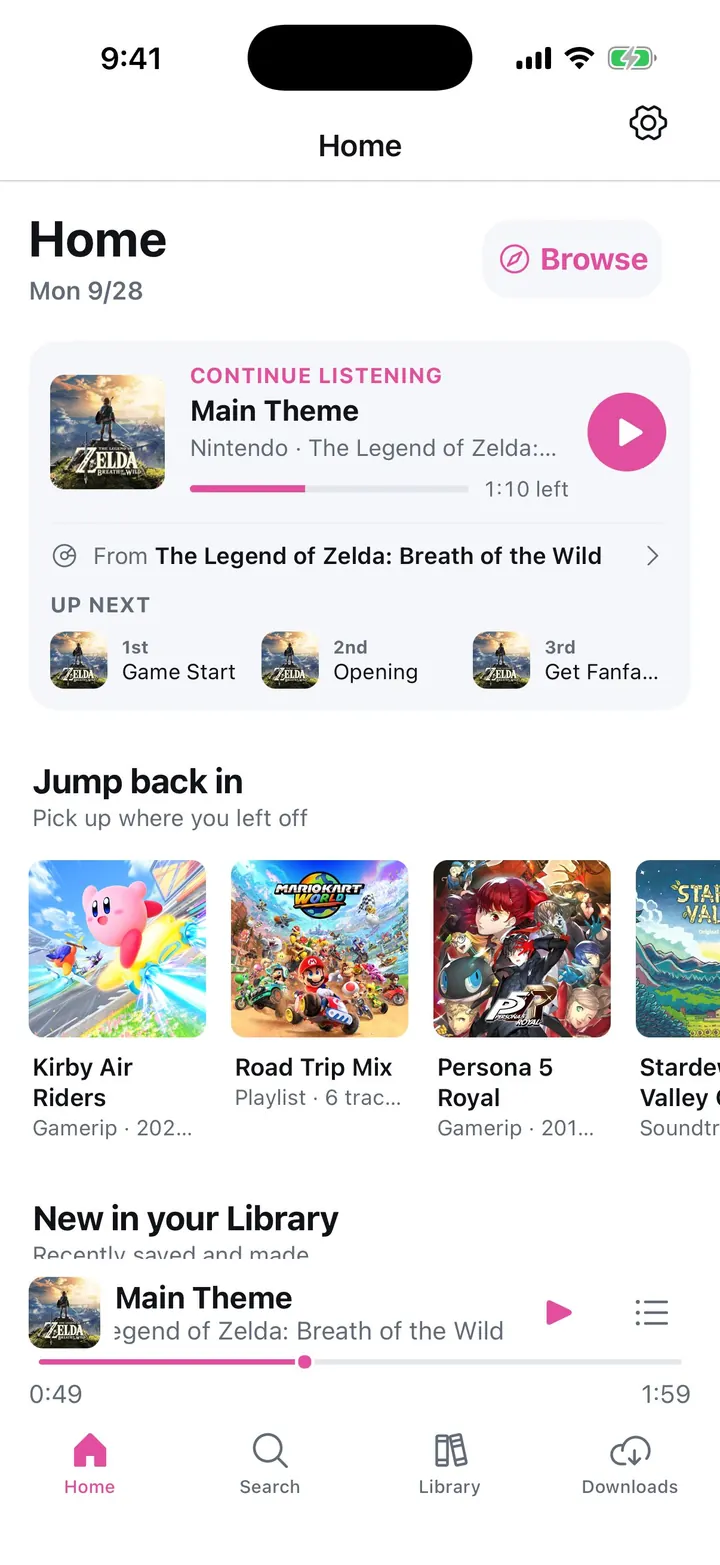
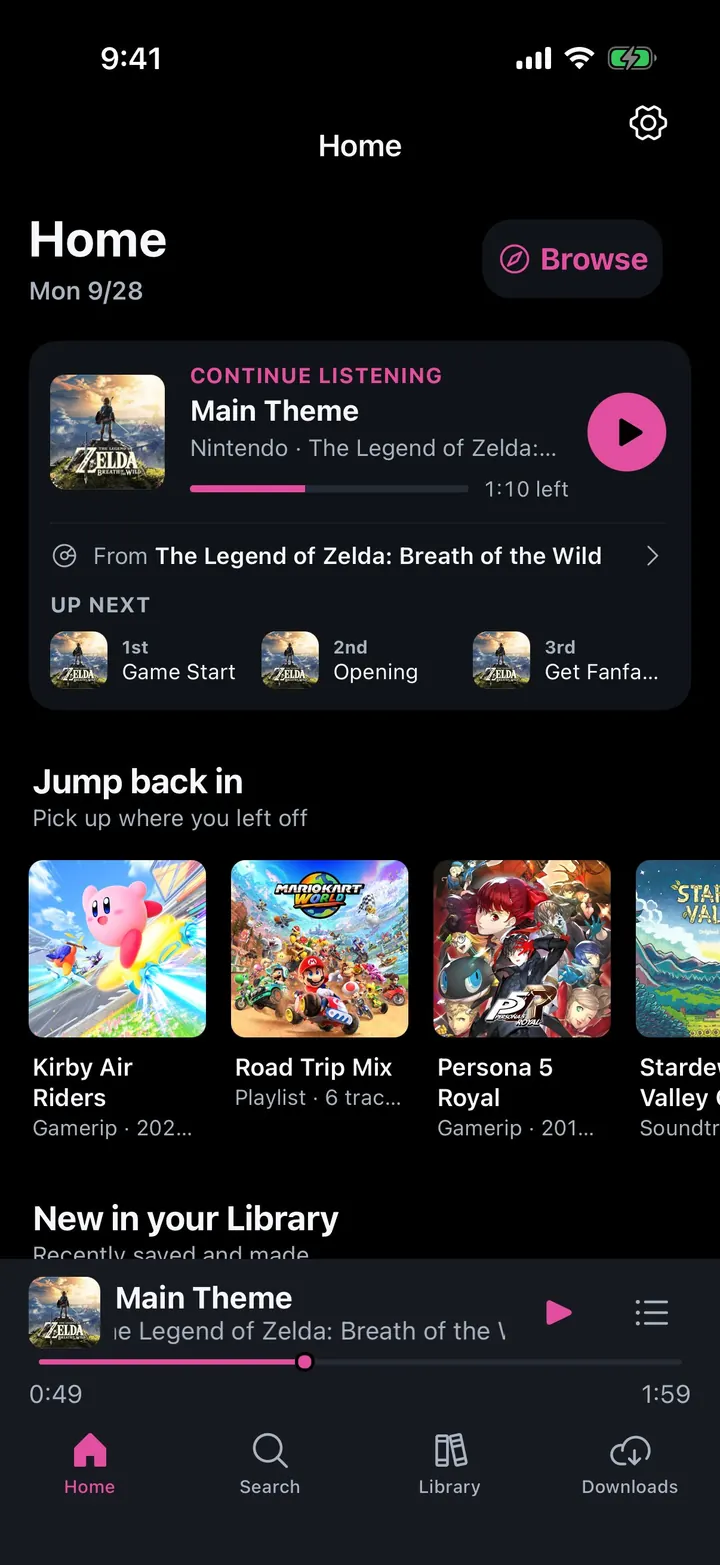
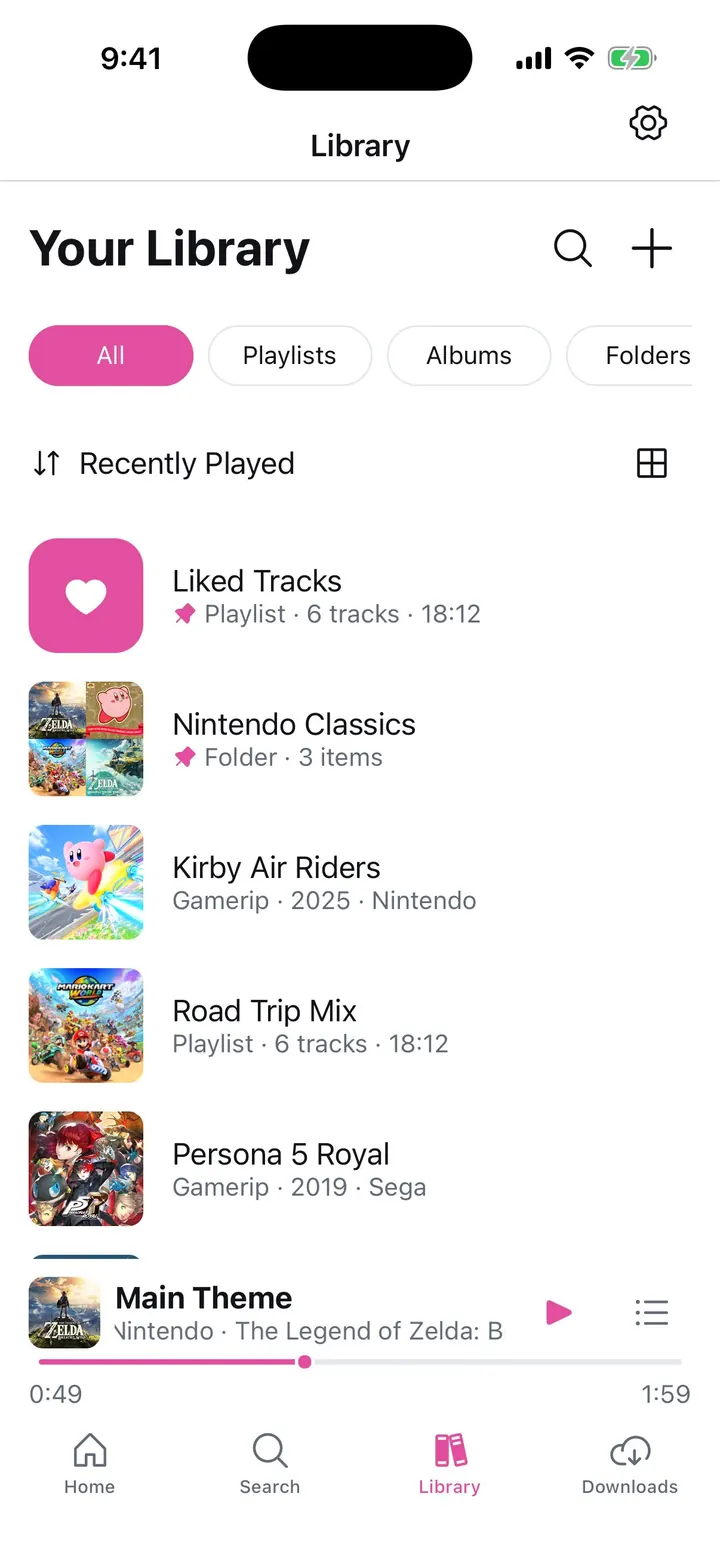
A screen-by-screen tour of vgmu in each of its three interfaces. Pick one to see its screens; the ones every interface shares stay below.
Start here
The launch splash and the welcome. vgmu has three interfaces that share one Library, one set of downloads, and every setting: switch between them anytime in Settings under Interface style.
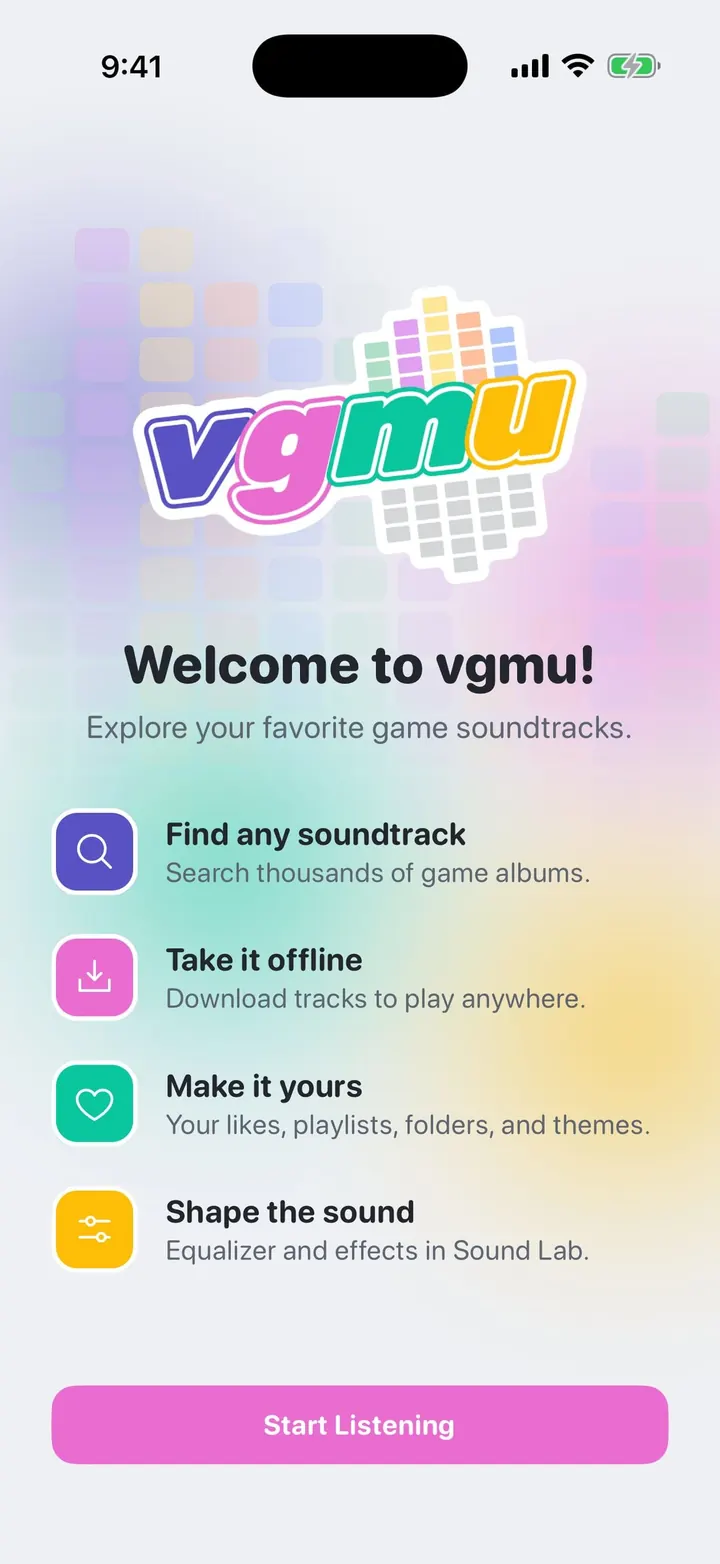
⤢Launch splash The vgmu logo's EQ columns fill with color from left to right, drain, and fill again, in every interface, then the app fades in.⤢Welcome to vgmu The first launch: the logo, four things vgmu does, and a single Start Listening button. No account, no sign-up.
Console Home
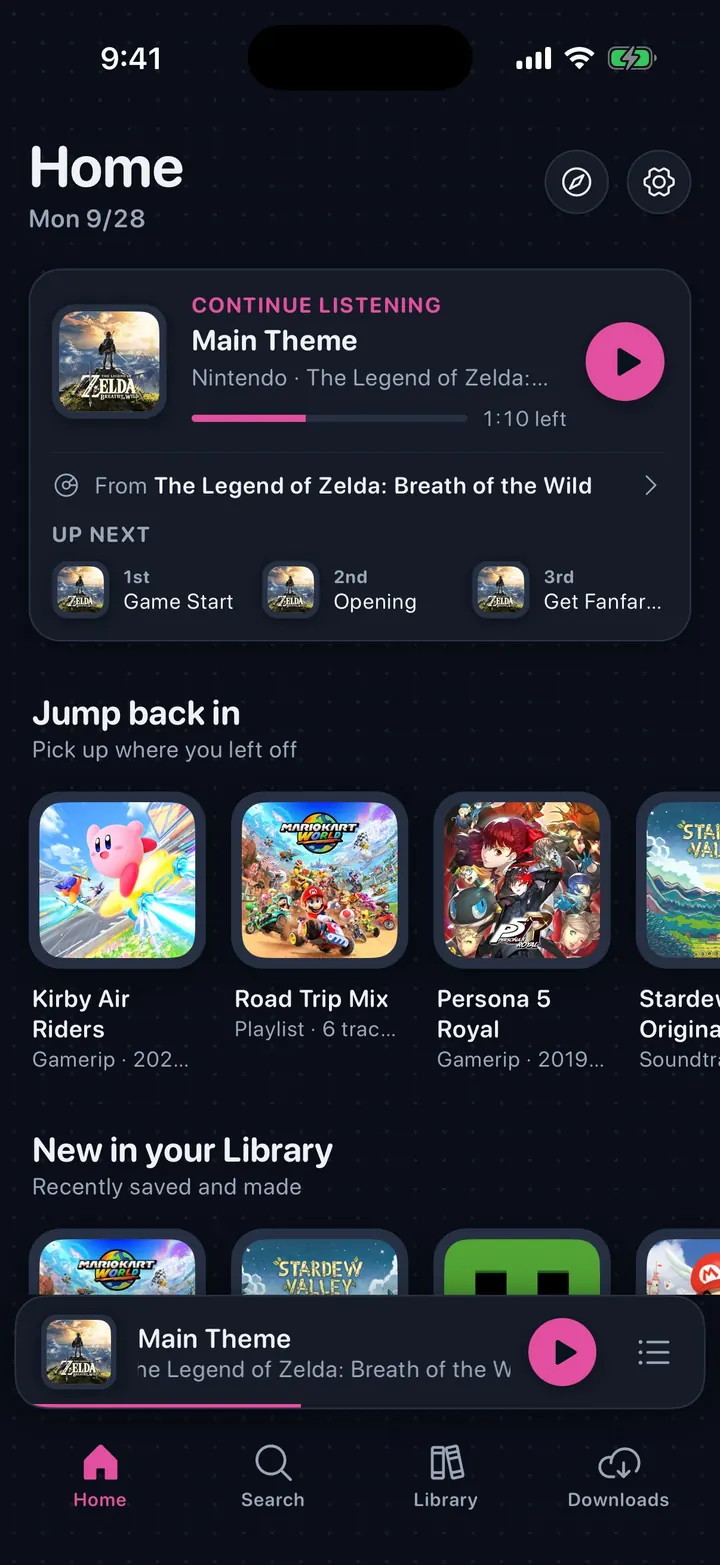
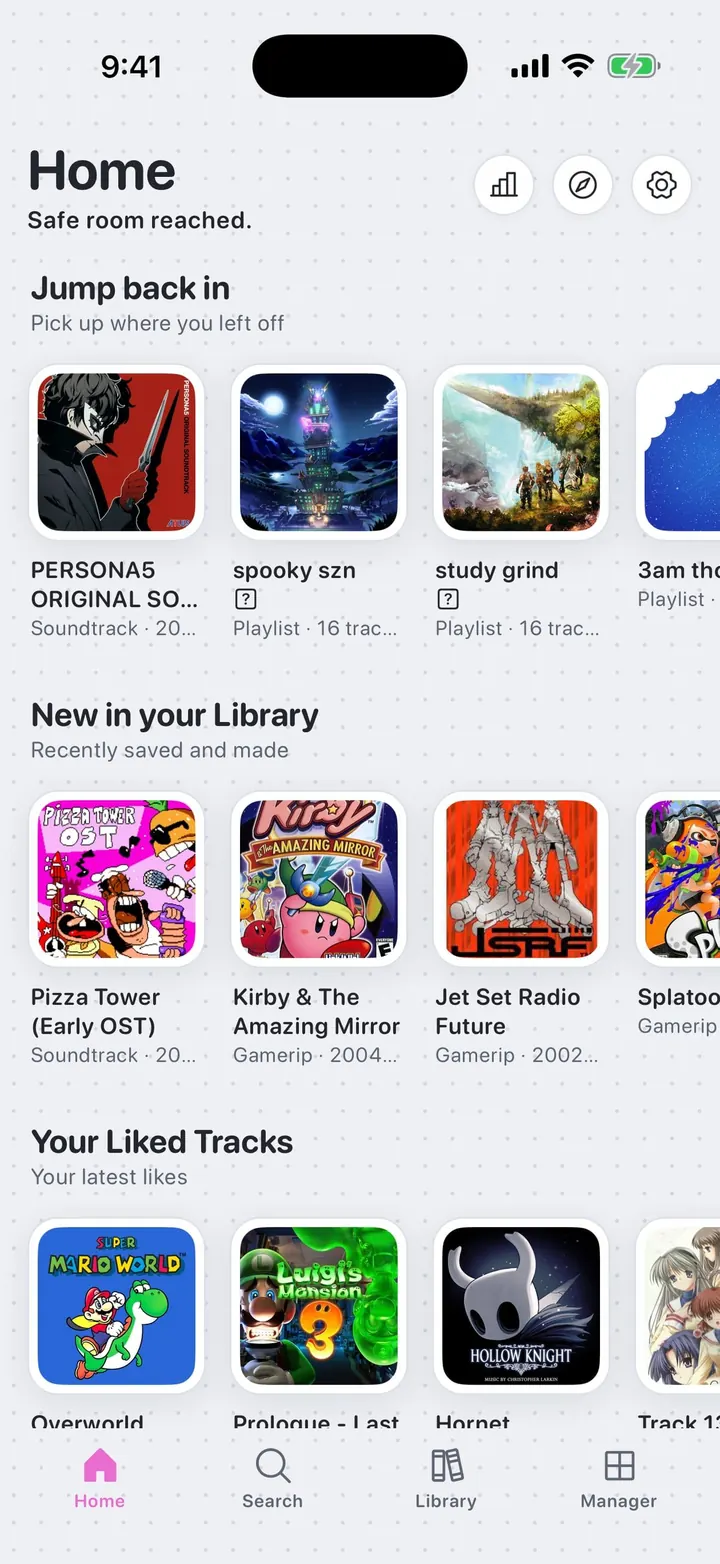
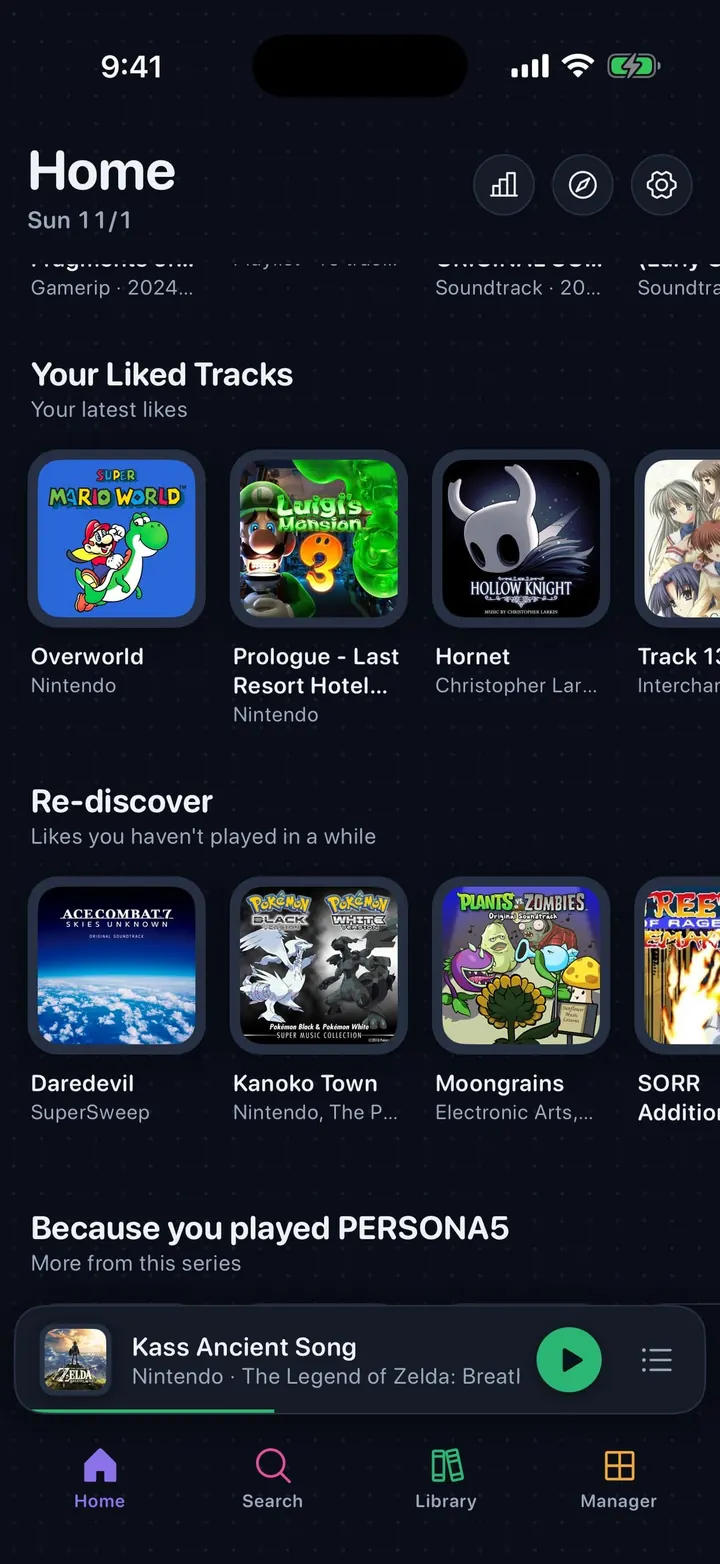
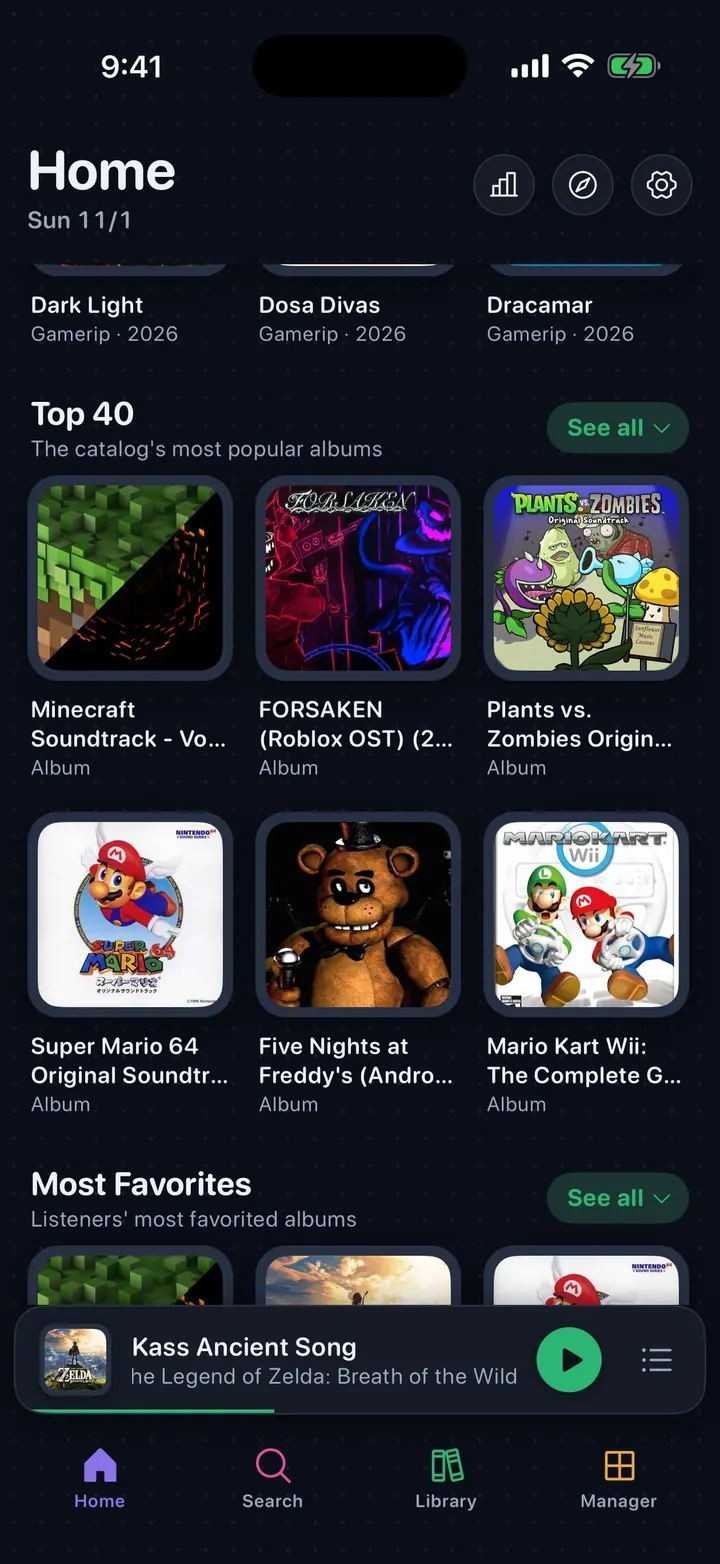
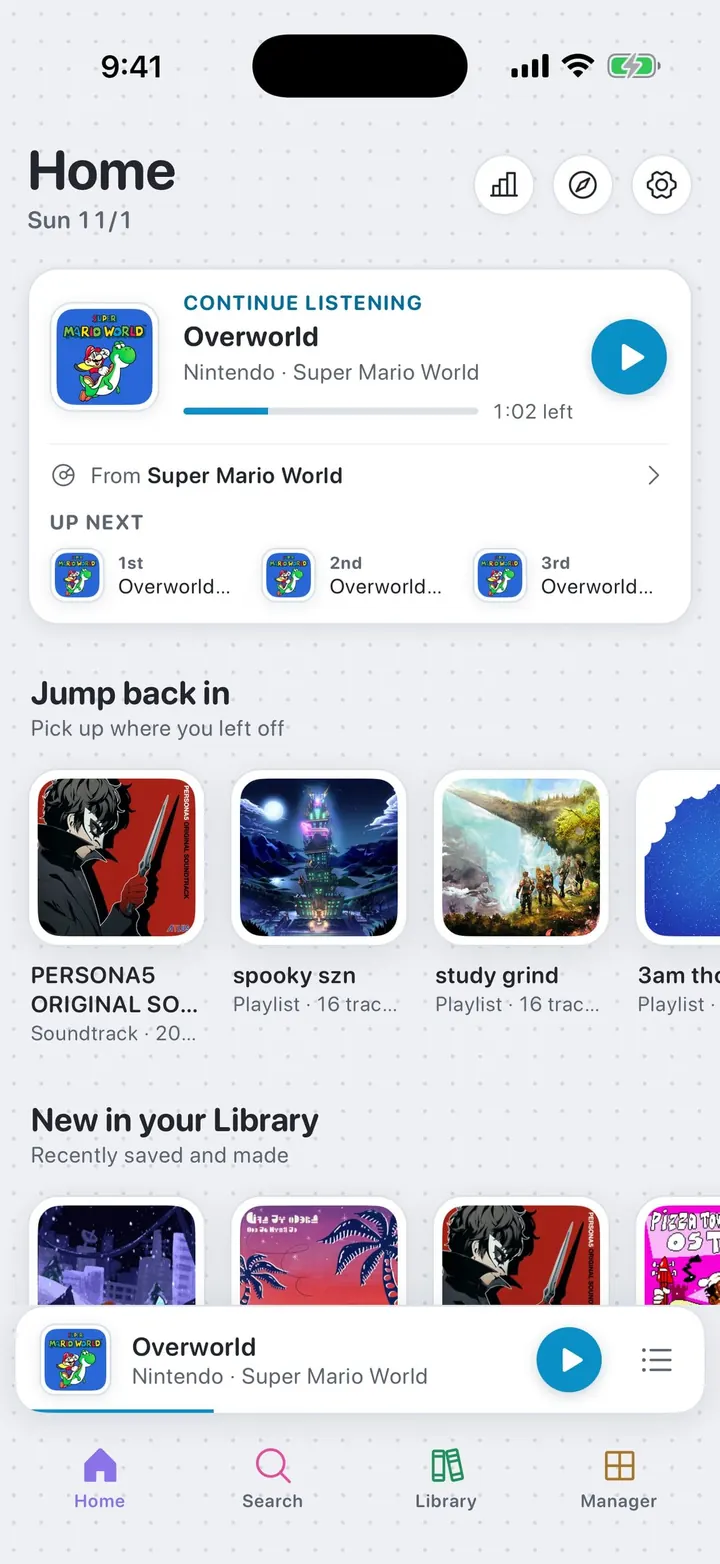
Console is a home-menu interface after the Wii, Wii U, and 3DS system menus: covers in white bezels on a dotted shell, one accent color of your choice, SF Pro Rounded everywhere, and gentle motion.
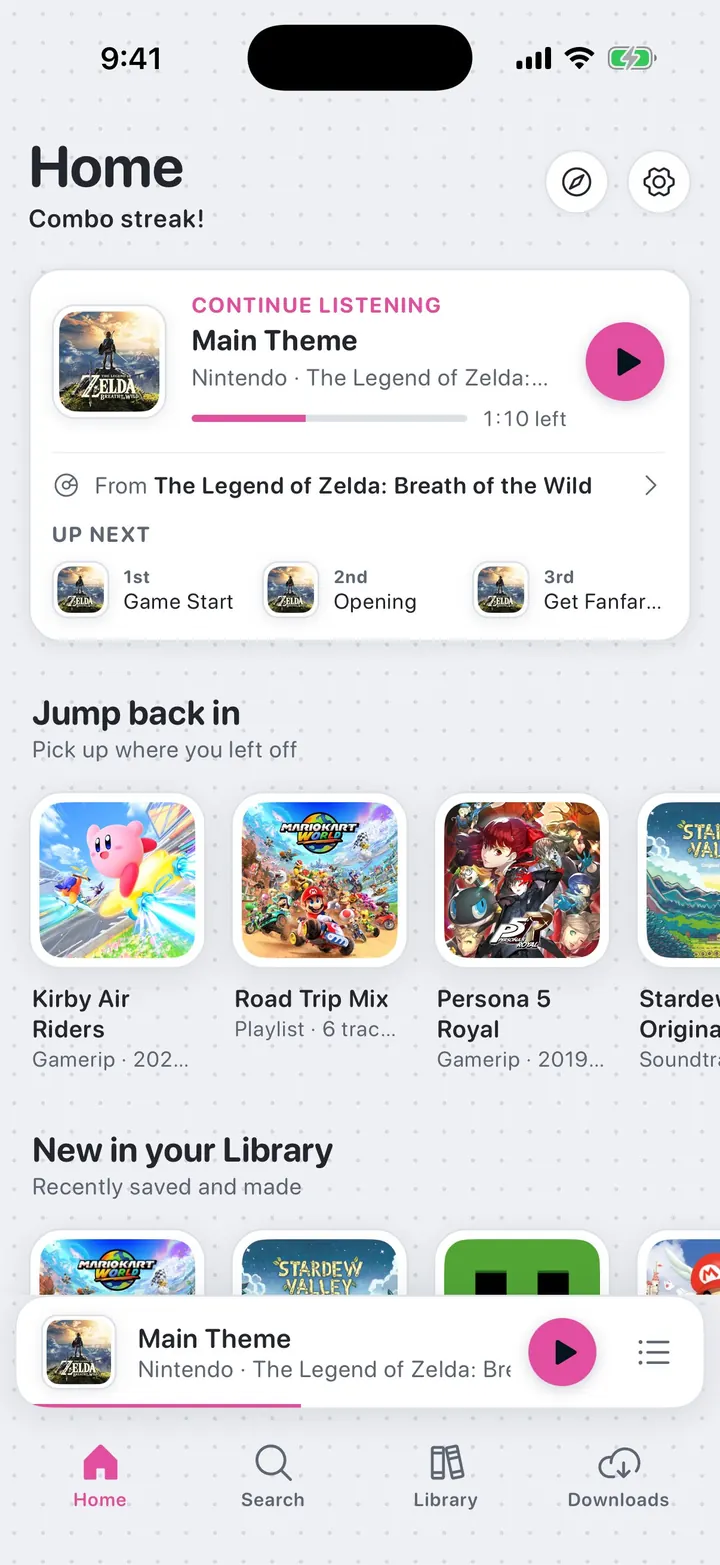
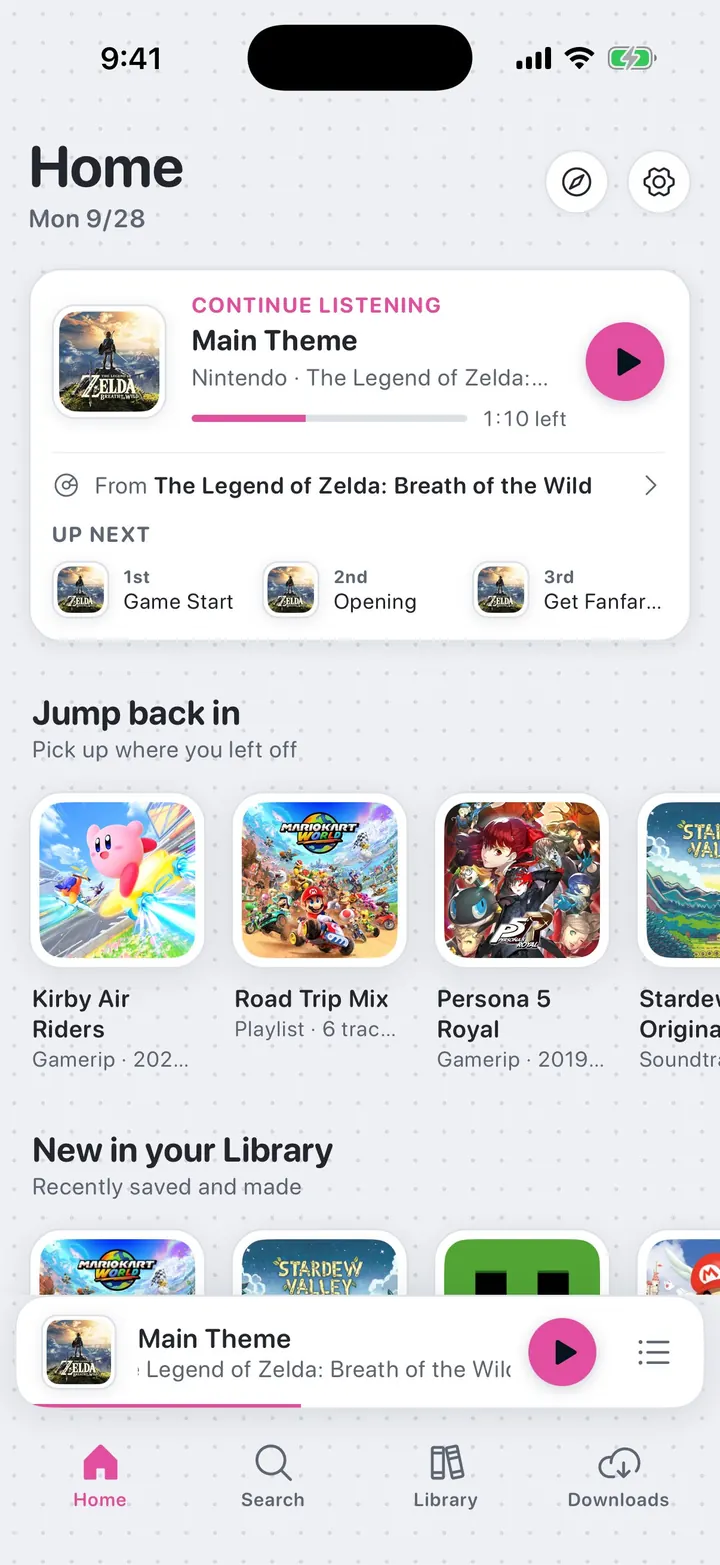
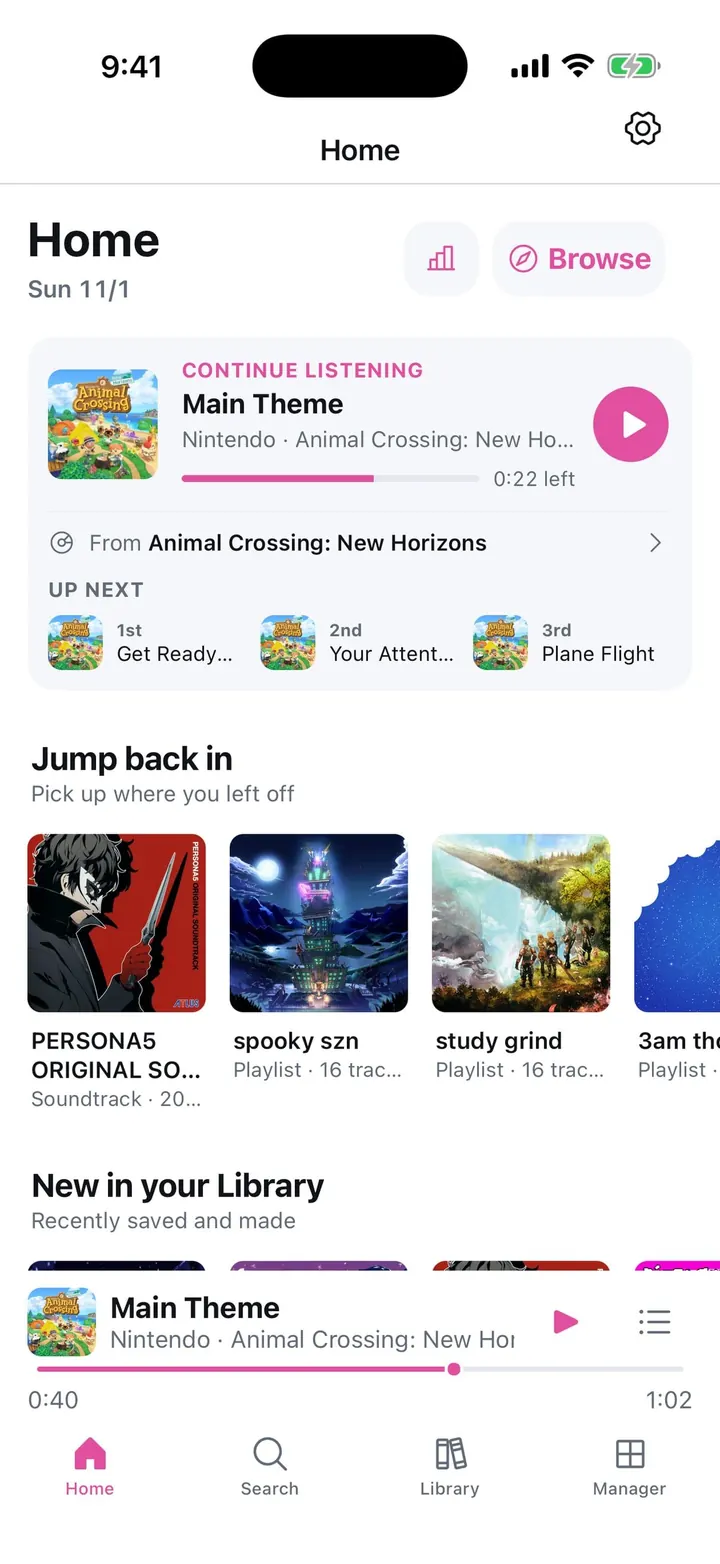
⤢Launch greeting On the first Home visit after a cold start, a short game-flavored greeting for the time of day pops in letter by letter, then rolls up into the date.⤢Home Continue listening picks up the paused track with time left, where it plays from, and the next three tracks. Jump back in and New in your Library sit below, with Your Liked Tracks, Re-discover, Because you played, Trending now, and the catalog after them.⤢Home in dark The same Home on Console's navy-black shell. Appearance follows the device or can be pinned to Light or Dark.⤢Home, filled in A Home full of your own music: where you jumped in last, what you recently saved, and your latest likes.⤢More of Home Further down: Your Liked Tracks, Re-discover for likes you haven't played lately, and Because you played. Shown in dark with a green accent.⤢Top 40 and Most Favorites The catalog's most popular albums and listeners' most favorited ones. Every Home row can be turned off in Settings.⤢Colorful tab icons Colorful tab icons give each tab its own color. The accent here is Wii blue.
Console Browse, search, and albums
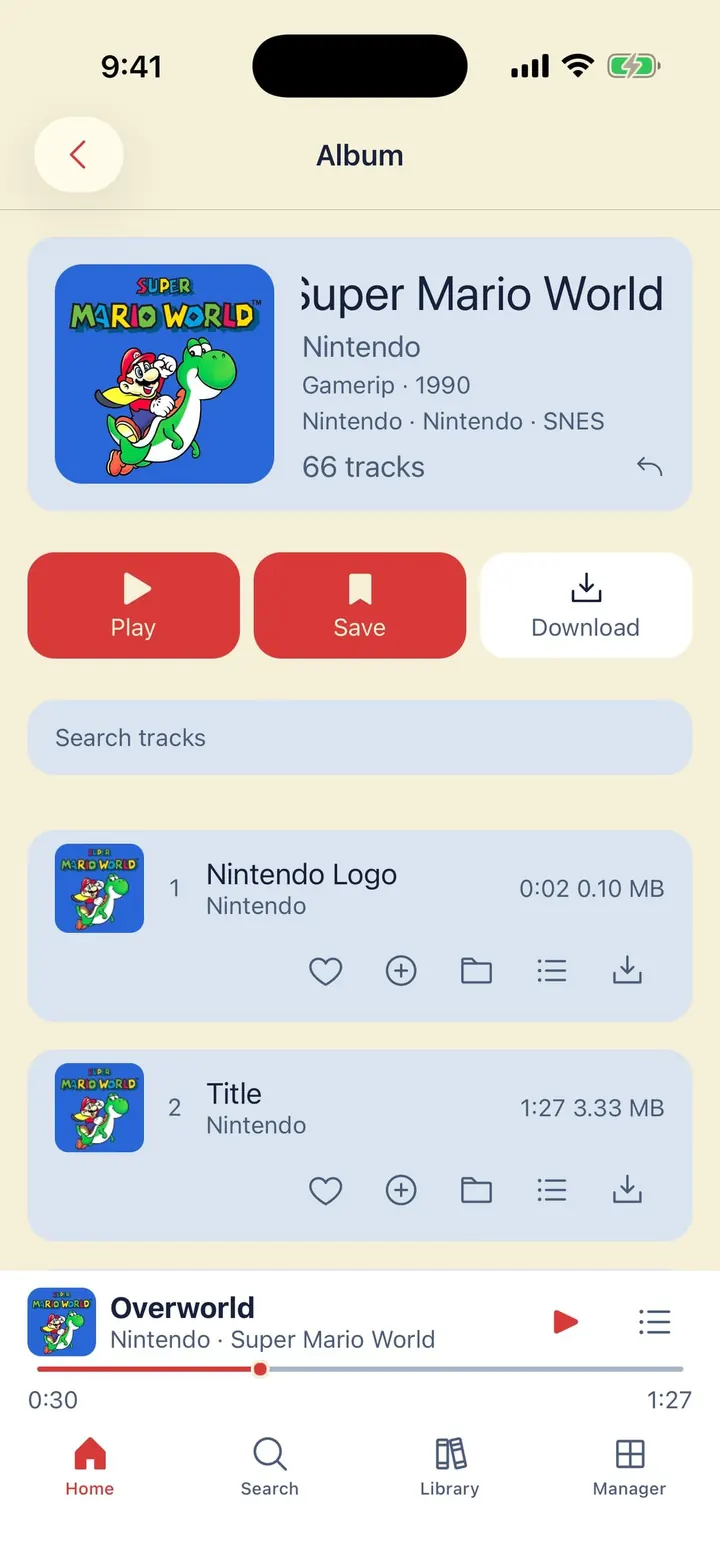
Browse the charts, search the catalog with sort and filter chips, then open an album to play, save, or download it.
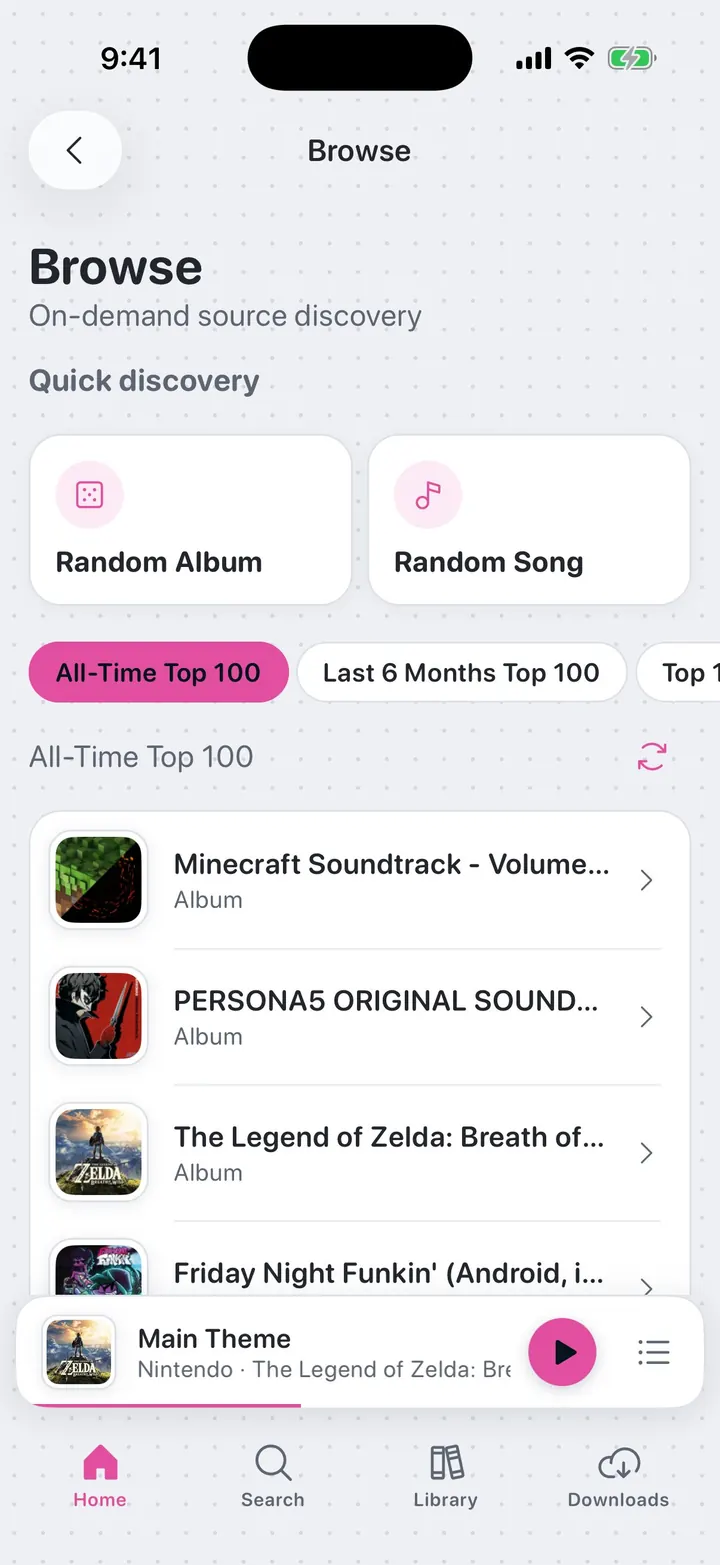
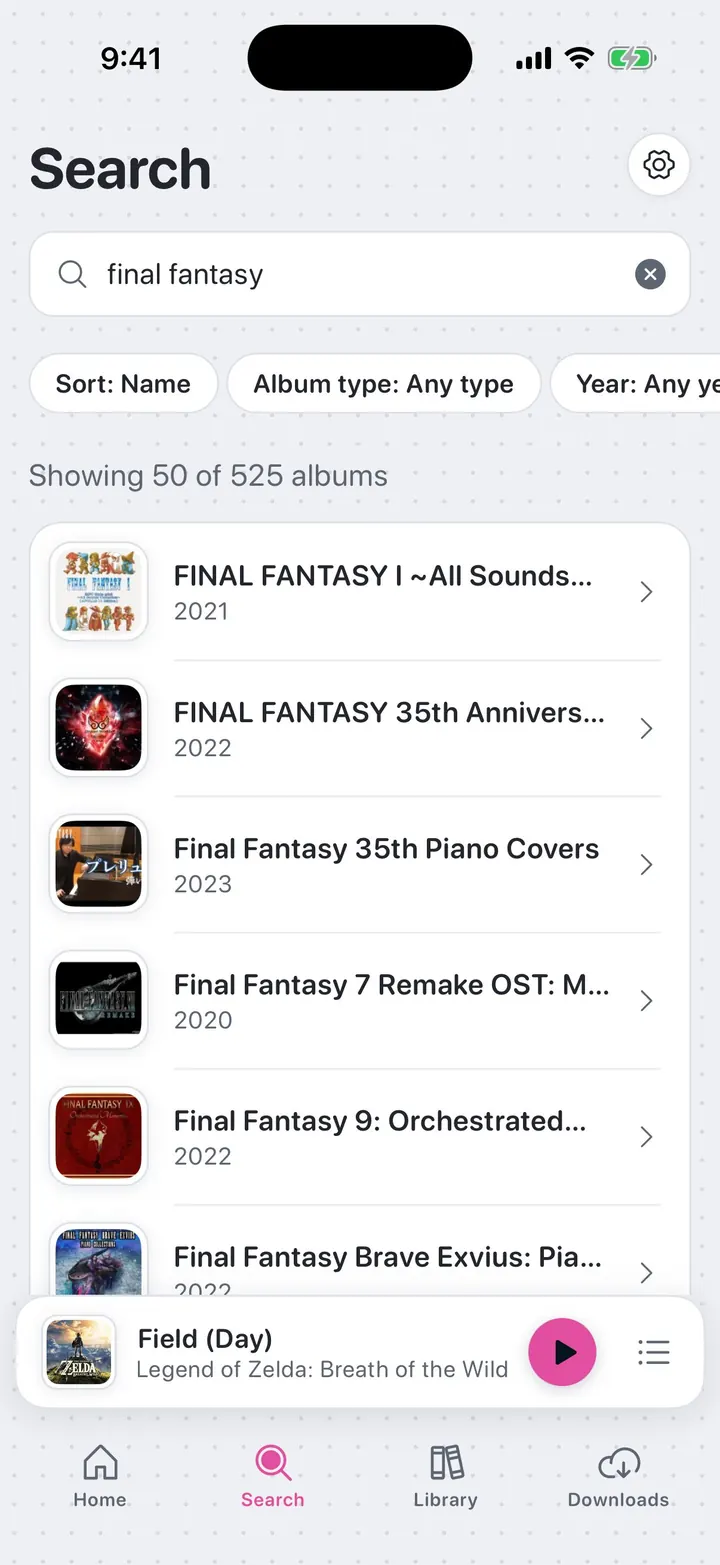
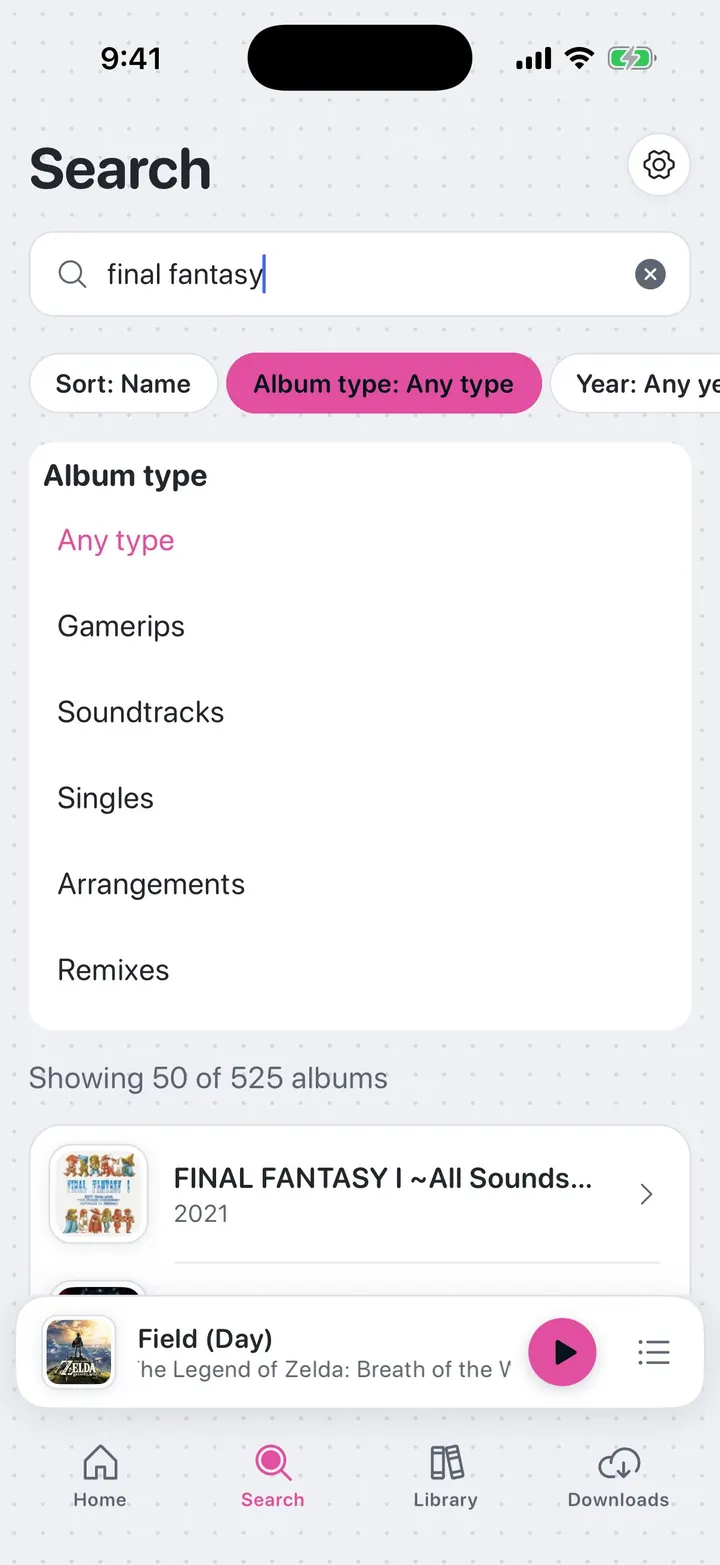
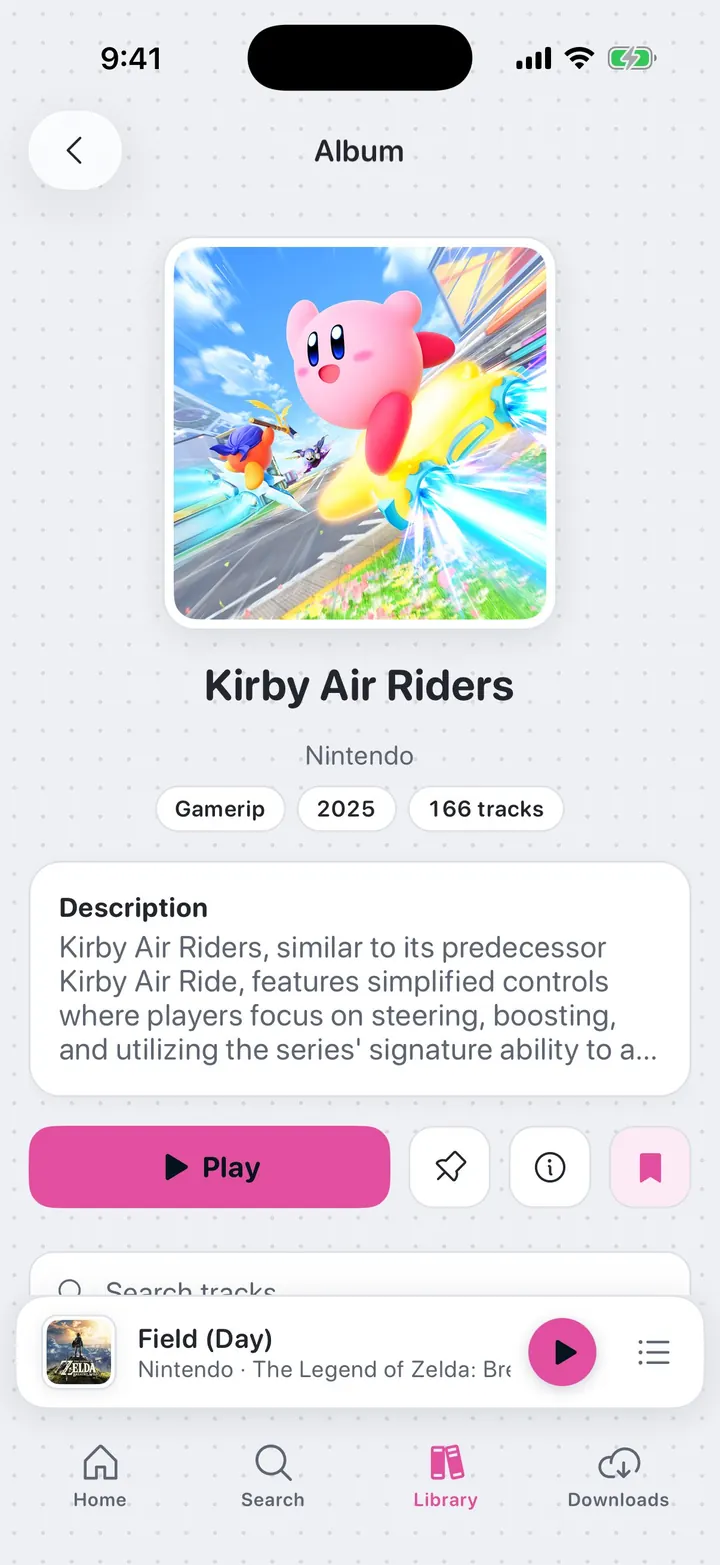
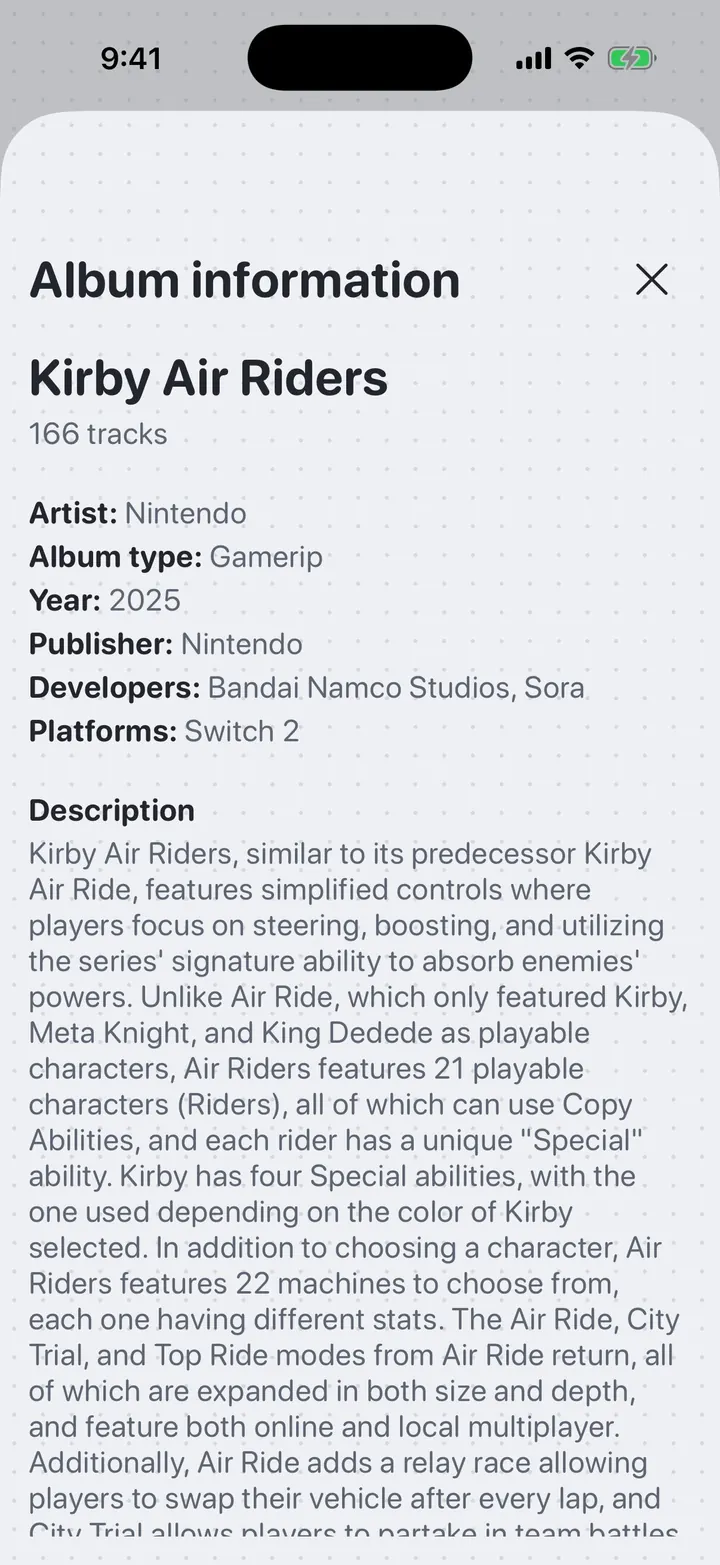
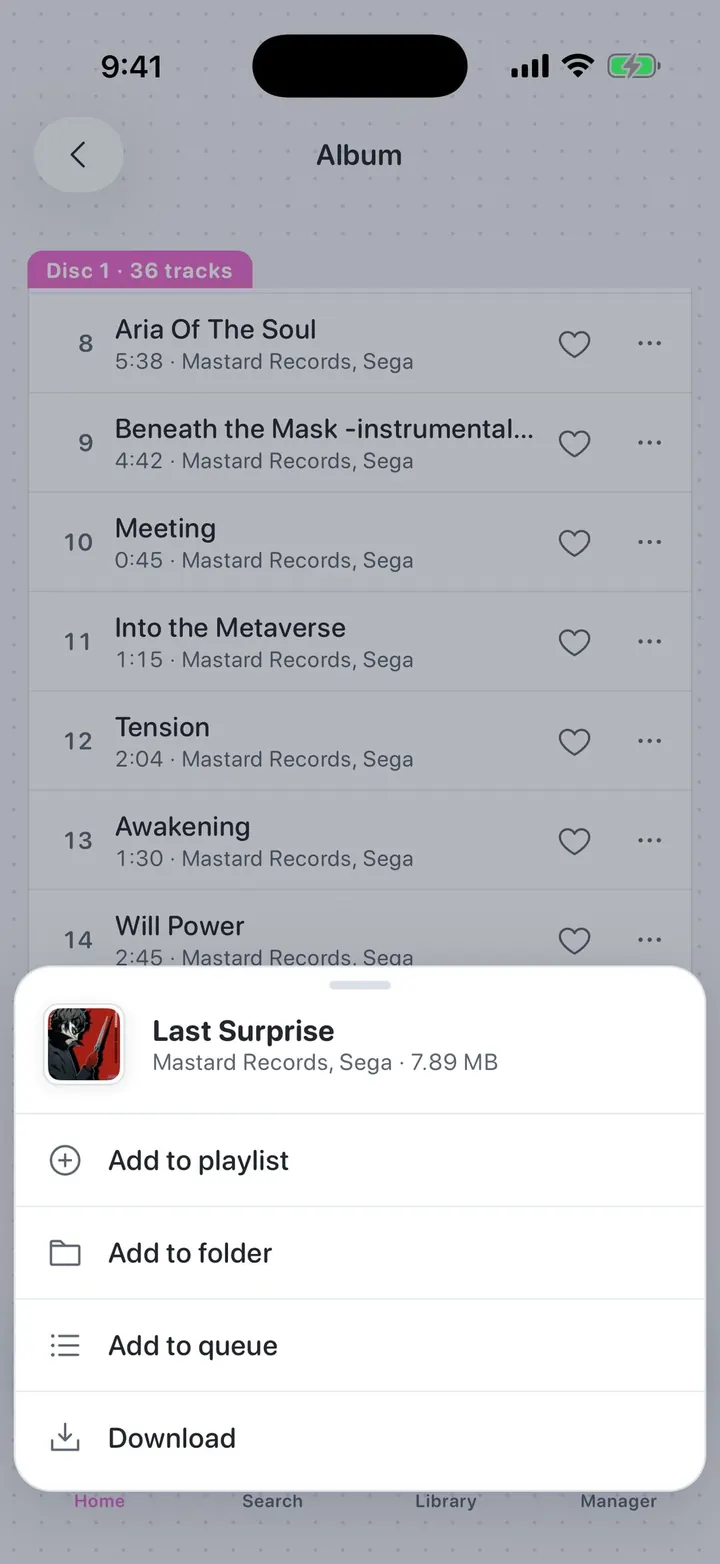
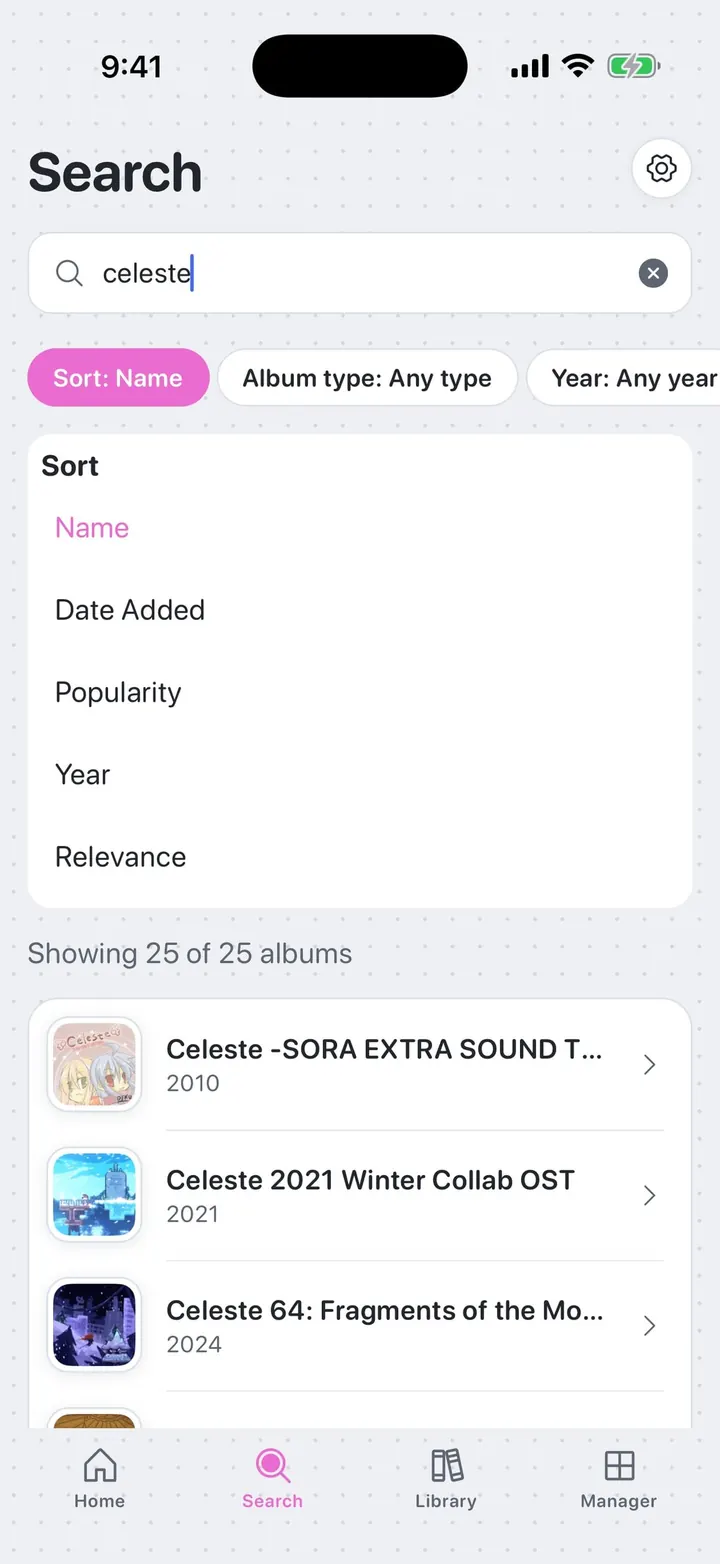
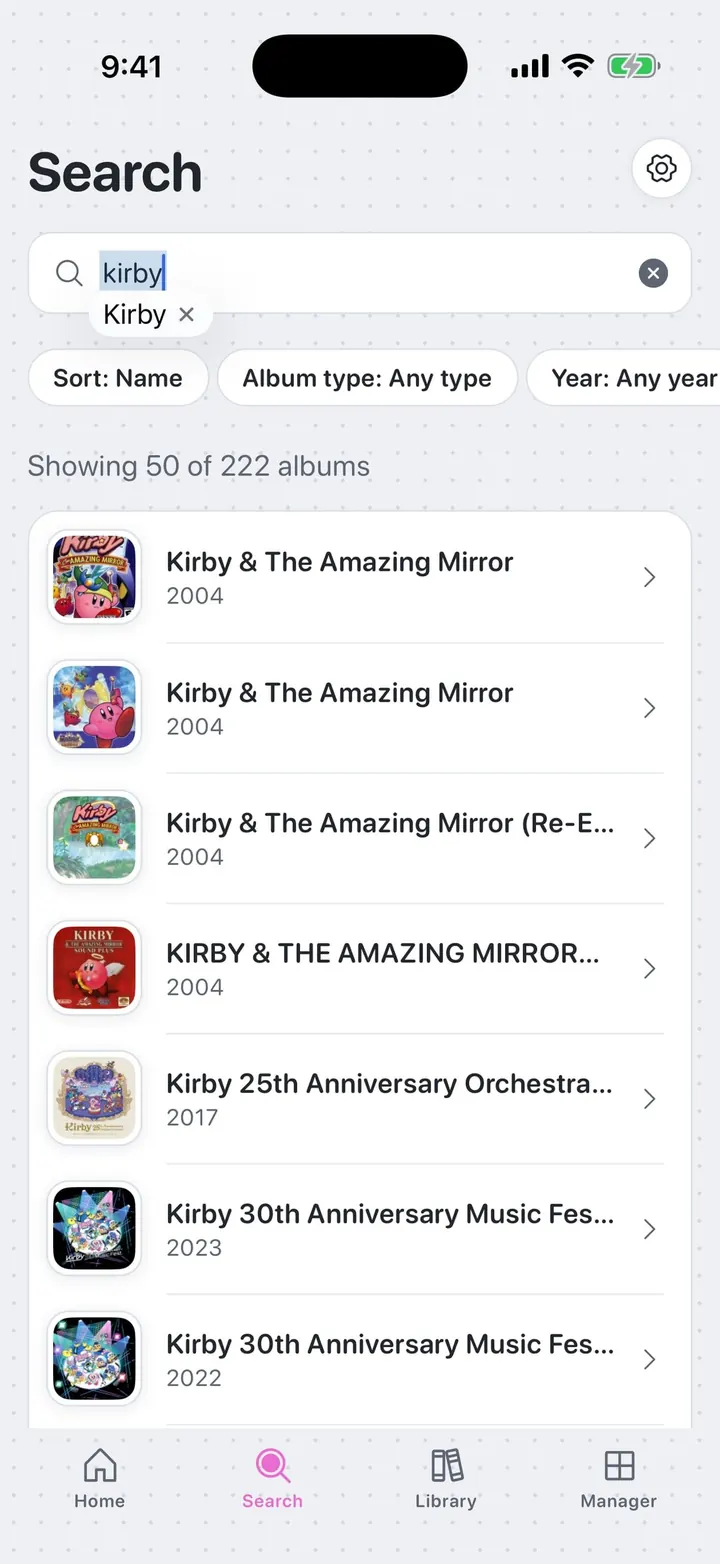
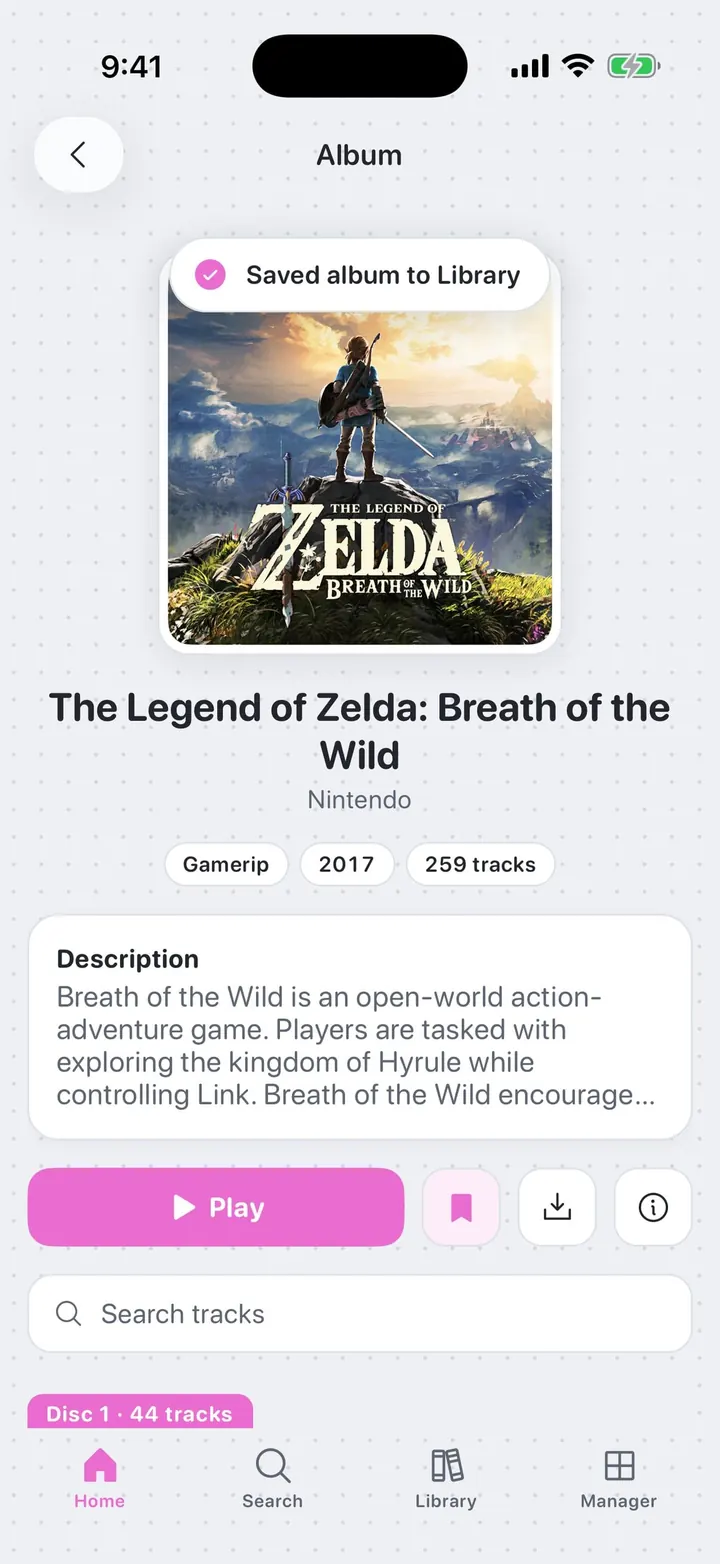
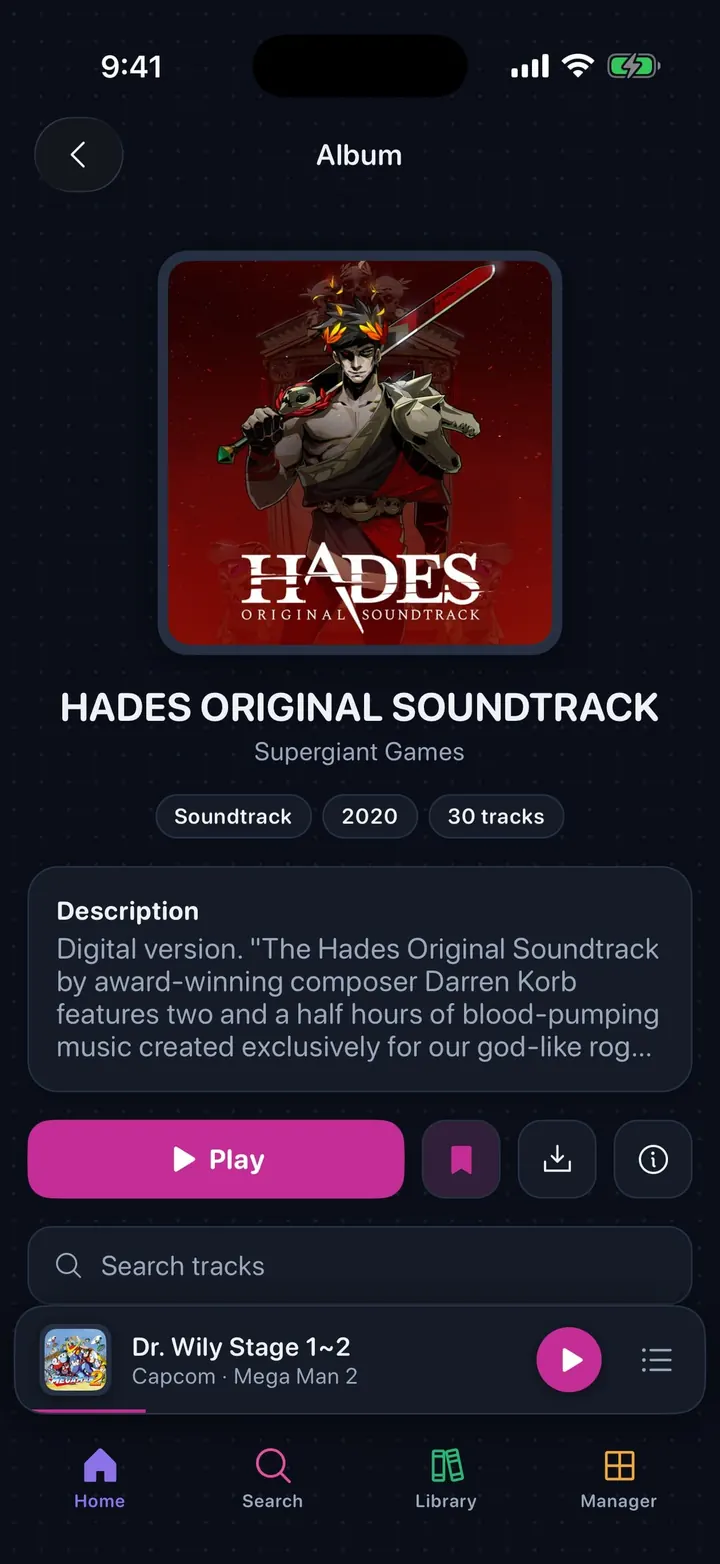
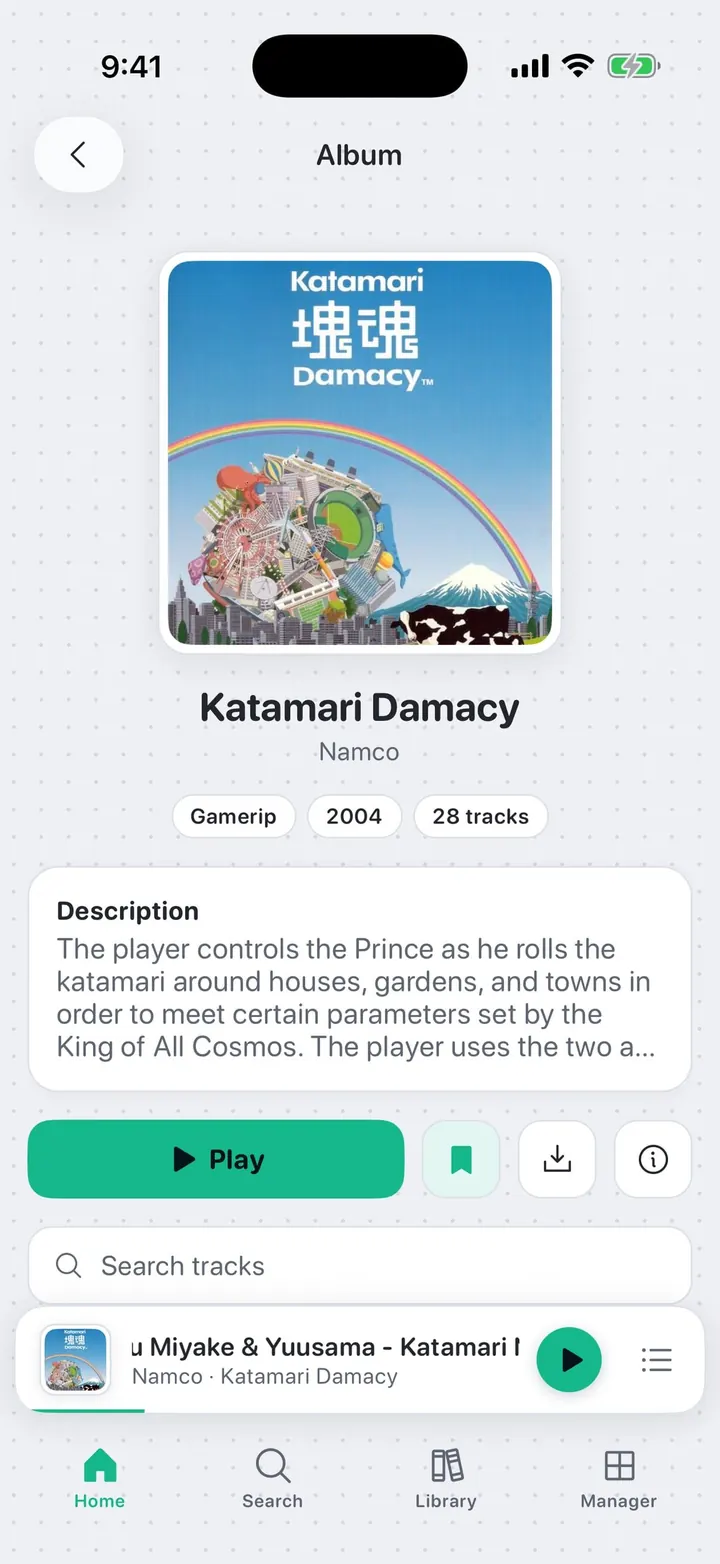
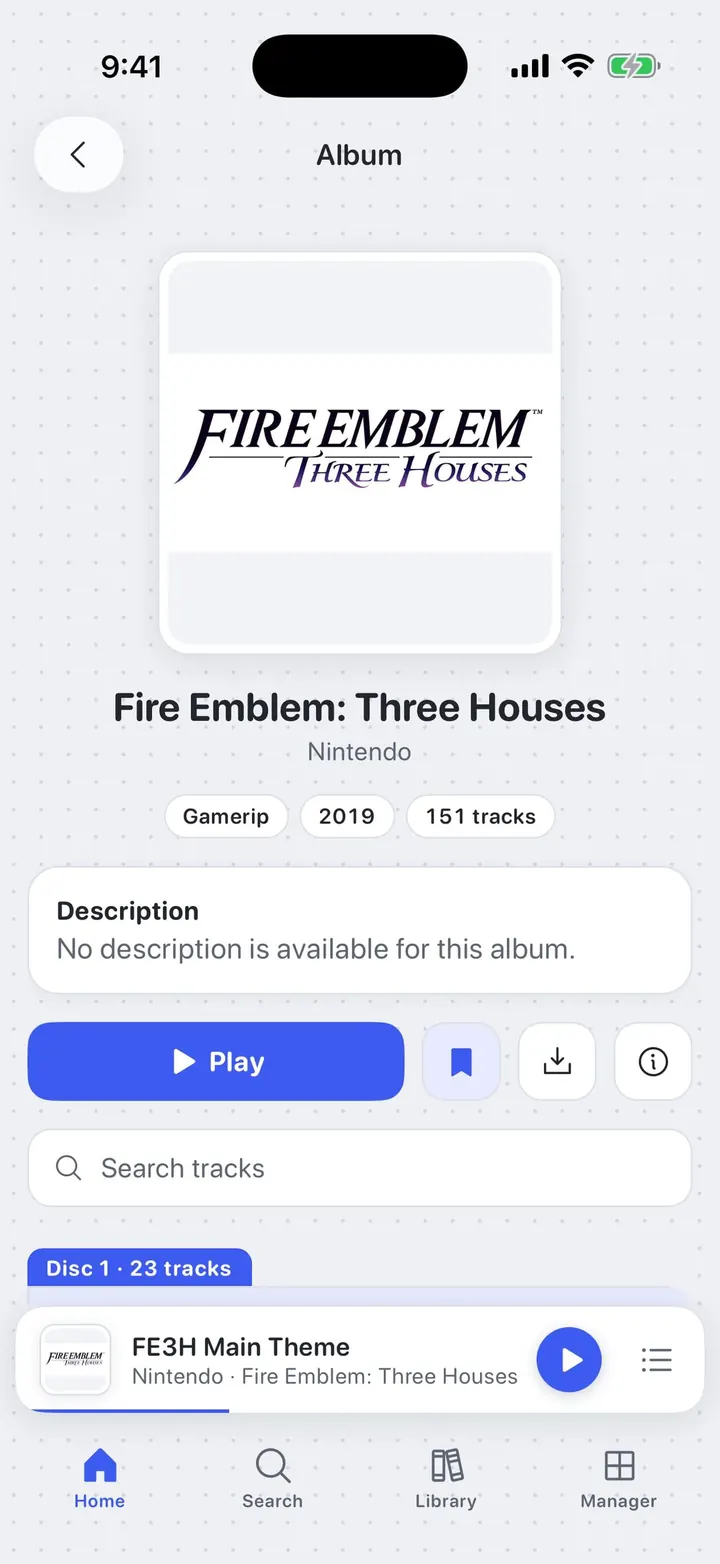
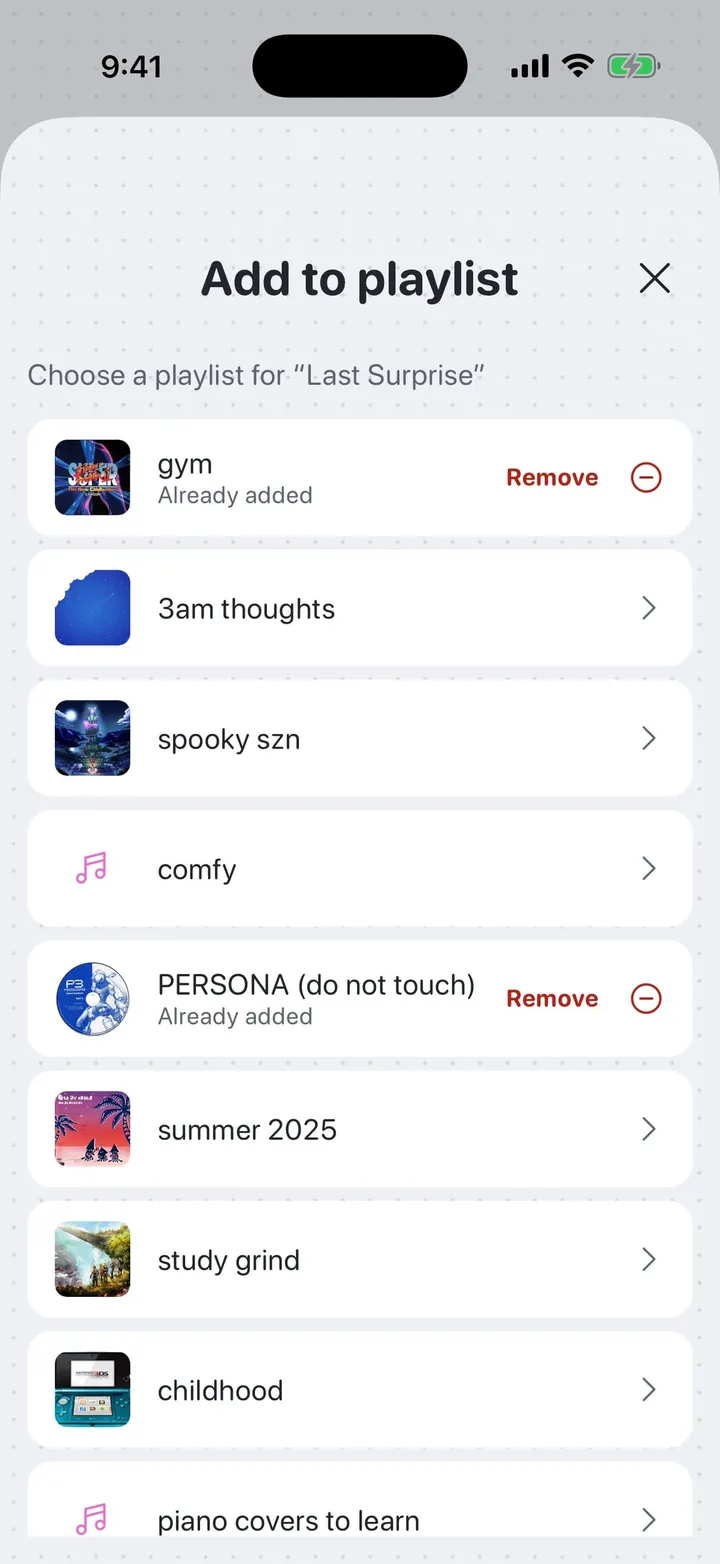
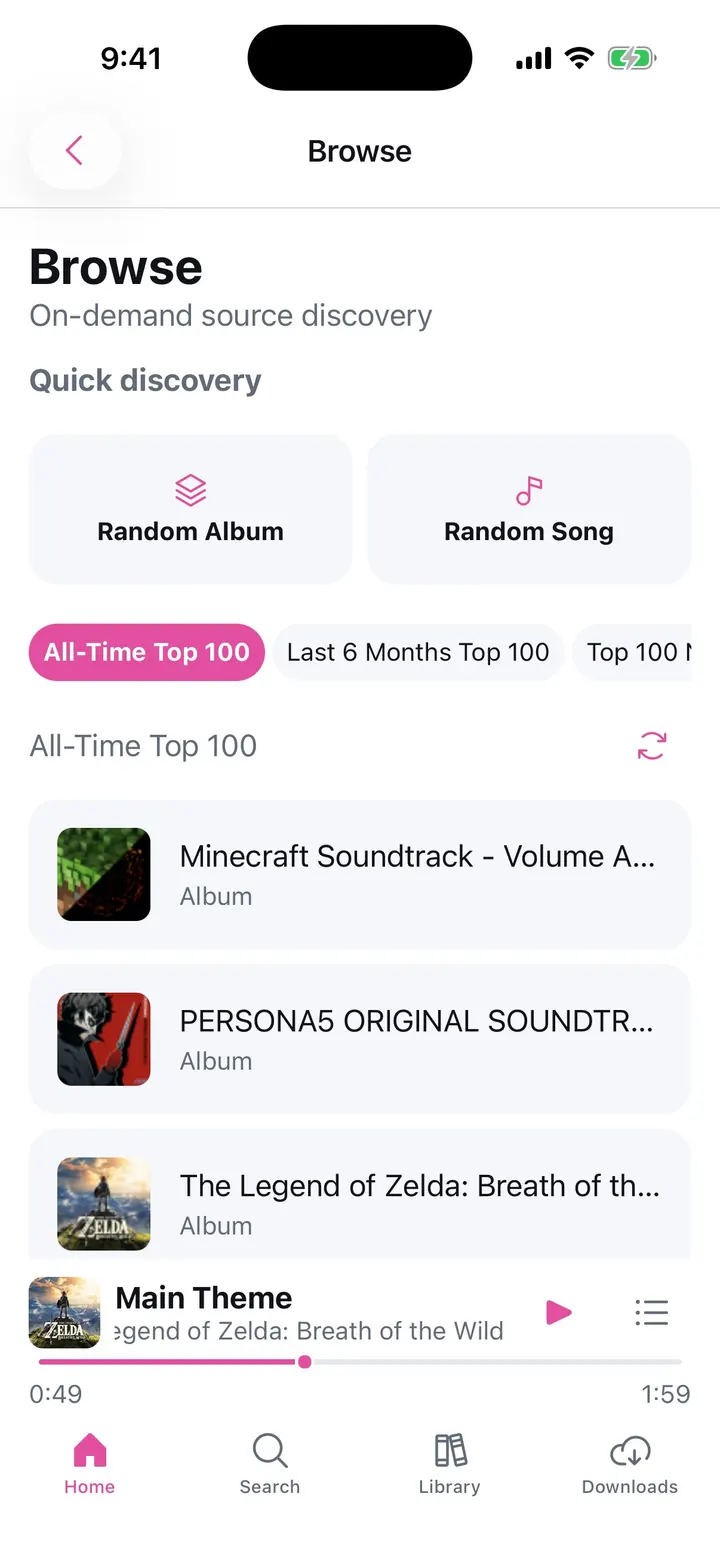
⤢Browse: All-Time Top 100 Random Album and Random Song up top, then chart presets like the All-Time Top 100 and the Last 6 Months Top 100.⤢Search: Final Fantasy 525 matching albums with Sort, Album type, Year, and Platform chips above the results.⤢Album type filter Narrow results to gamerips, soundtracks, singles, arrangements, or remixes.⤢Album: Kirby Air Riders A saved album with its description, Play, pin, album information, and the saved bookmark.⤢Album information Artist, type, year, publisher, developers, platforms, and the full description.⤢Track actions A track's ⋯ button opens a 3DS-style sheet with Add to playlist, Add to folder, Add to queue, and Download. The heart stays inline on the row.⤢Sort results Sort search results by name, date added, popularity, year, or relevance.⤢Search: Kirby Every album for a game or series, with its cover and year.⤢Saved to Library A quick confirmation when an album is saved. Saving keeps its tracks in your Library and downloads nothing.⤢Album in dark An album on the dark shell. The Play button and the saved mark follow your accent color, magenta here.⤢Album: Katamari Damacy The same page in light with a jade accent.⤢Uncropped artwork With Crop artwork to fill turned off, a cover that isn't square keeps its whole image.⤢Add to playlist Playlists that already hold the track say Already added, with a Remove button.
Console Library
Your albums, playlists, folders, likes, and downloads, as a list or a grid of bezeled covers.
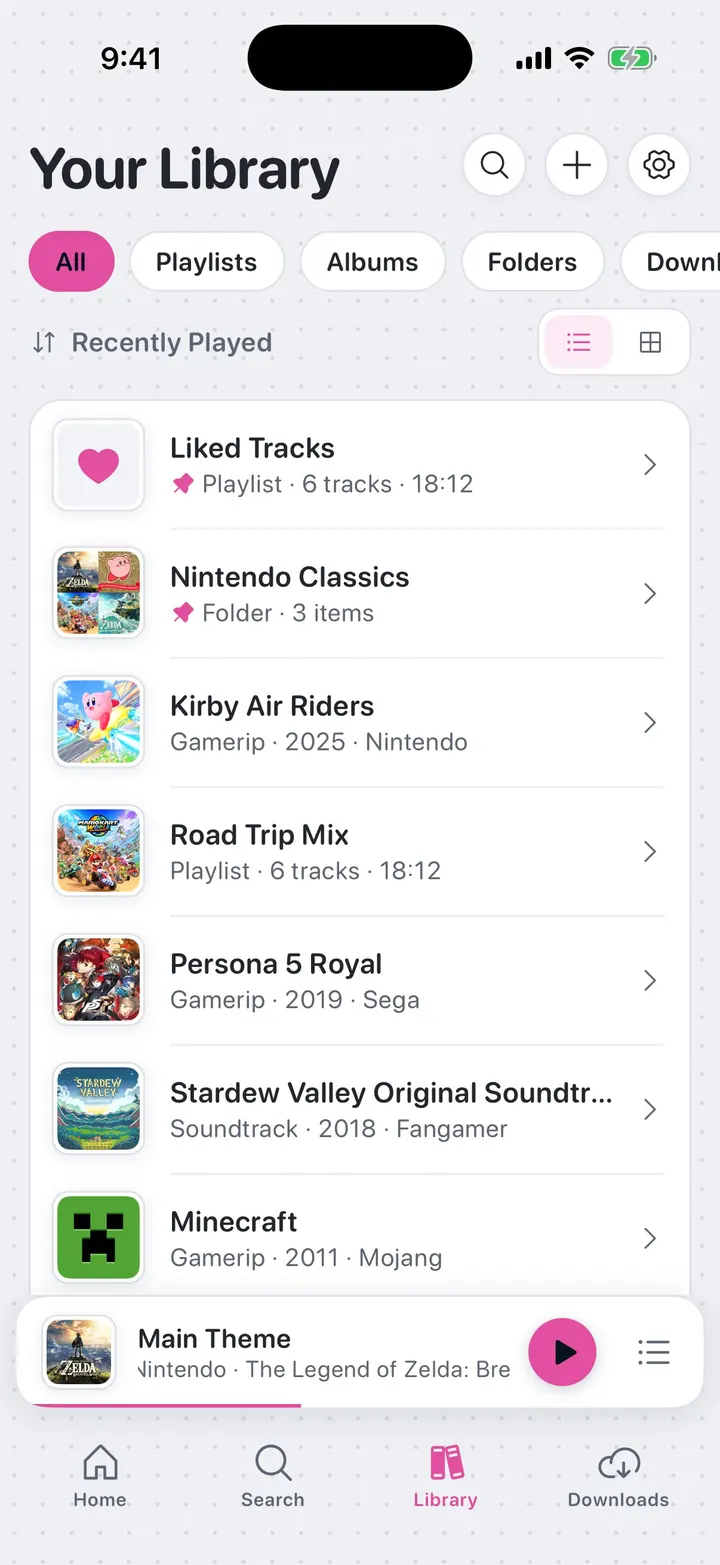
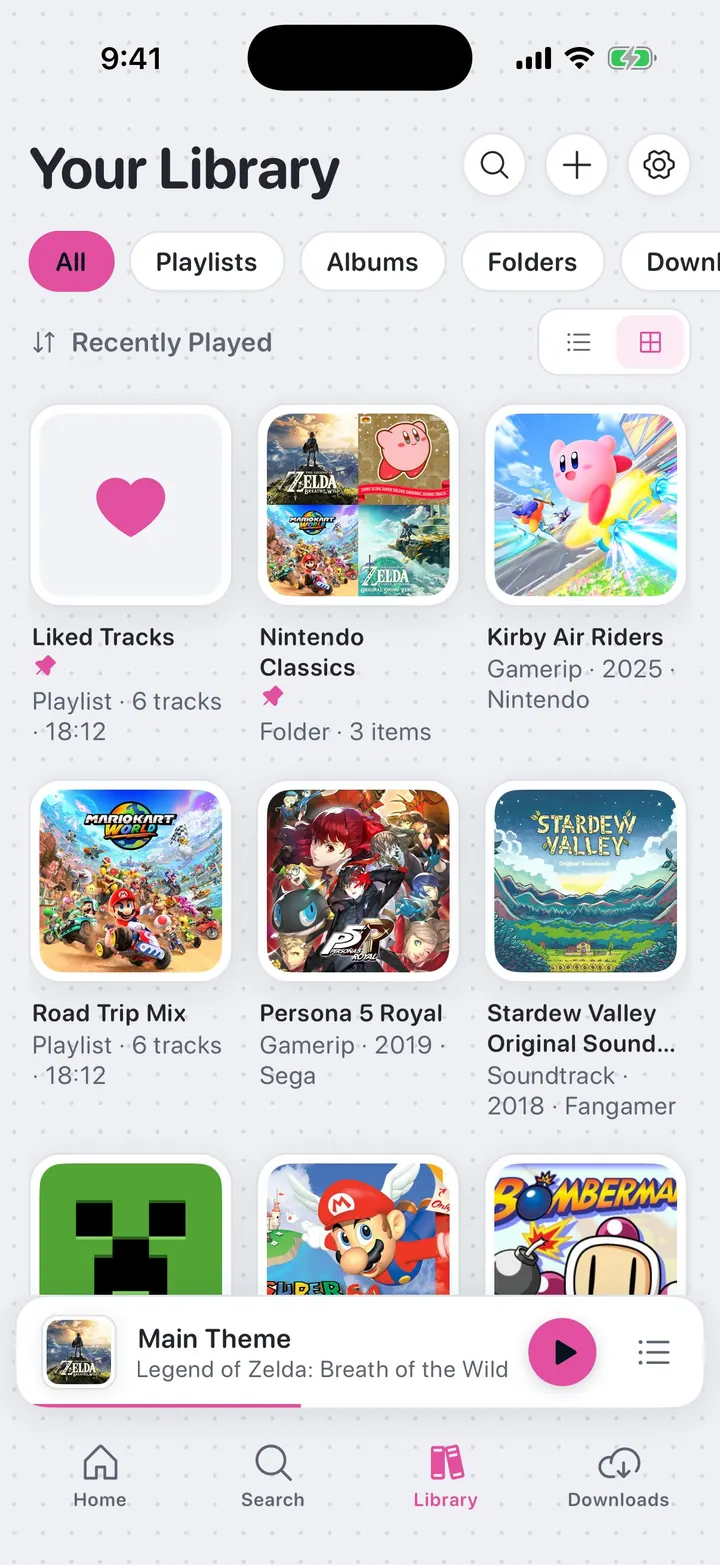
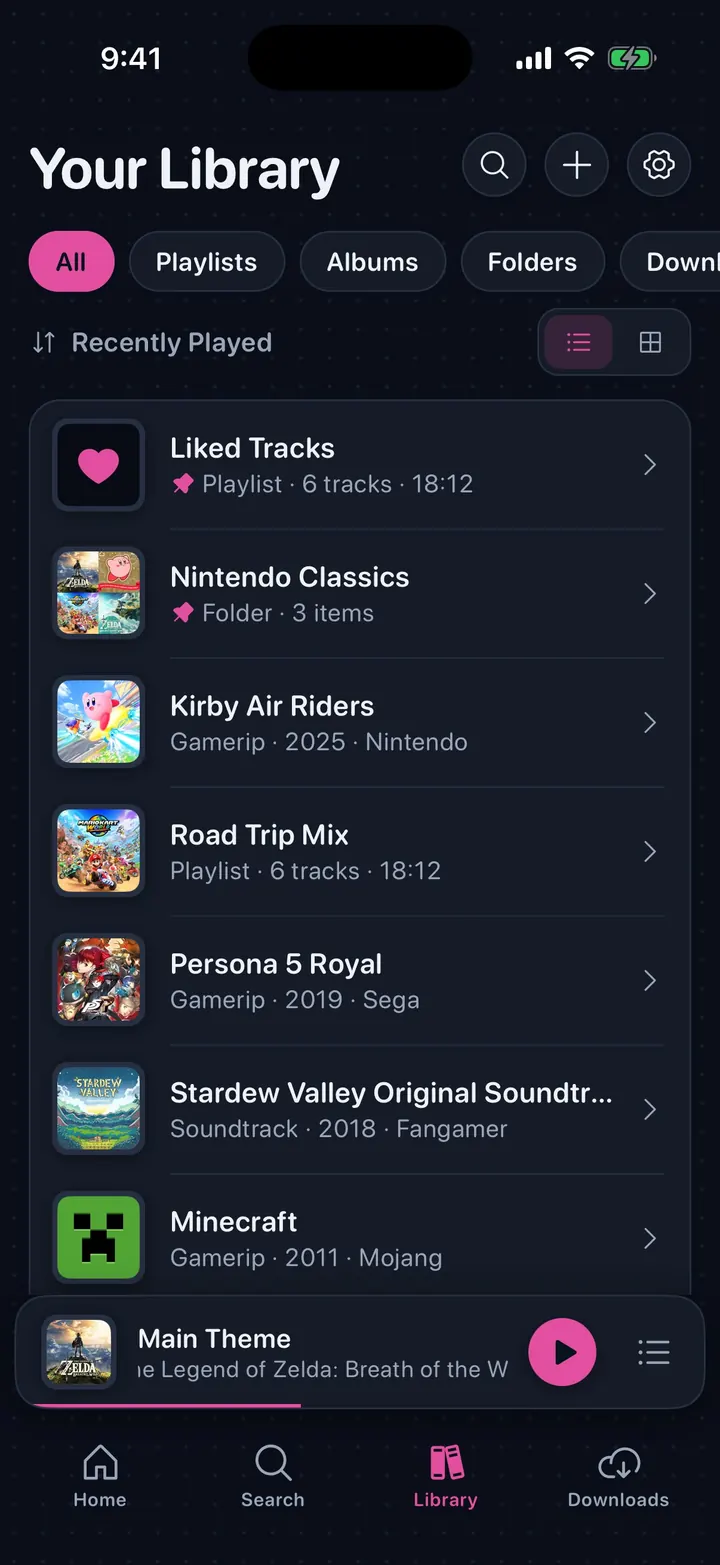
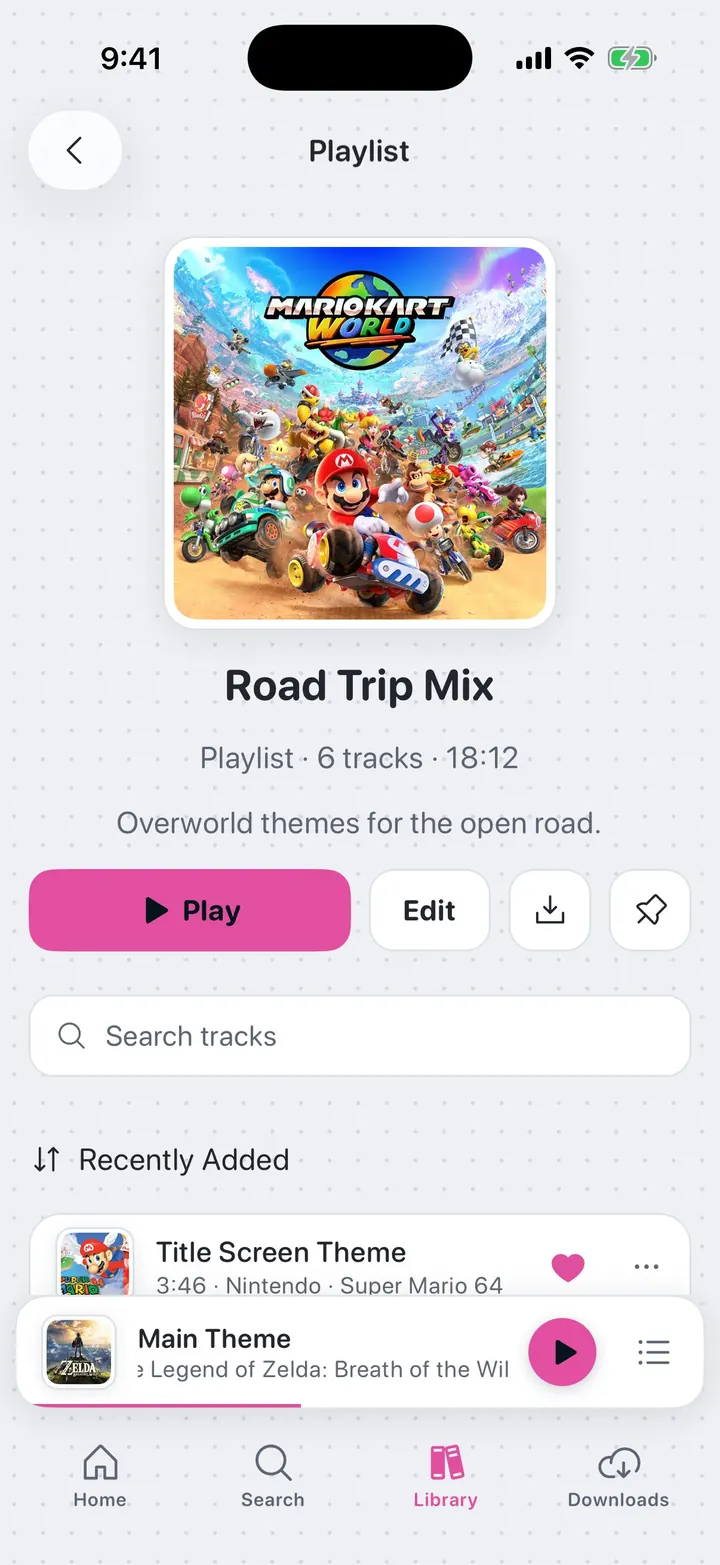
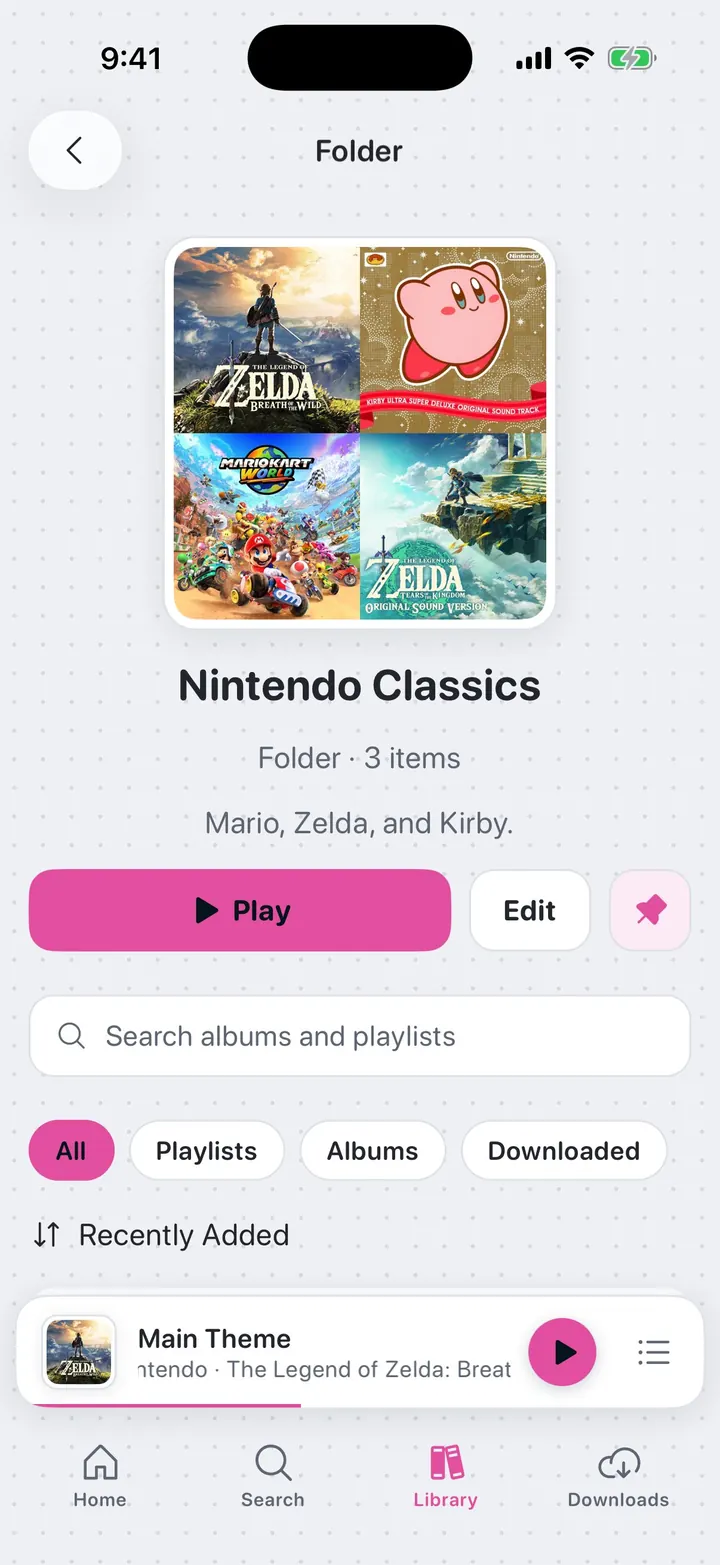
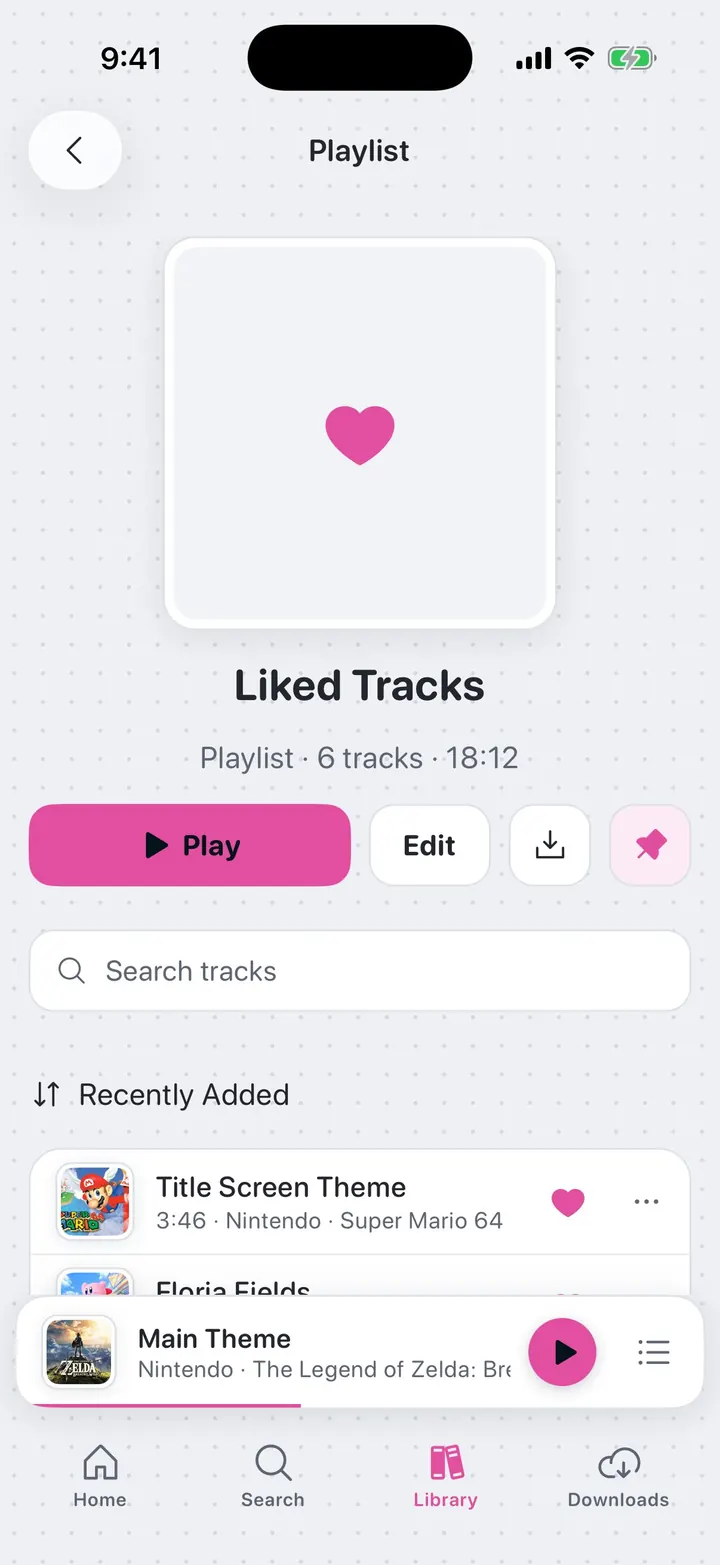
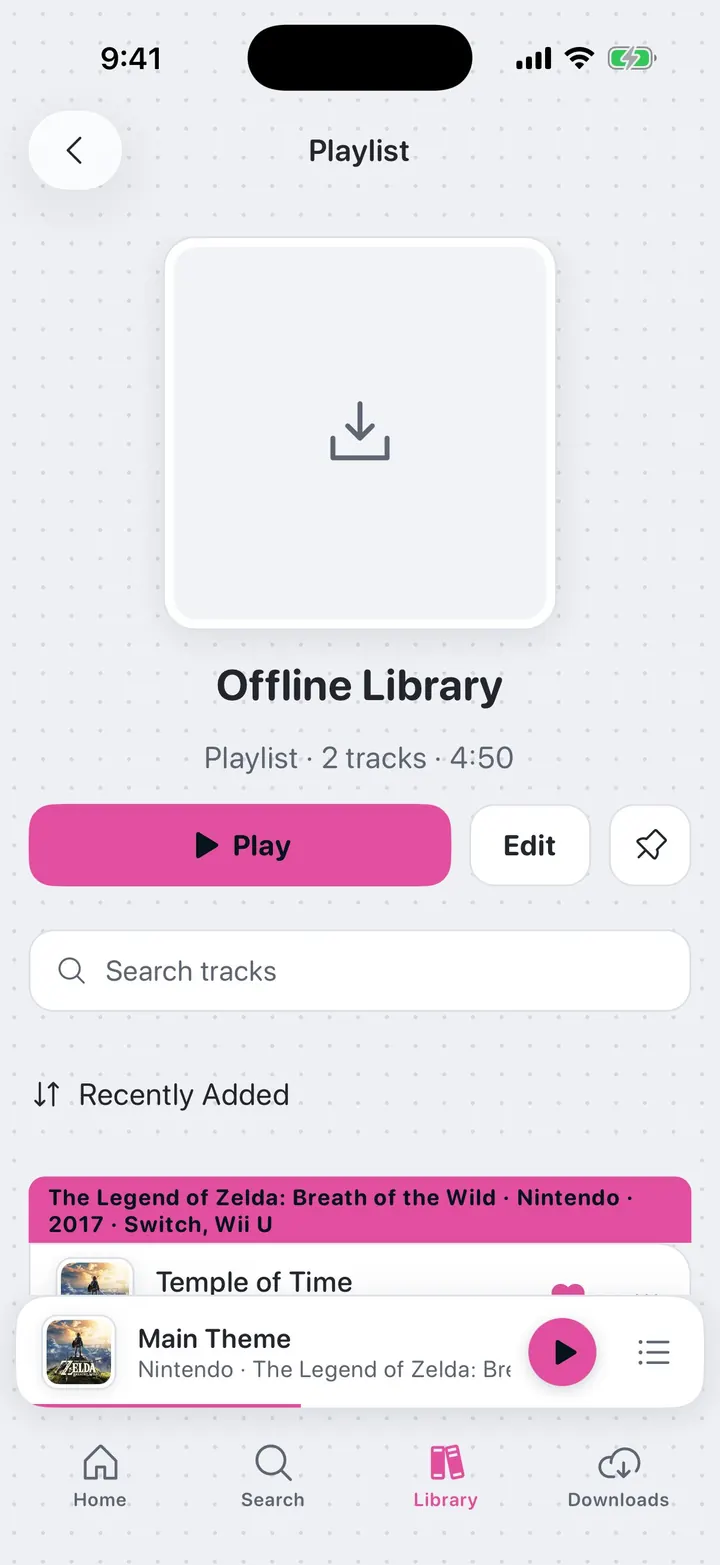
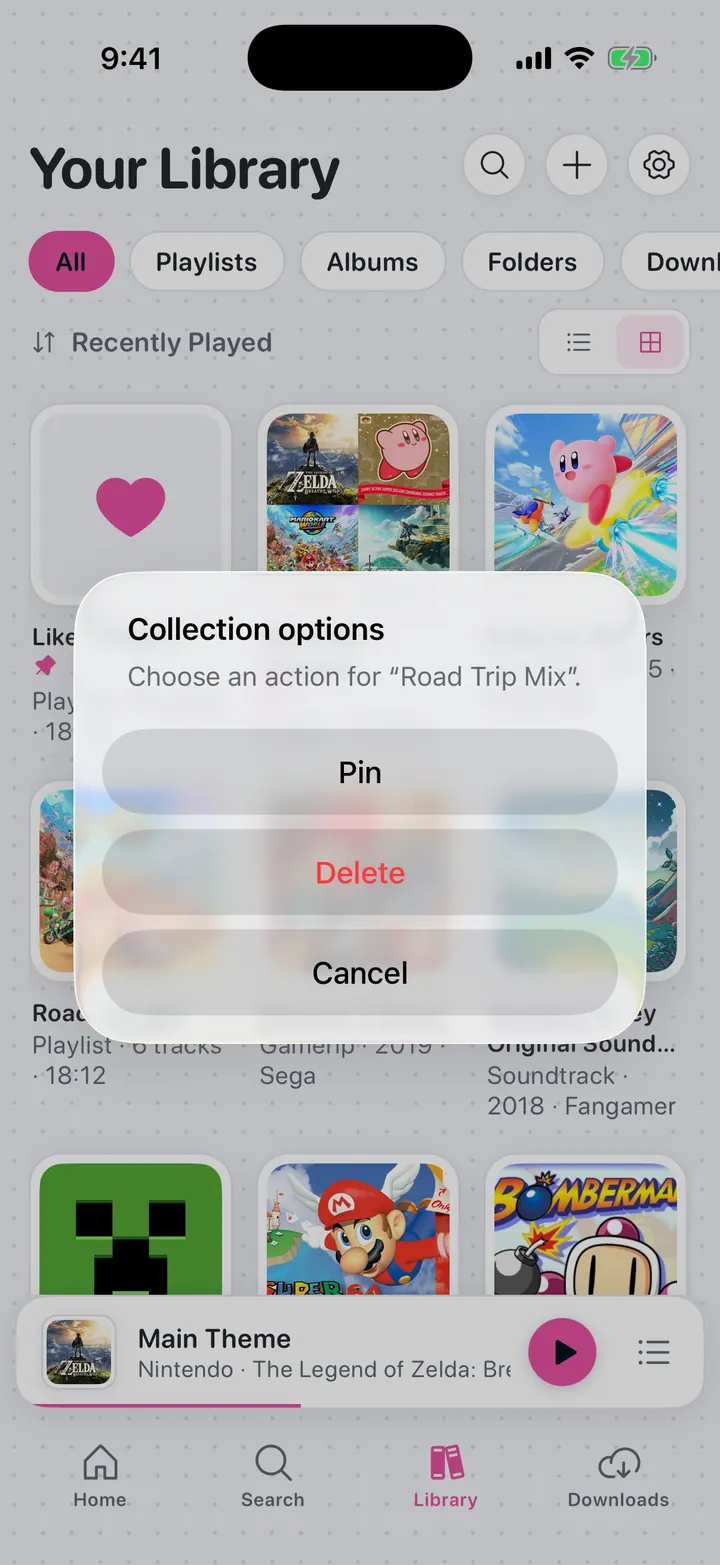
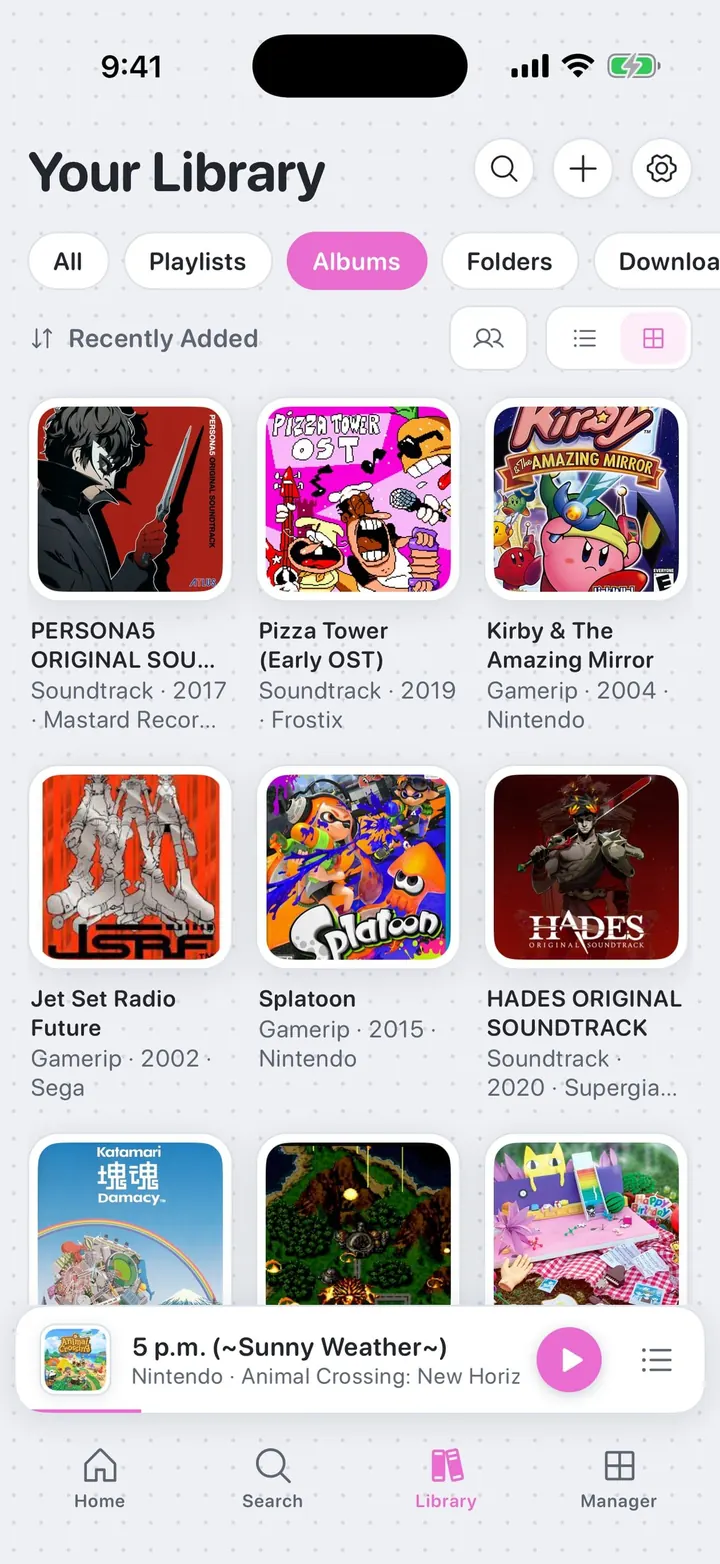
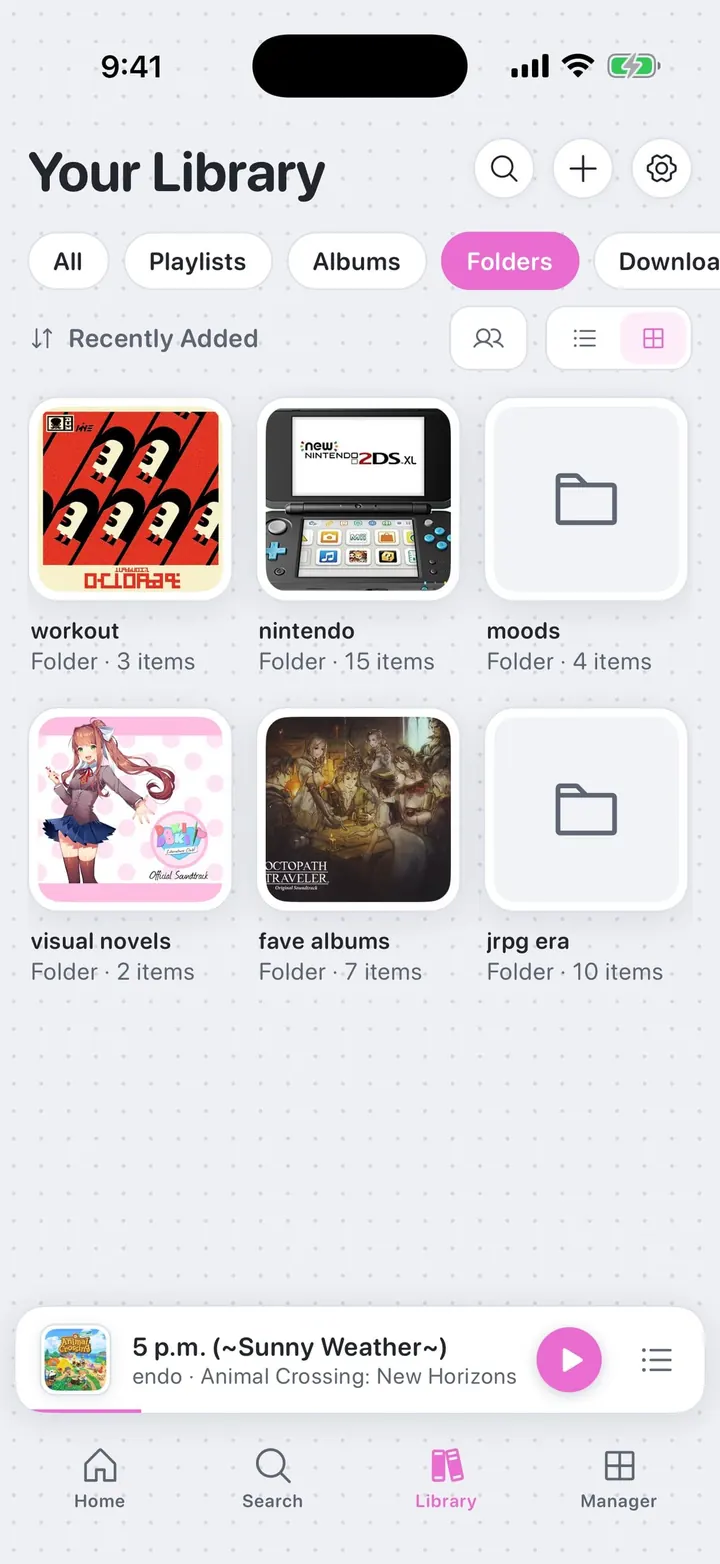
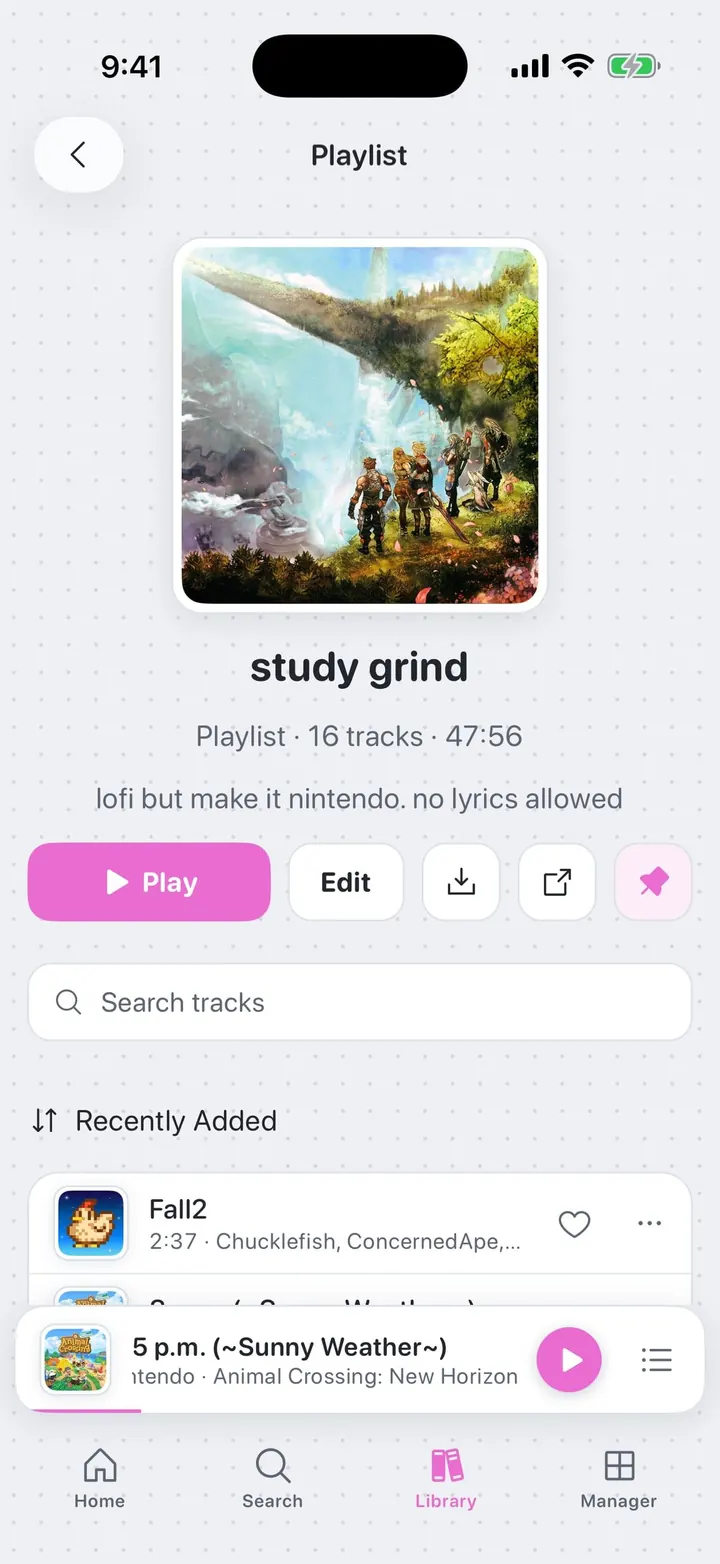
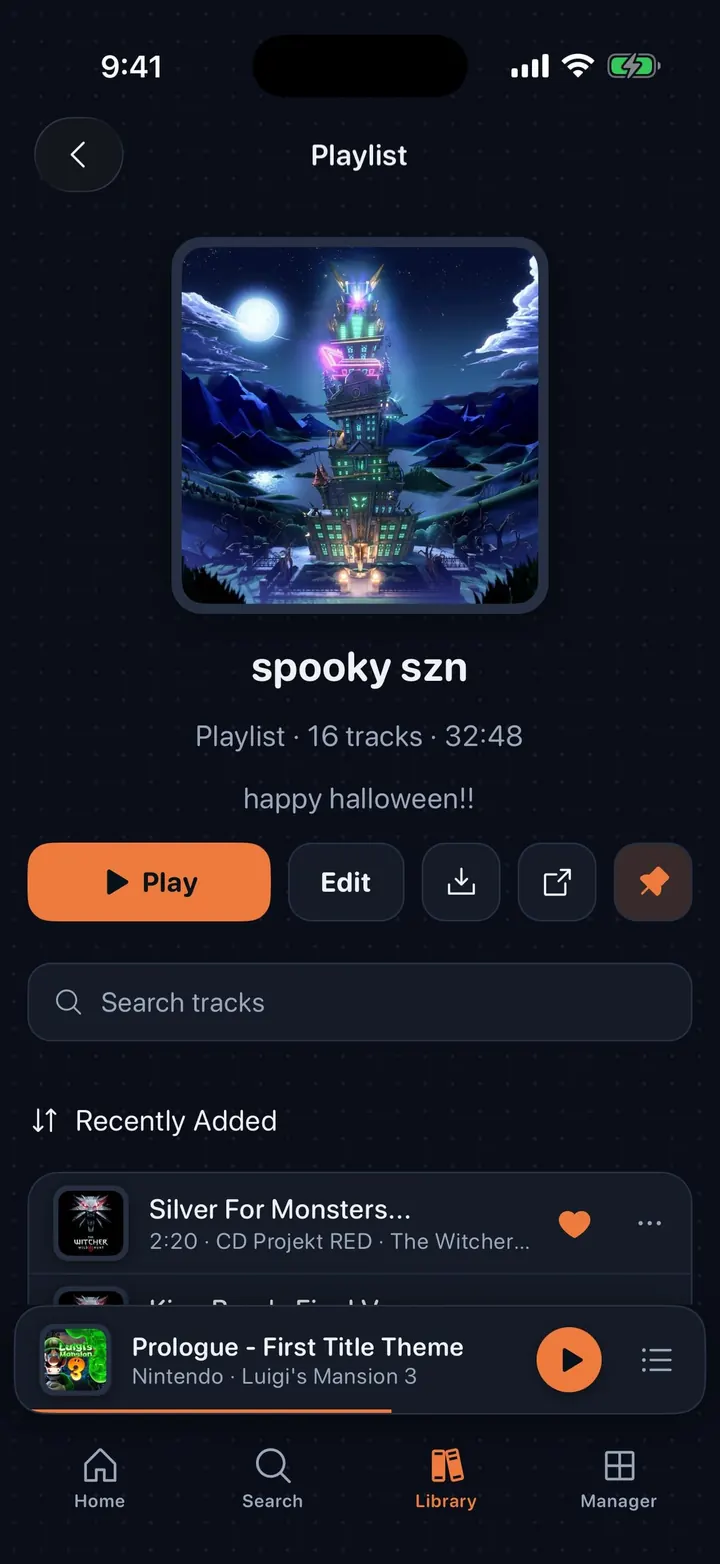
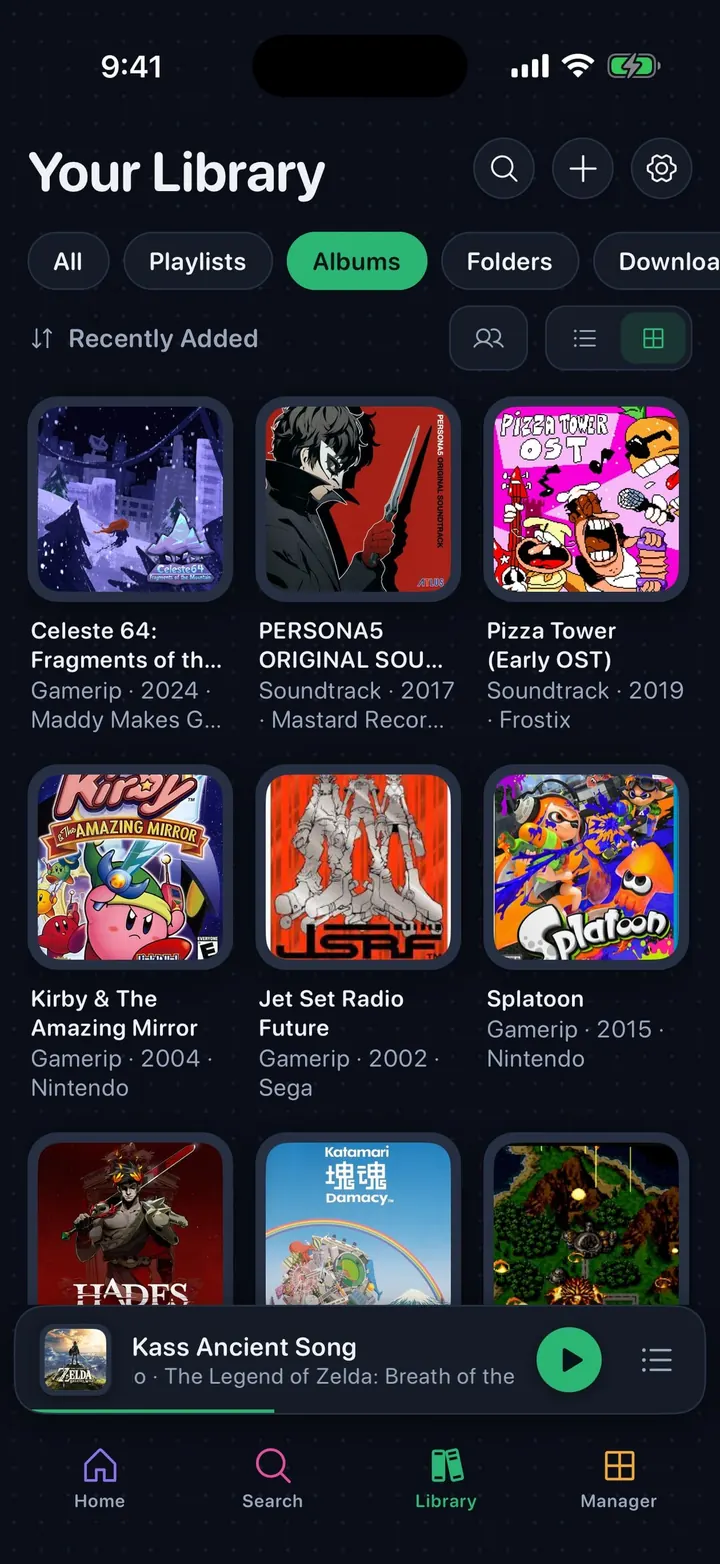
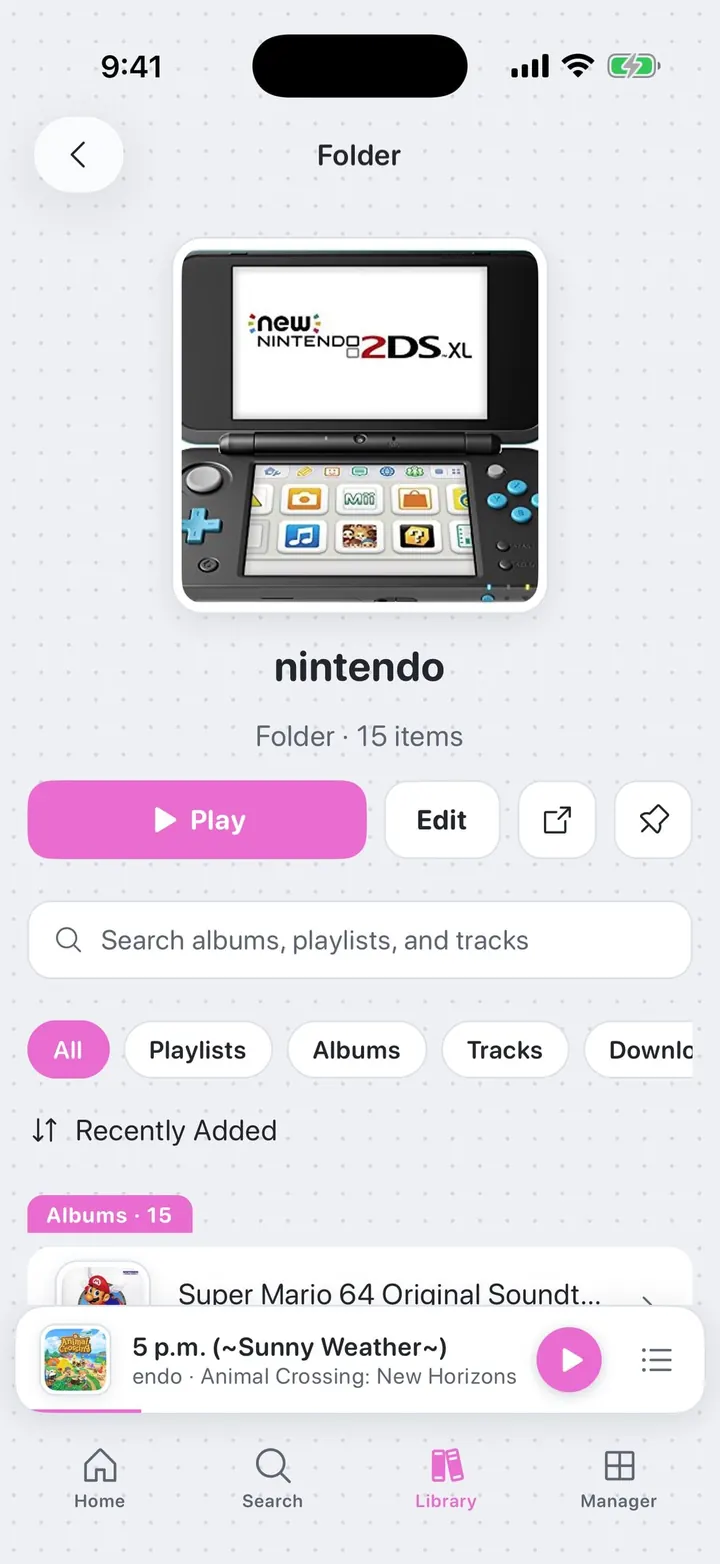
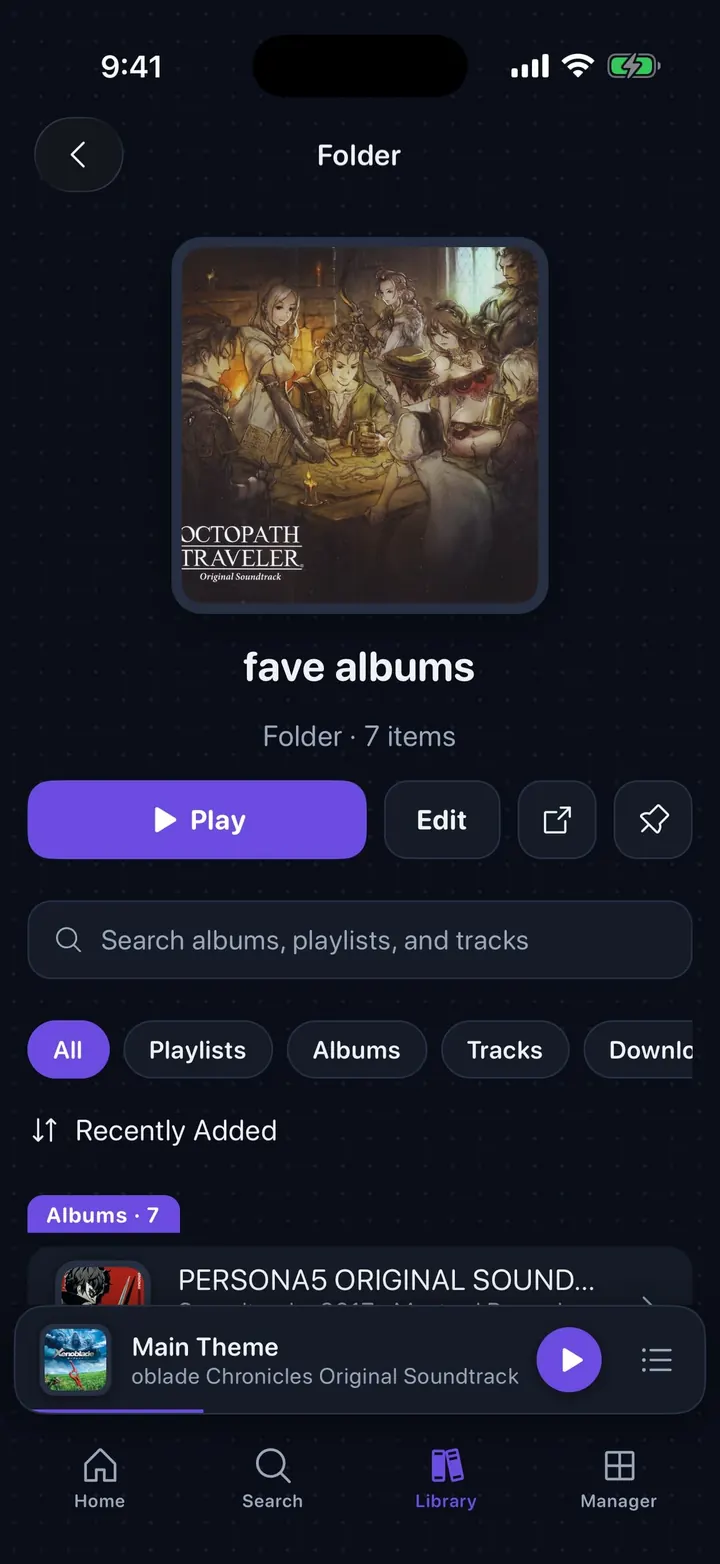
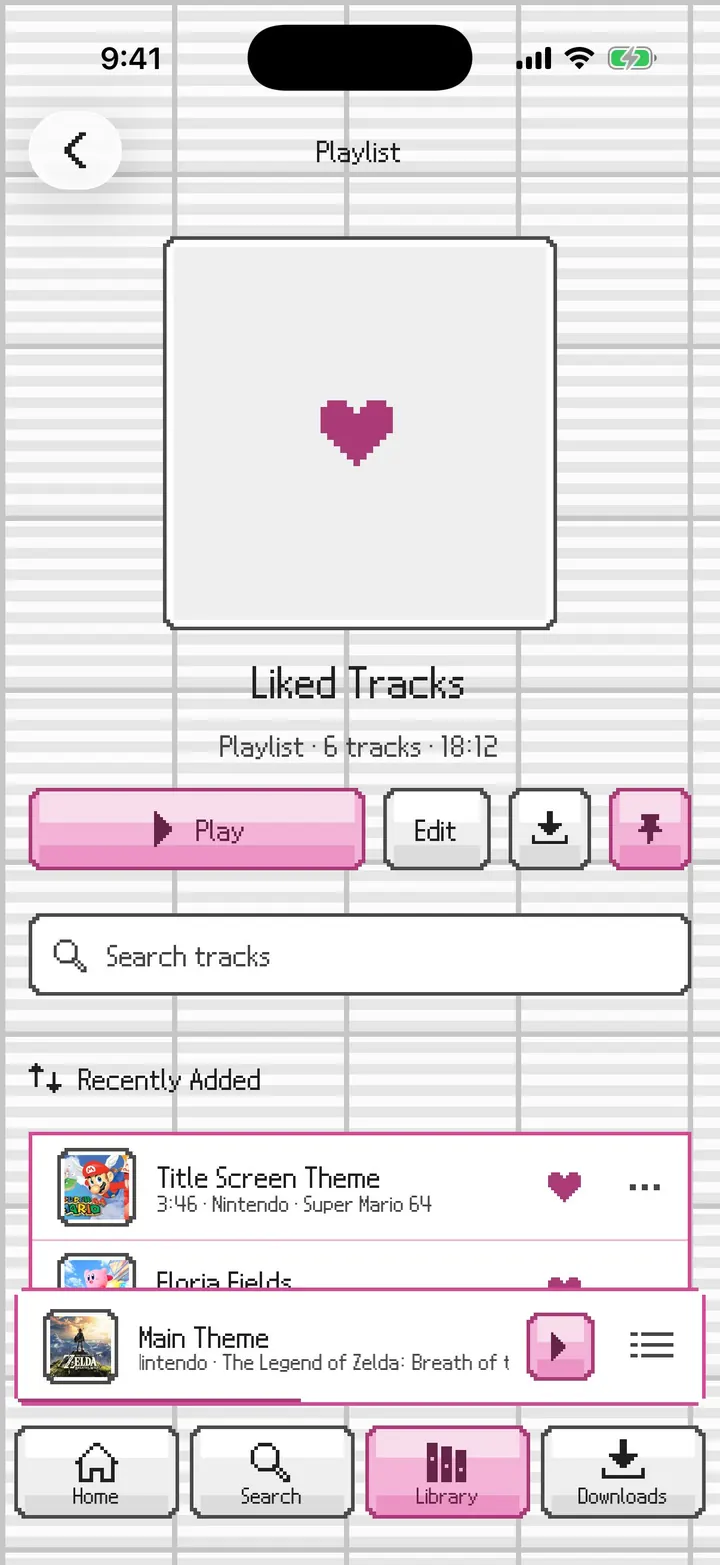
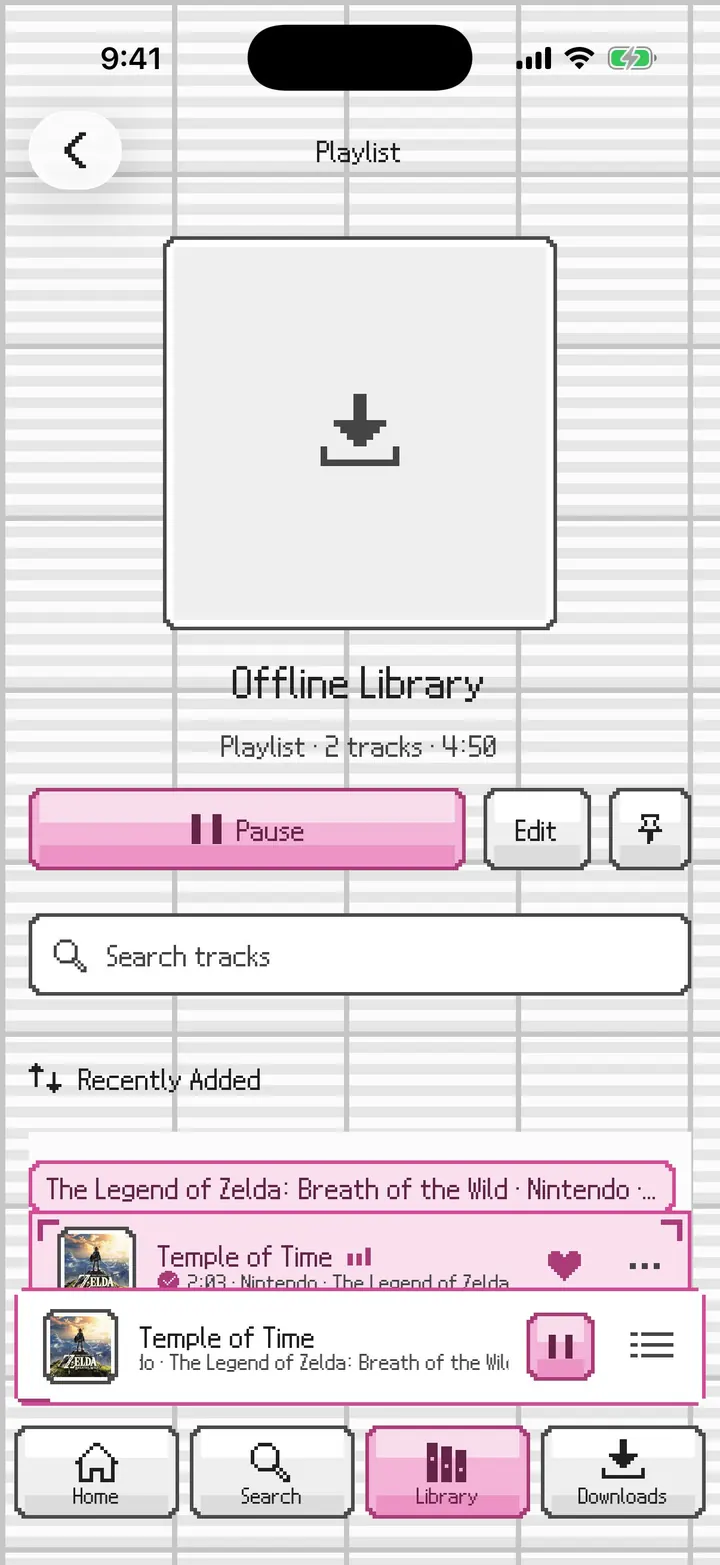
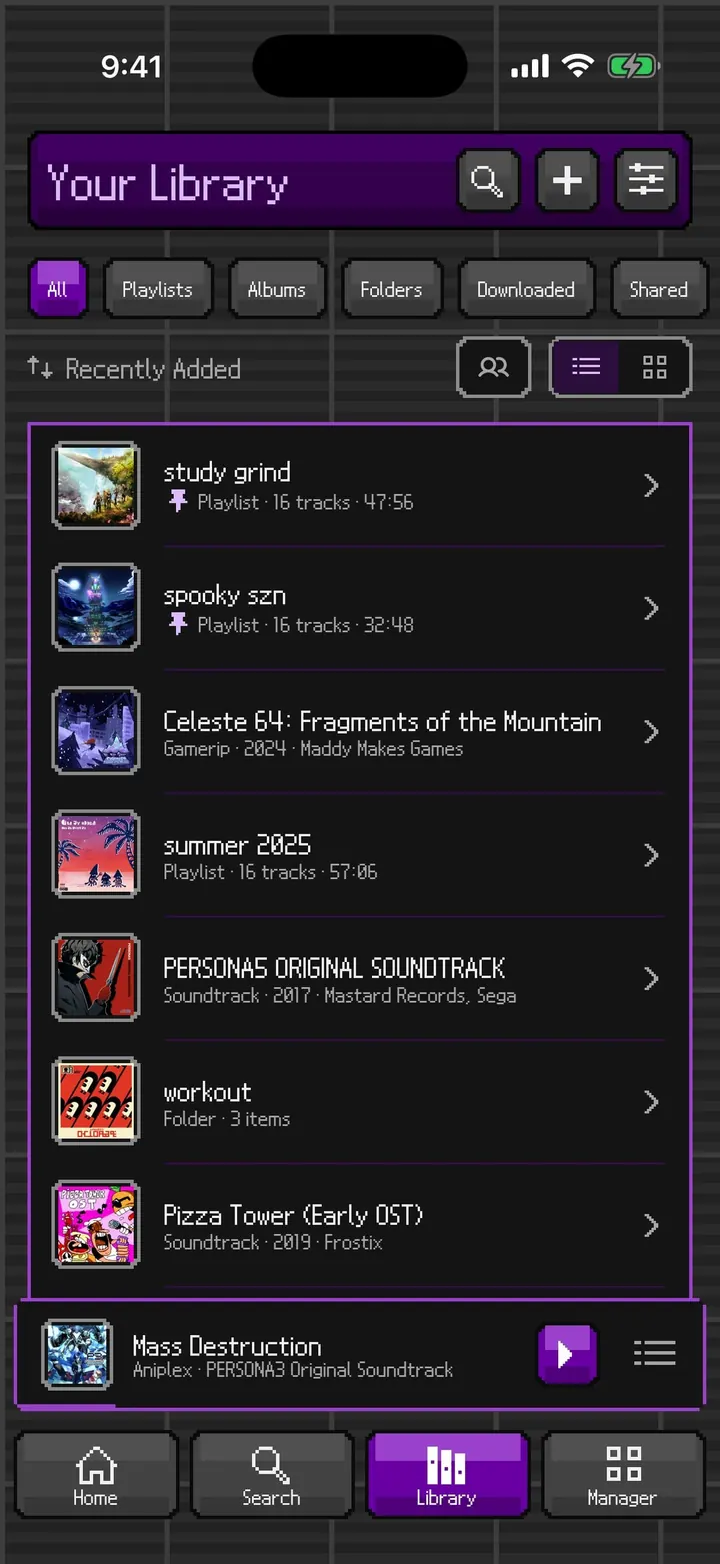
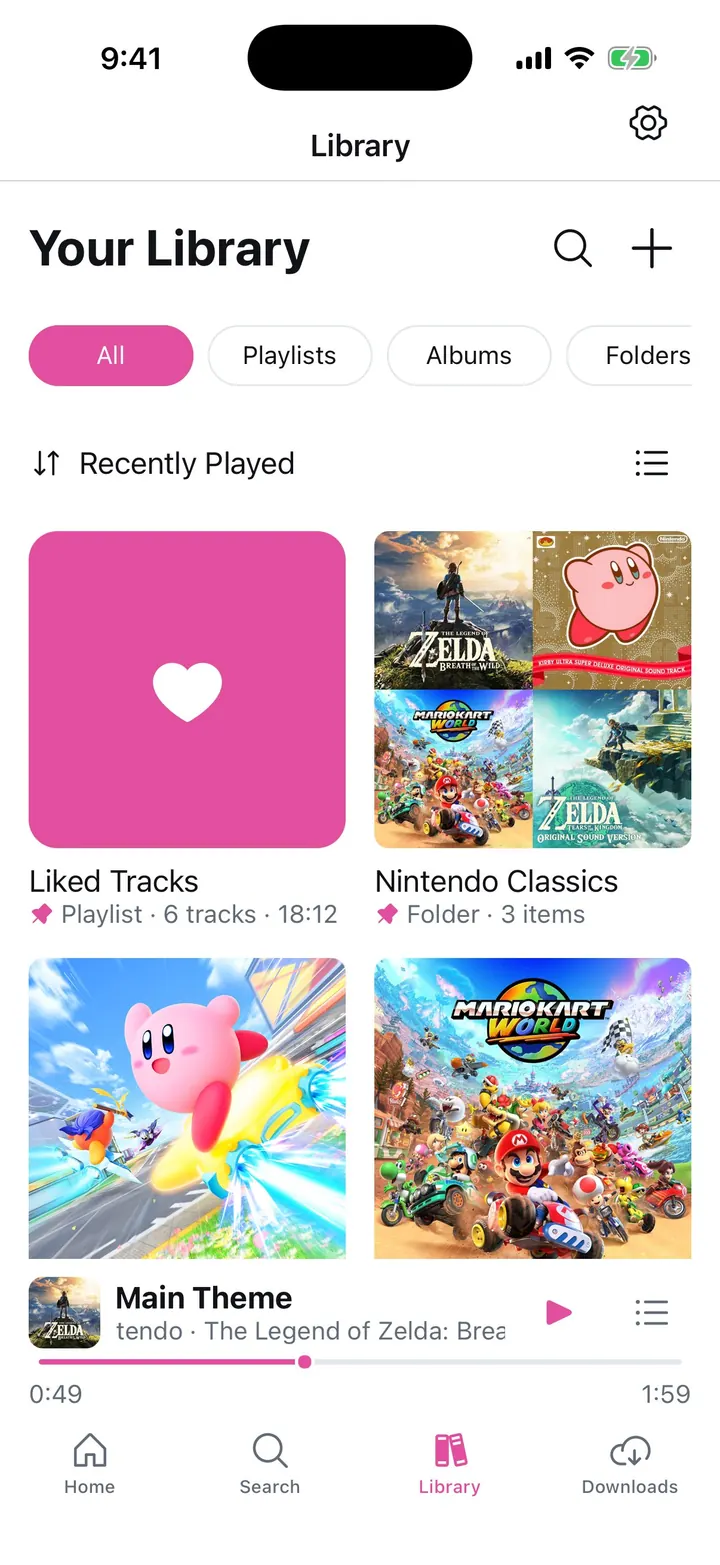
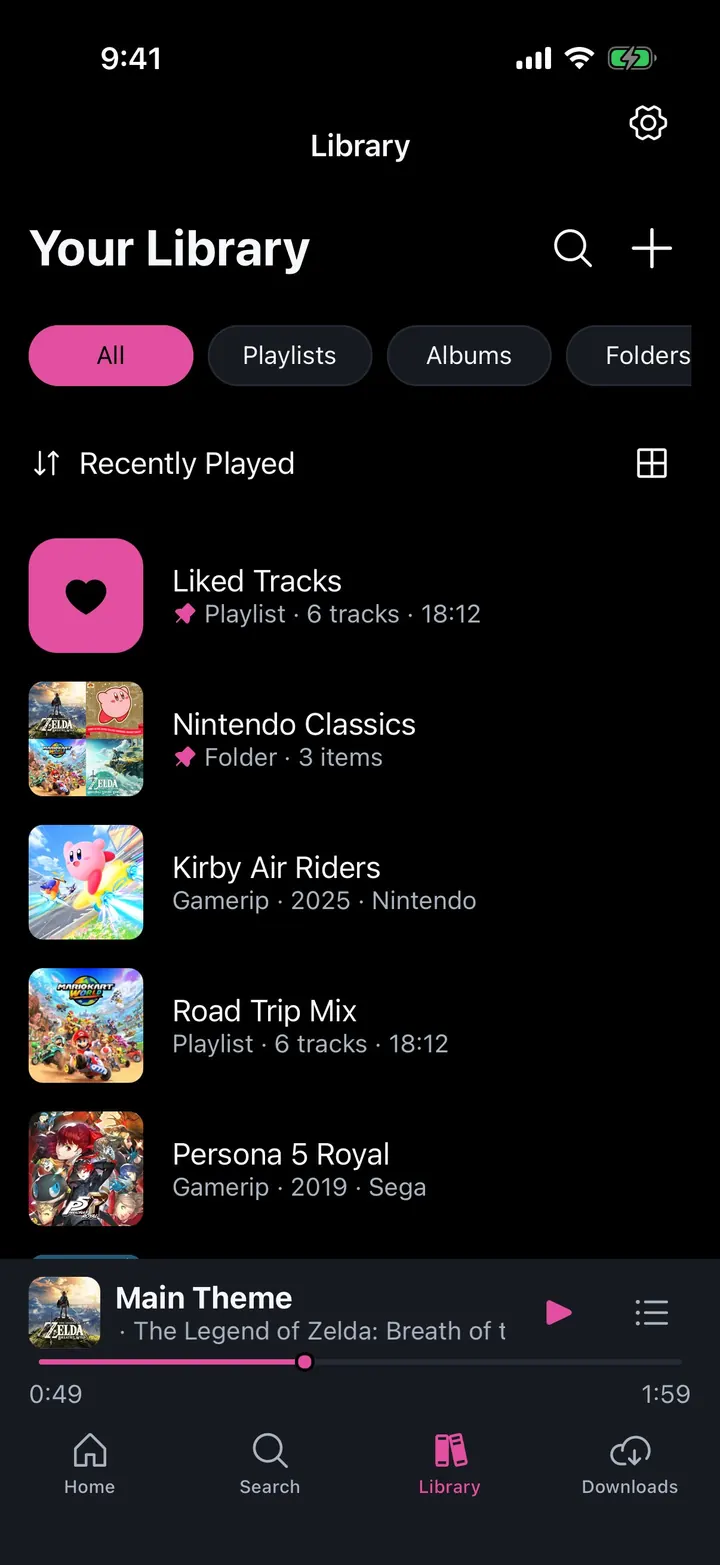
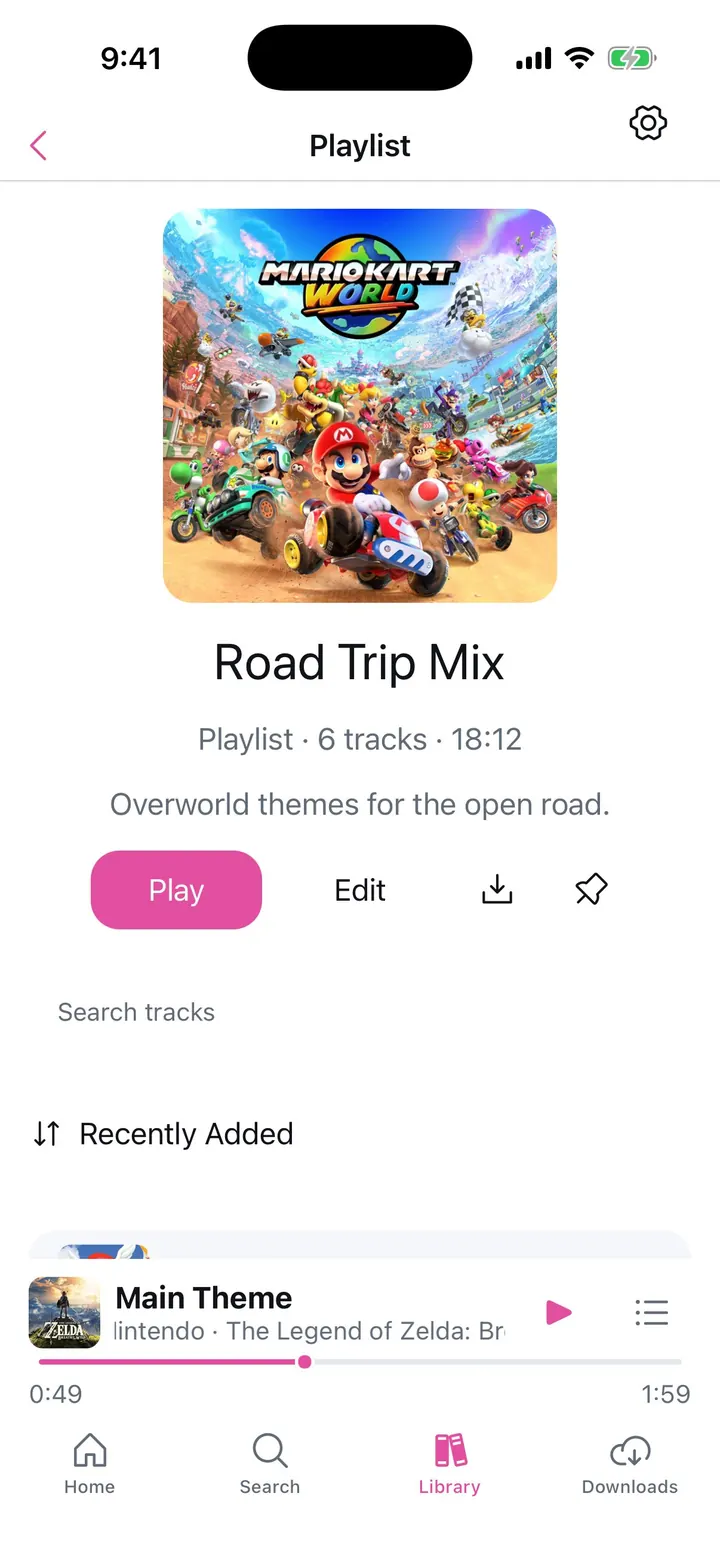
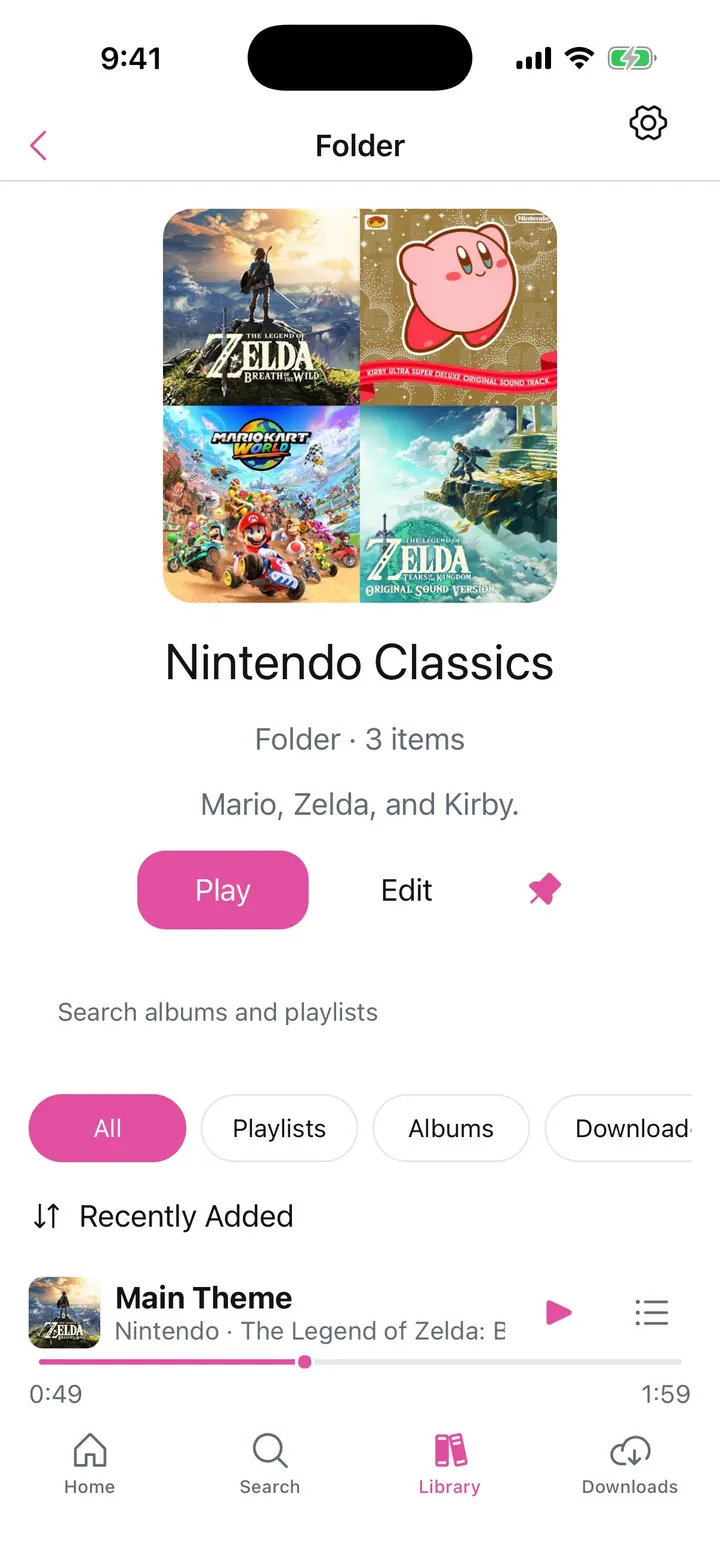
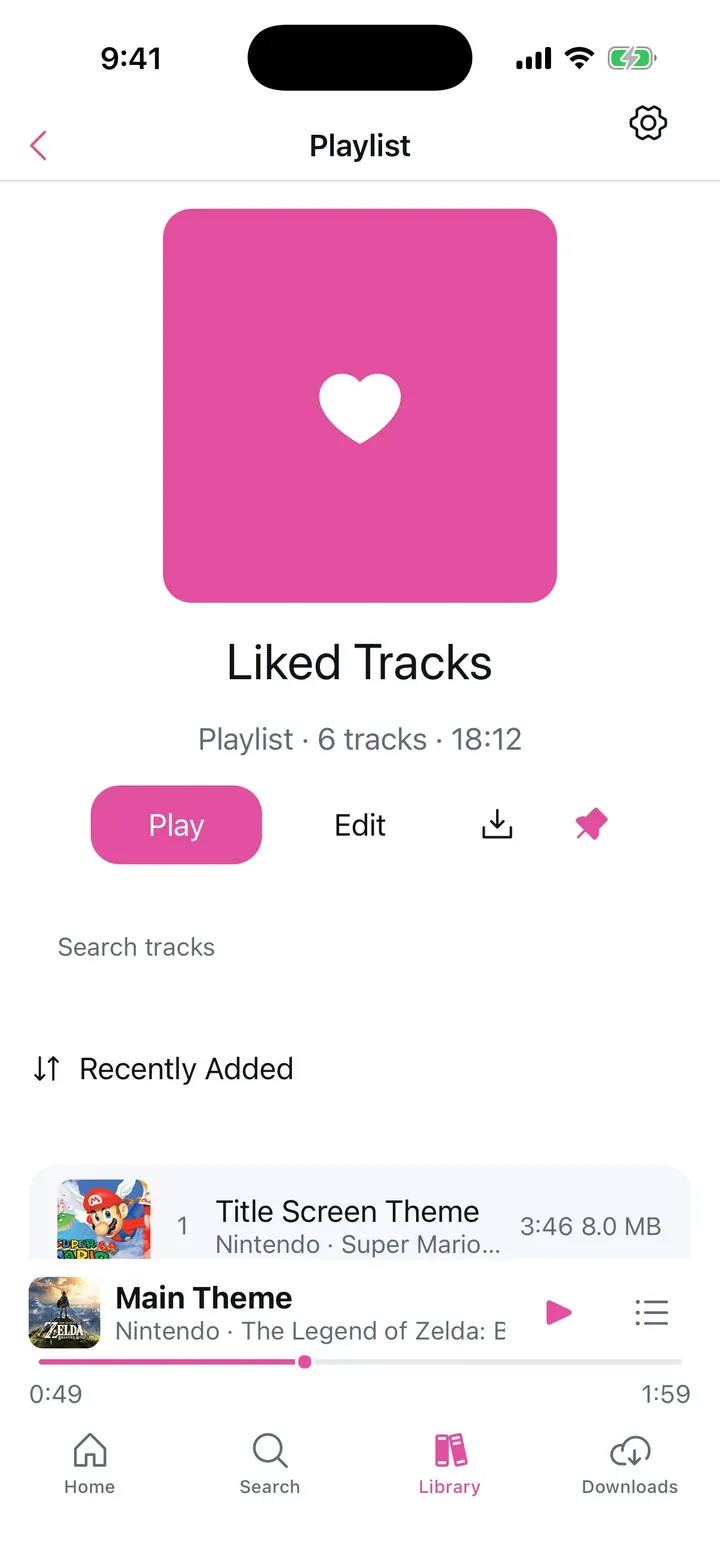
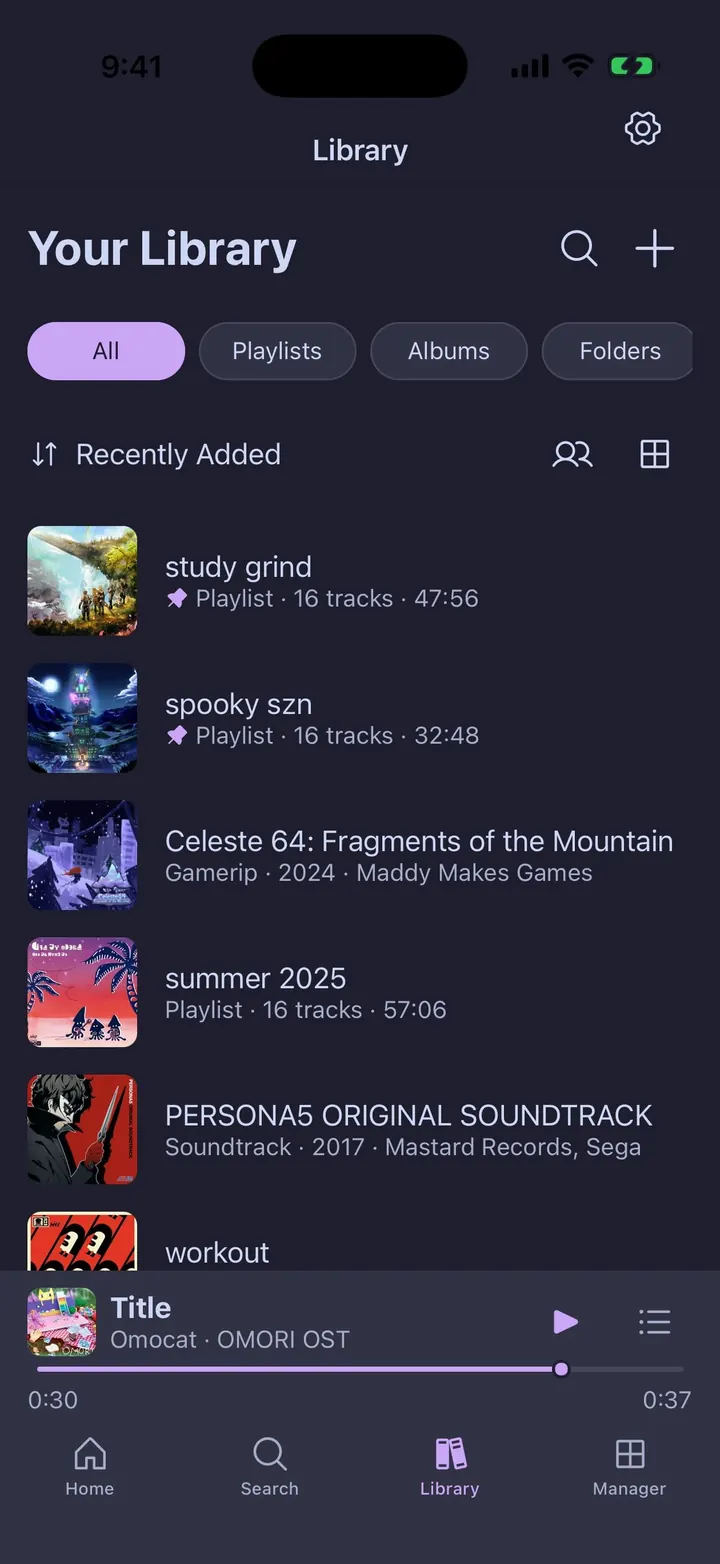
⤢Library Liked Tracks and a folder pinned to the top, then collections by Recently Played, with filter chips for Playlists, Albums, Folders, and Downloaded.⤢Library grid The same Library as a grid, with custom playlist and folder artwork.⤢Library in dark The list view on the dark shell.⤢Playlist: Road Trip Mix A playlist with its own cover and description, Play, Edit, Download, and Pin.⤢Folder: Nintendo Classics A folder grouping albums, with its own search and filter chips inside.⤢Liked Tracks Every liked track in one place, sorted by Recently Added.⤢Offline Library Downloaded tracks, grouped by album, playable with no connection.⤢Collection options Hold a Library item to pin or delete it.⤢Albums filter The filter chips narrow the Library to one type, shown here as a grid of albums.⤢Folders Folders in the grid, each with its own cover and item count.⤢Playlist with your own cover A playlist with its own cover and description, plus buttons to play, edit, download, share, and pin it.⤢Playlist in dark A playlist on the dark shell with an orange accent.⤢Library grid in dark Saved albums in bezeled covers on the dark shell with a green accent.⤢Folder with sections A folder lists its playlists, albums, and tracks in labeled sections, and the Tracks chip filters to single tracks.⤢Folder in dark A folder on the dark shell with a purple accent.
Console Playback
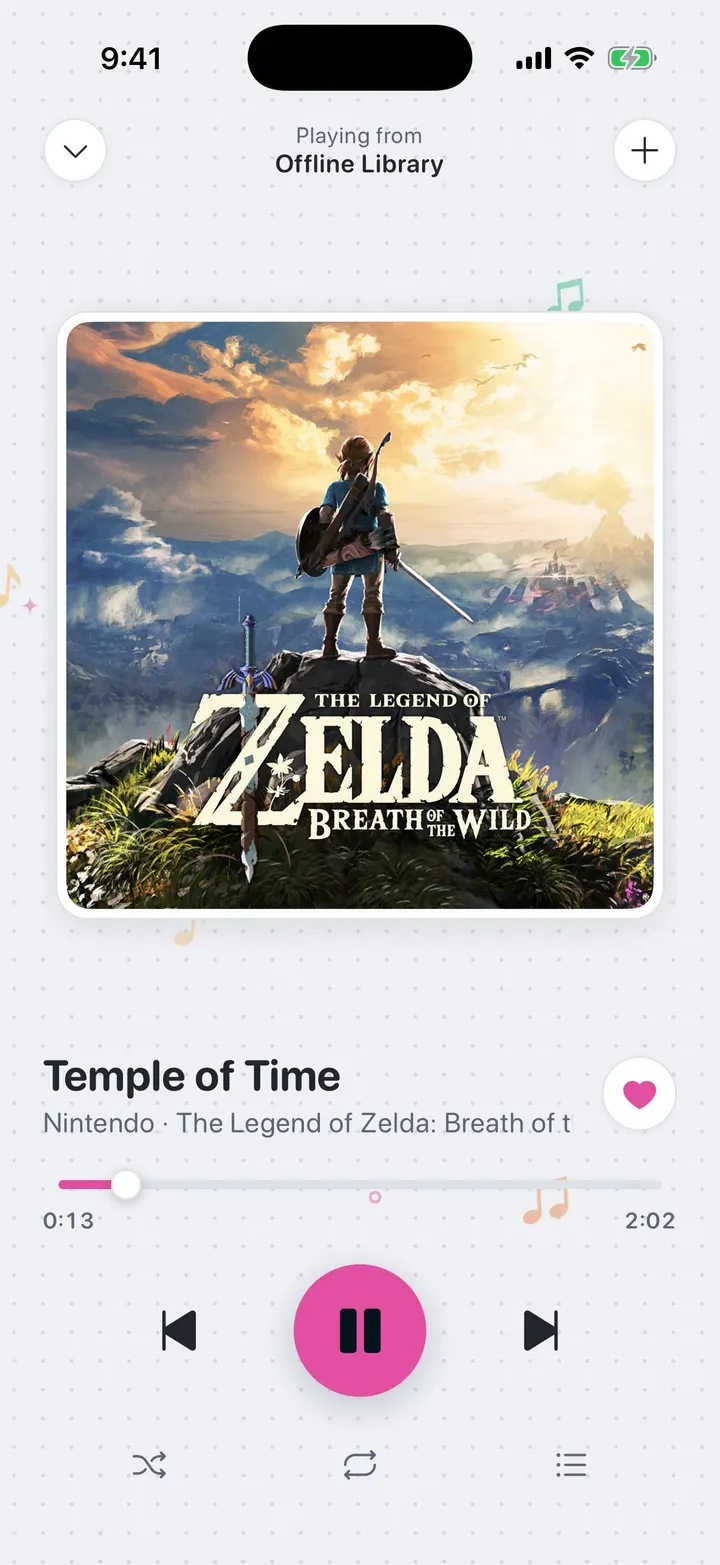
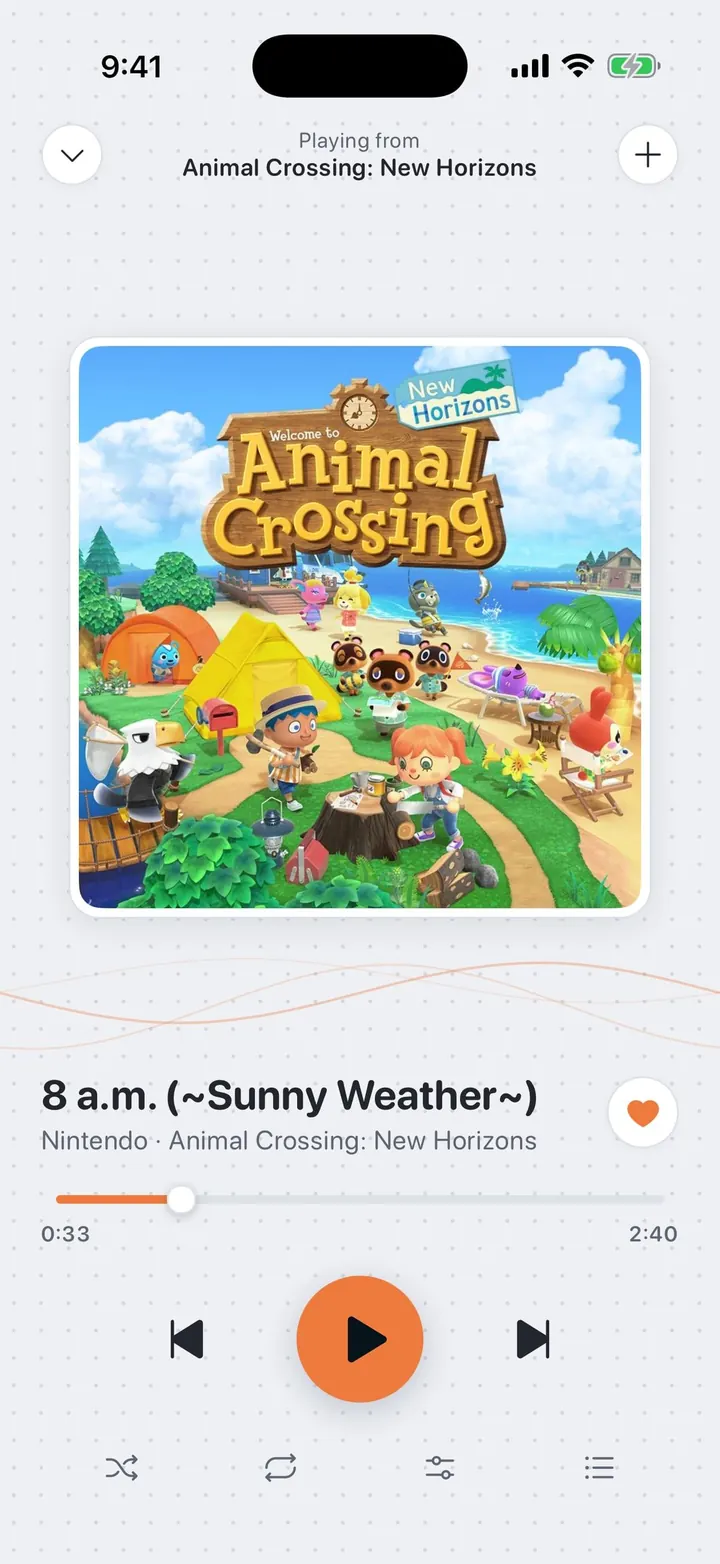
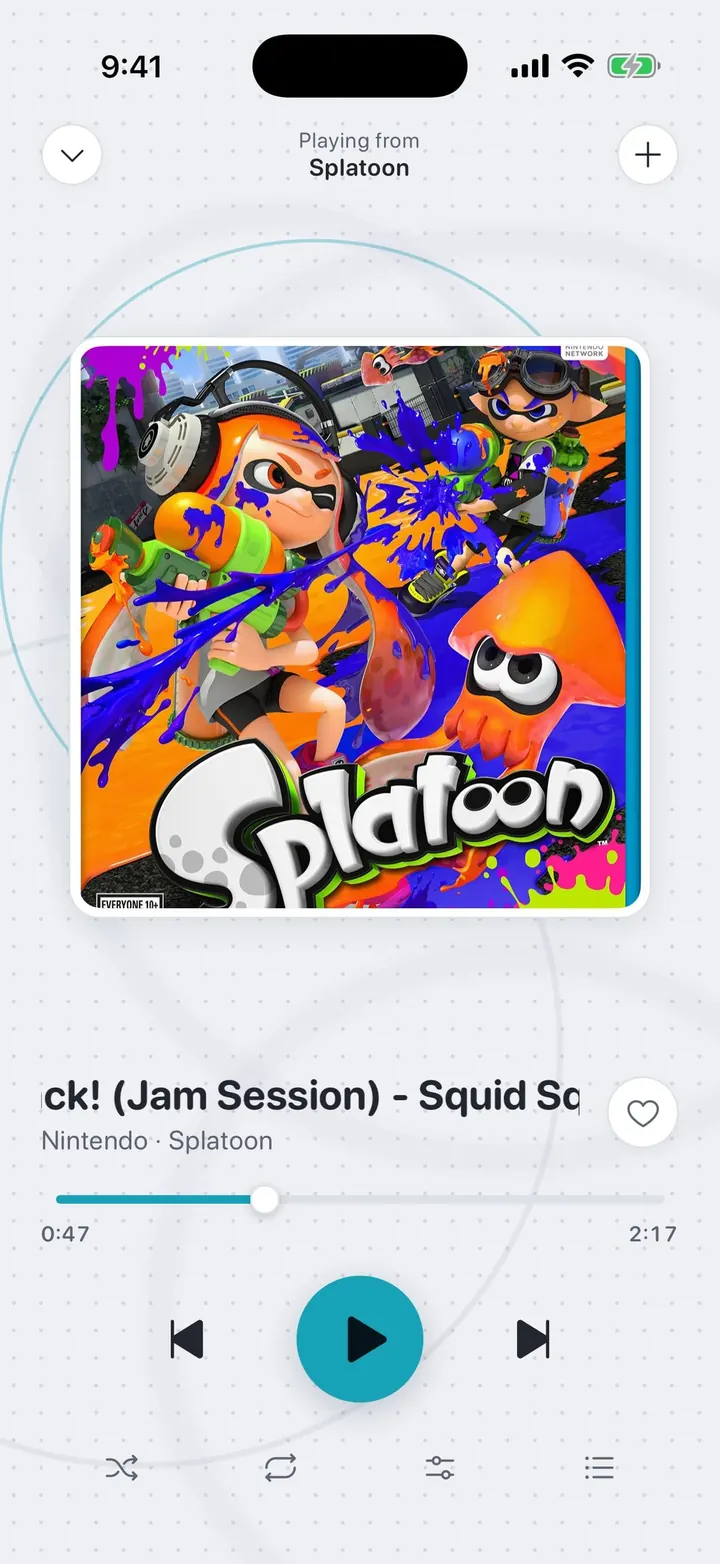
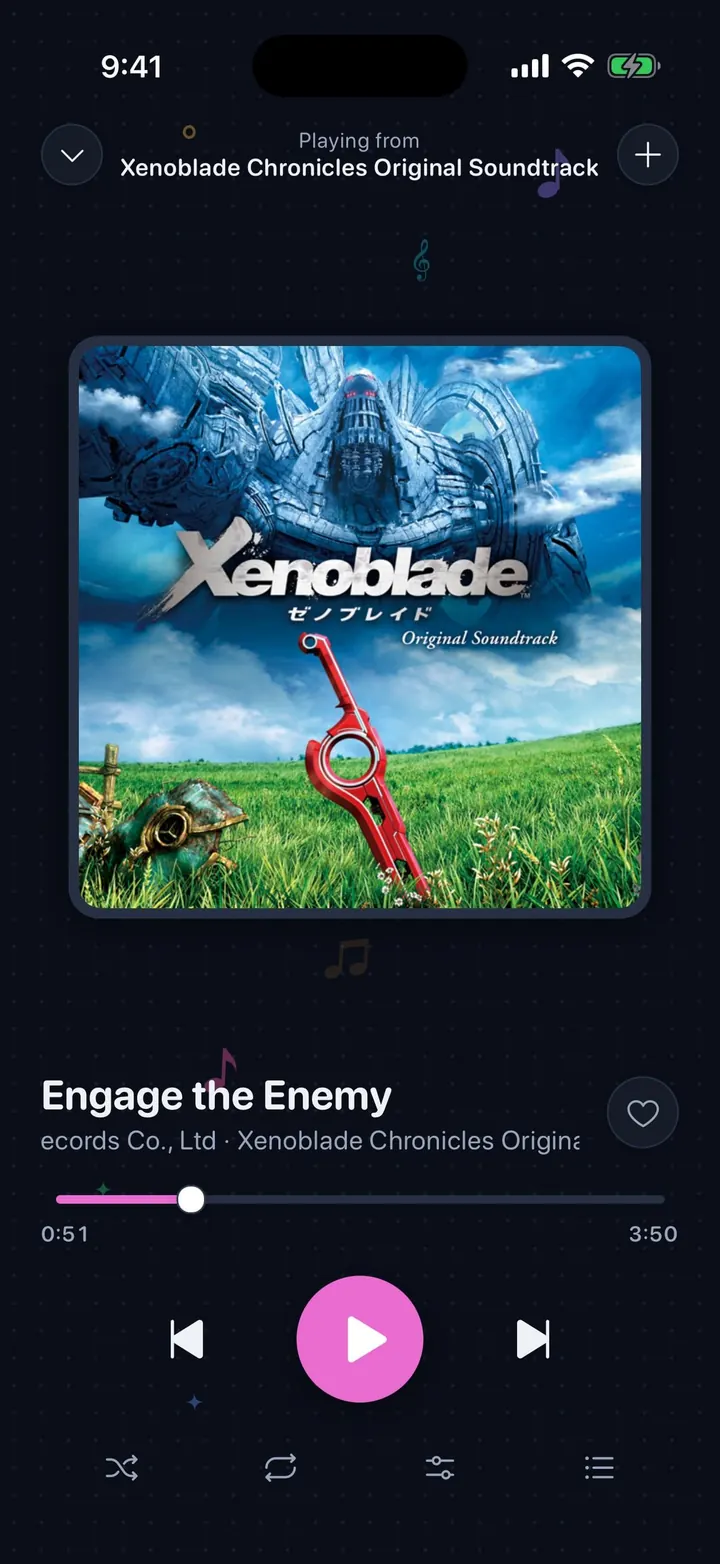
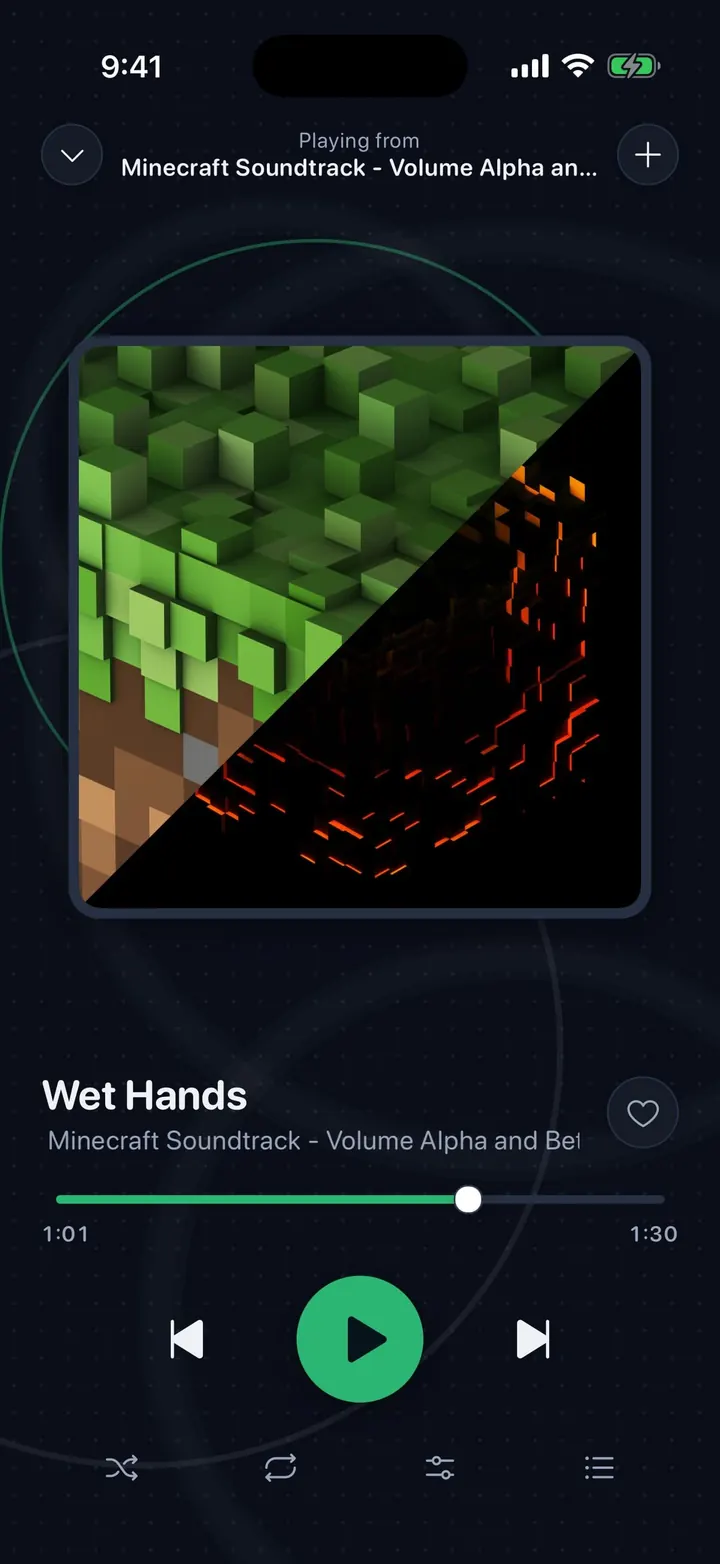
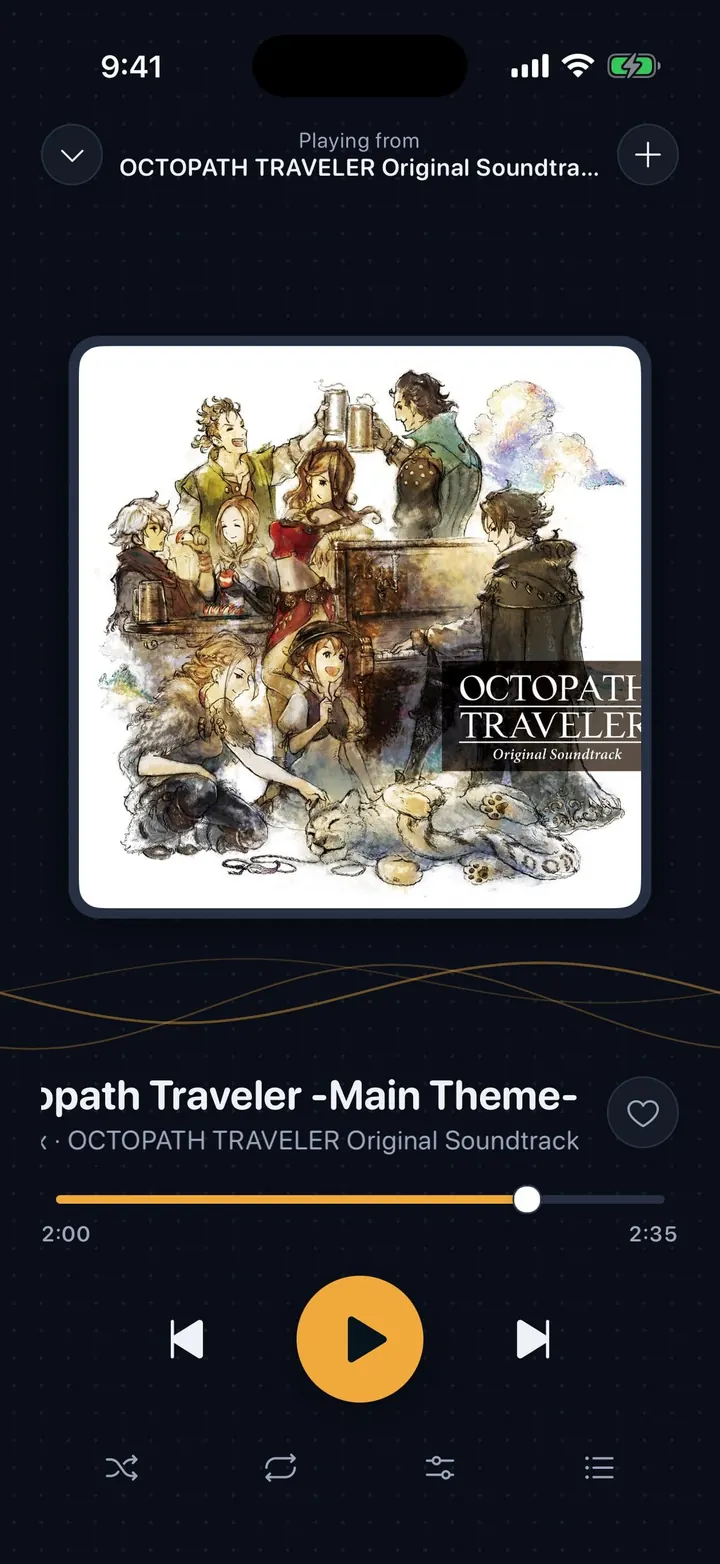
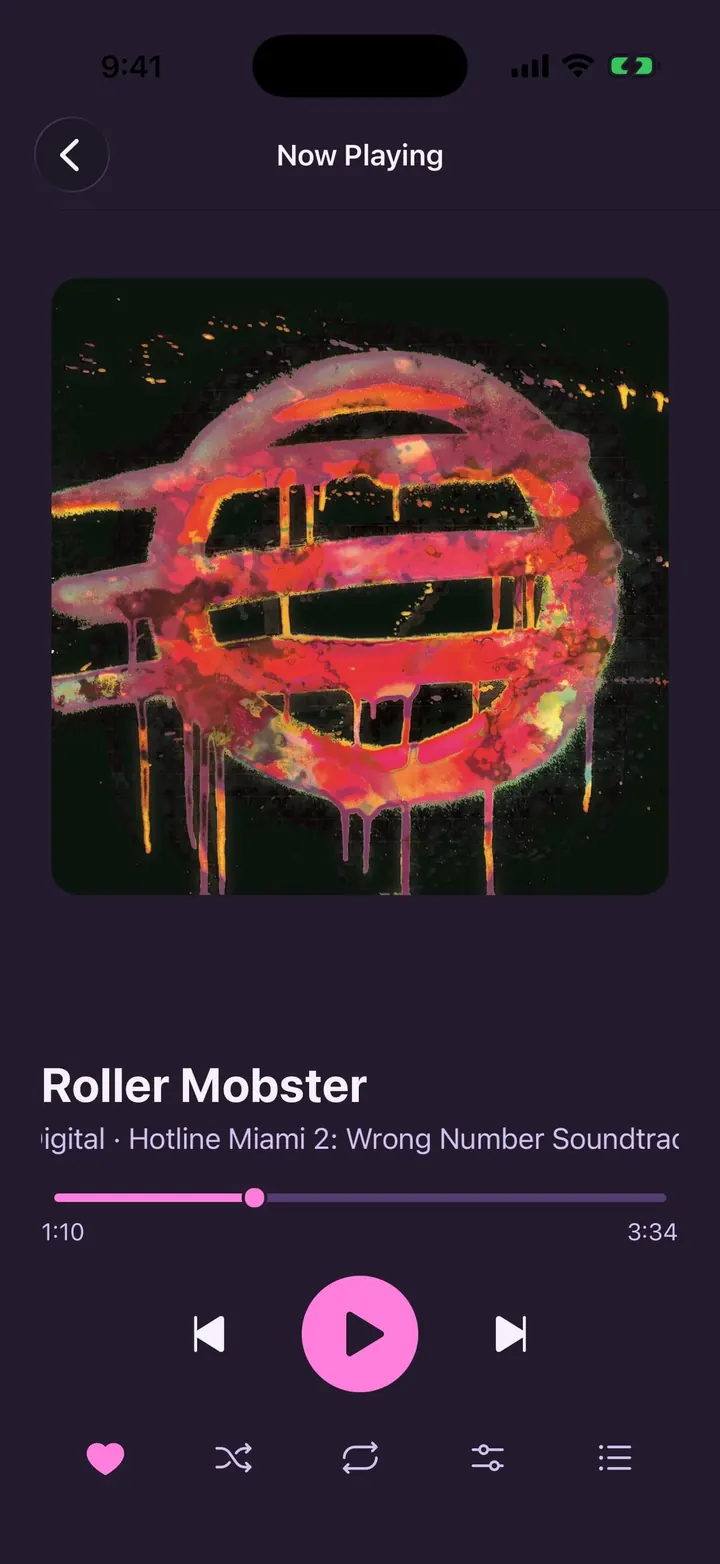
Now Playing in Console, with a choice of moving backgrounds behind the player while music plays.
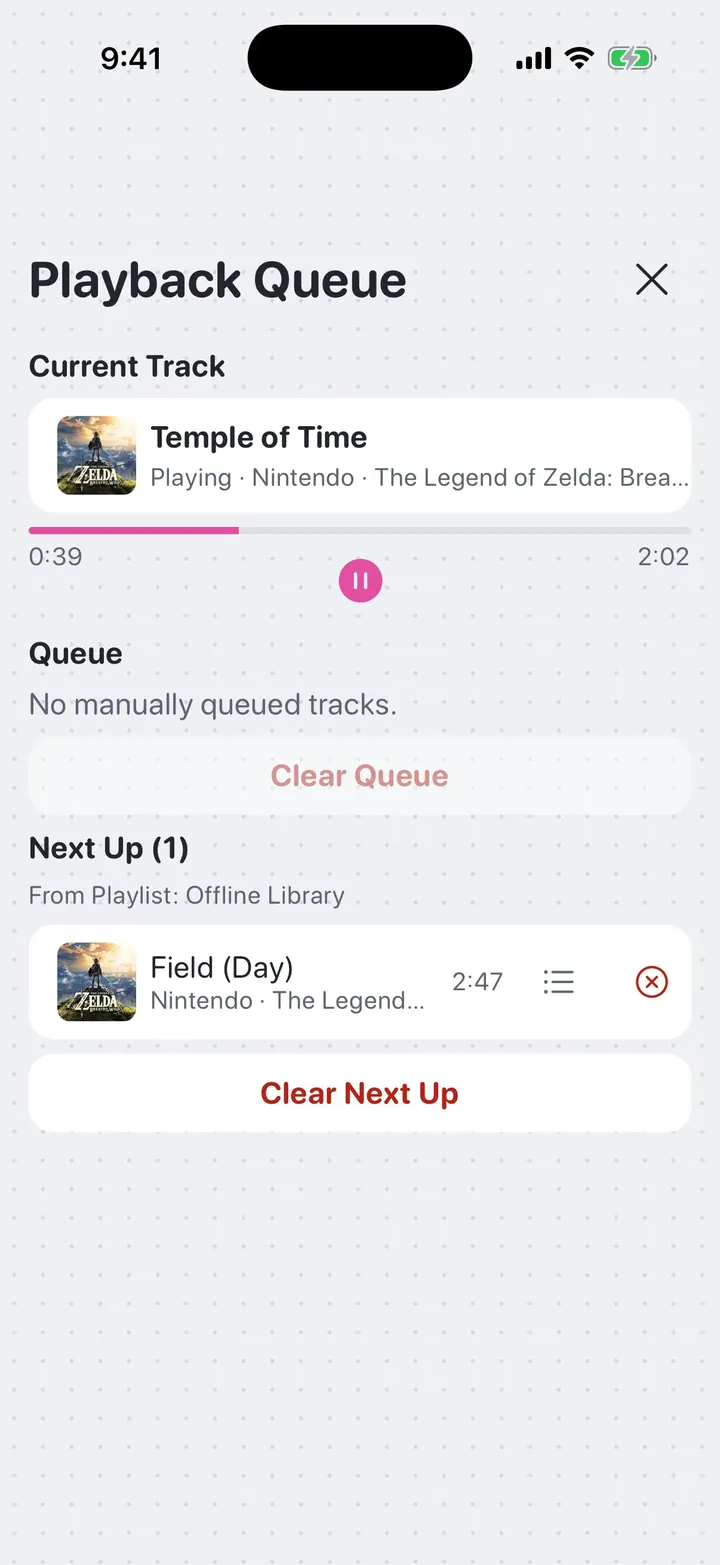
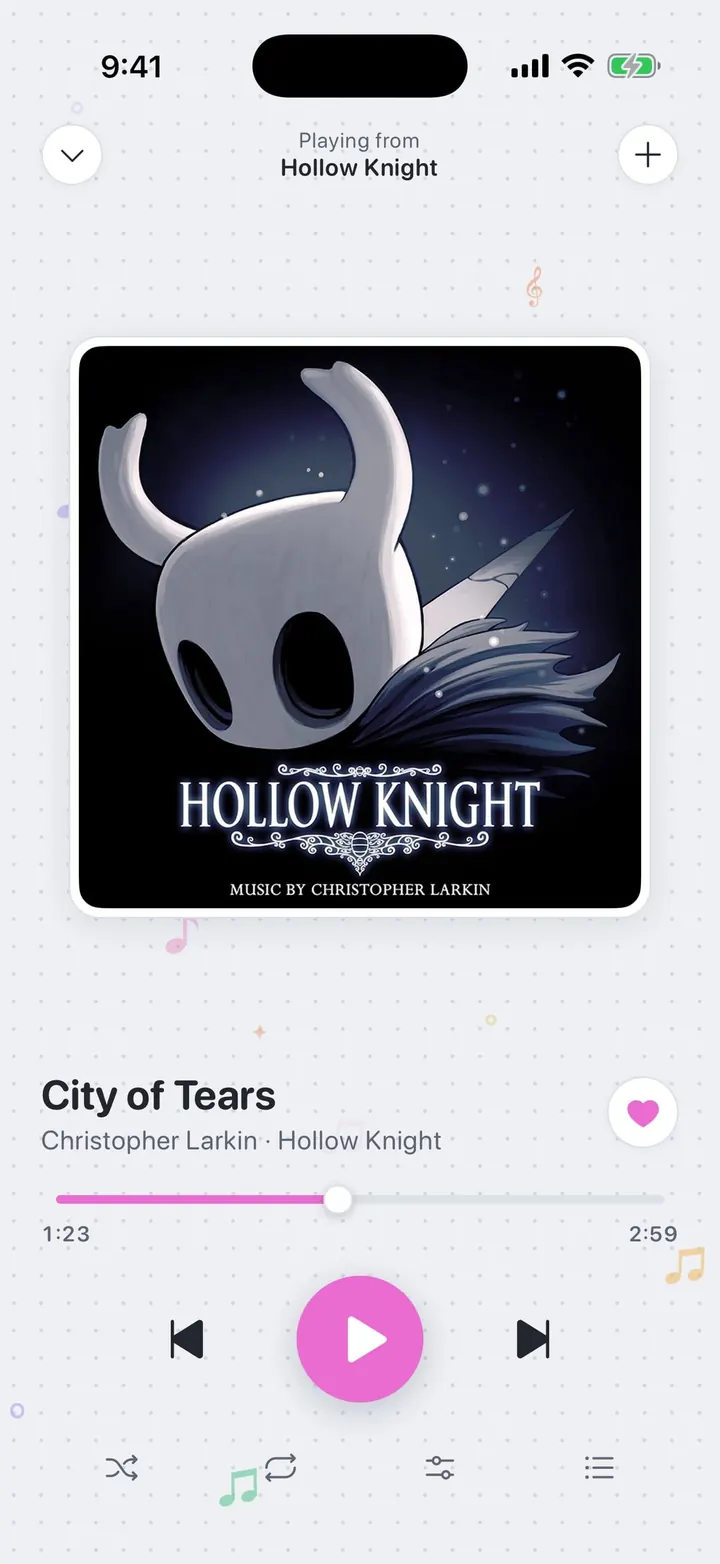
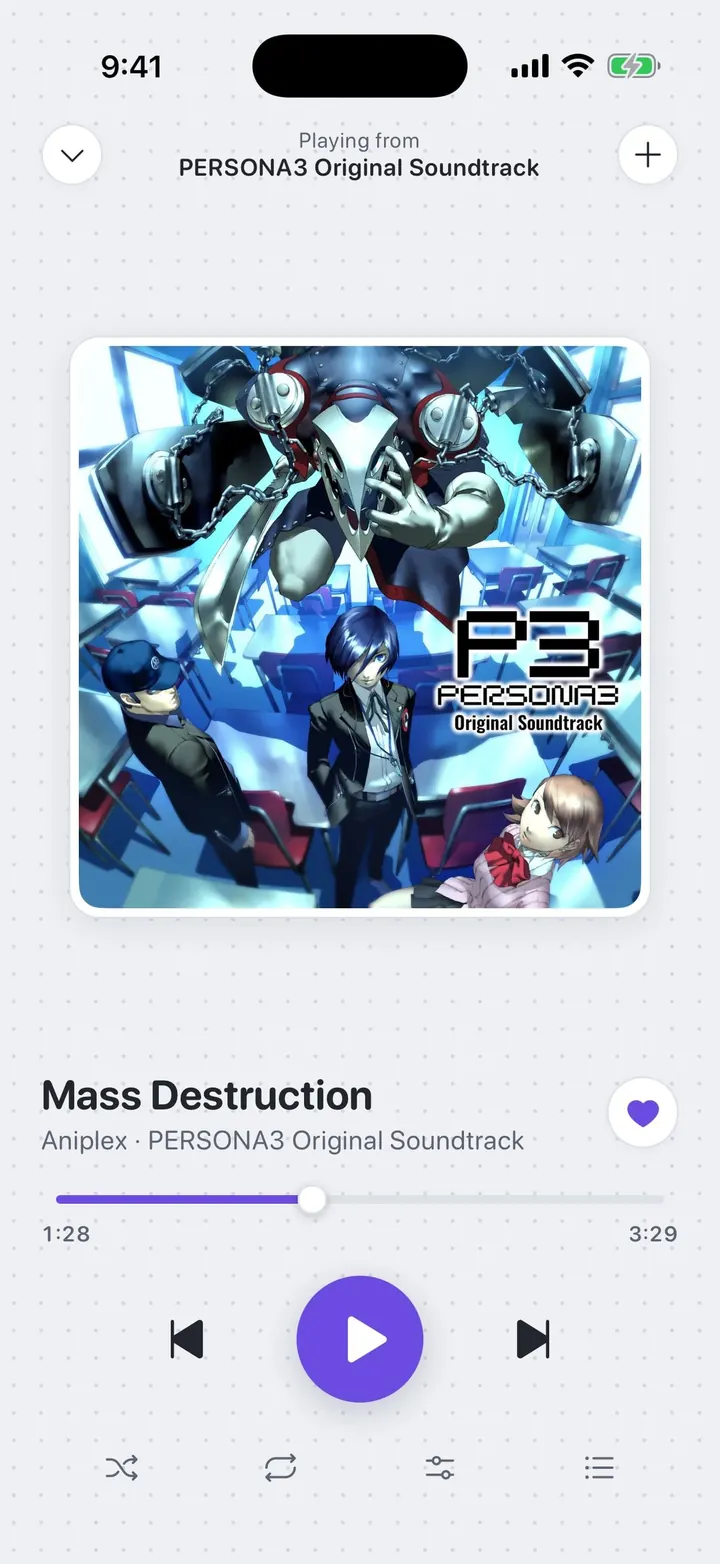
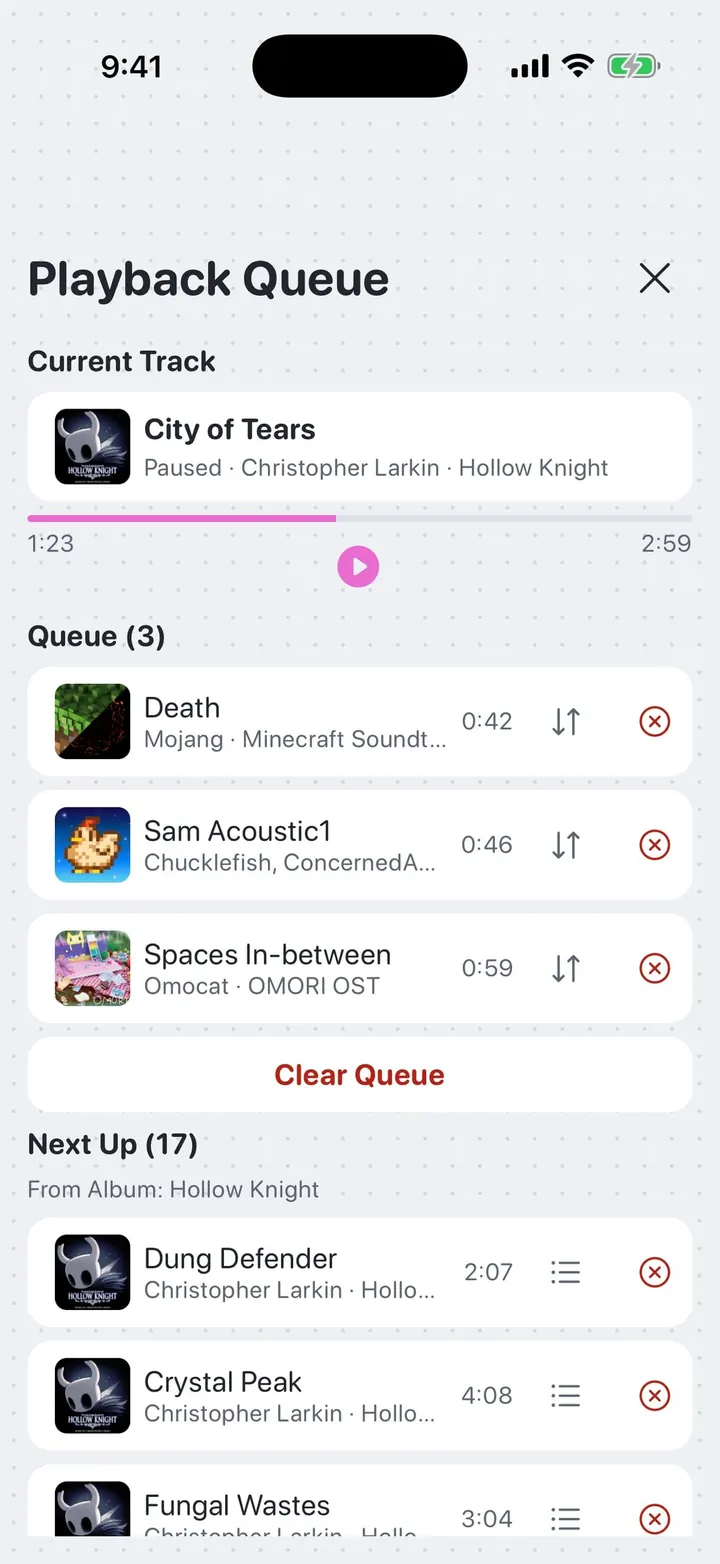
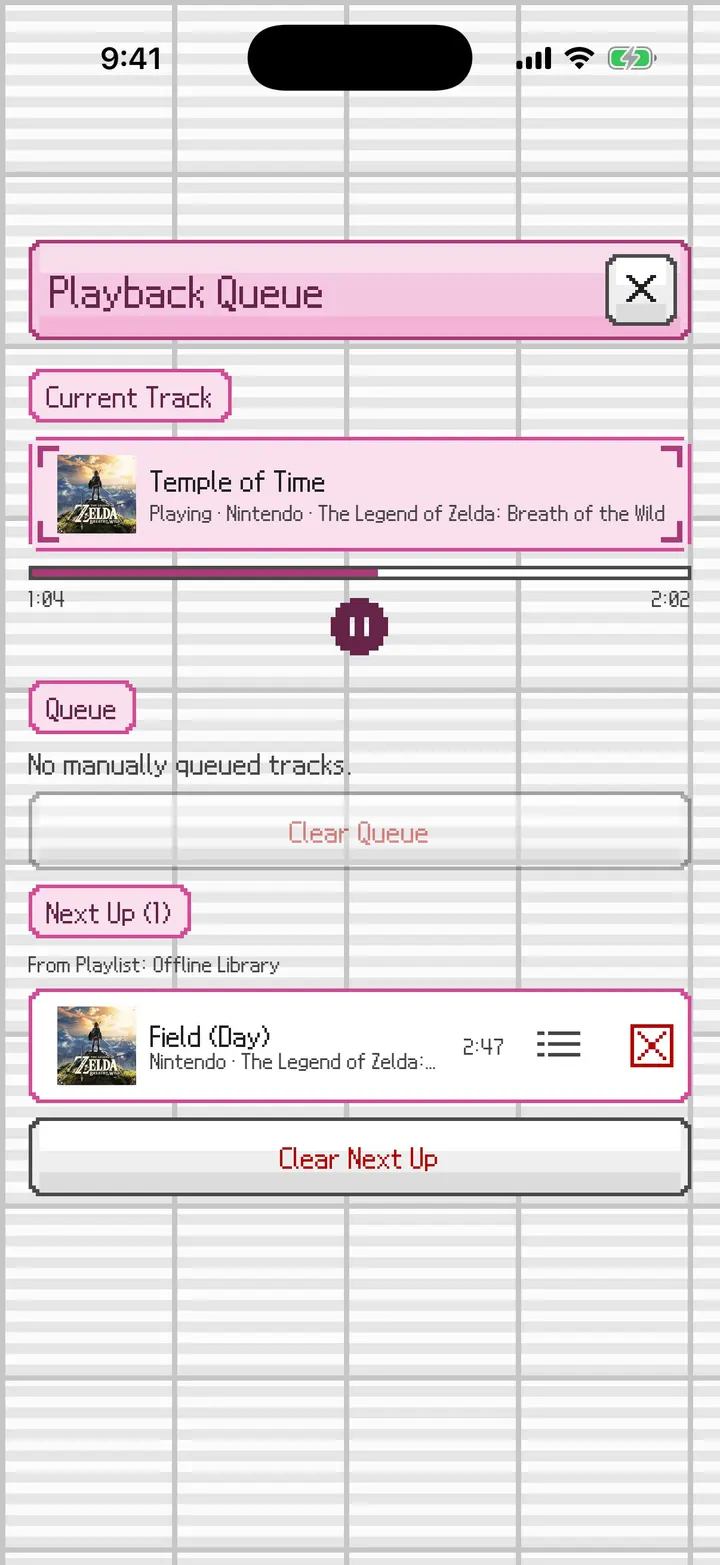
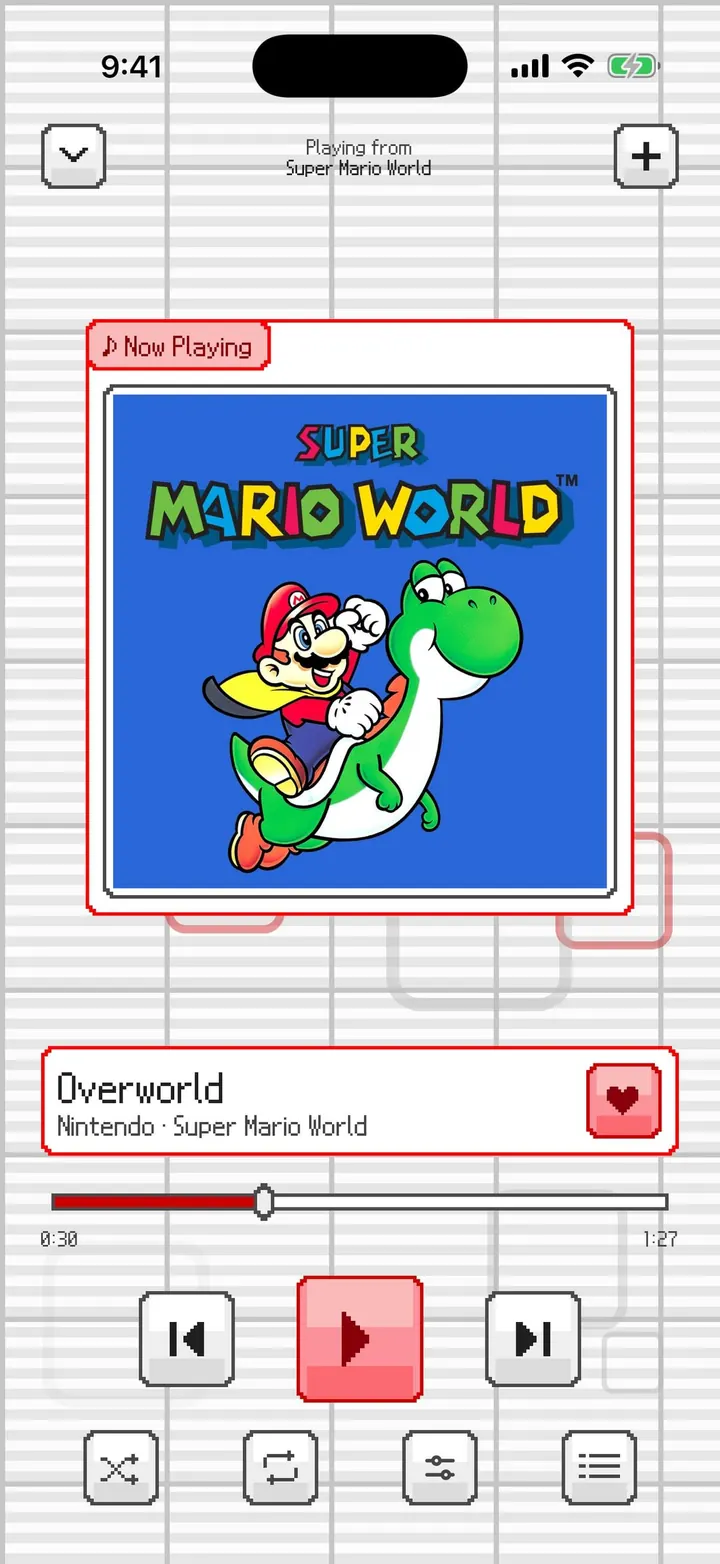
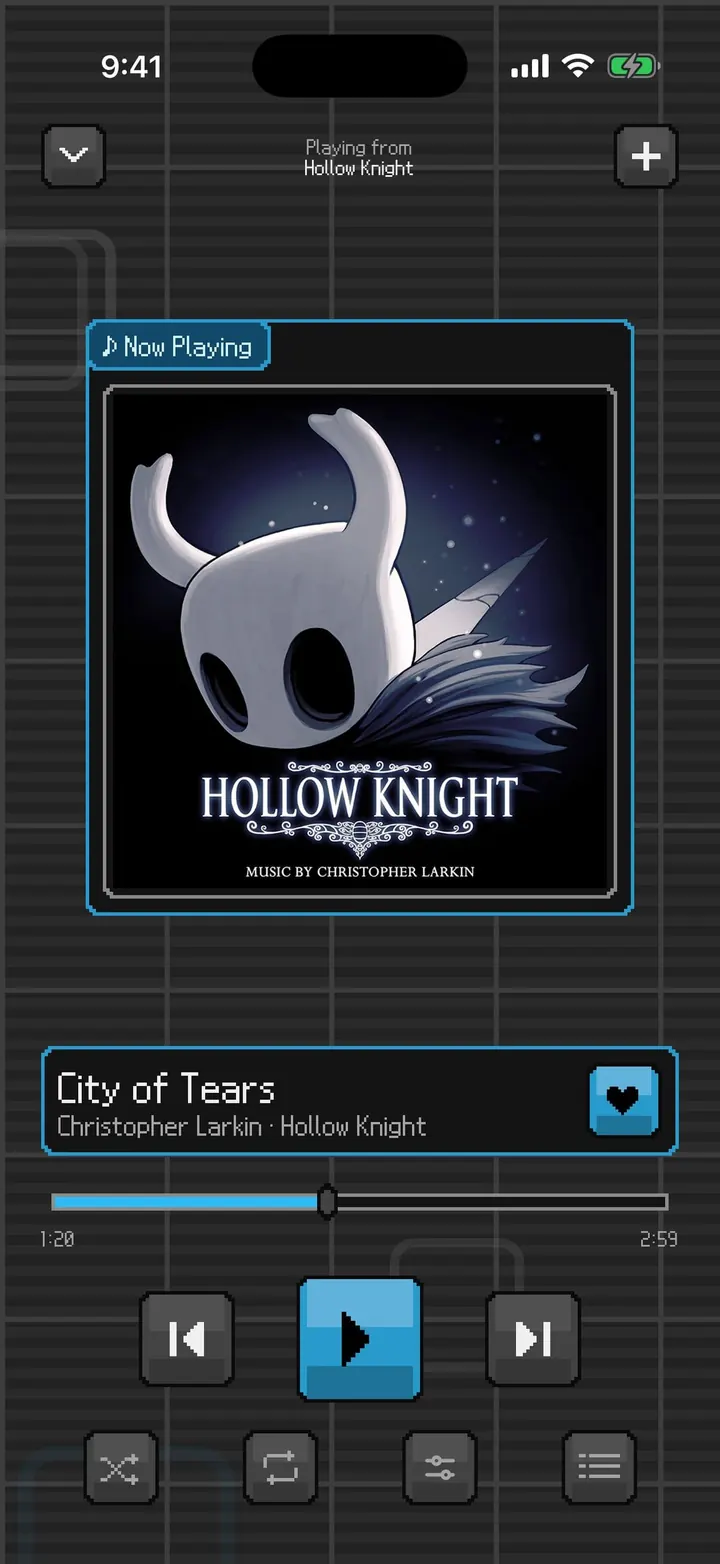
⤢Now Playing: Notes The cover in a white bezel with music notes in the logo's colors floating in and out behind it (the default background).⤢Now Playing: XMB The XMB wave rolling through the space between the cover and the title.⤢Now Playing: Rings Wii Menu style rings drifting slowly, one in your accent color.⤢Now Playing in dark Notes on the dark shell.⤢Playback Queue The current track, your manual queue, and Next Up from the playlist, each clearable.⤢Now Playing: a liked track The floating notes behind Hollow Knight. The heart fills when you like a track.⤢Now Playing: None Turn the background off for a still player. The accent here is purple.⤢Rings in dark The rings on the dark shell, in a green accent.⤢XMB in dark The XMB wave on the dark shell, in an amber accent.⤢A mixed queue Tracks you queue from different games sit above what's next from the current album. Reorder or remove any of them.
Console Downloads and settings
Downloads, Settings, and the guide, all in Console's panels.
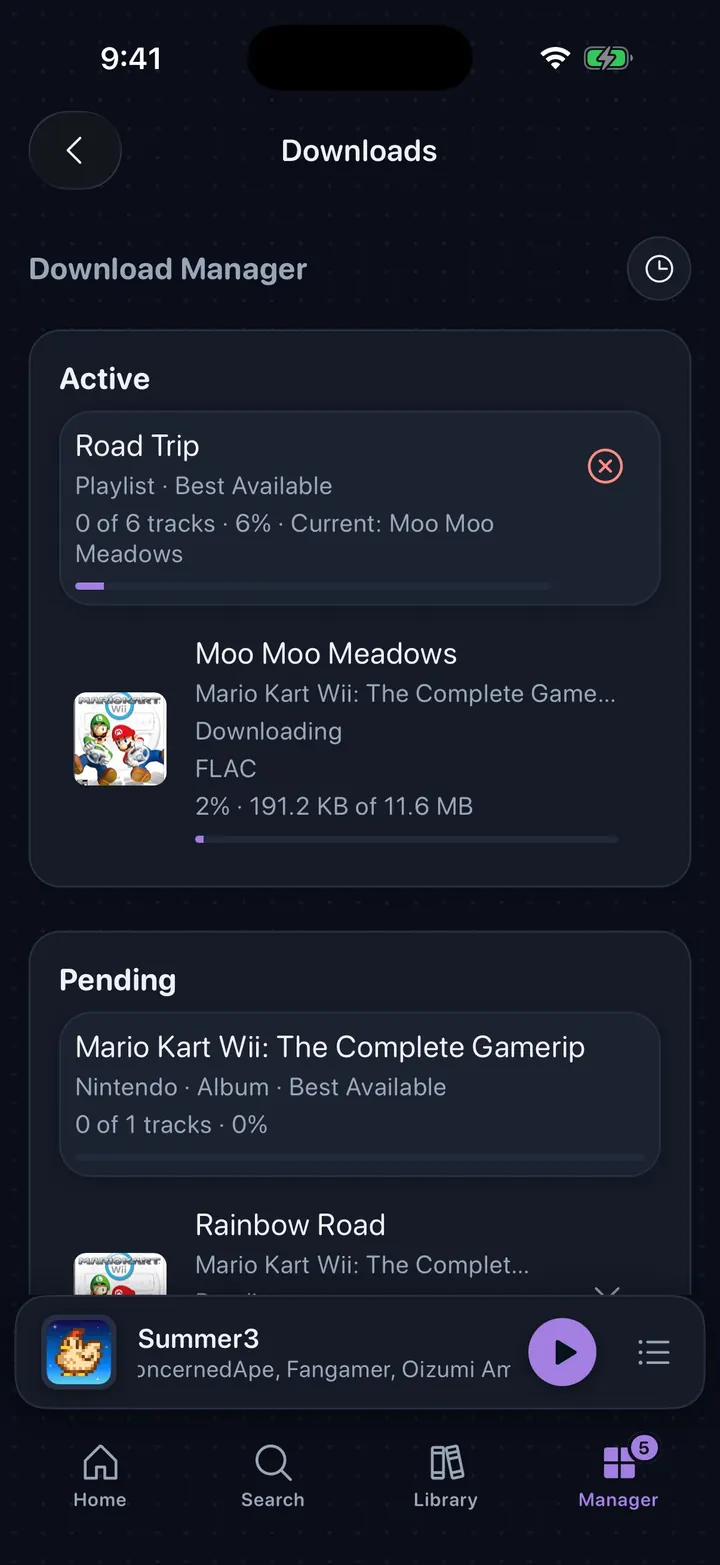
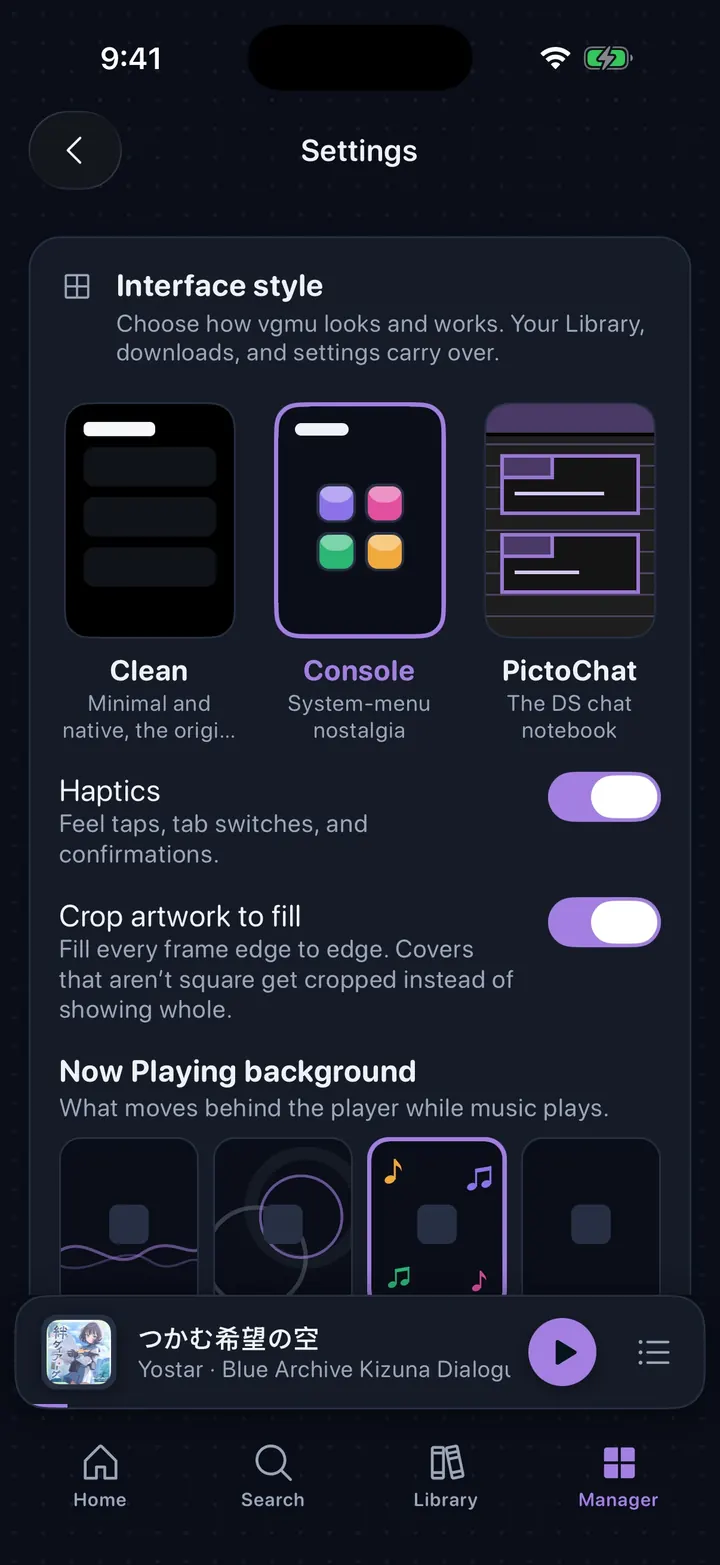
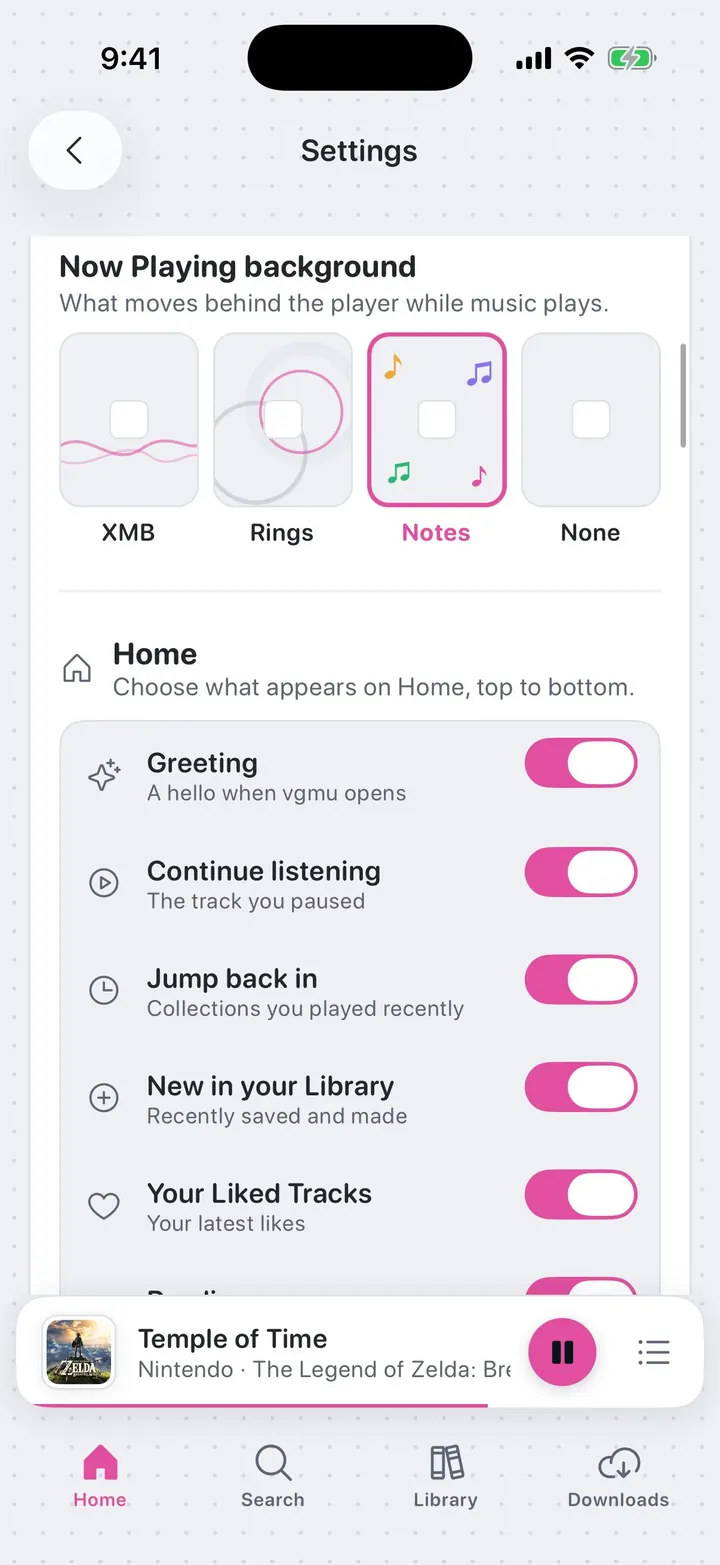
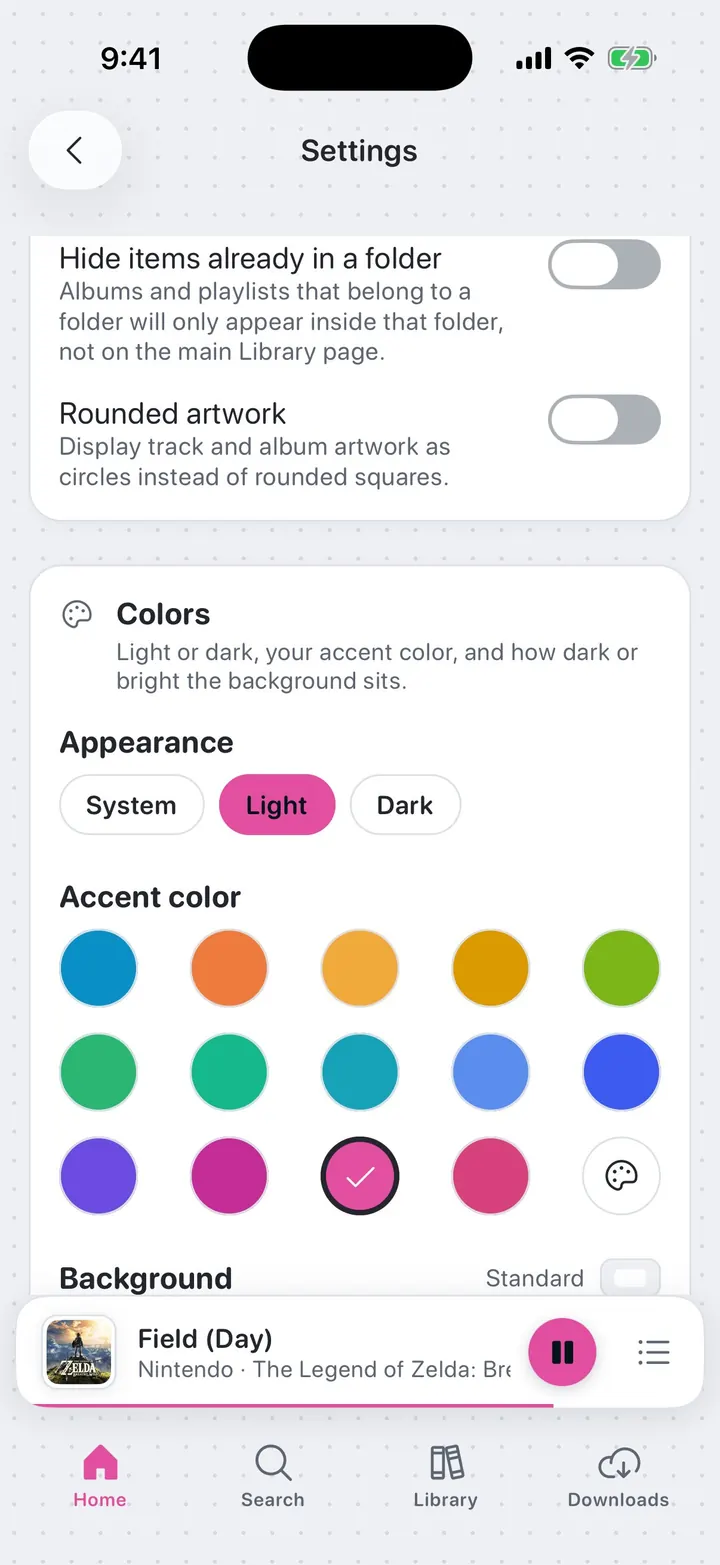
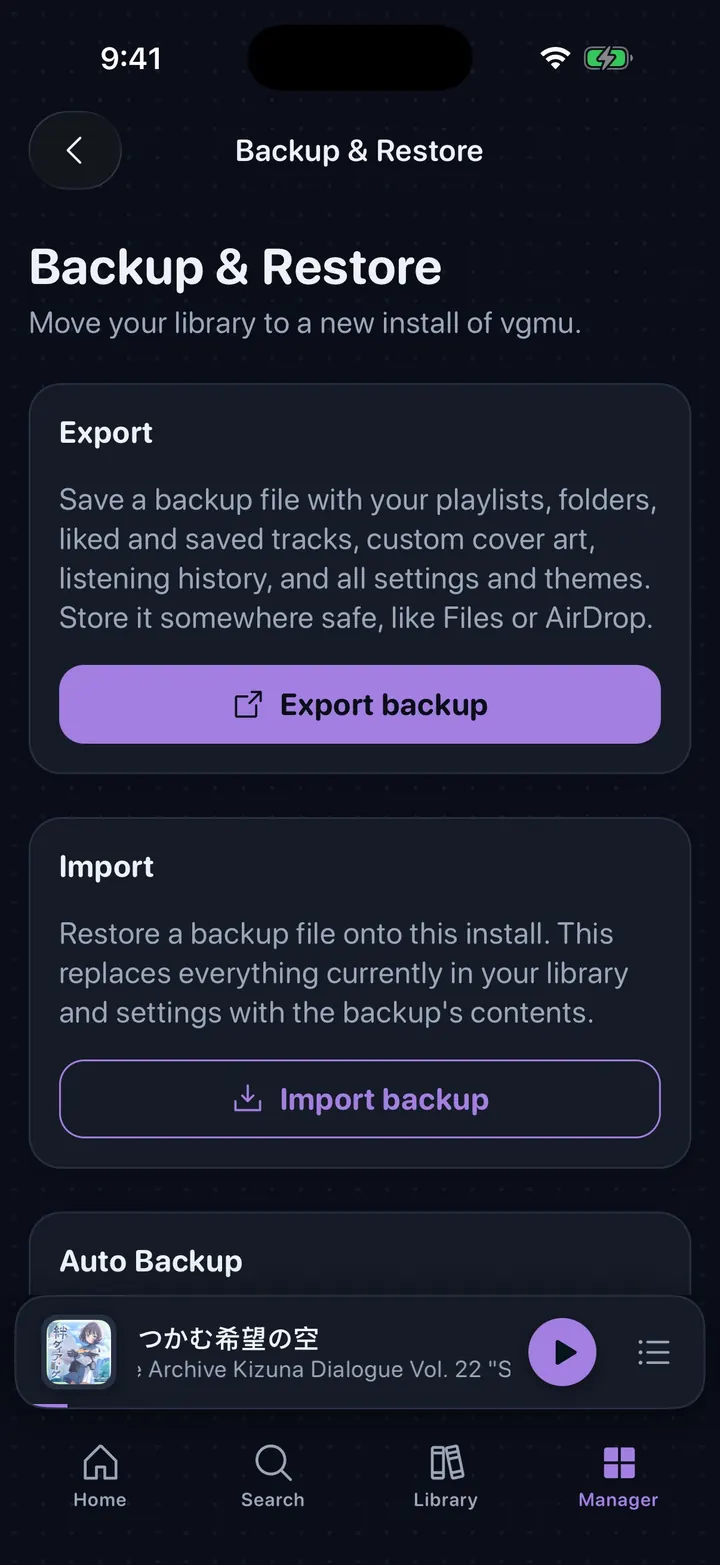
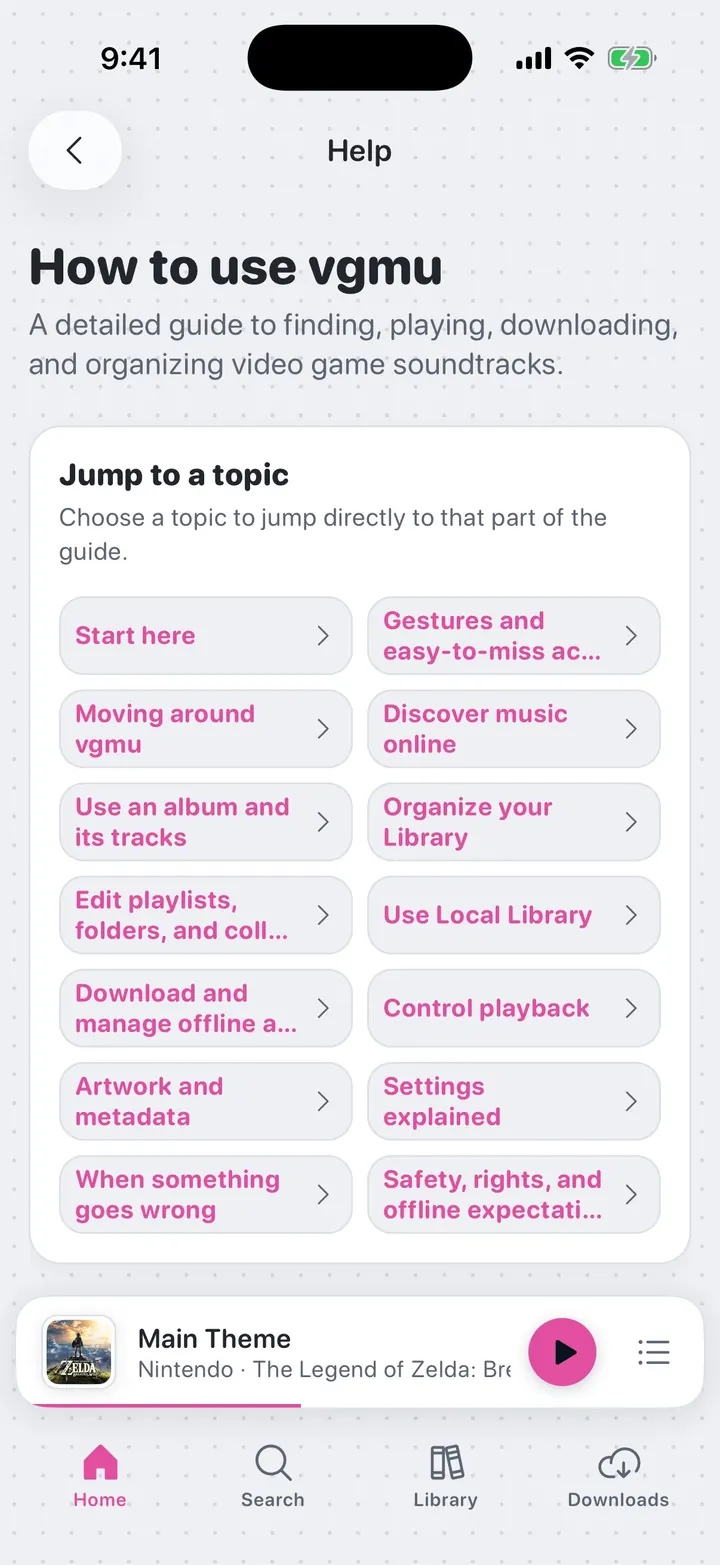
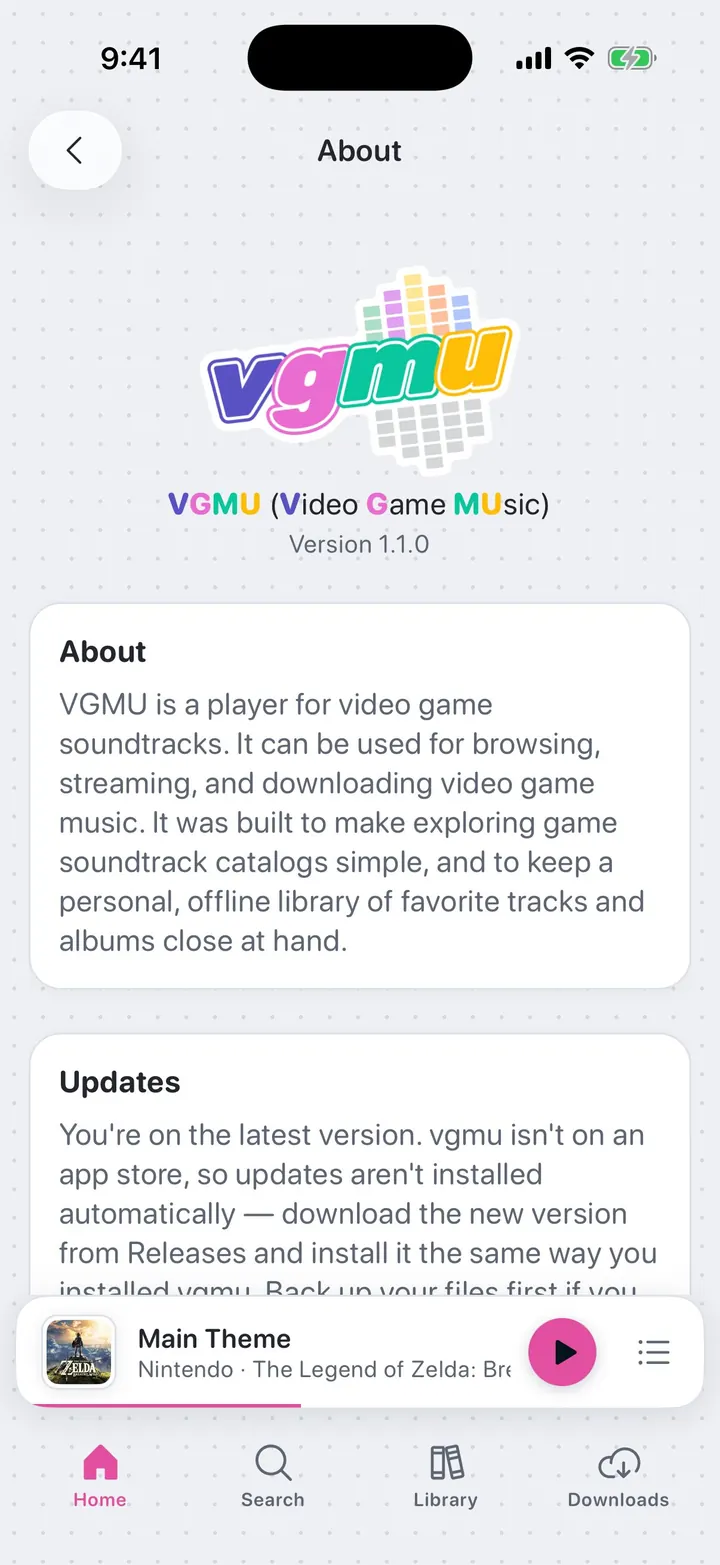
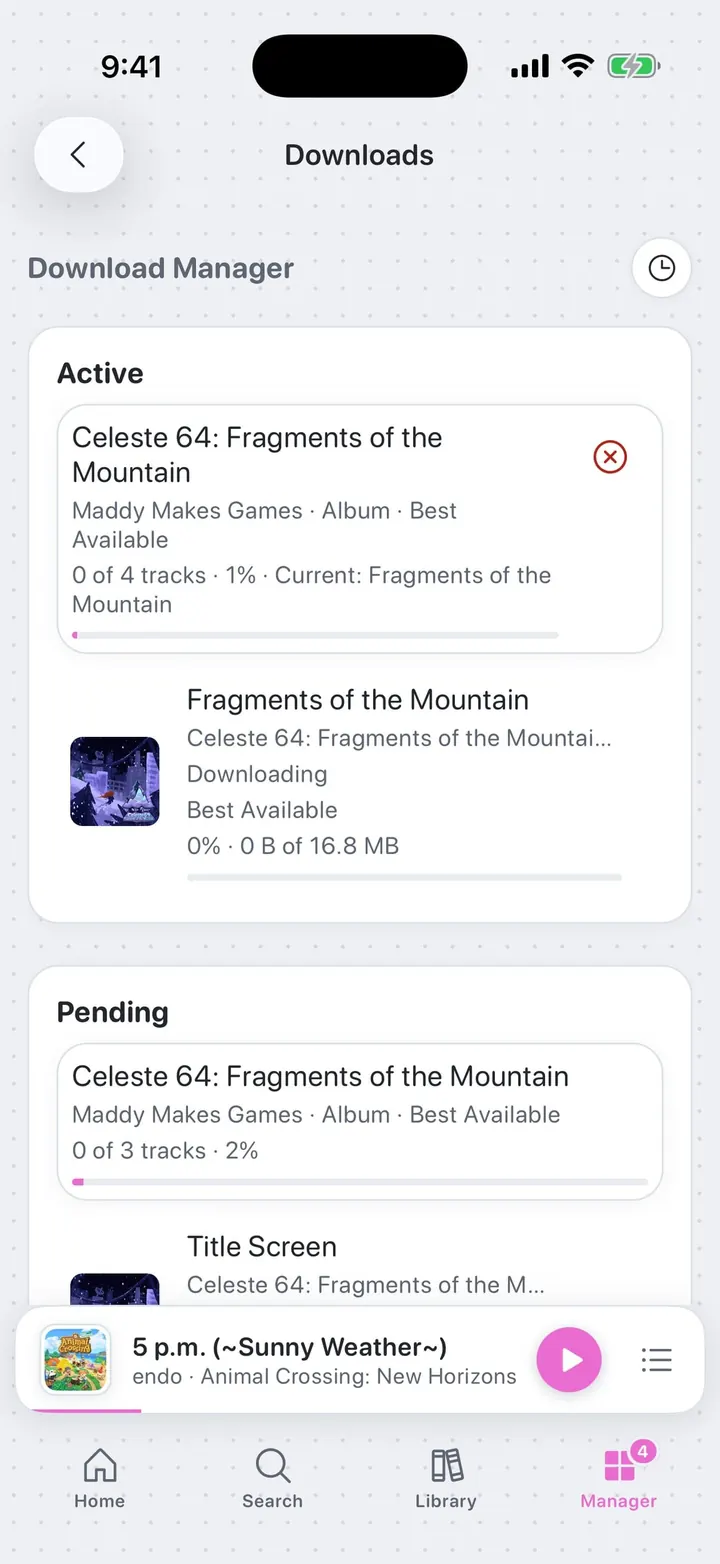
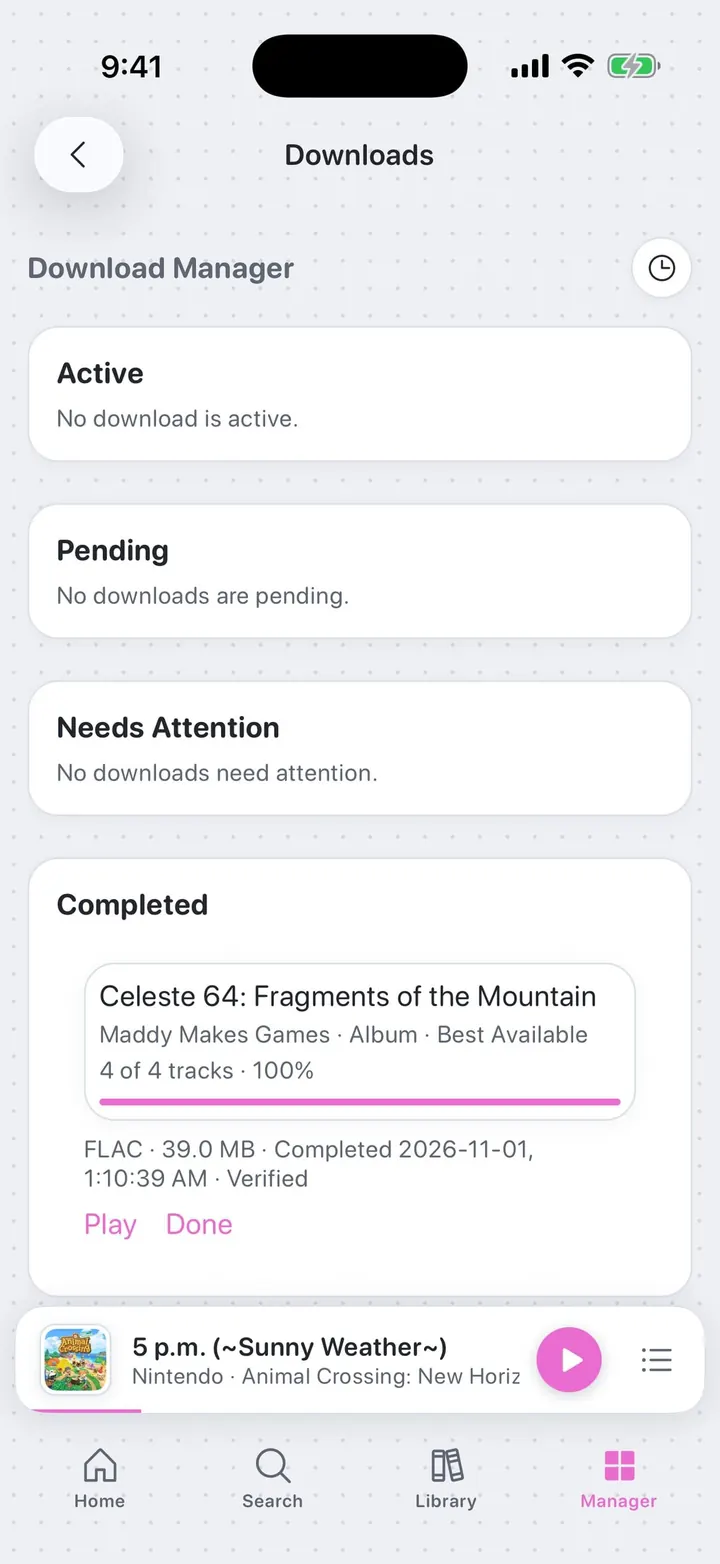
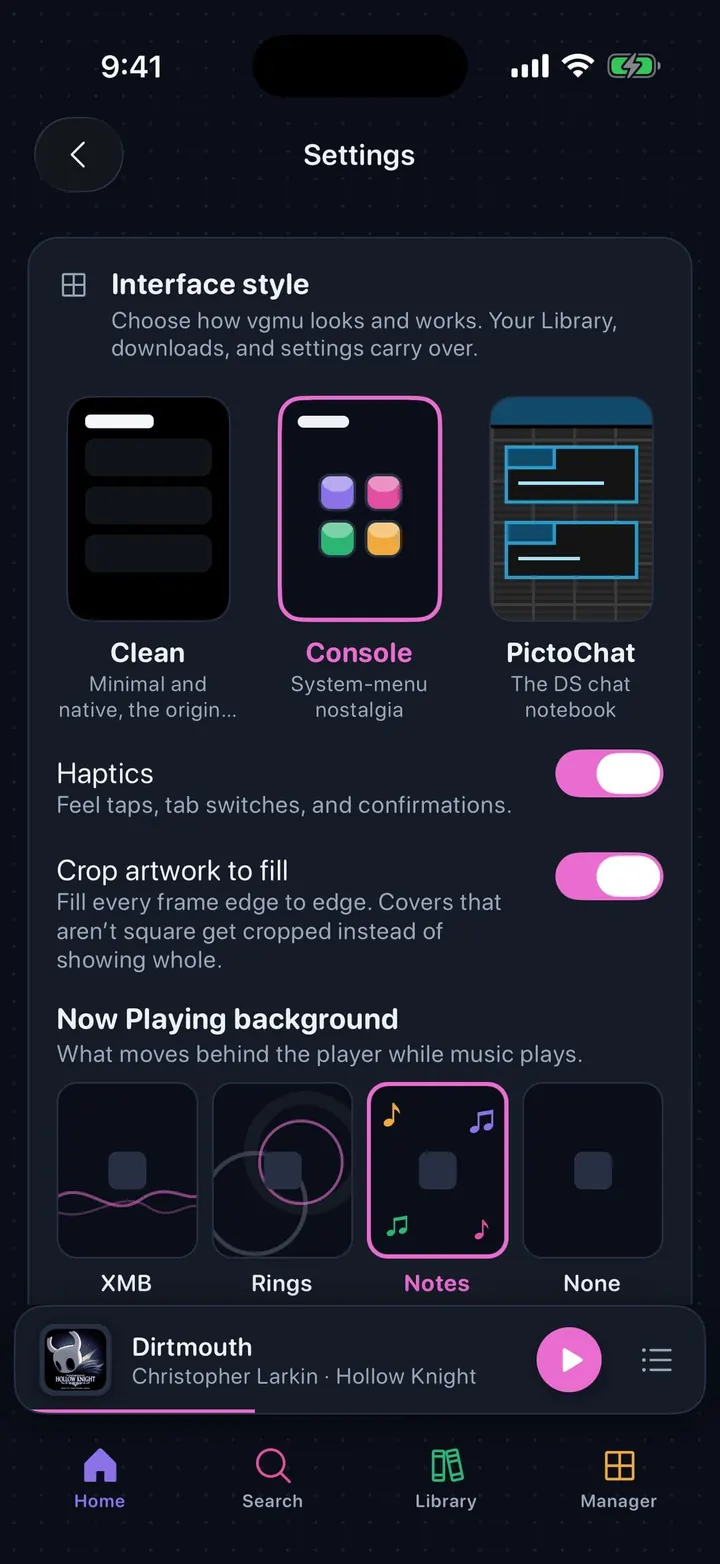
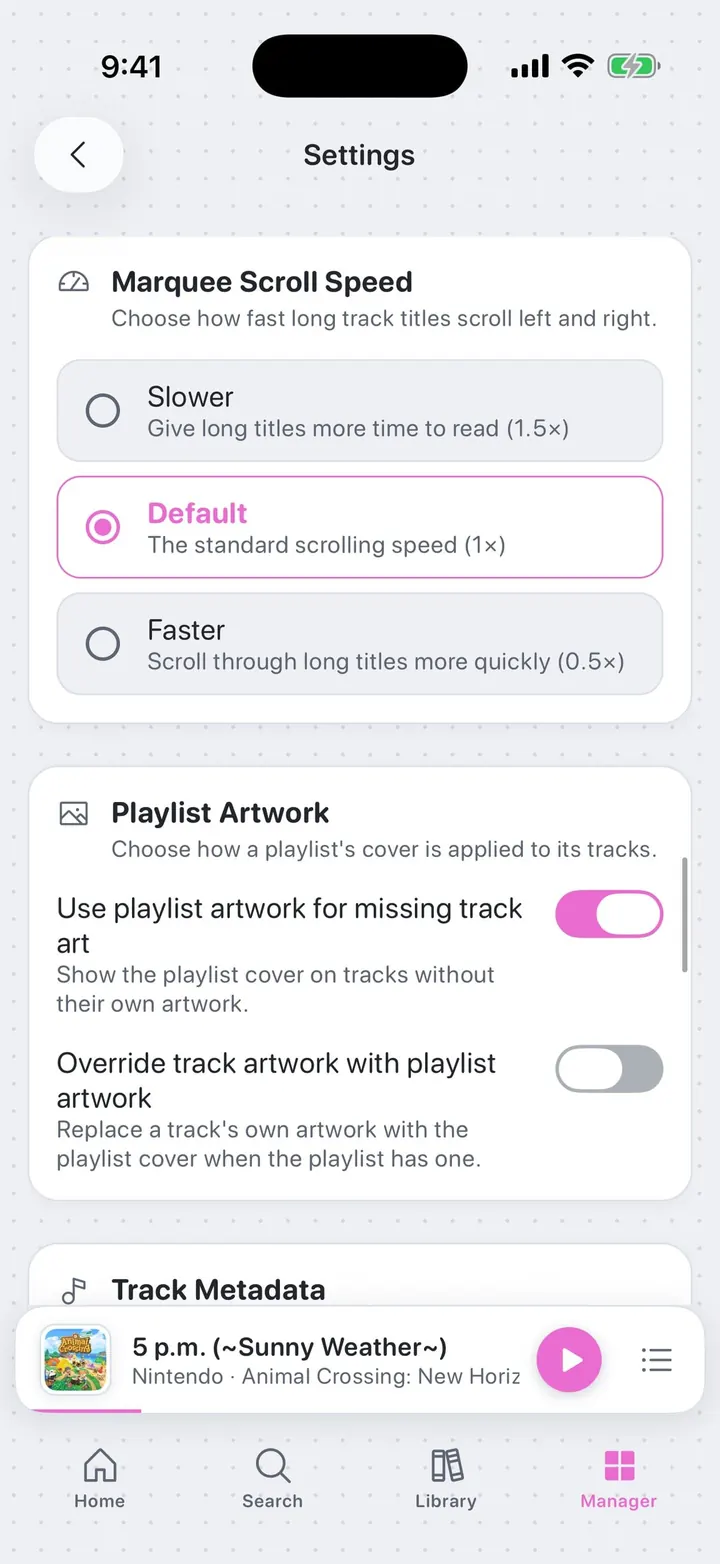
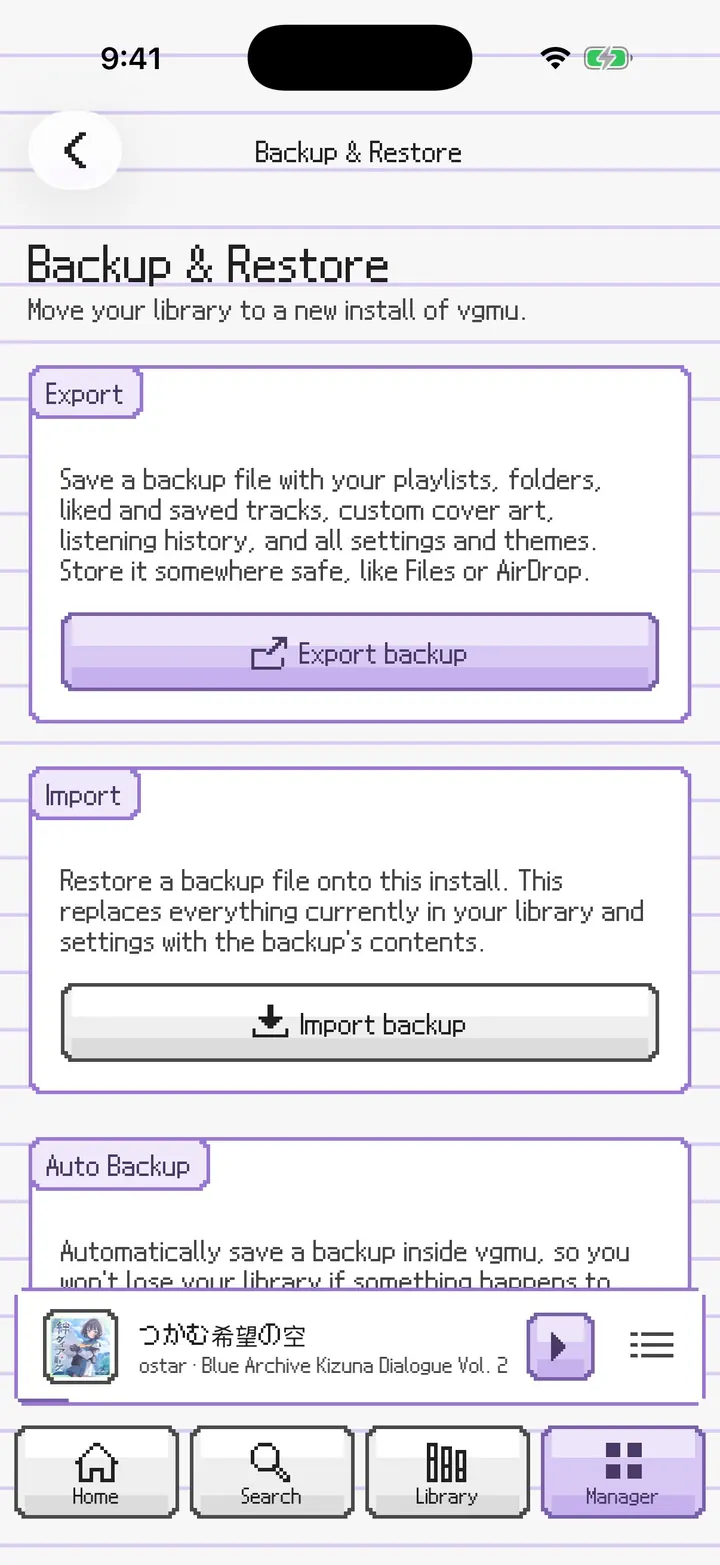
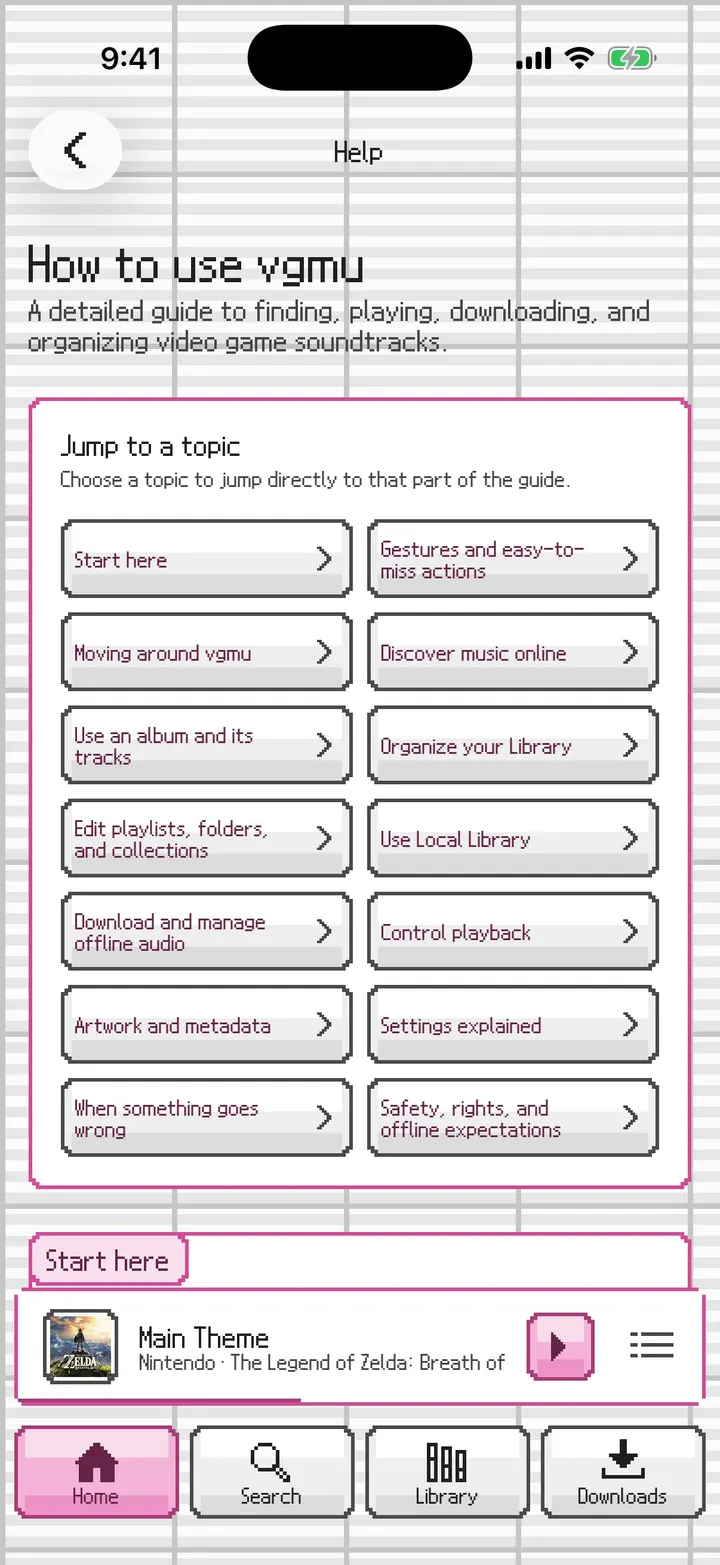
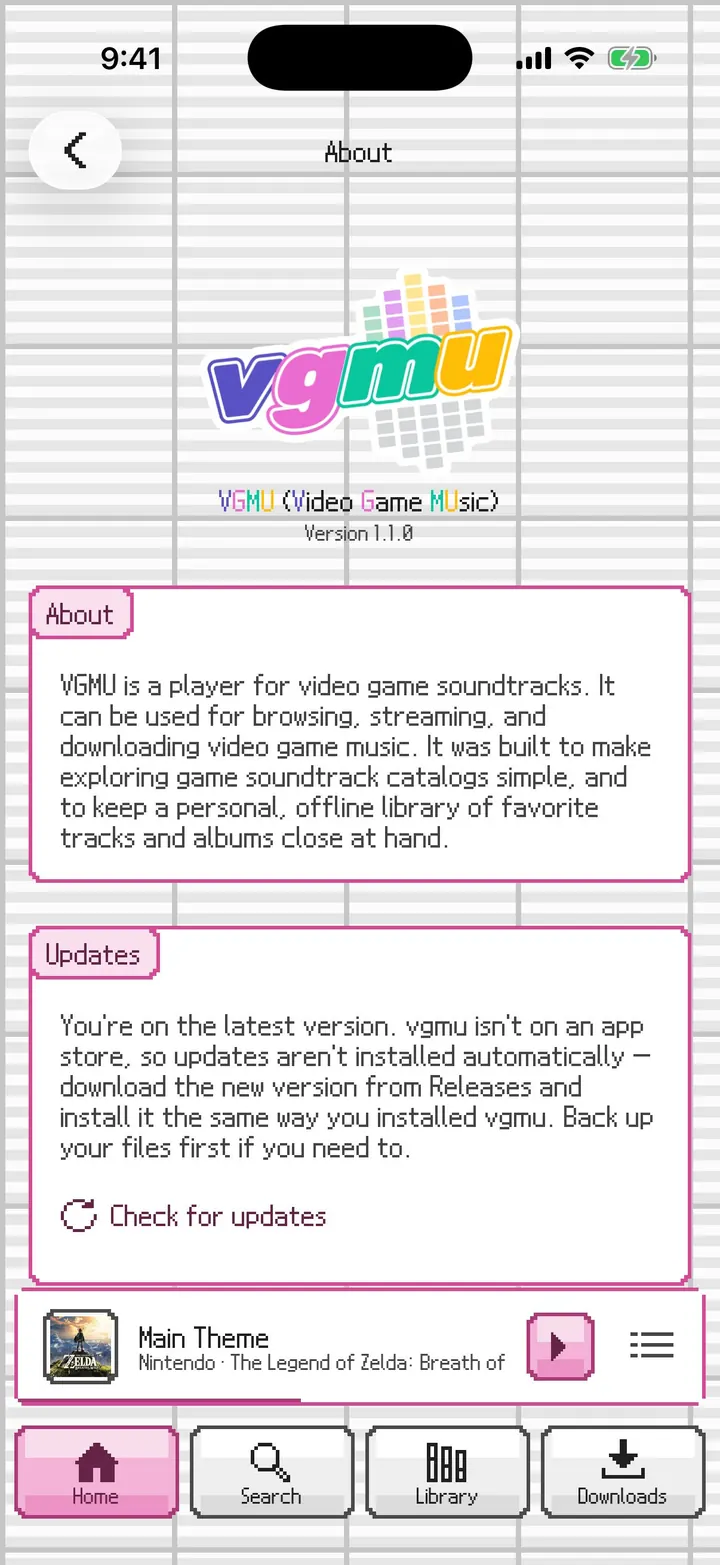
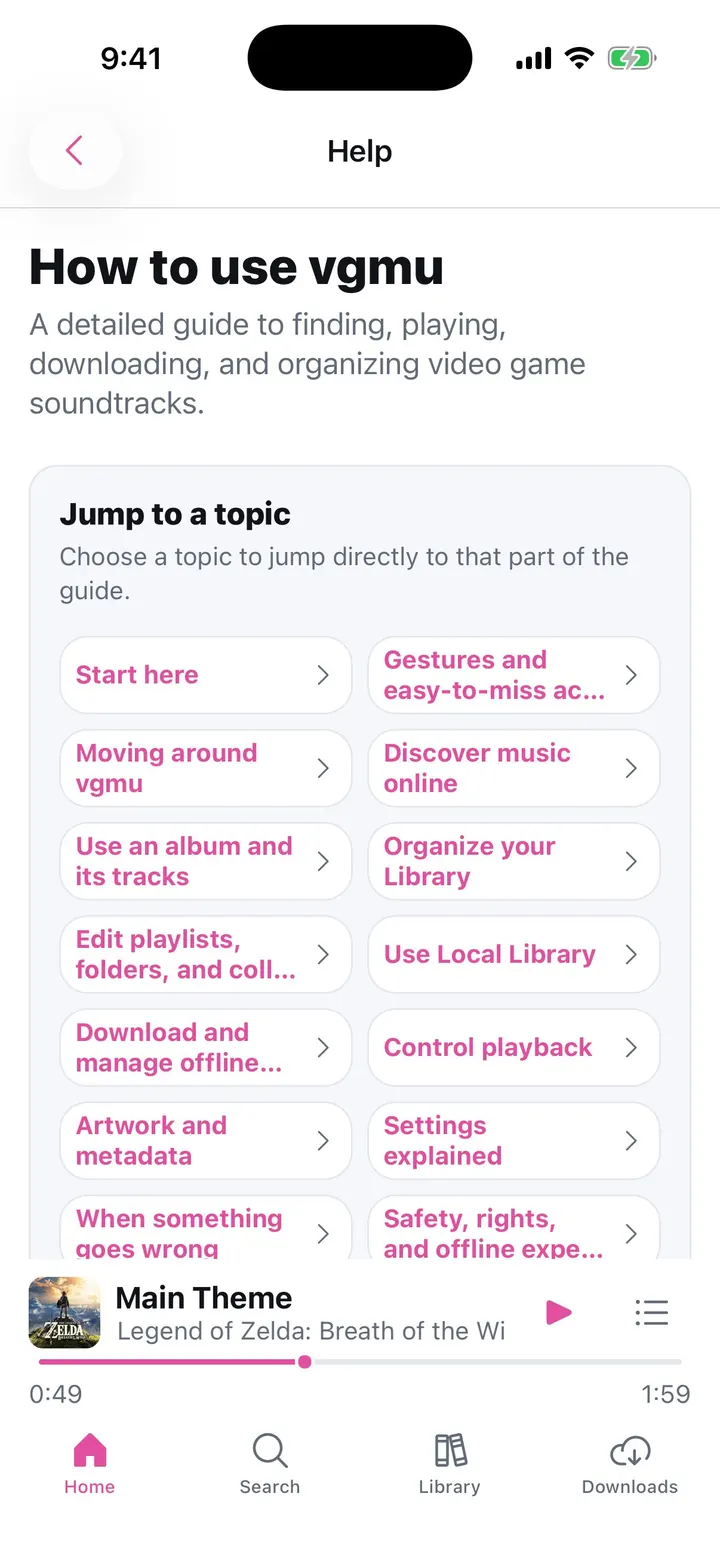
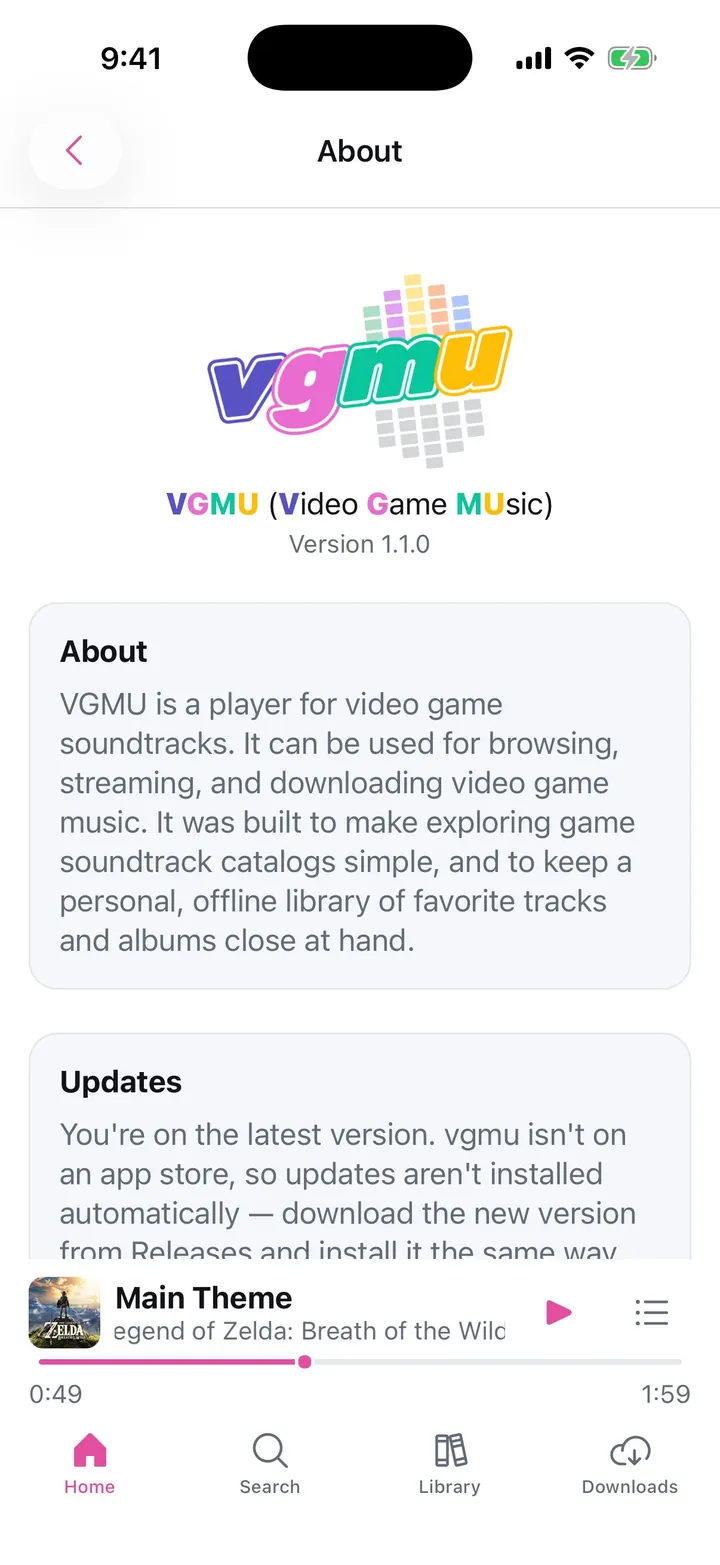
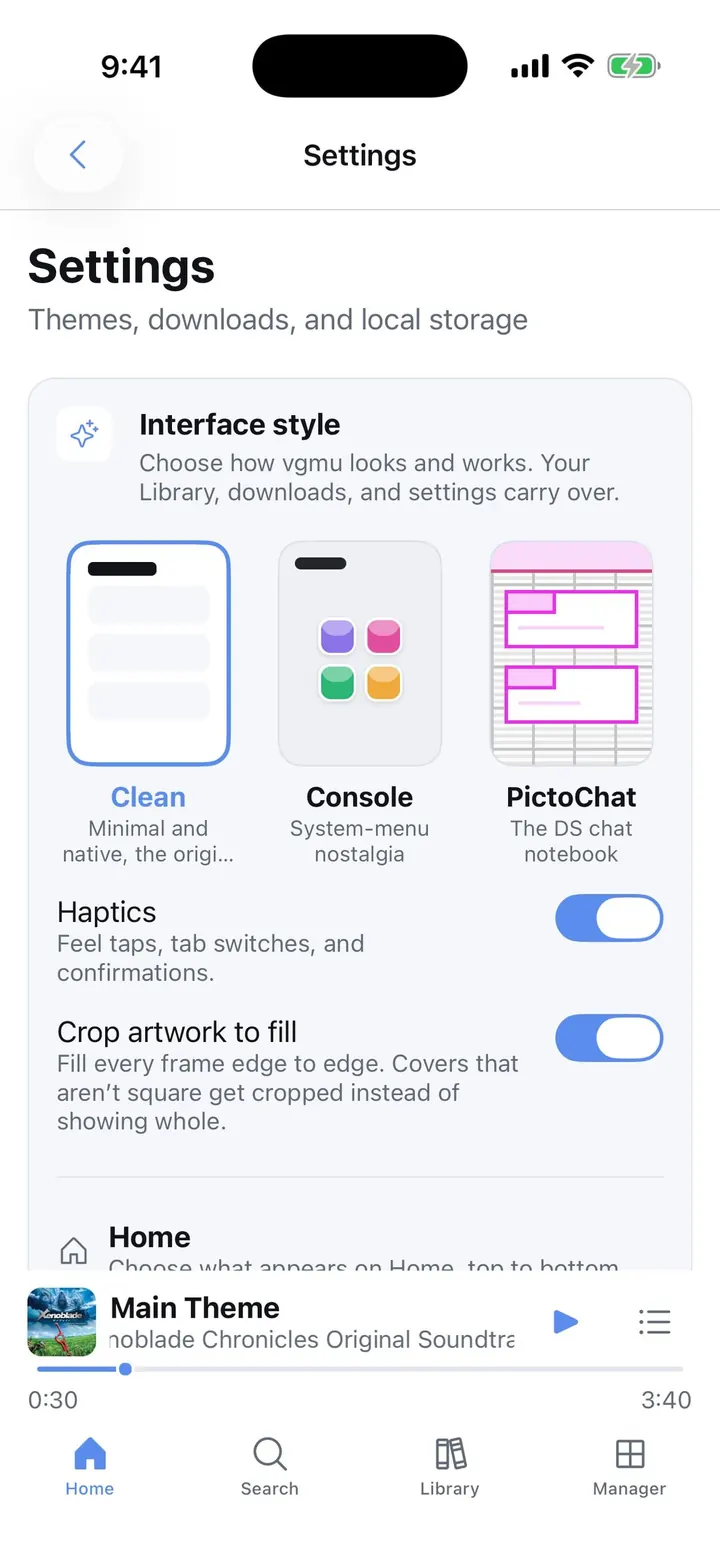
⤢Downloads In the Manager tab: Active, Pending, Needs Attention, and Completed, with Download History a tap away.⤢Interface style Pick Clean, Console, or PictoChat from picture cards. Haptics and Crop artwork to fill apply in every style.⤢Now Playing background and Home Choose XMB, Rings, Notes, or None, and turn each part of Home on or off.⤢Colors Appearance, fifteen accent colors plus any custom color, and a Background slider from darker to brighter.⤢Backup & Restore In the Manager tab: export a backup file, import one, or schedule automatic backups.⤢Help The in-app guide, with a topic index that jumps to each section.⤢About The new logo, the version, and an update check.⤢Downloads in progress An album downloading track by track, with progress for each and the rest waiting in Pending.⤢Download finished Completed albums show their format, size, and finish time, and are verified before they count as saved.⤢Settings in dark Interface style and the Now Playing background on the dark shell.⤢Scroll speed and playlist artwork Set how fast long titles scroll, and whether a playlist's cover fills in for tracks without their own.
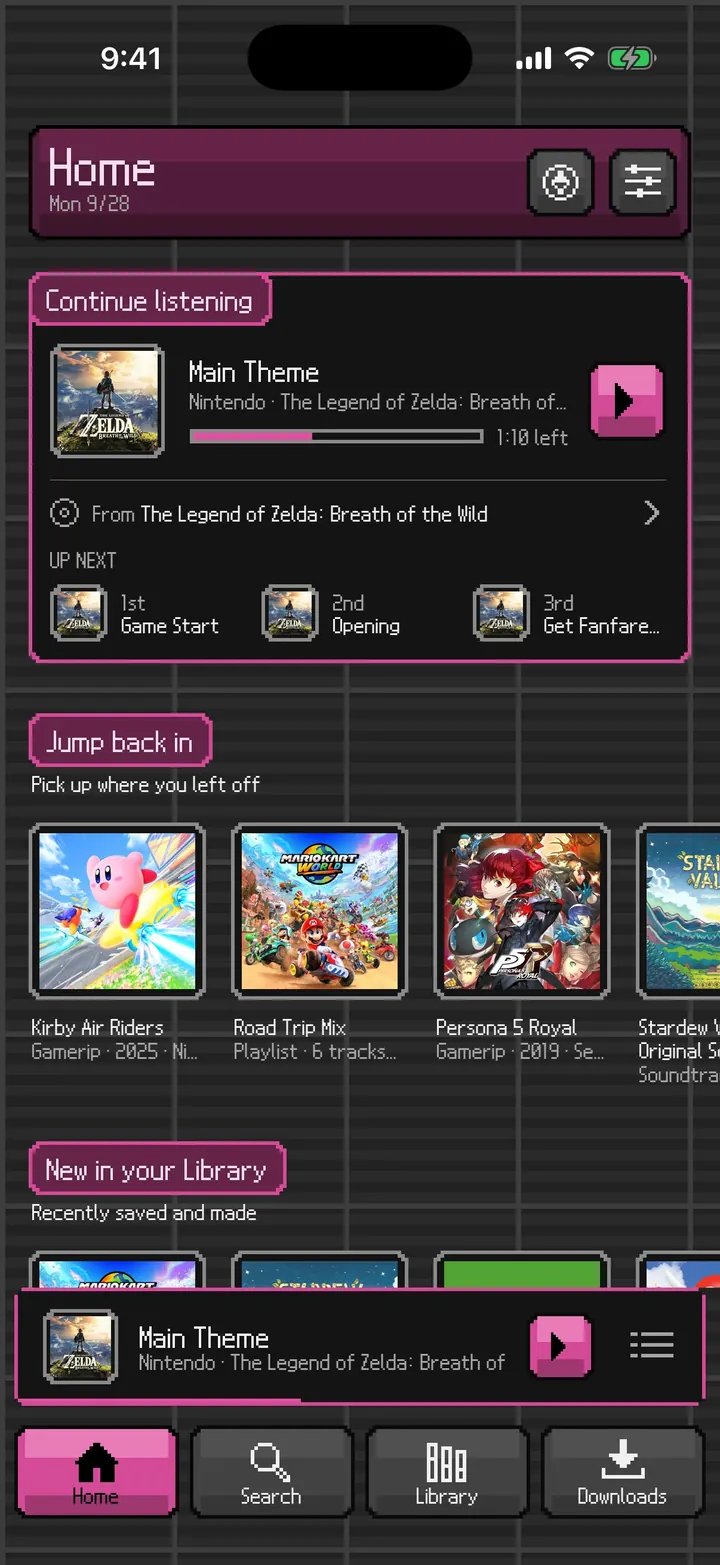
PictoChat Home
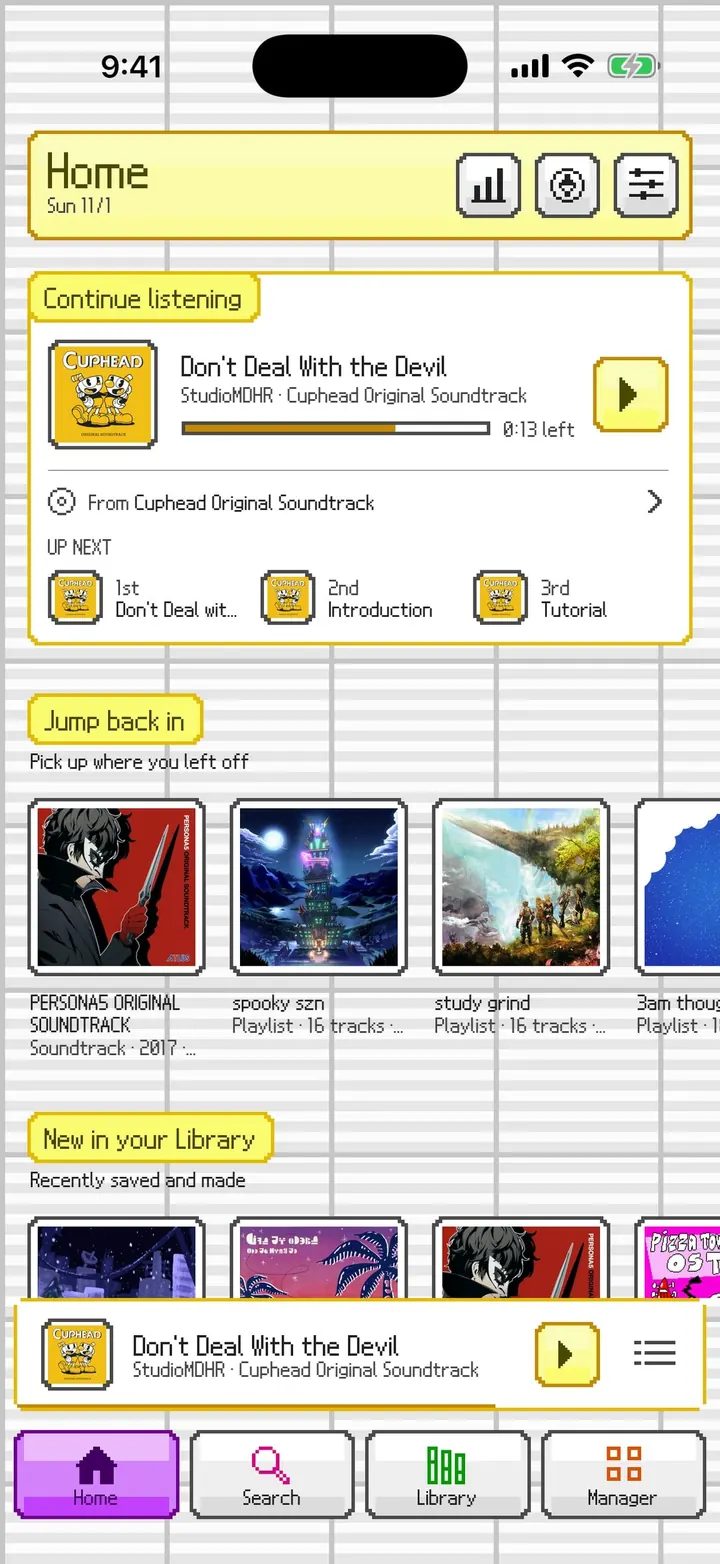
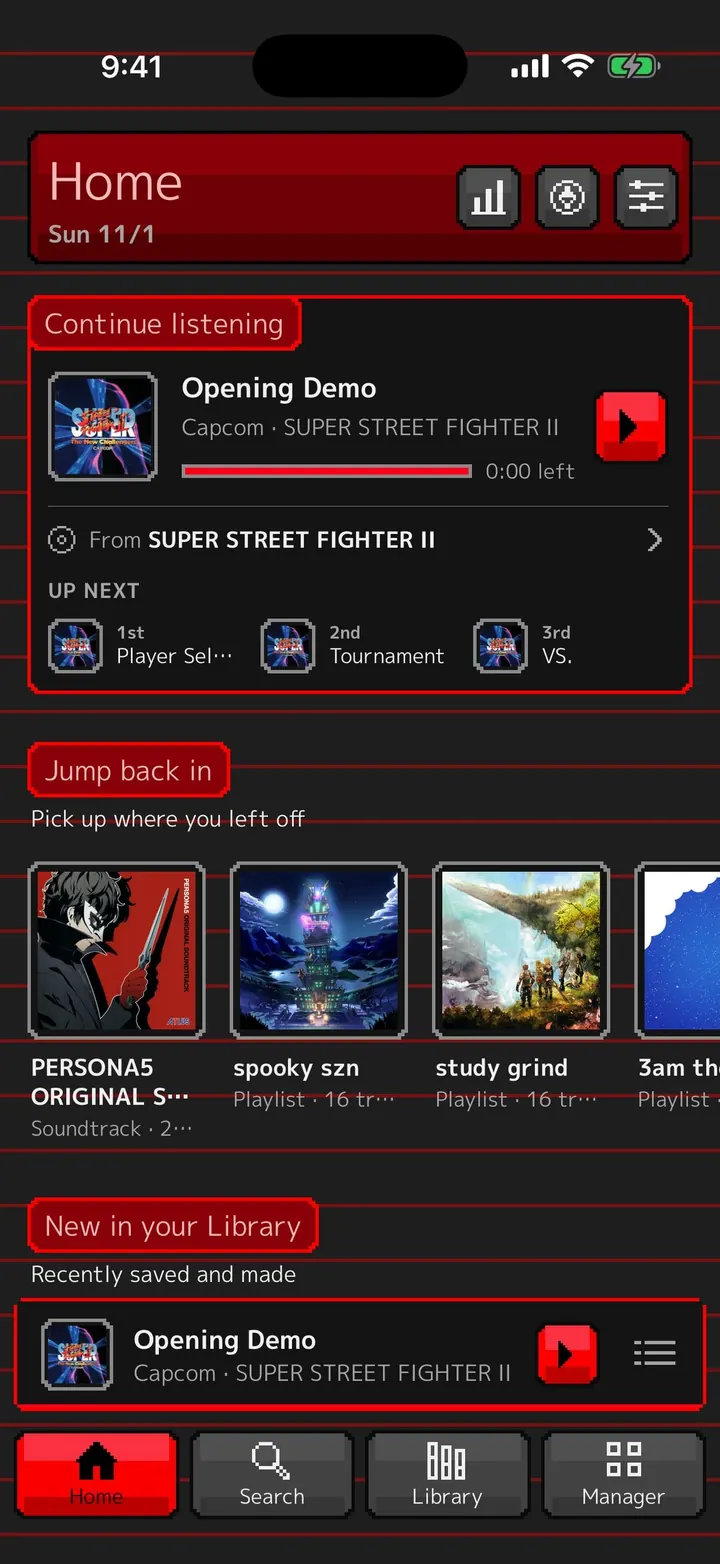
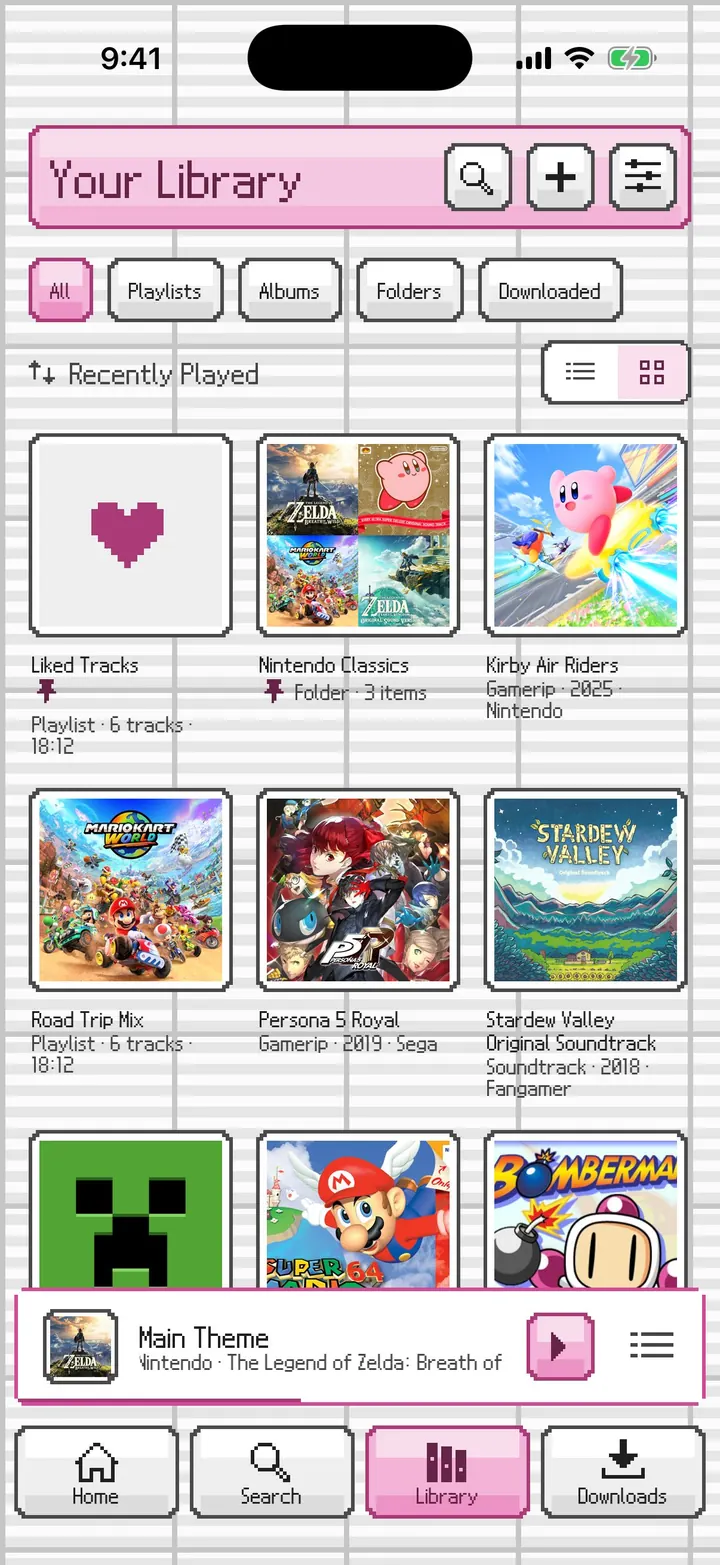
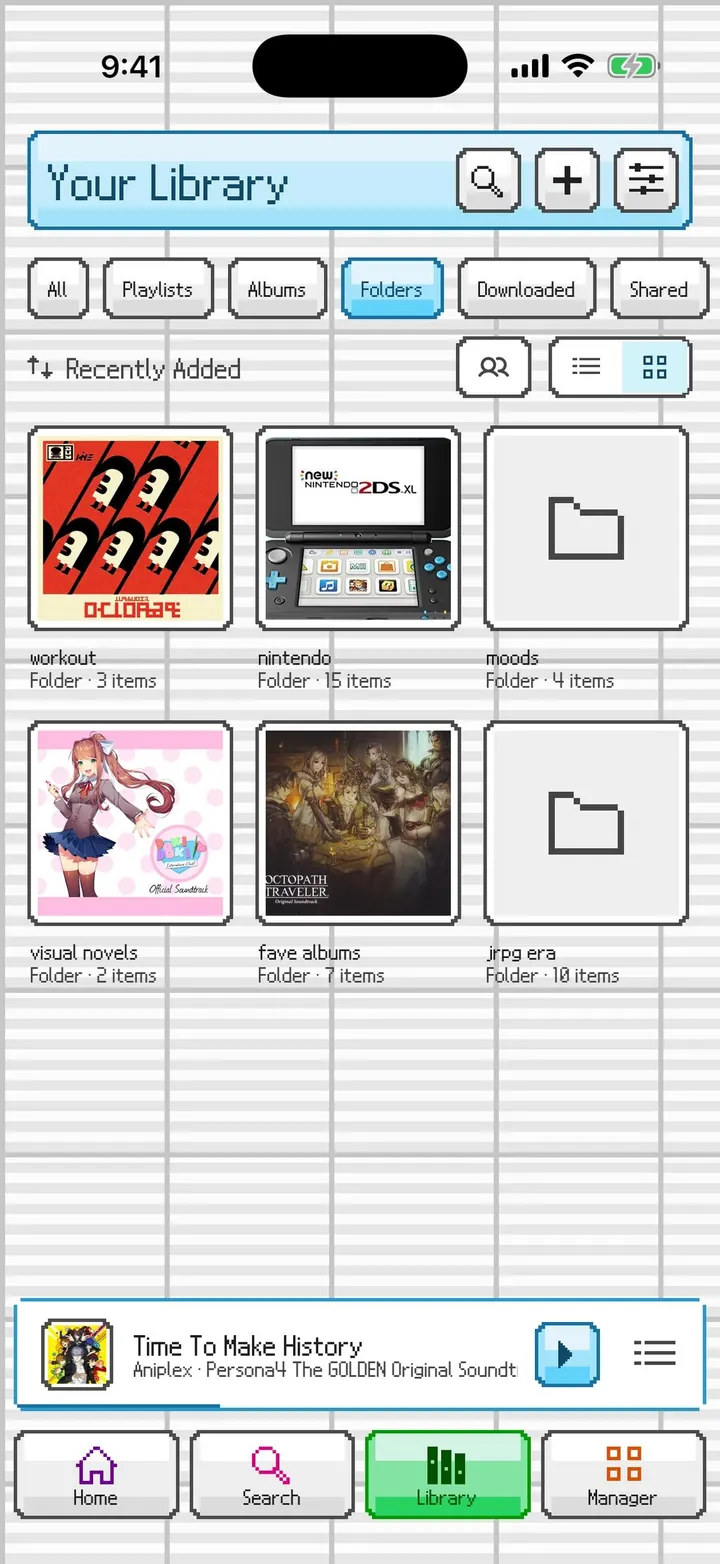
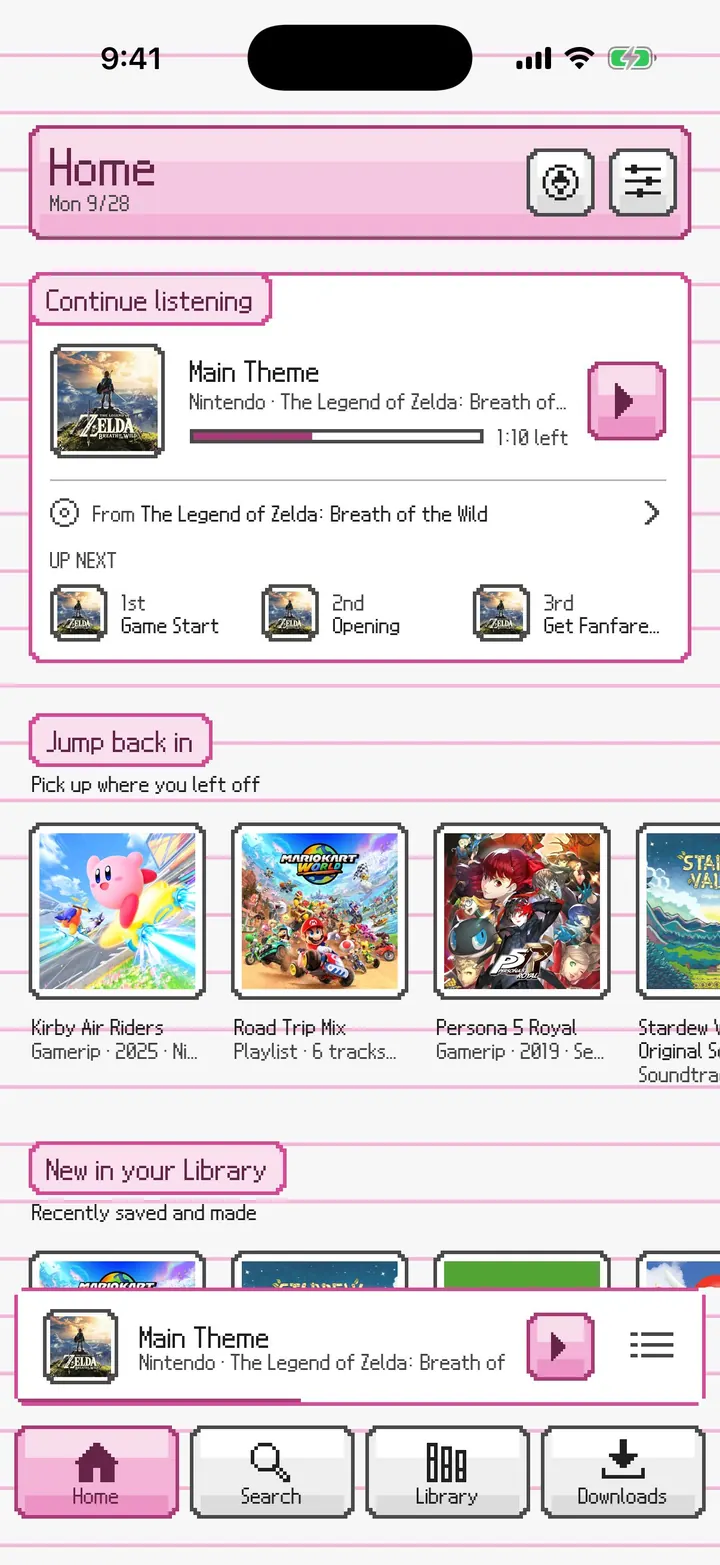
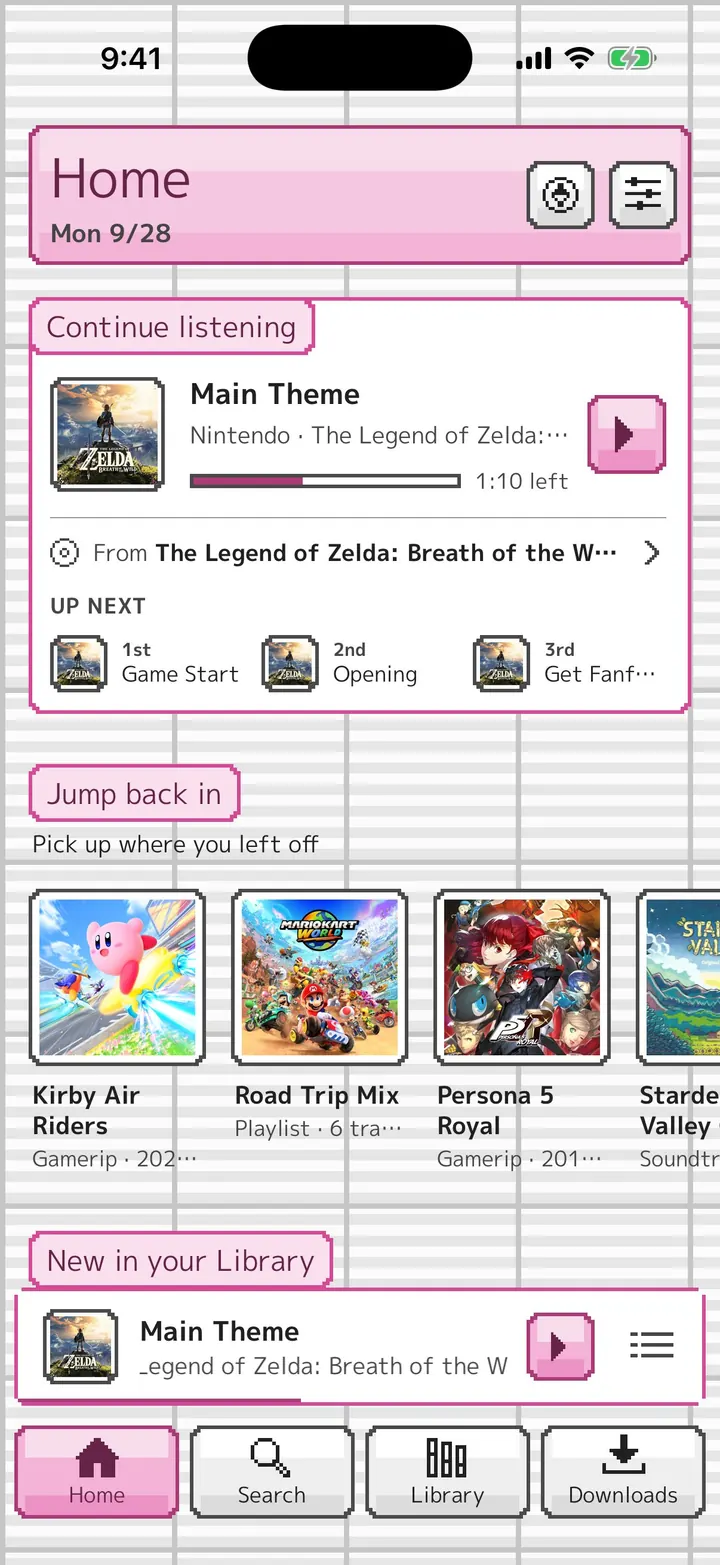
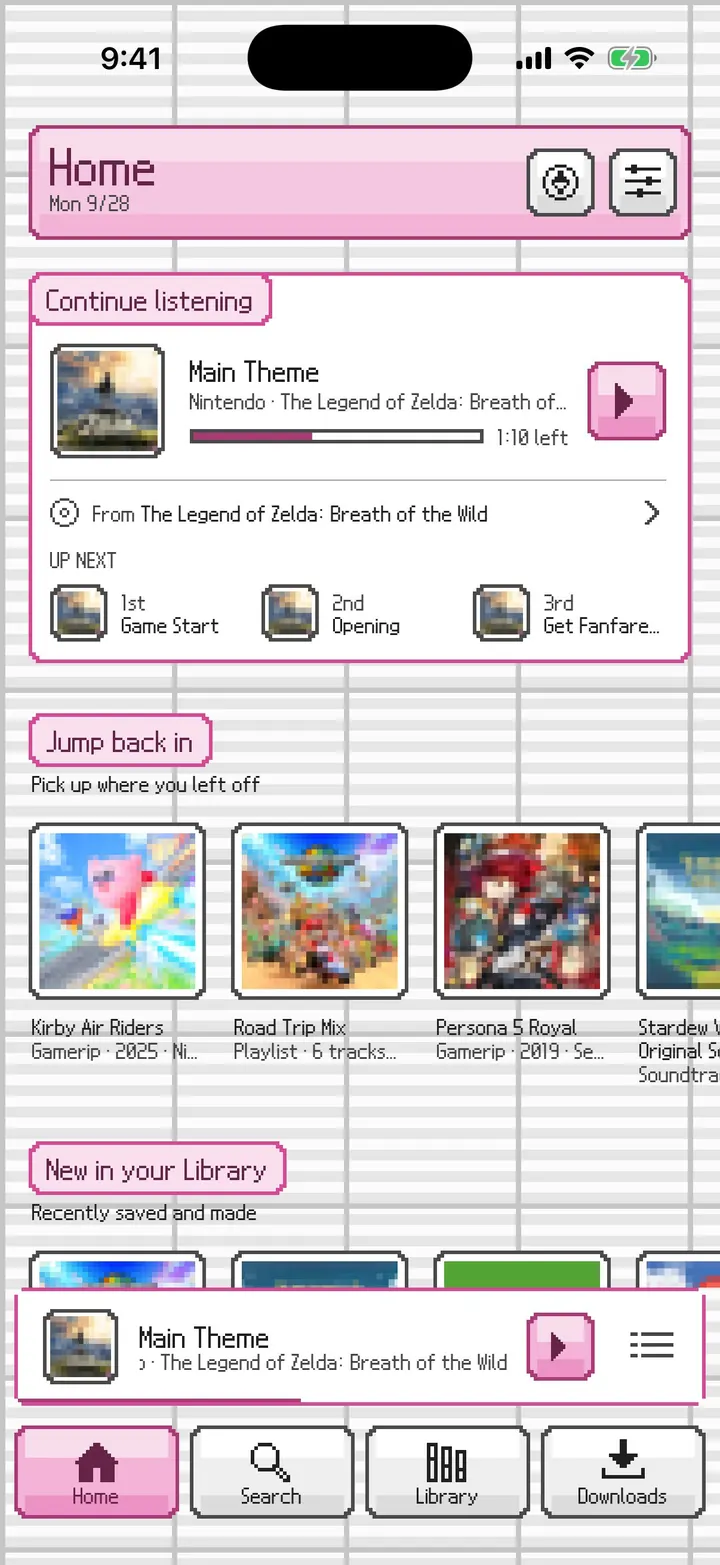
PictoChat draws the same app like the Nintendo DS chat app: a pixel font, pixel-cornered messages with name tabs, DS buttons that press in, pixel icons, and your DS color on the DS menu's grid.
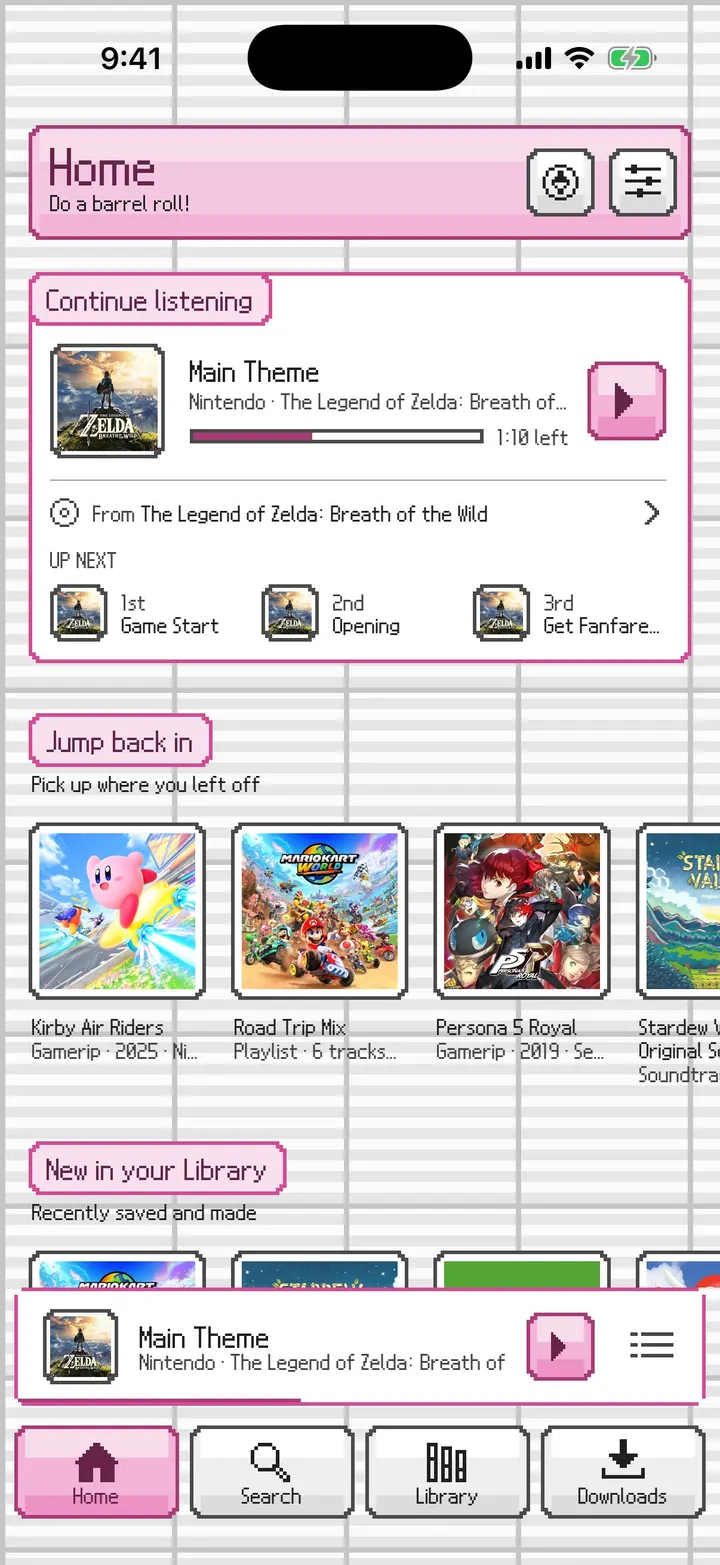
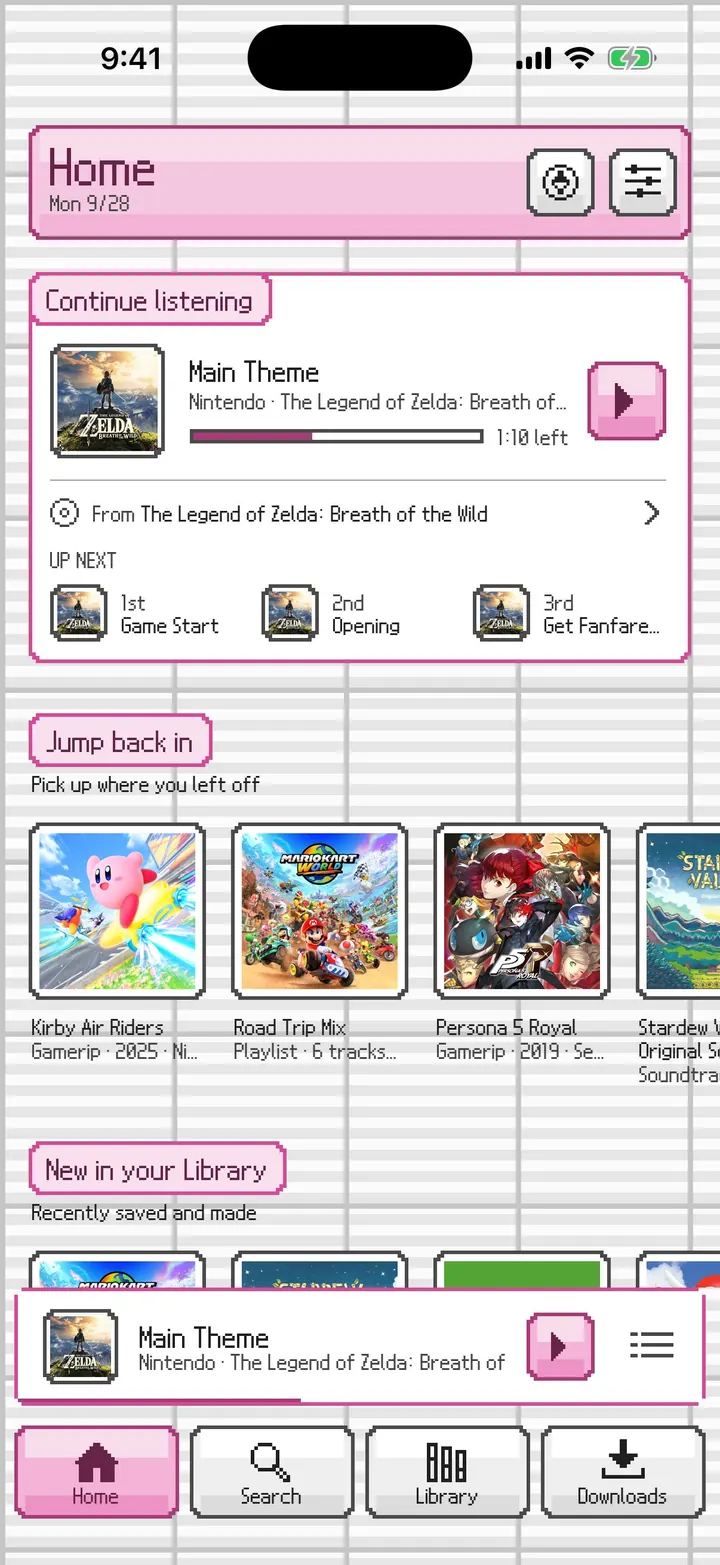
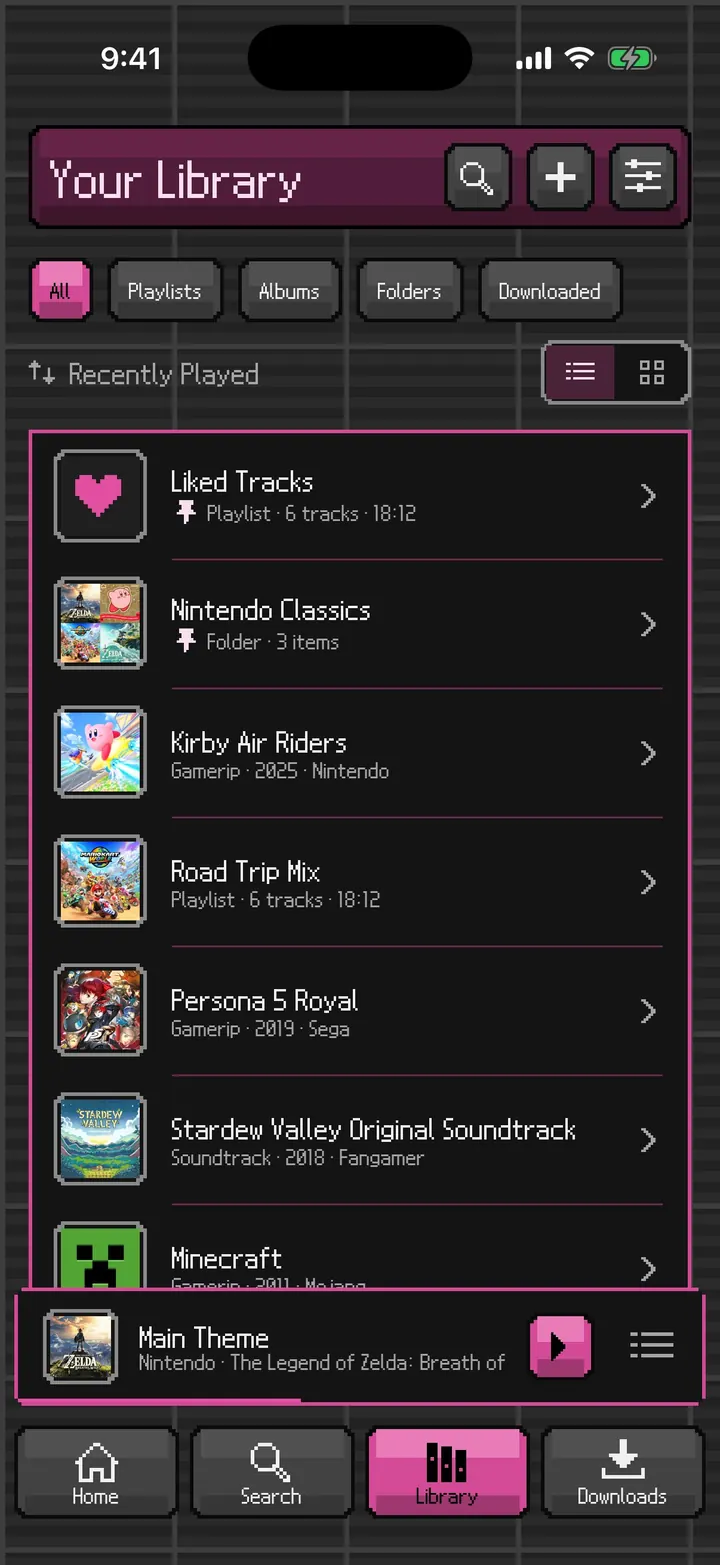
⤢Launch greeting The greeting types itself in letter by letter, like the DS keyboard, in the colored title bar.⤢Home Continue listening as a message with its name tab, then Jump back in and New in your Library in pixel frames.⤢Home in dark An authored dark counterpart on a graphite grid, since the DS itself had no dark mode.⤢Yellow, with colorful tabs Your DS color sets the name tabs and frames, and Colorful tab icons color each tab.⤢Dark, in red Any DS color works on the dark canvas too, here red with paper lines.
PictoChat Browse, search, and albums
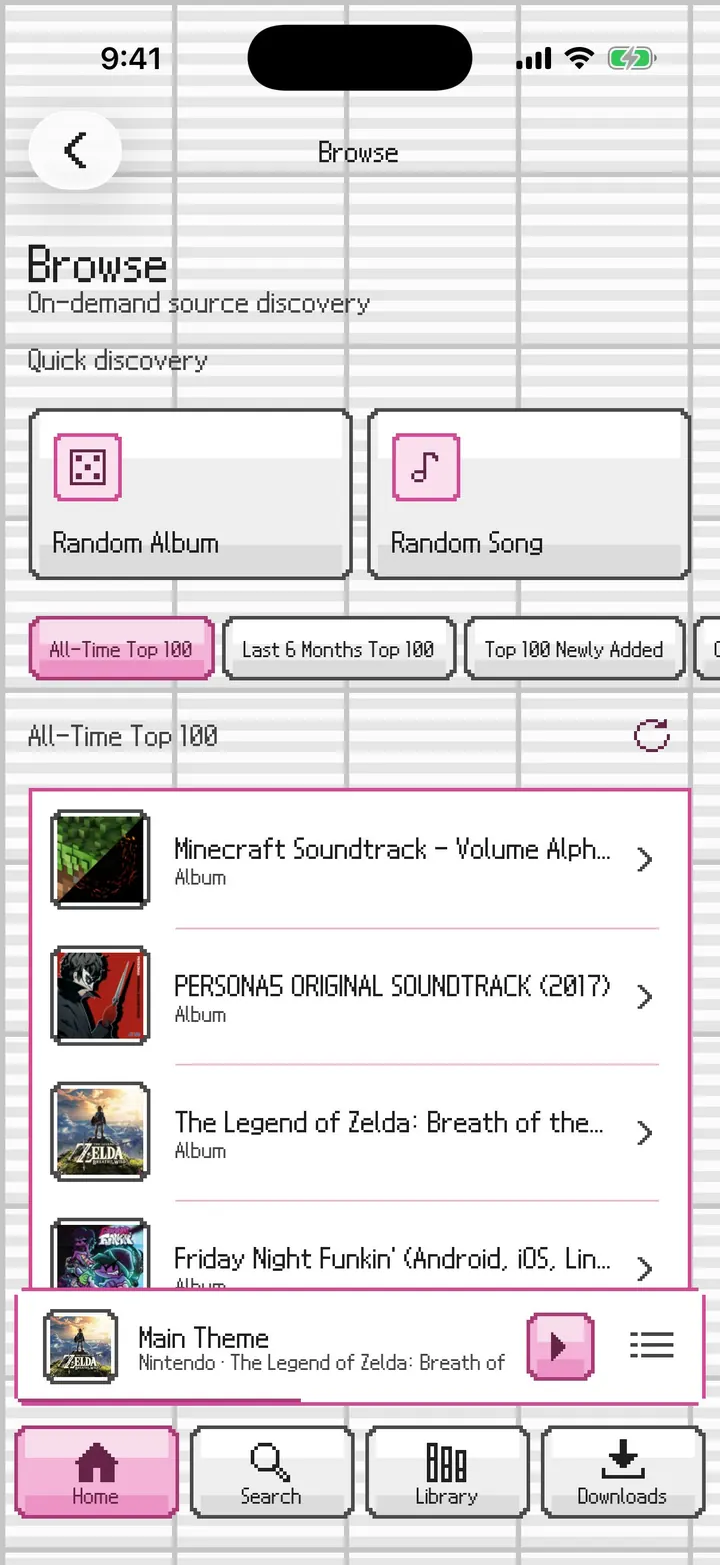
Browse, search, albums, and track actions in DS materials.
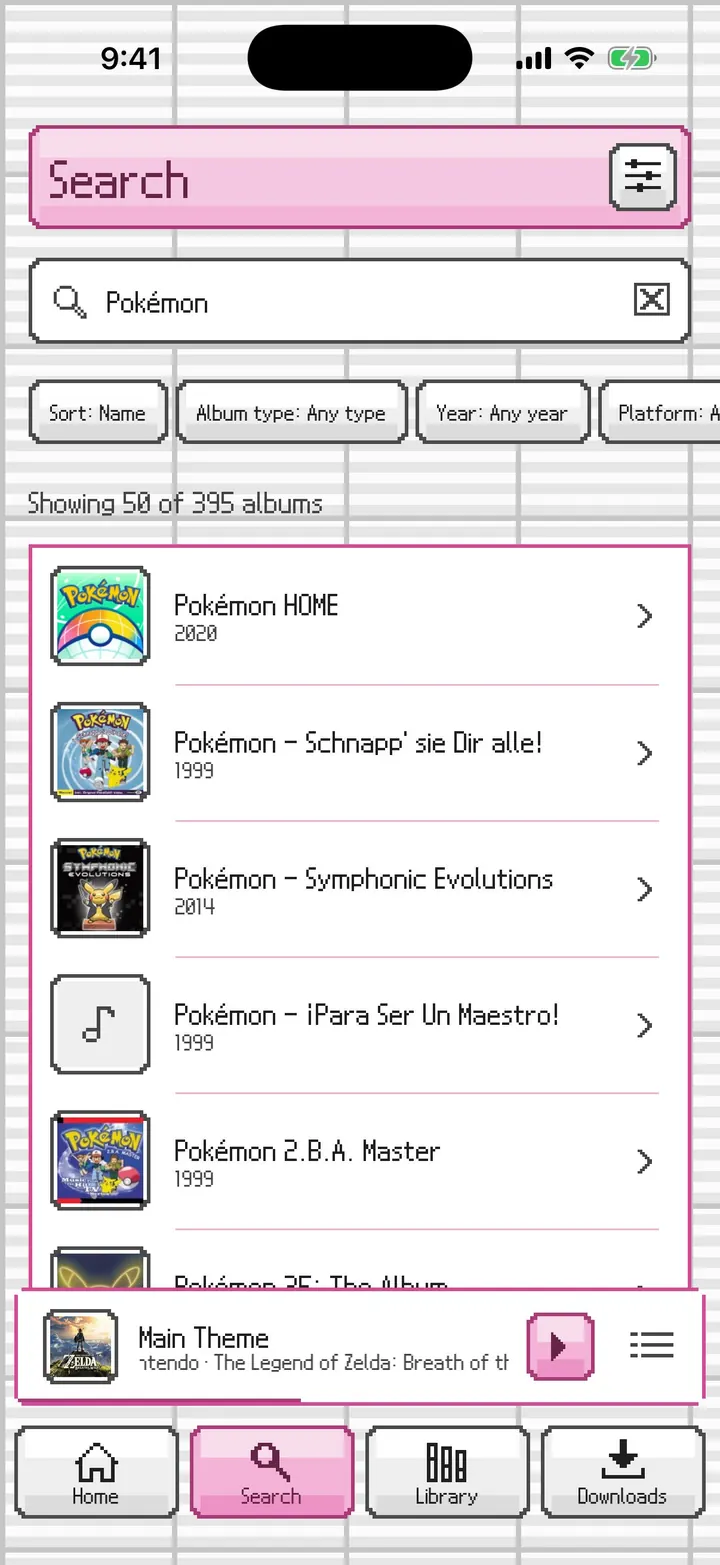
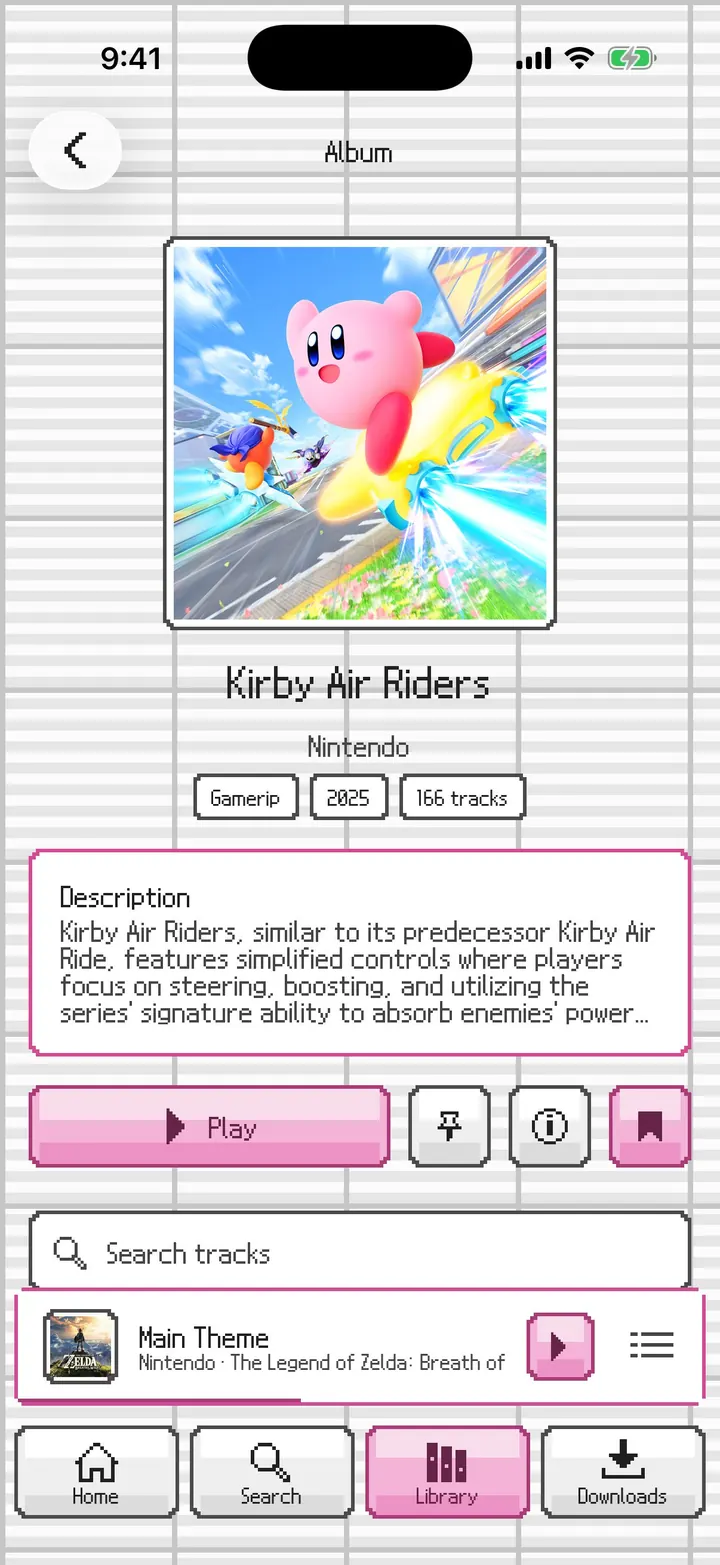
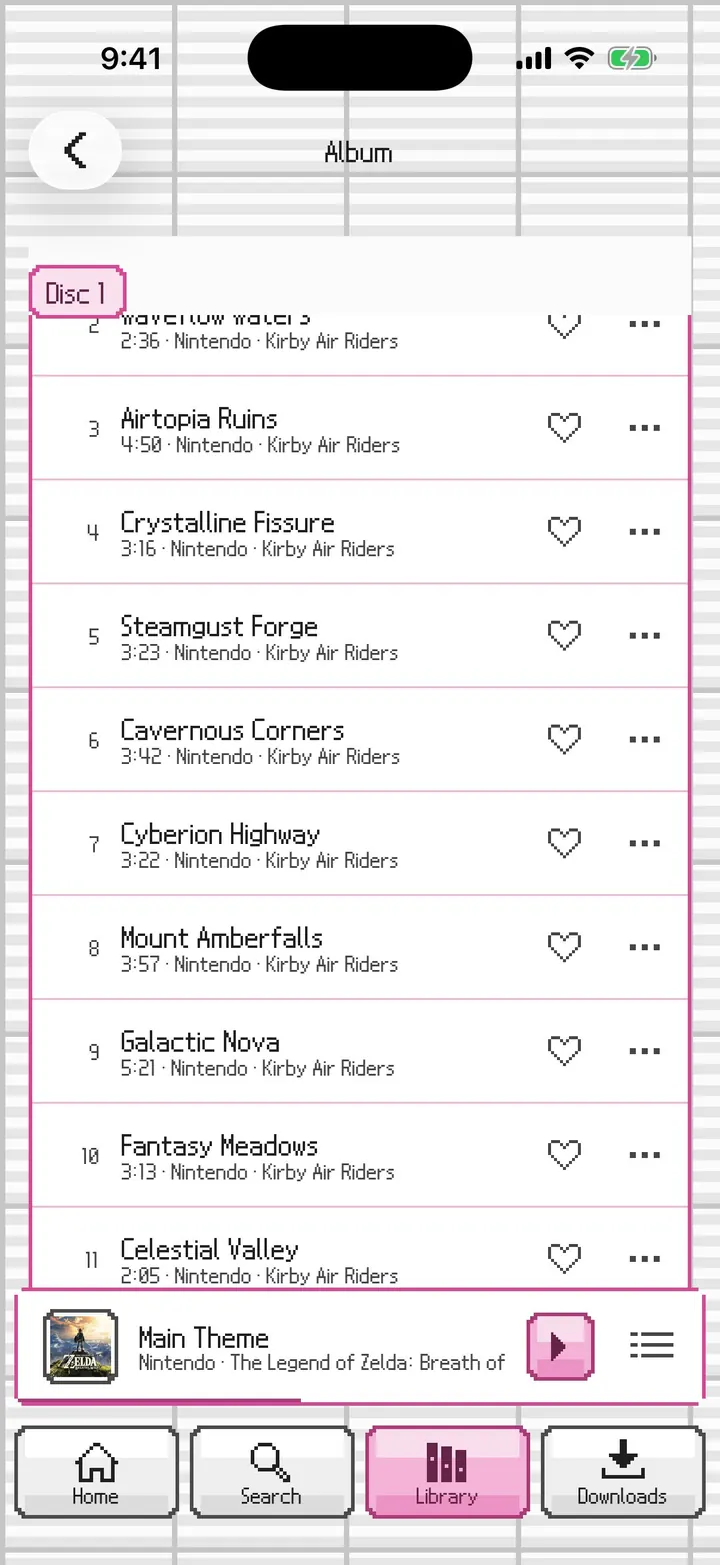
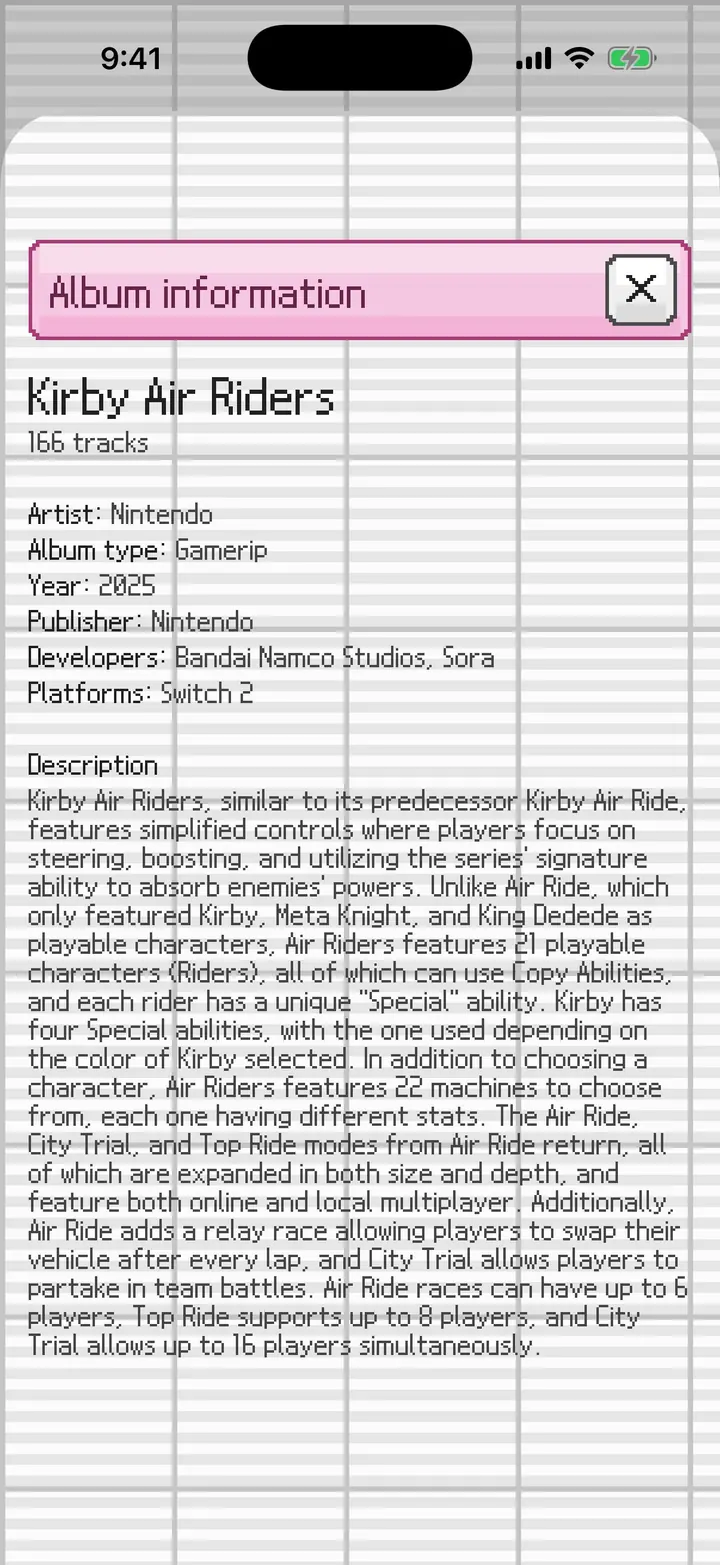
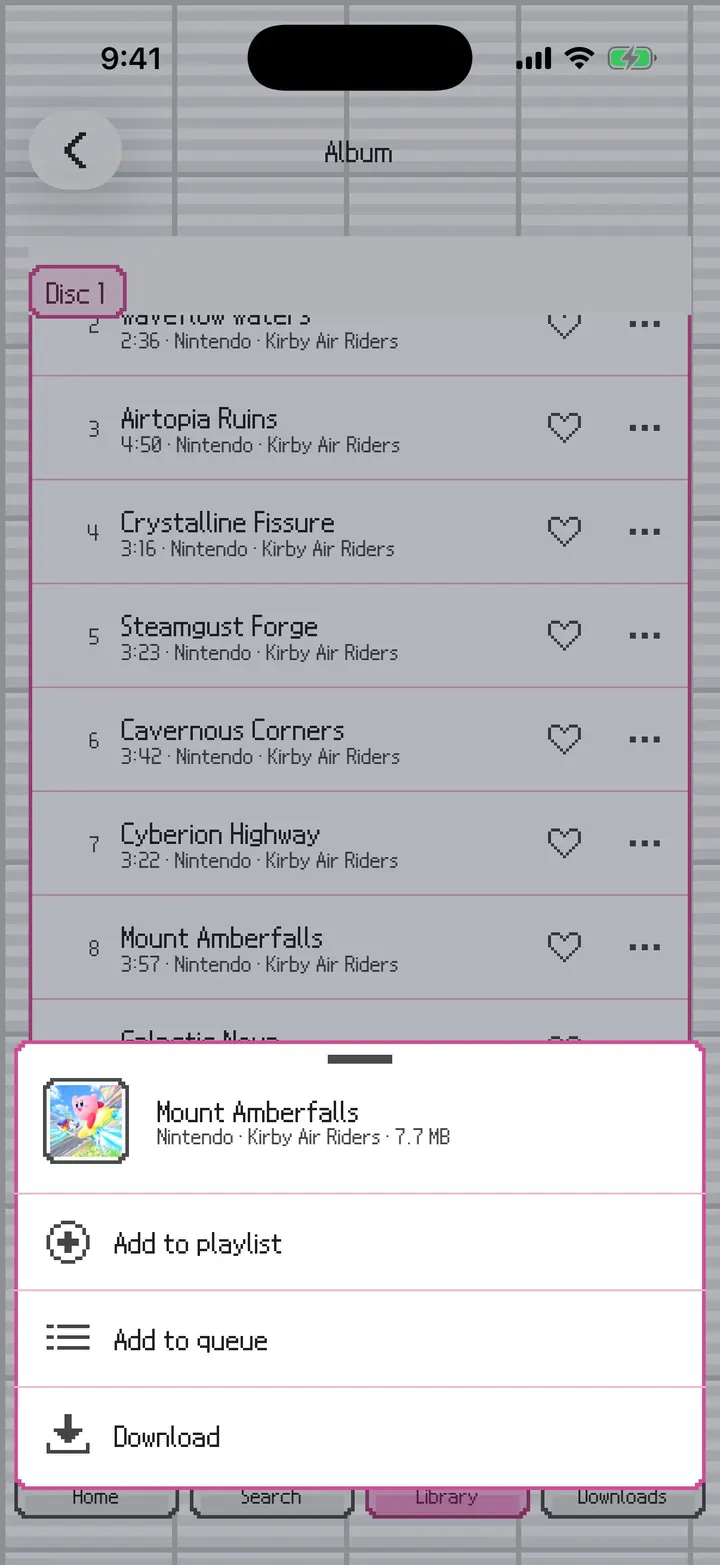
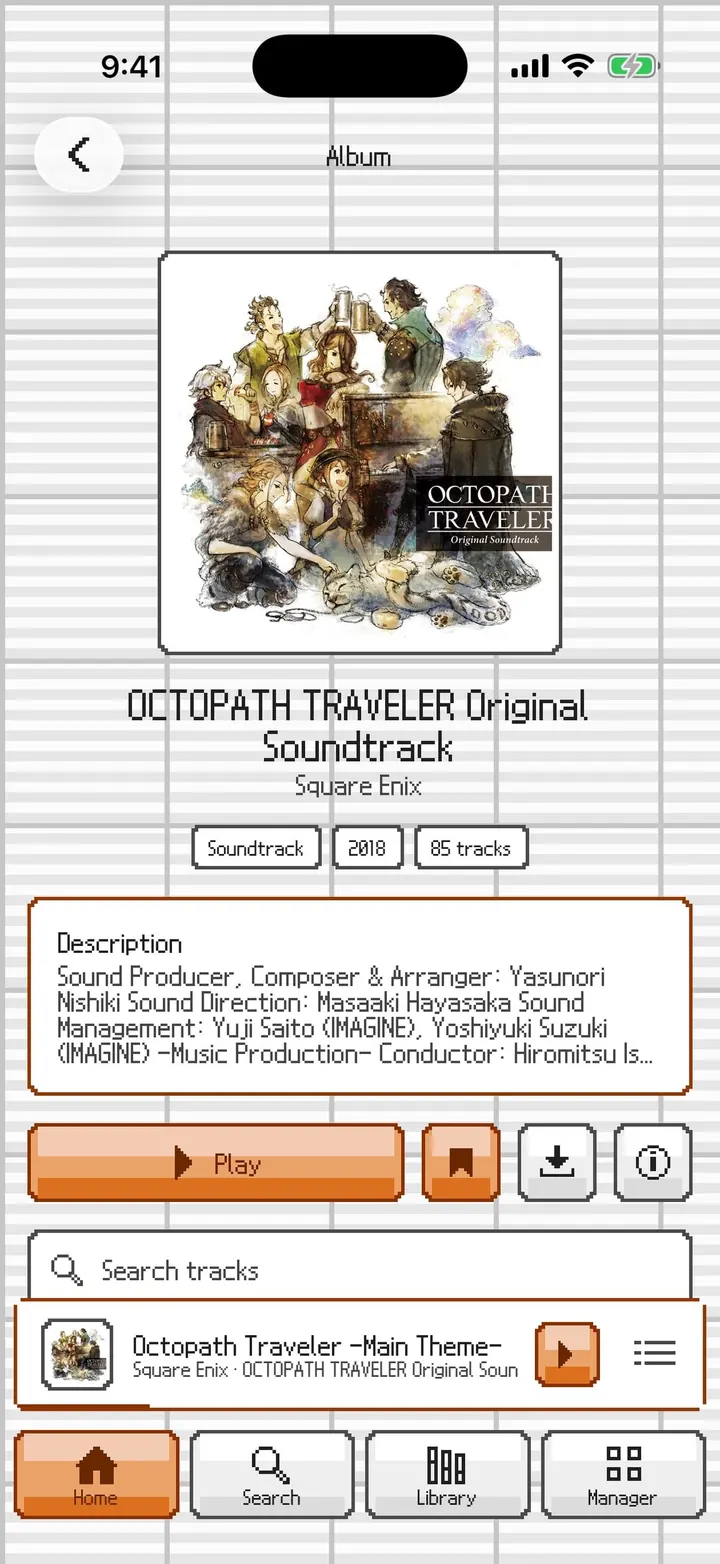
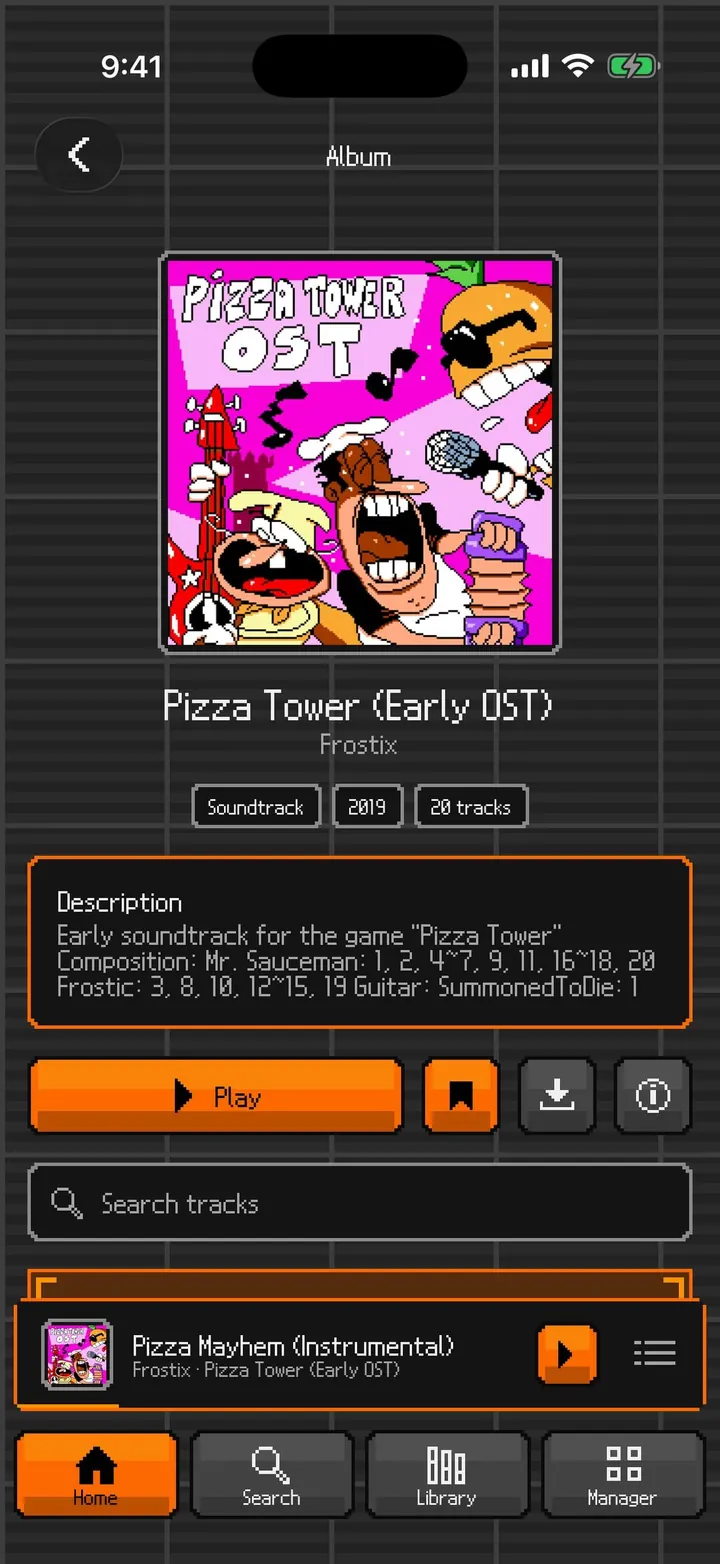
⤢Browse Random Album and Random Song as DS buttons with pixel icons, and the chart presets below.⤢Search: Pokémon DS buttons for the filters and results outlined as one message.⤢Album: Kirby Air Riders The cover in an ink frame with pixel corners, pixel-framed info tags, and DS buttons.⤢Track list Rows divided by pale ruled lines in your color, with a Disc name tab.⤢Album information Sheets get PictoChat's colored title bar and a DS close button.⤢Track actions The ⋯ sheet in PictoChat, with pixel icons.⤢Album: Octopath Traveler An album in a brown DS color, with its details in message frames.⤢Album in dark The same page on the dark canvas in orange.
PictoChat Library
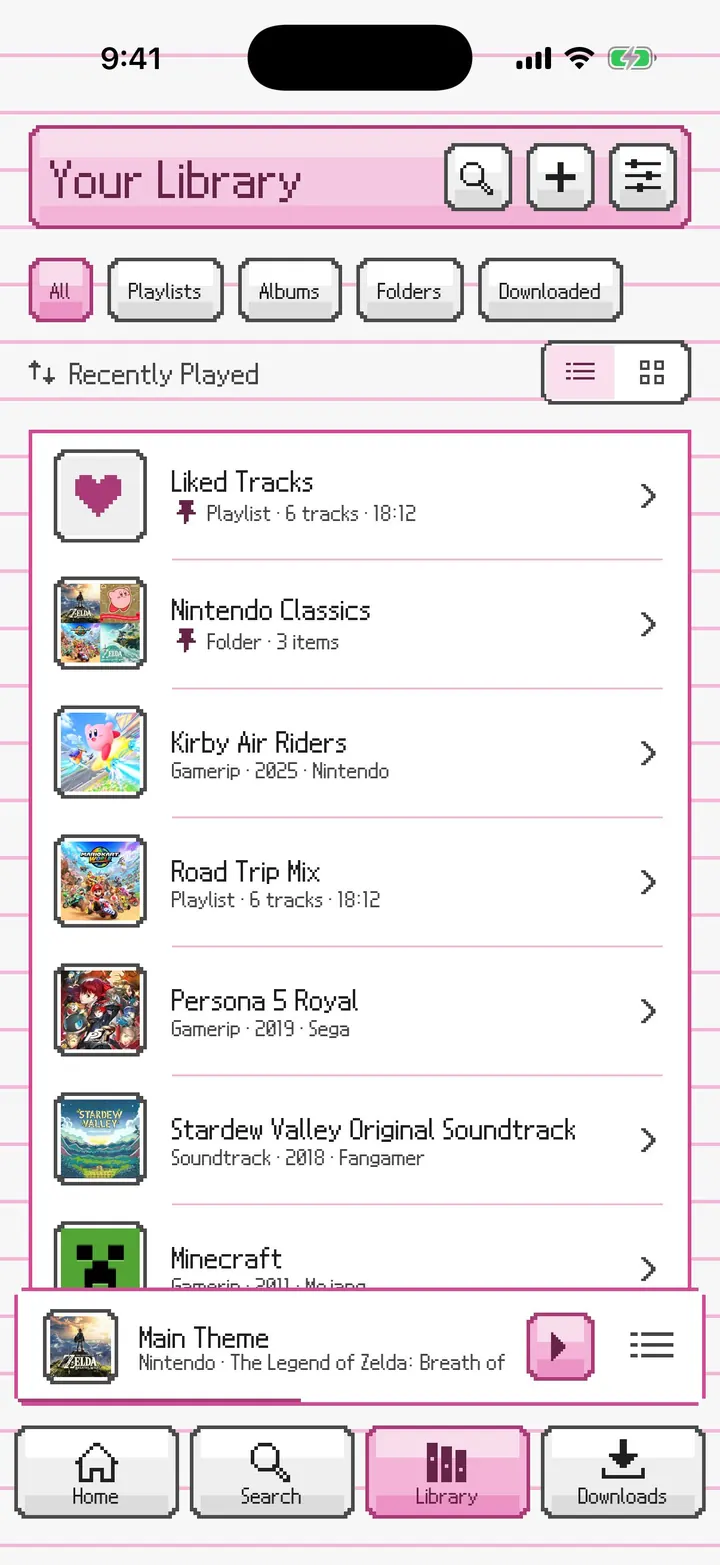
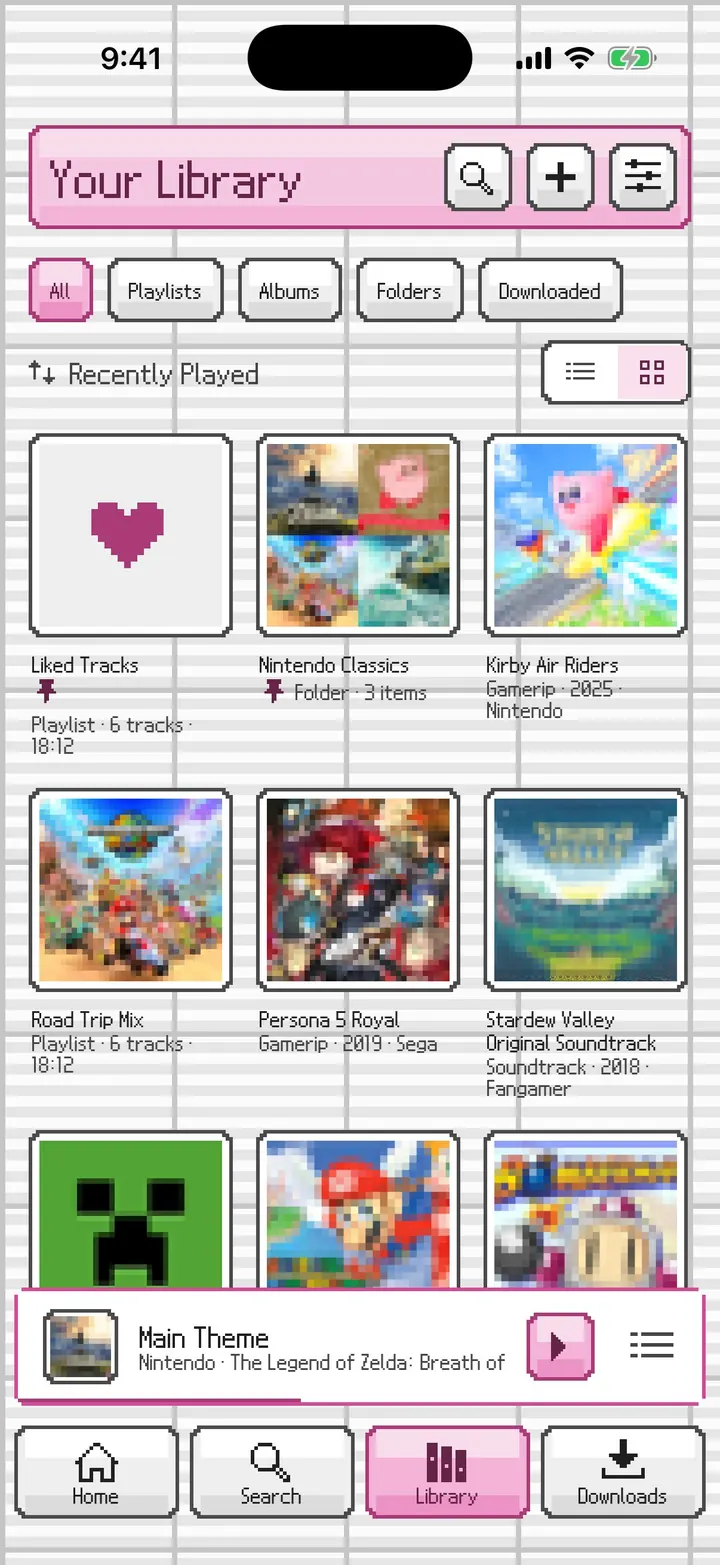
The Library as messages and pixel frames.
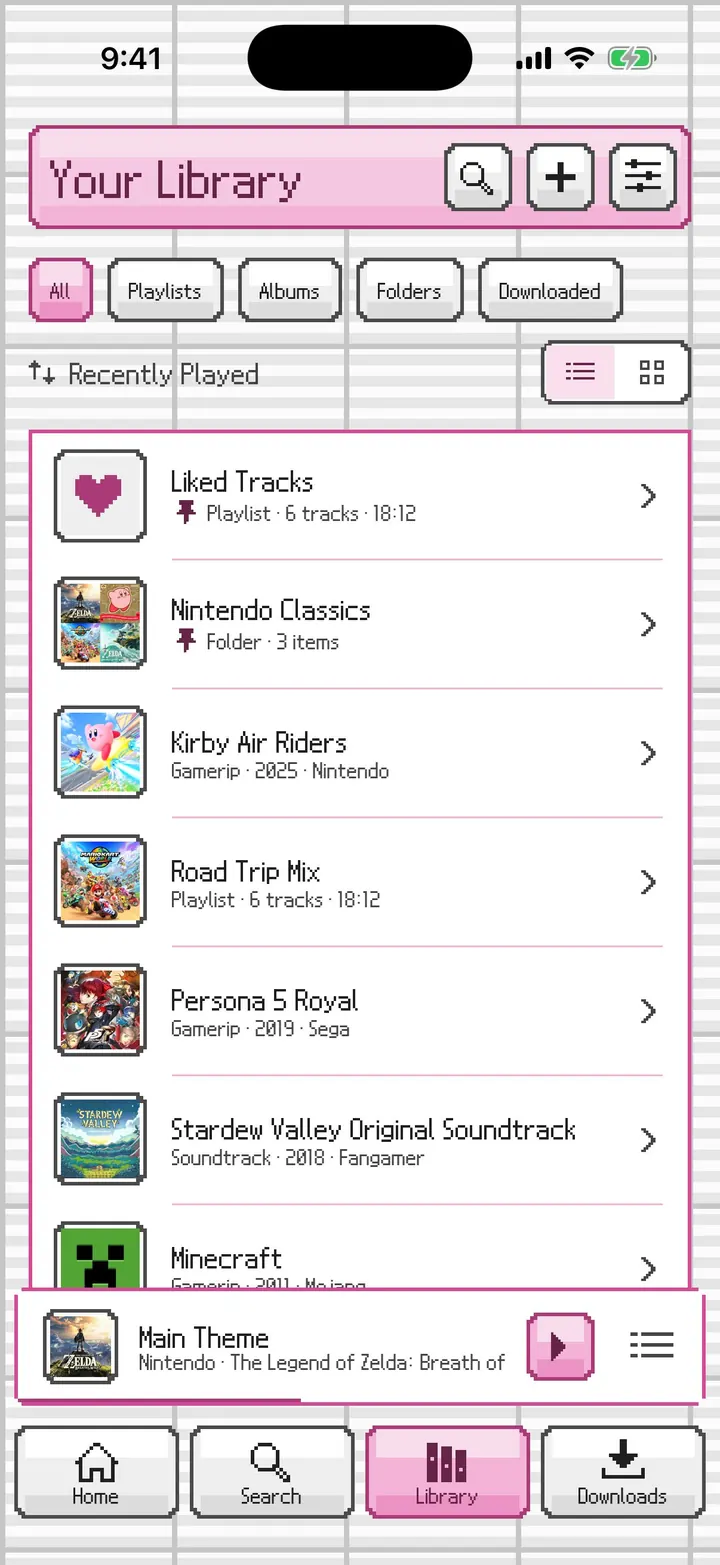
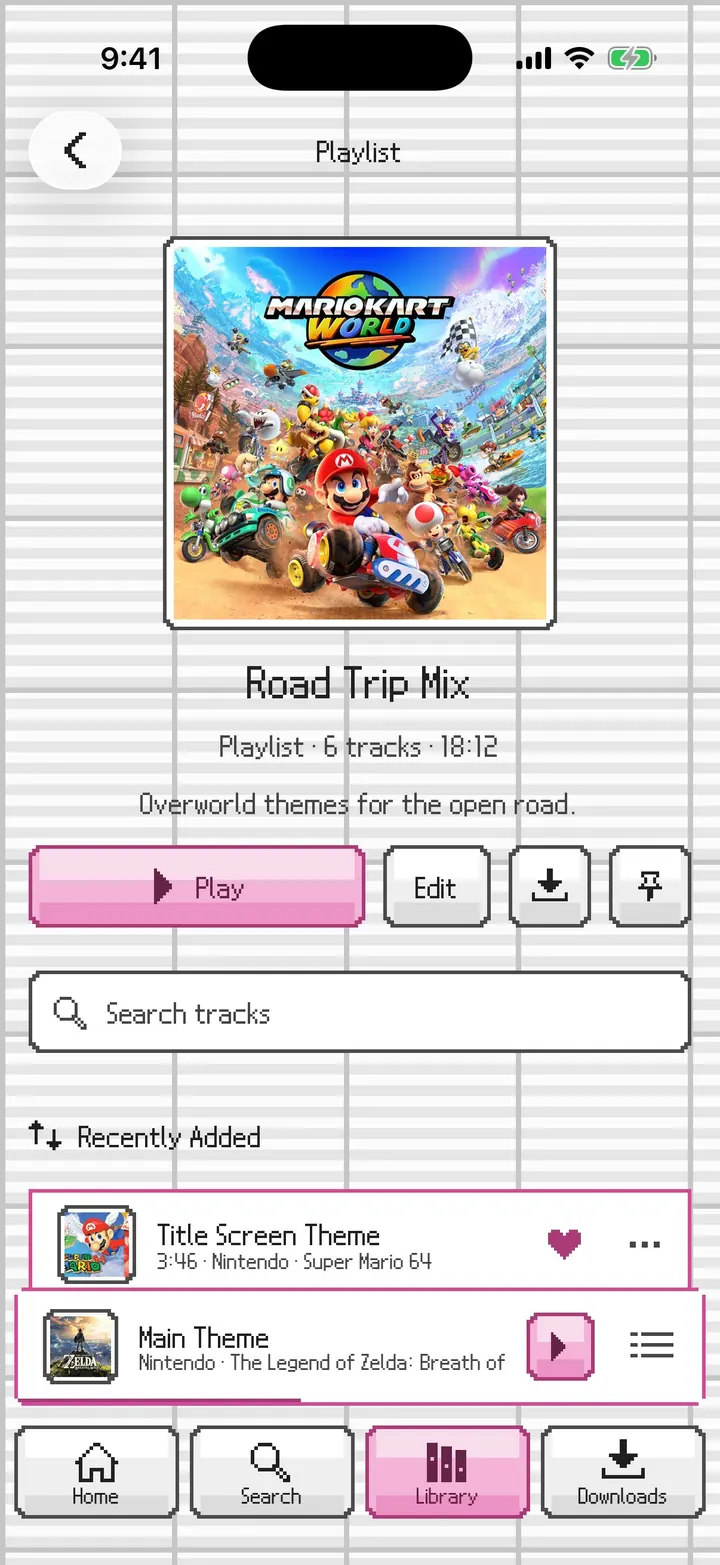
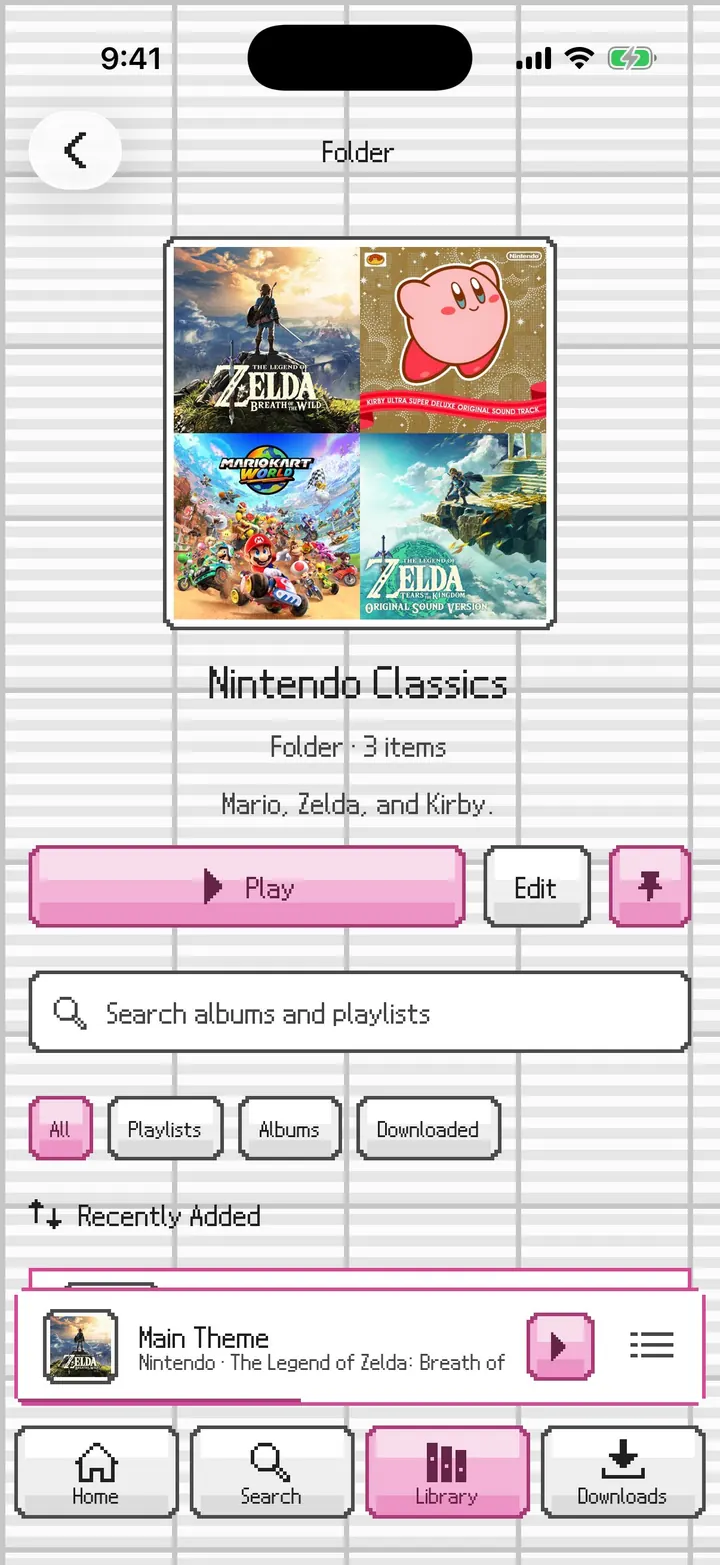
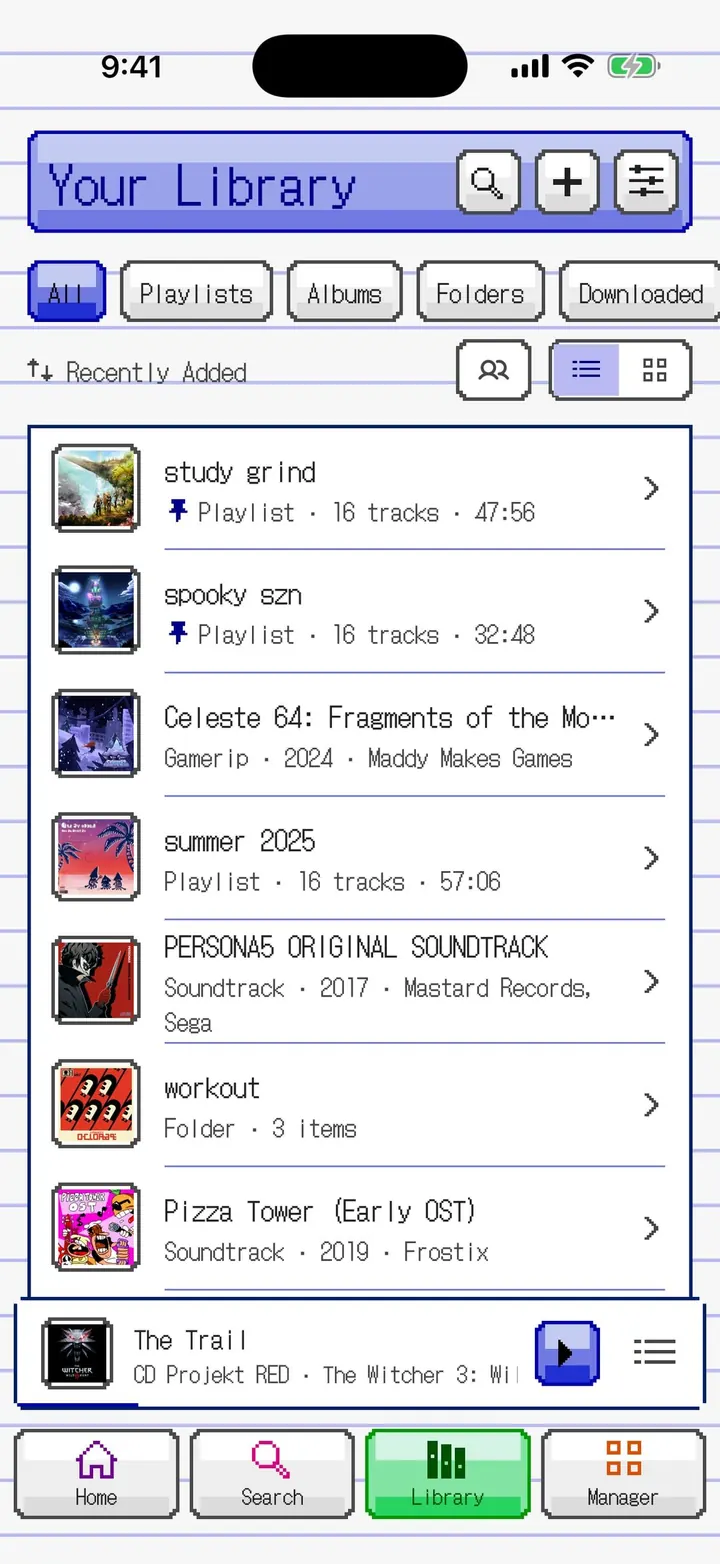
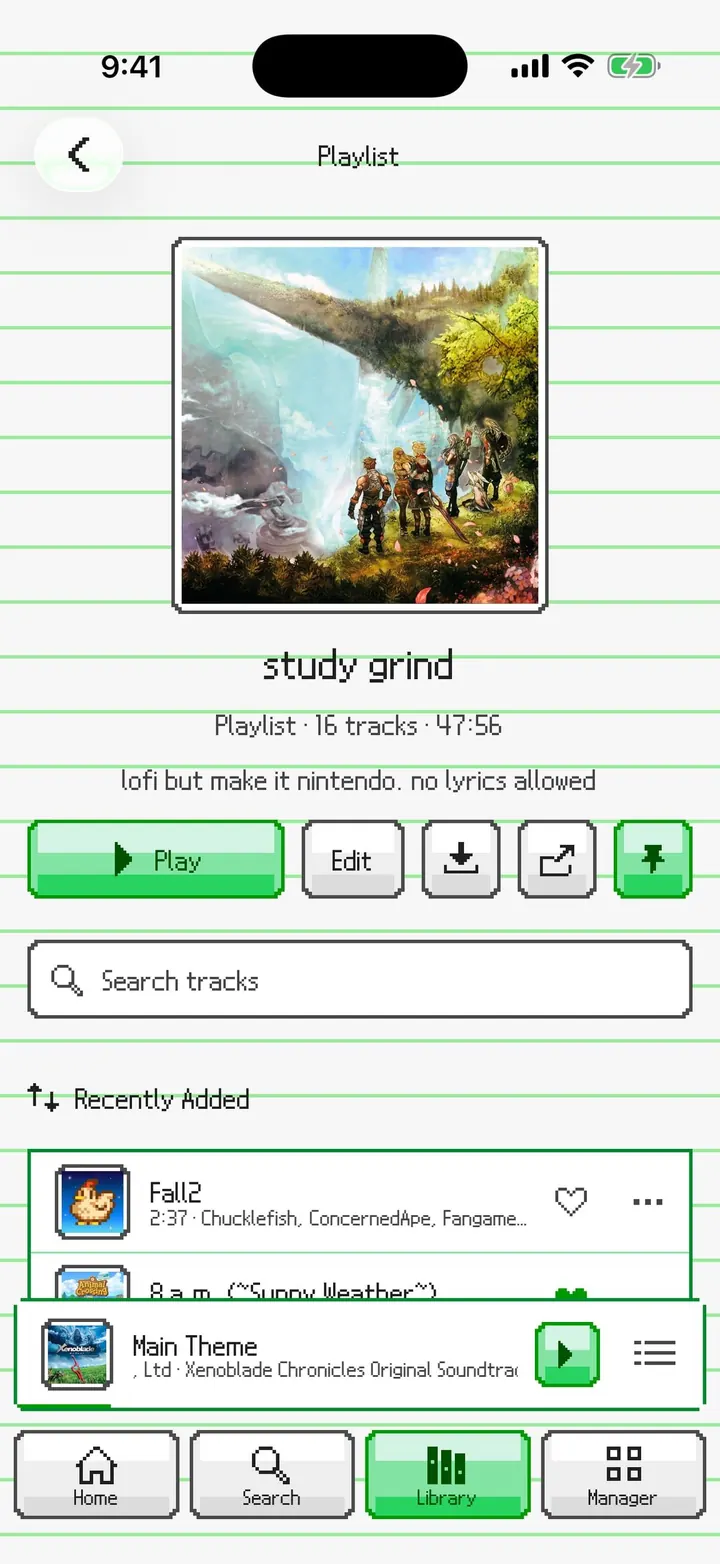
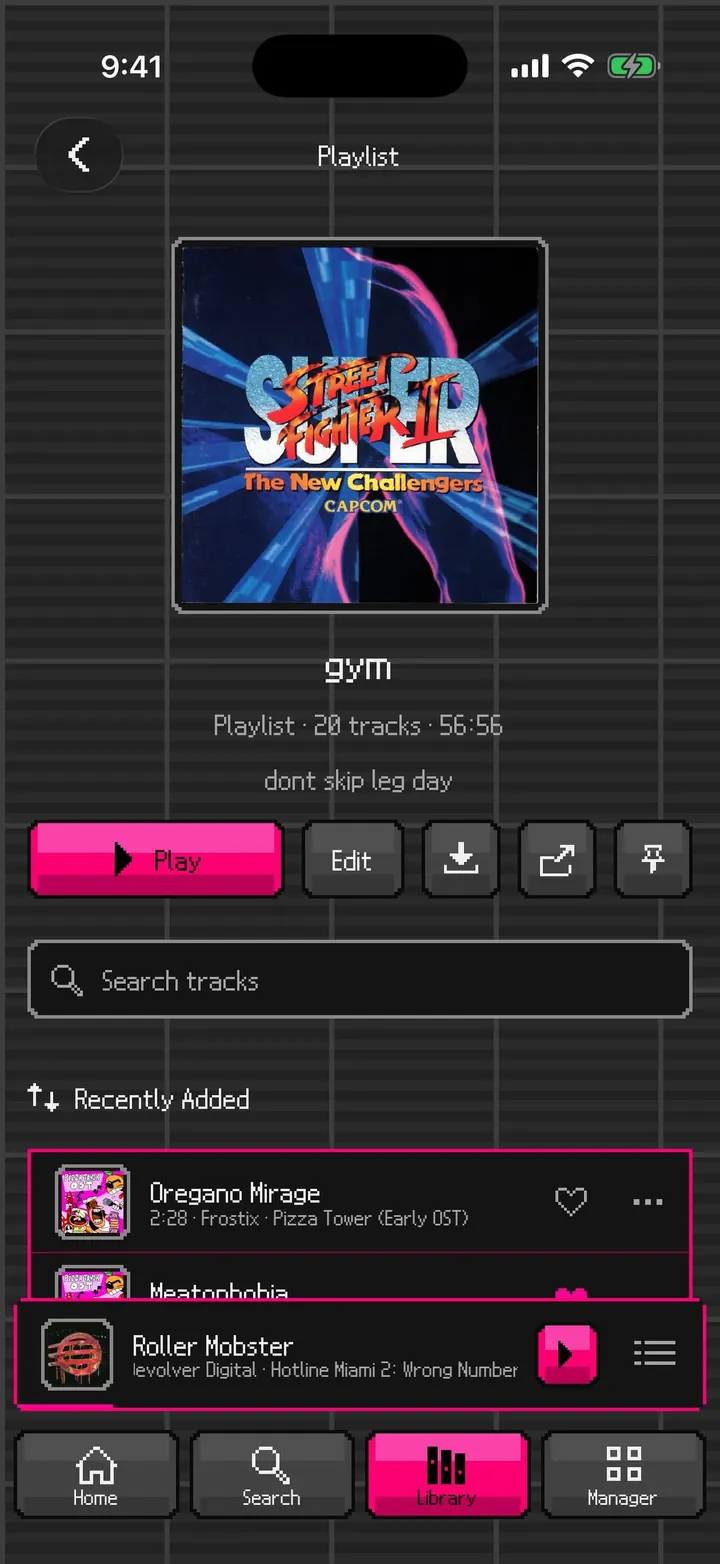
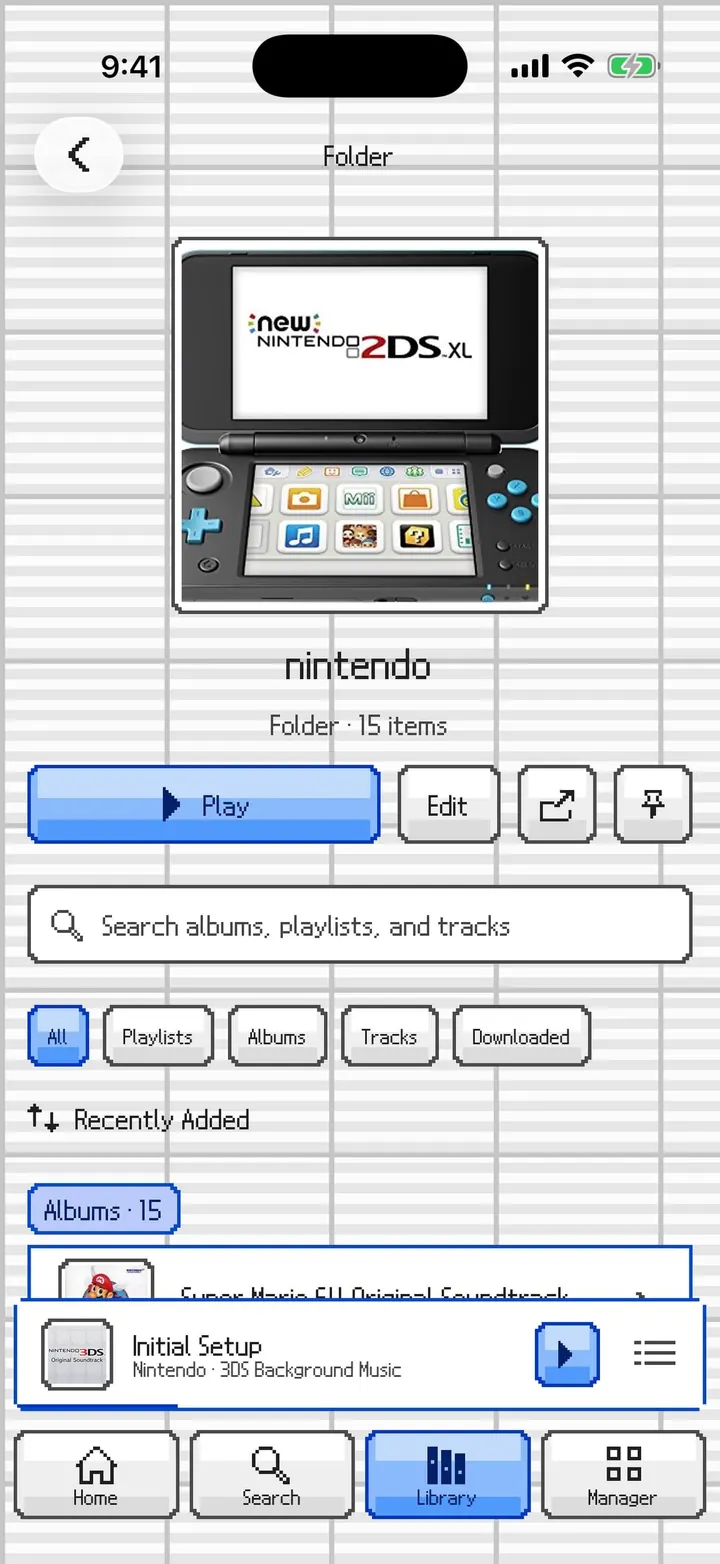
⤢Library Collections outlined like one message, with pixel pin icons and DS filter buttons.⤢Library grid Covers in ink frames with pixel corners.⤢Library in dark The list view on the graphite grid.⤢Playlist A playlist page with DS Play, Edit, Download, and Pin buttons.⤢Folder A folder of albums with its own search and filters.⤢Liked Tracks A pixel heart for Liked Tracks.⤢Offline Library The playing track marked with the DS's colored corner brackets and square EQ bars.⤢Navy on paper The Library on paper lines in navy, with colorful tab icons.⤢Library in purple The list view on the dark canvas in purple.⤢Folders Folders in the grid, in pixel frames.⤢Playlist on paper A playlist with its own cover and description, in green on paper lines.⤢Playlist in dark A playlist on the dark canvas in fuchsia.⤢Folder with sections The same labeled sections and filter chips, in DS frames.
PictoChat Playback
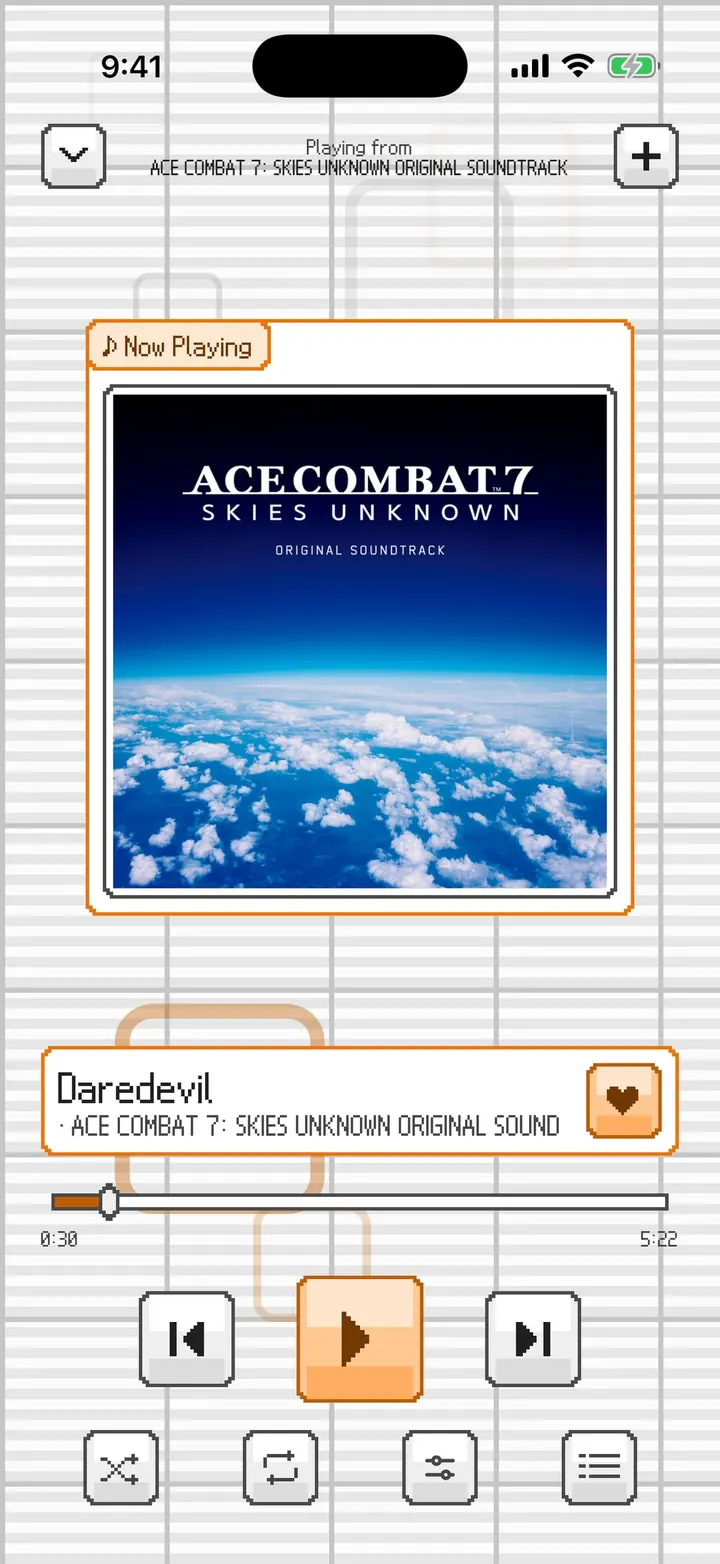
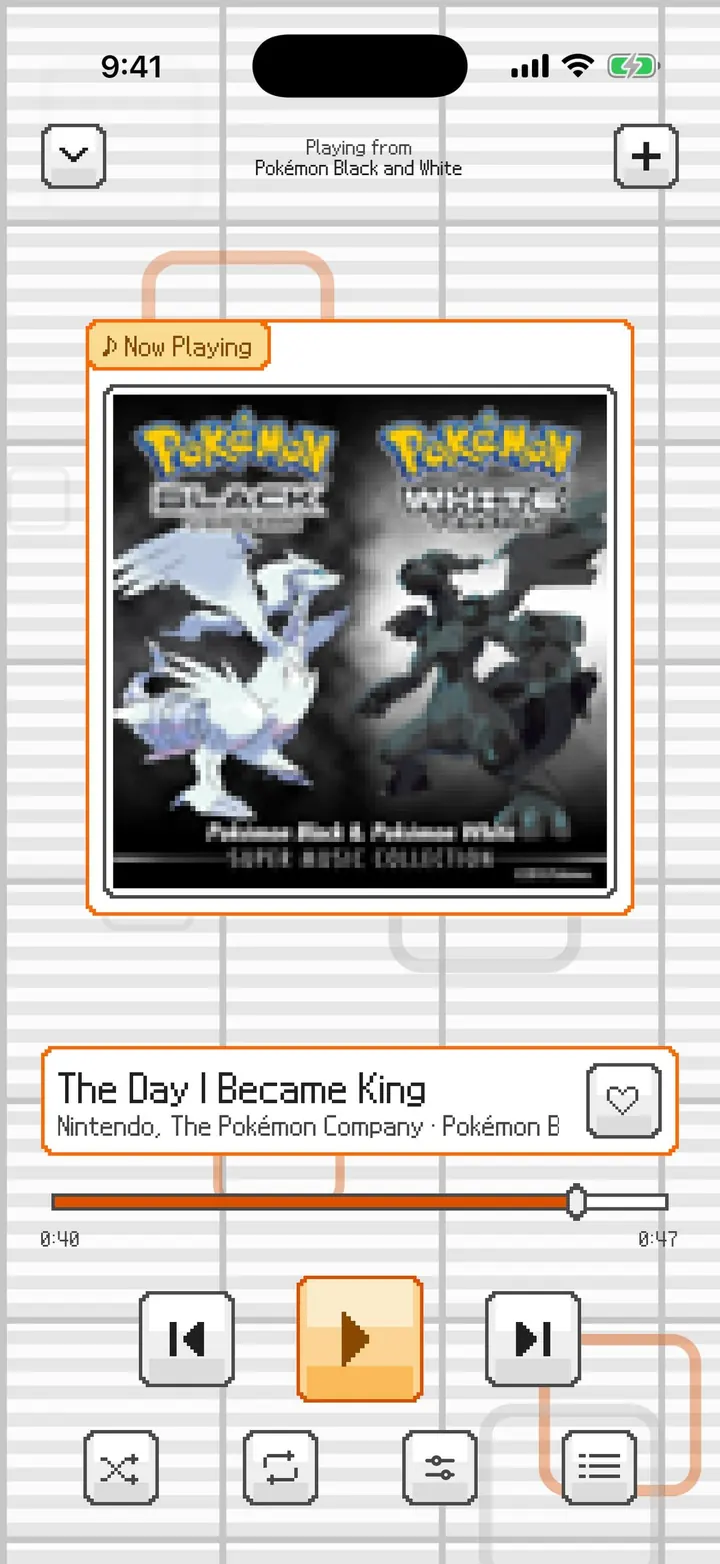
Now Playing frames the cover and the title as two messages, over its own Now Playing background.
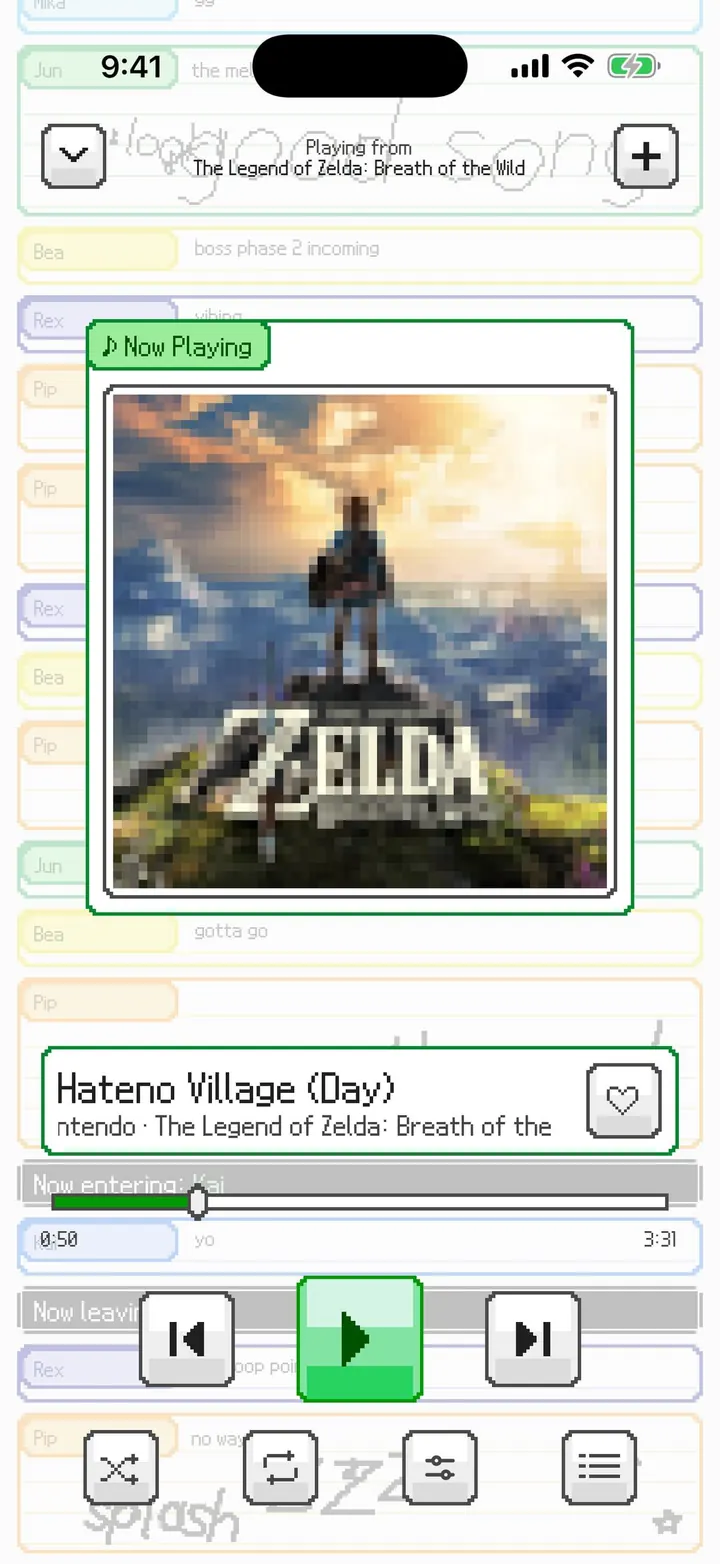
⤢Now Playing: Squares The DS boot screen's outlined squares fade in and out behind the player (the default background).⤢Now Playing: Chat A faint pretend chat room behind the player: people come and go, type messages, and send hand-drawn pictures that draw themselves in.⤢Chat in dark The chat room on the dark canvas.⤢Shuffle and repeat one Selected buttons fill with your color and keep their icons legible. Repeat one gets a small black DS badge.⤢Playback Queue Name tabs for each part of the queue and the selection corners on the current track.⤢Squares in red The cover and title frames, the controls, and the squares all take your DS color.⤢No background The background turned off, in purple on a plain grid.⤢Now Playing in dark Sky blue frames on the dark canvas.⤢A custom color Pick any color with the custom swatch, not only the preset DS ones.
PictoChat Look
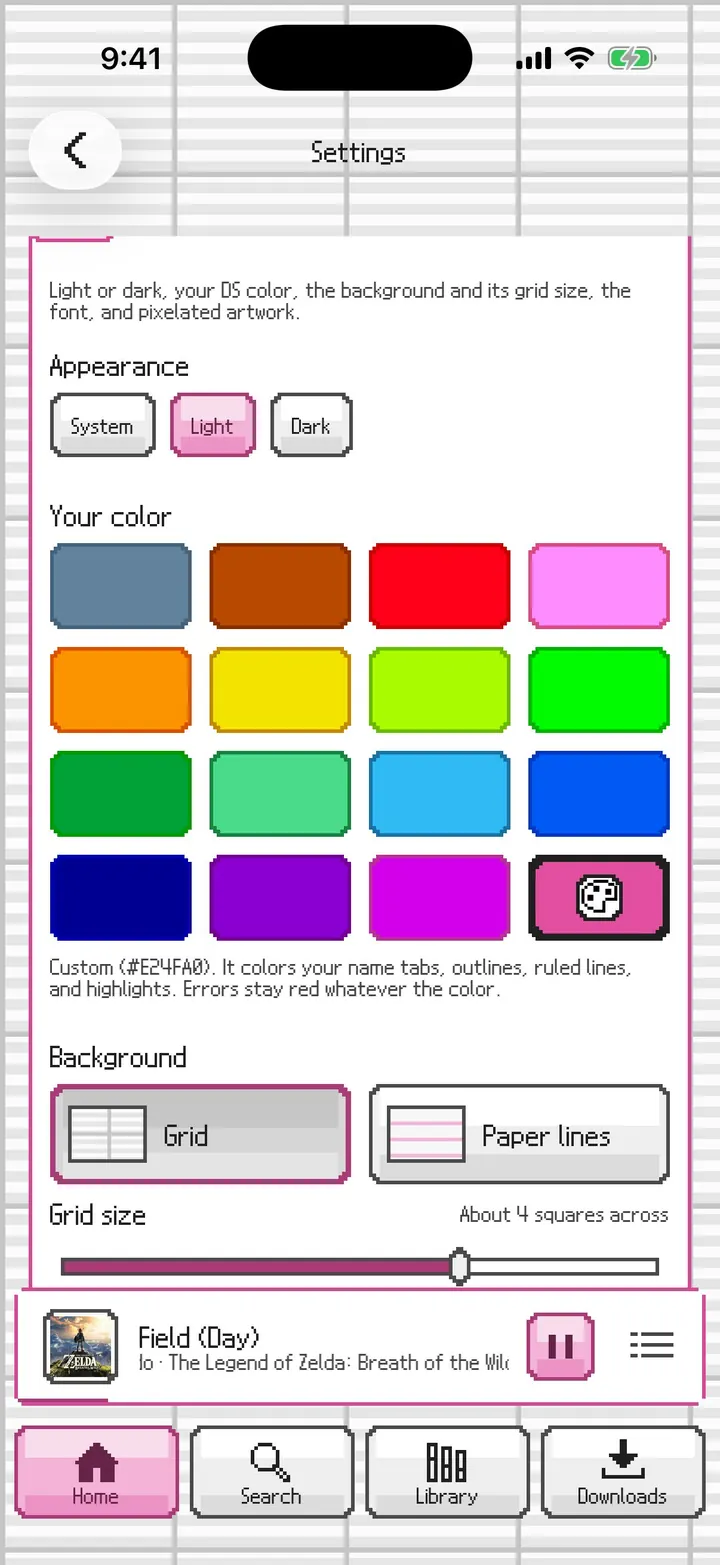
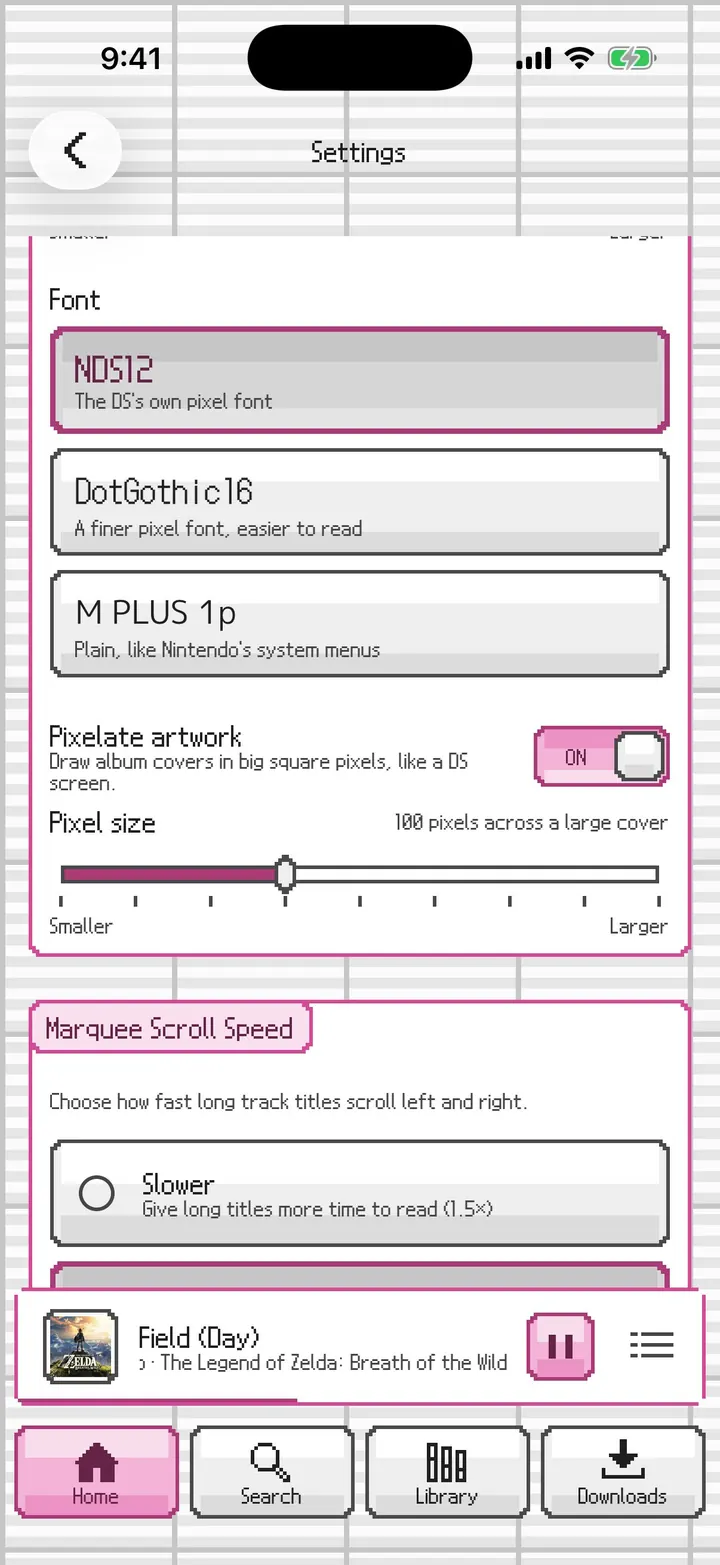
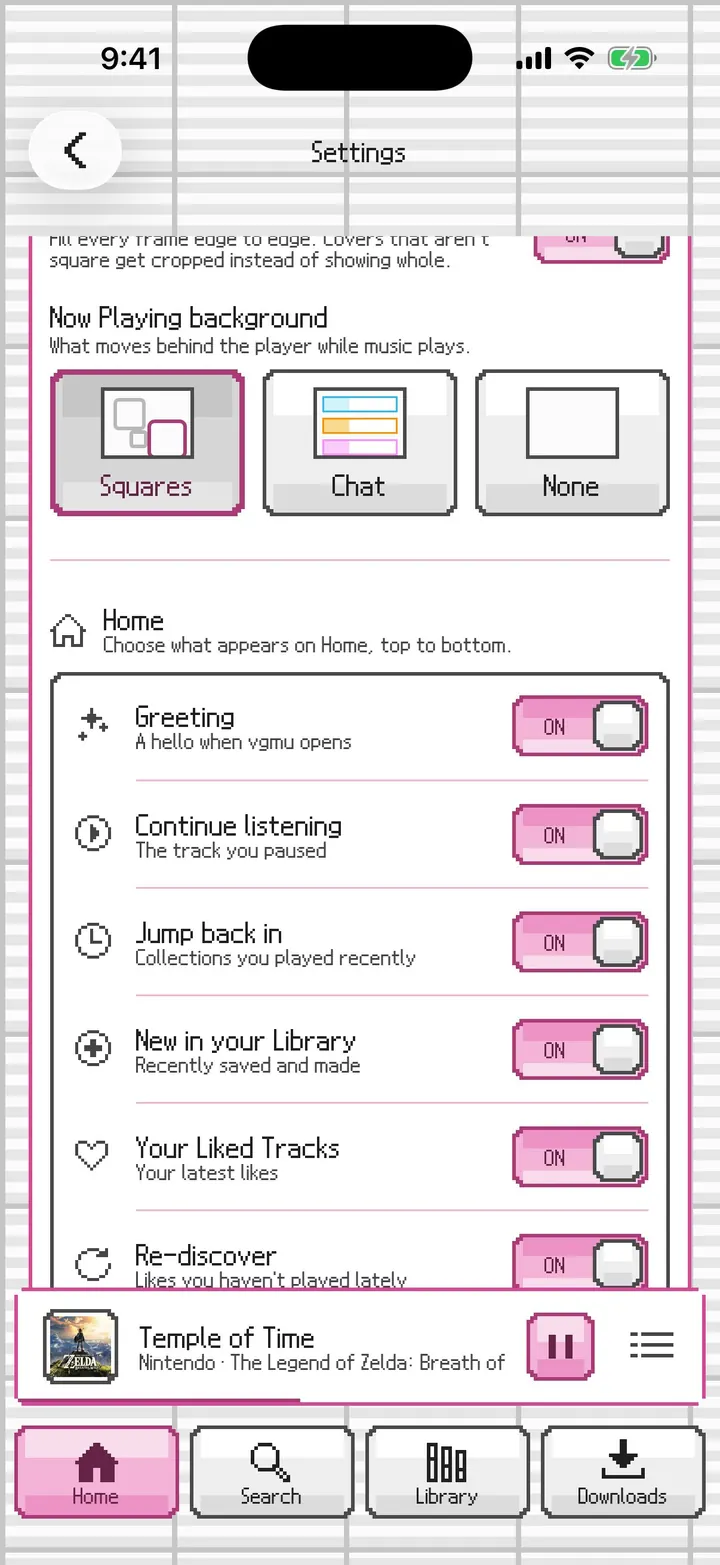
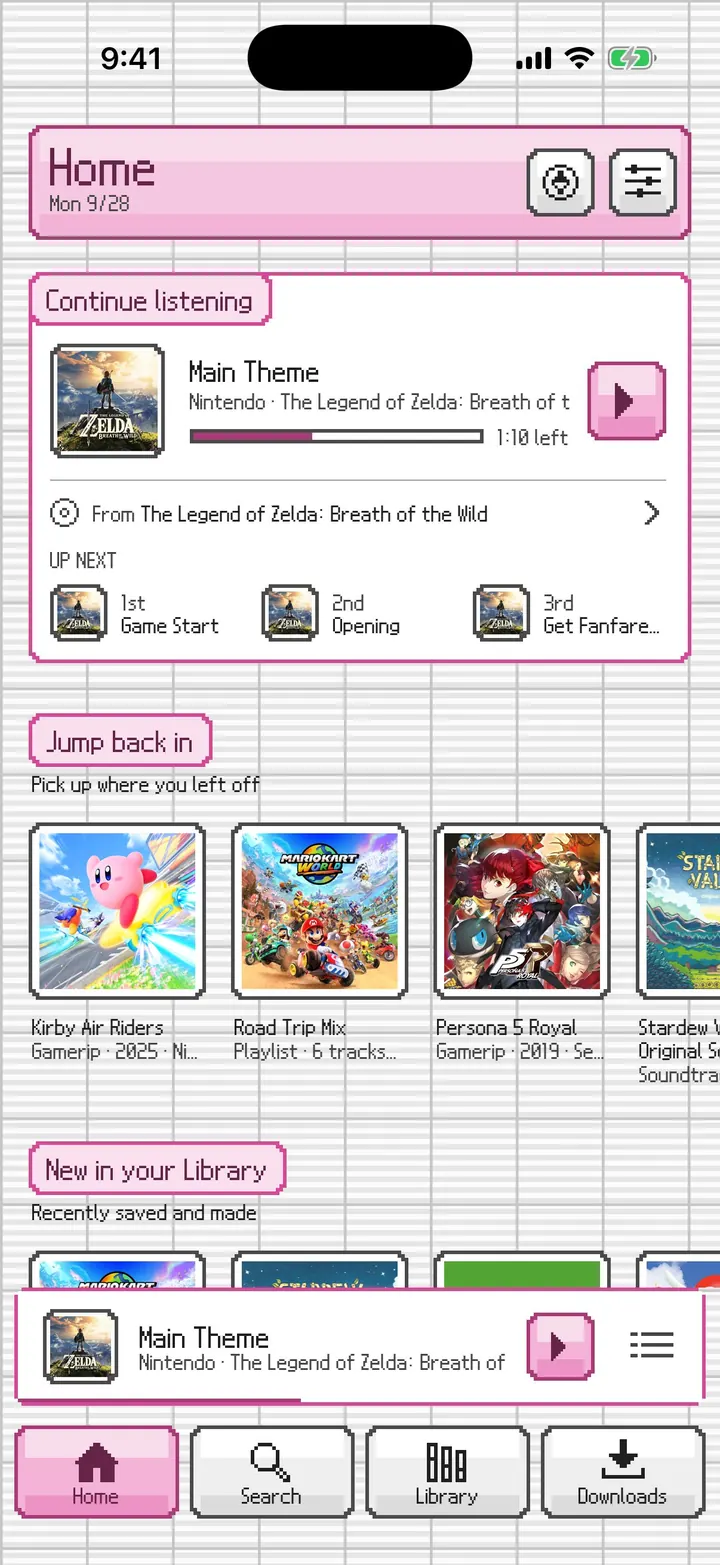
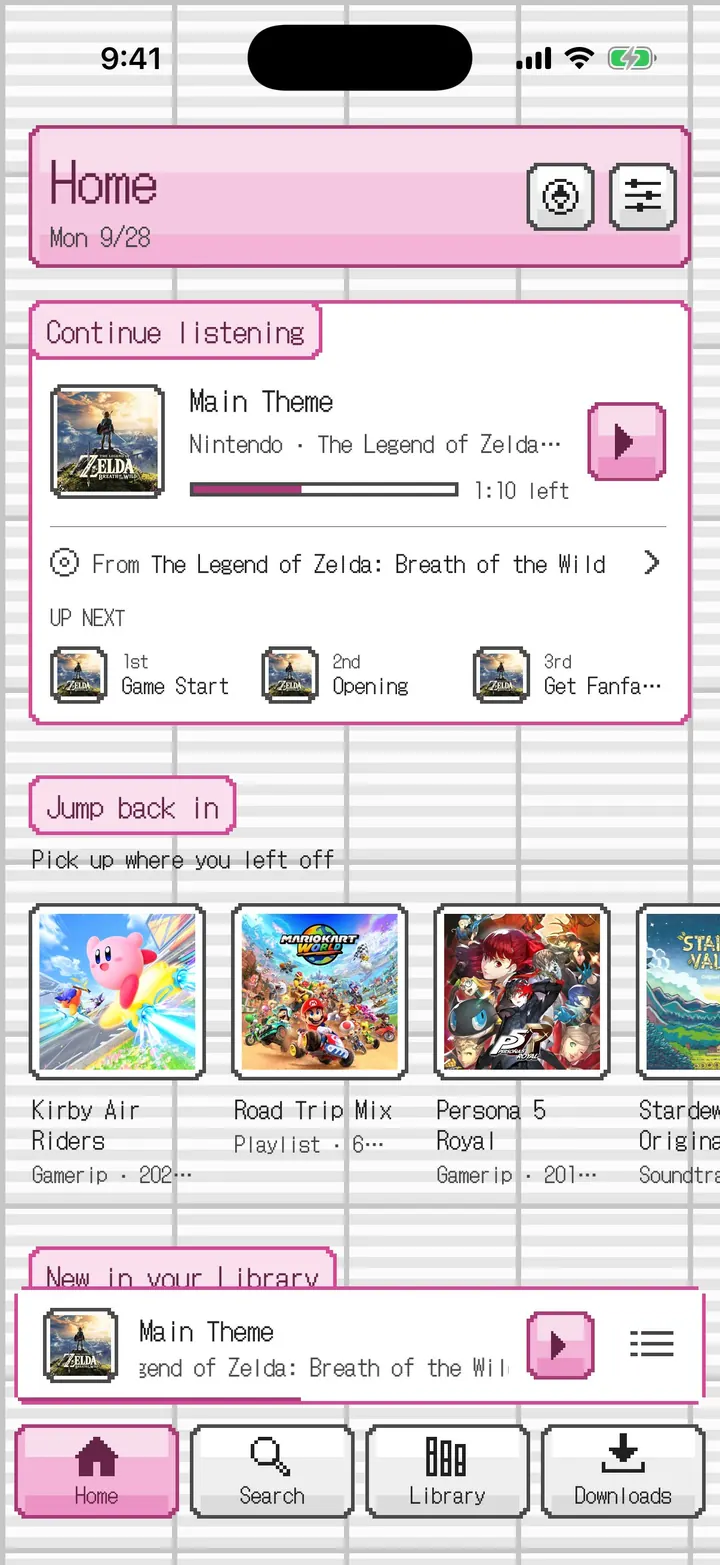
Make PictoChat yours: your DS color, the background, the font, and more, under Settings → Look.
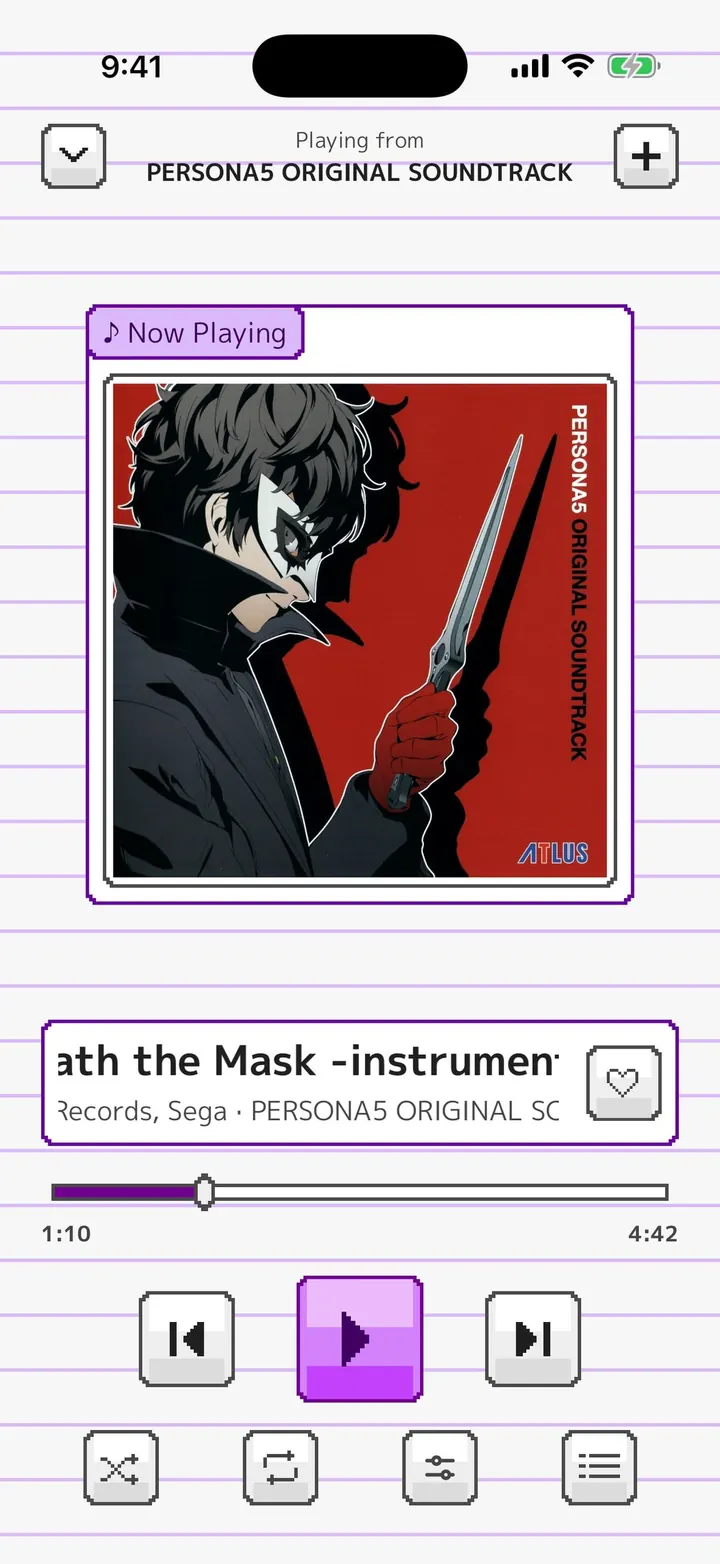
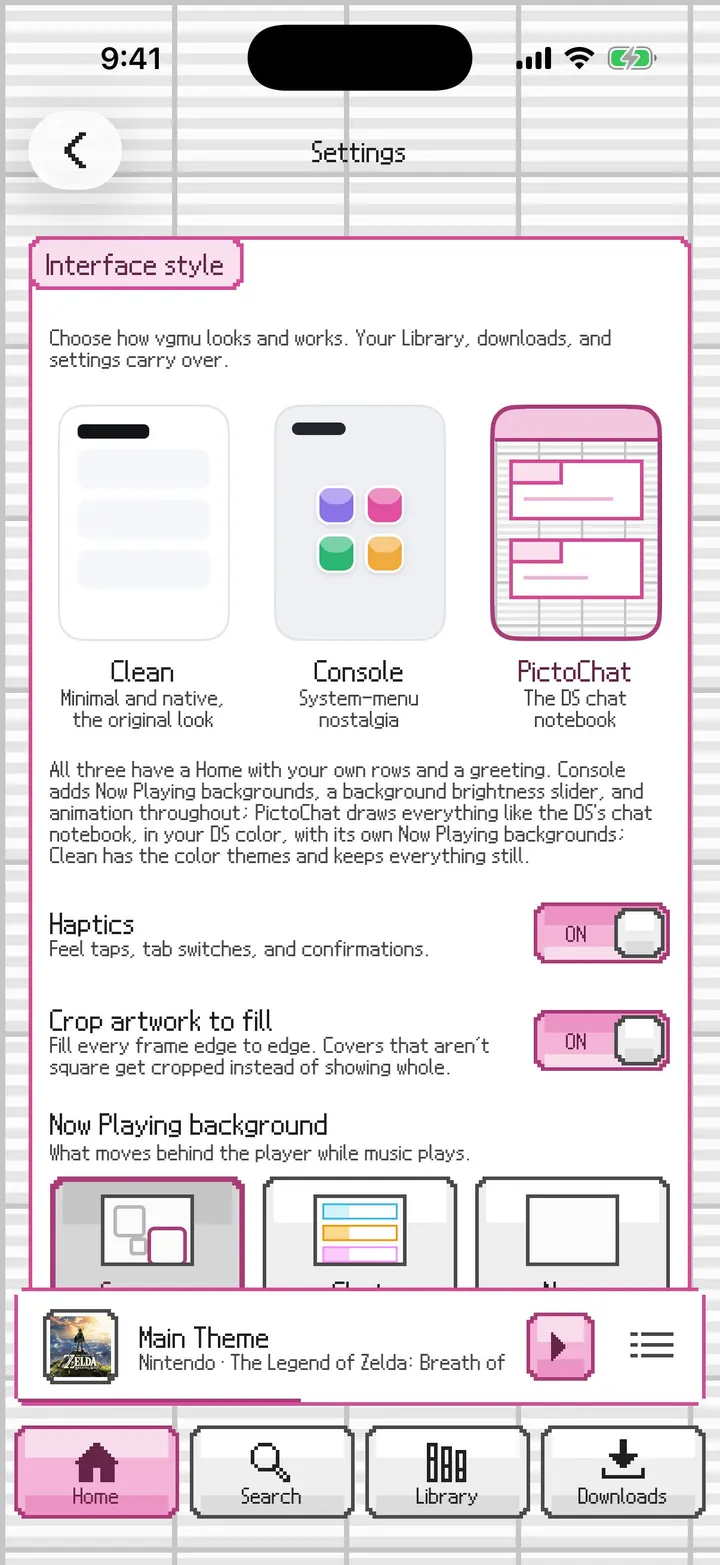
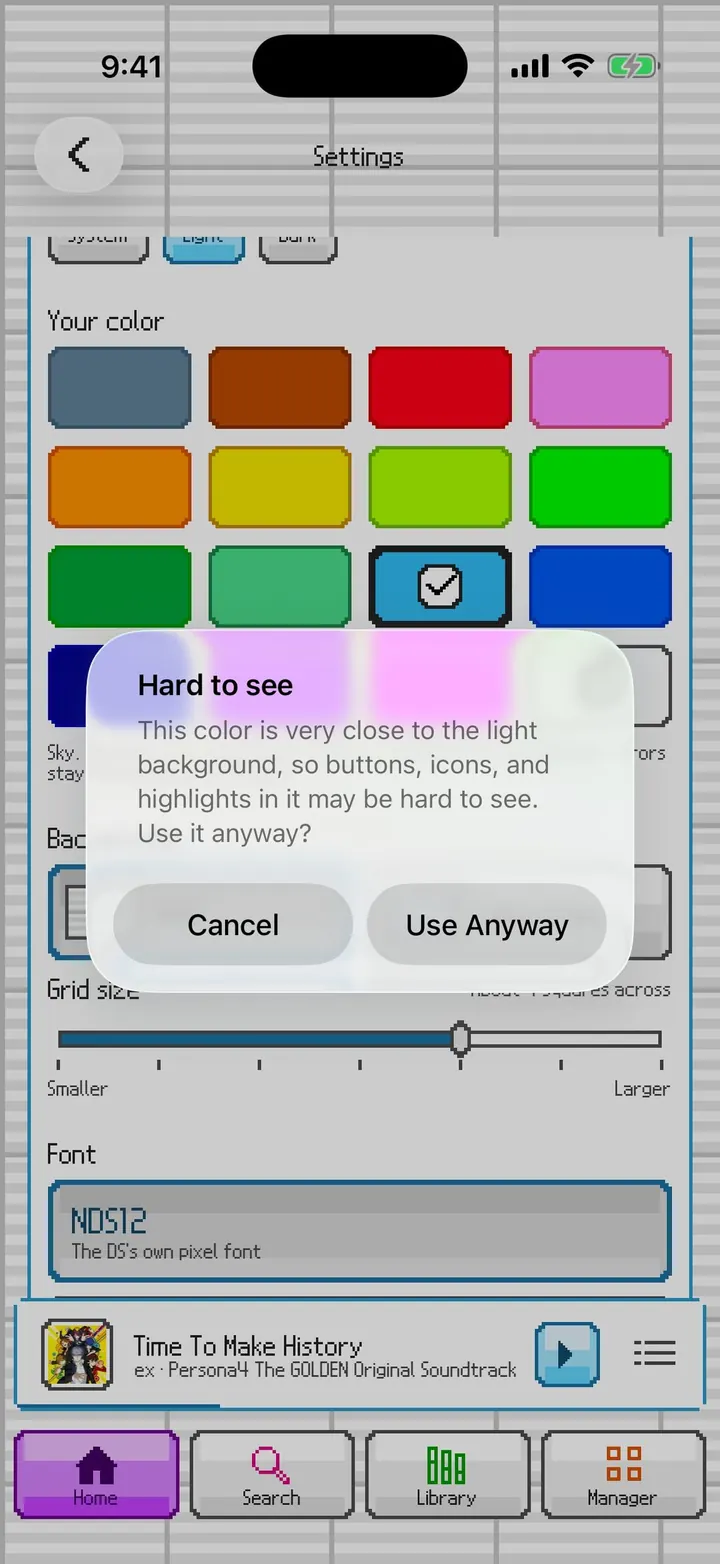
⤢Your color Fifteen of the DS's sixteen user colors in the DS's own 4 × 4 grid, plus a custom color picker (the pink here).⤢Fonts and pixel art NDS12 (the DS's own pixel font), DotGothic16, or M PLUS 1p, each shown in its own face, plus Pixelate artwork with a Pixel size slider.⤢Now Playing background Squares, Chat, or None, and the Home switches as DS ON/OFF toggles.⤢Paper lines background Lined paper ruled in your color, like a PictoChat message, instead of the grid.⤢Library on paper The Library on the lined paper background.⤢Smaller grid The Grid size slider shows more of the grid, like the DS screen.⤢DotGothic16 A finer pixel font that is easier to read, with full Japanese.⤢M PLUS 1p A plain sans, like Nintendo's system menus.⤢Pixelated artwork Pixelate artwork redraws every album cover in square pixels, like a DS screen (3 pt pixels here).⤢Pixelated Library The Library grid with every cover pixelated.⤢Pixelated Now Playing At the finest sizes the big cover keeps its detail, drawn about 100 pixels across.⤢Bigger pixels The Pixel size slider goes from 1.5 to 6 pt; this is the coarsest, about 50 pixels across.⤢Interface style The Interface style cards drawn in PictoChat.⤢Hard to see A color too close to the background gets a warning first, so buttons and icons stay readable.
PictoChat Downloads and settings
The rest of the app, drawn the DS way.
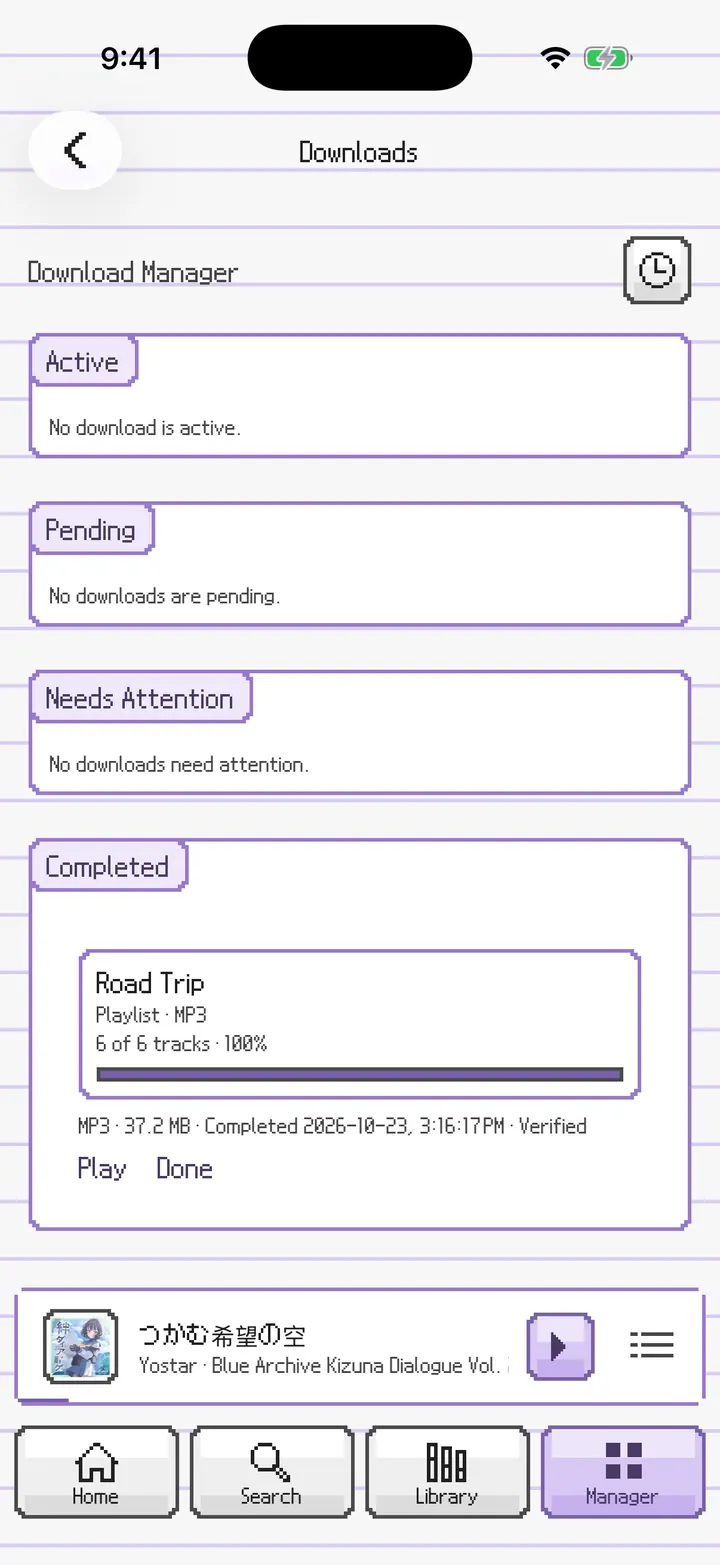
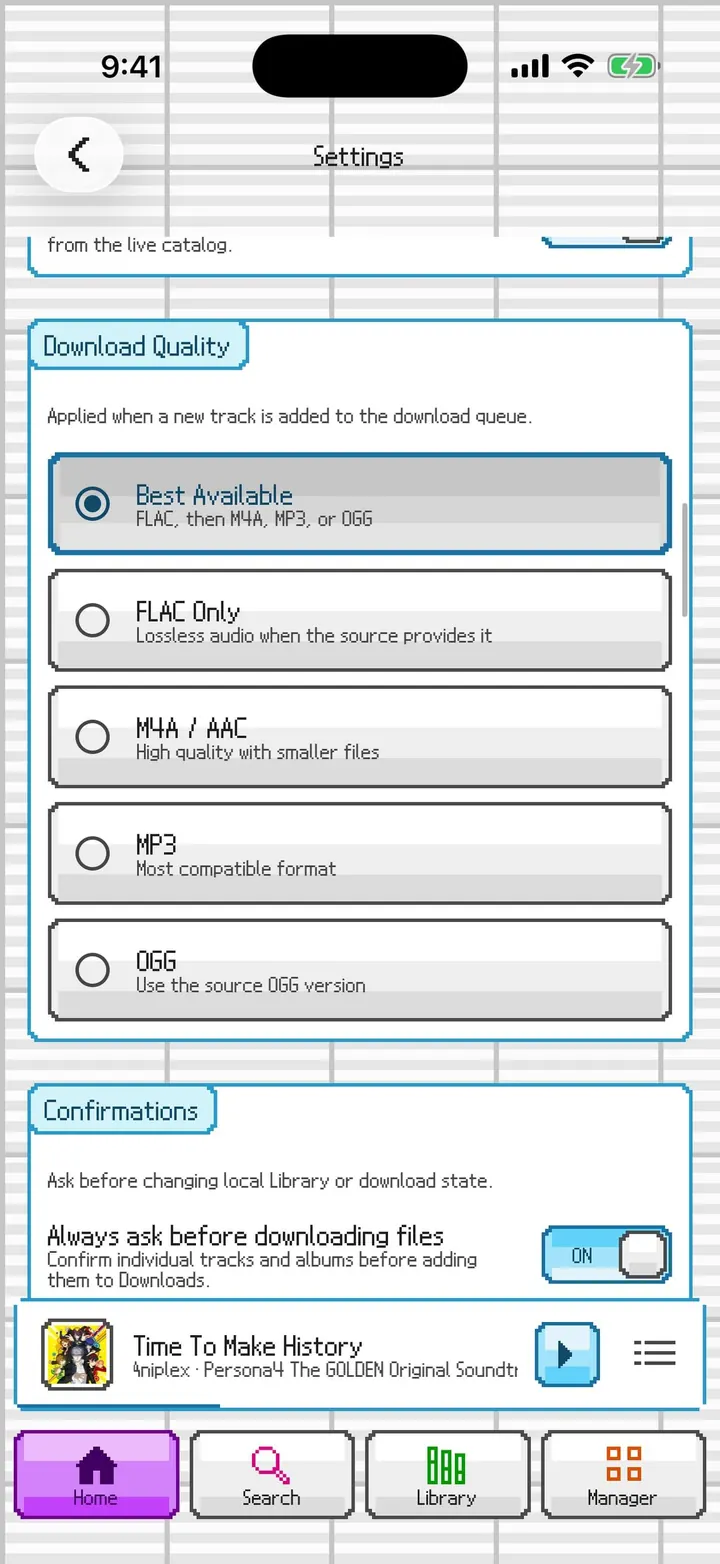
⤢Downloads Each section a message with its name tab, under Manager.⤢Backup & Restore Export and Import as DS buttons.⤢Help The guide's topics as DS buttons.⤢About About and update check in message panels.⤢Manager on paper The Manager tab in purple on paper lines.⤢Download quality Pick the format for new downloads, in DS panels.
PictoChat Stats and recap
The same recap story, summary, and share card, in PictoChat's pixel font and DS frames.
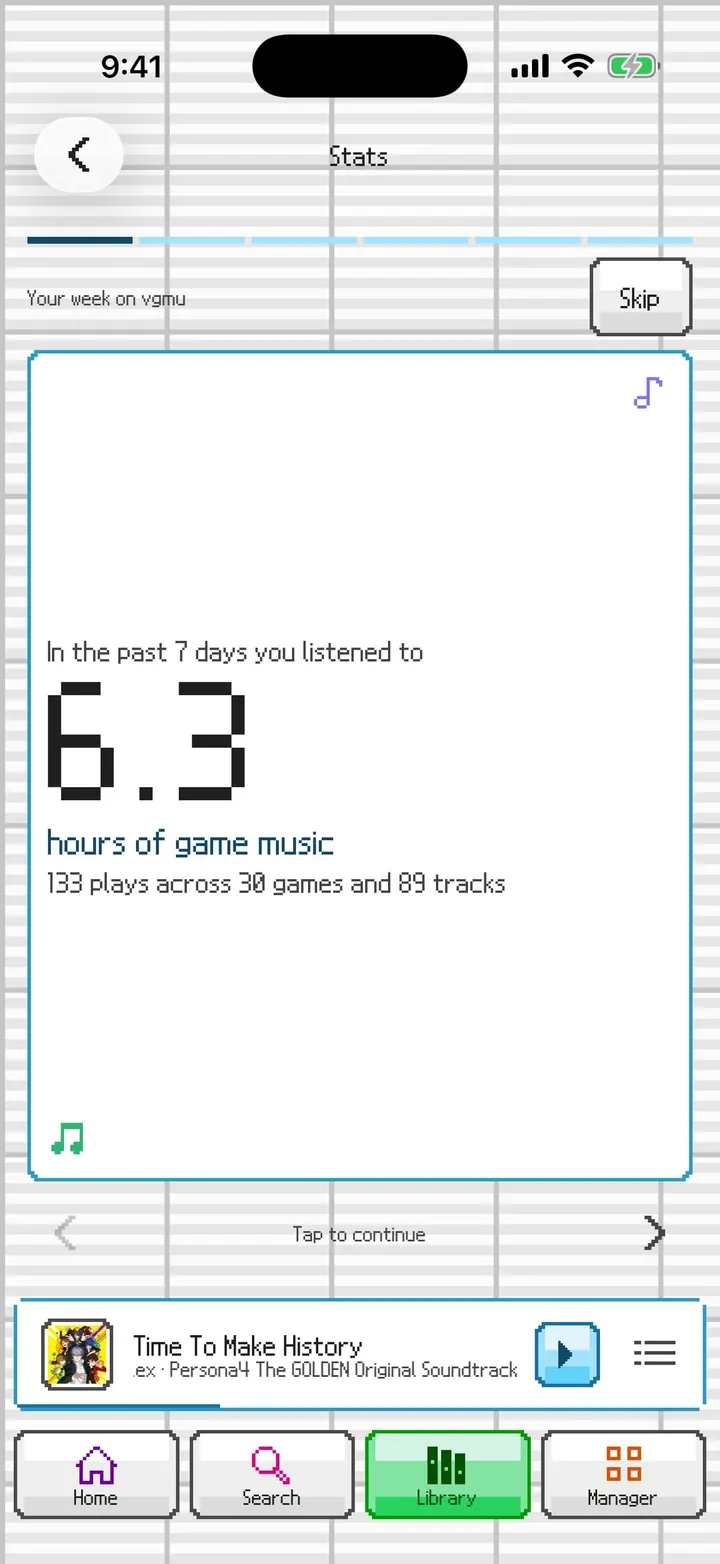
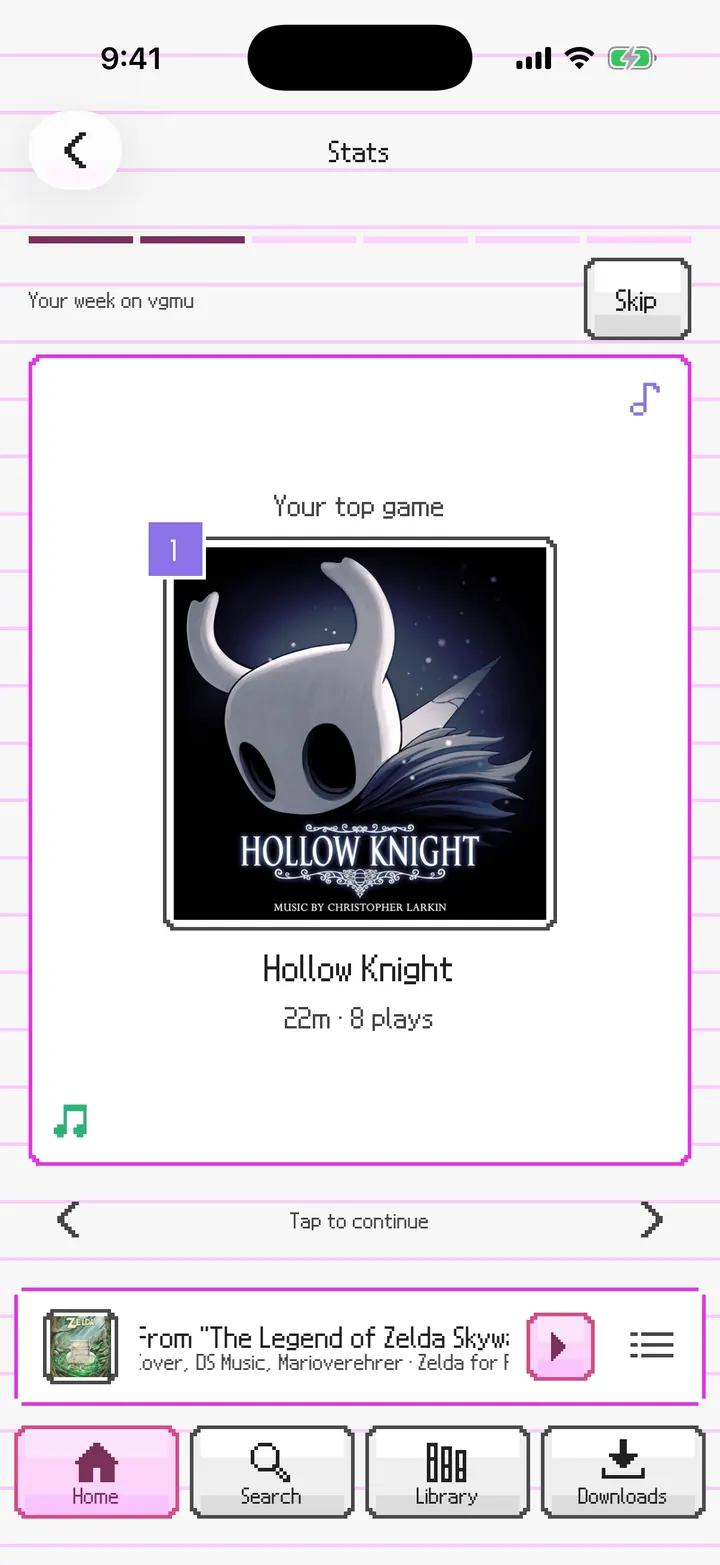
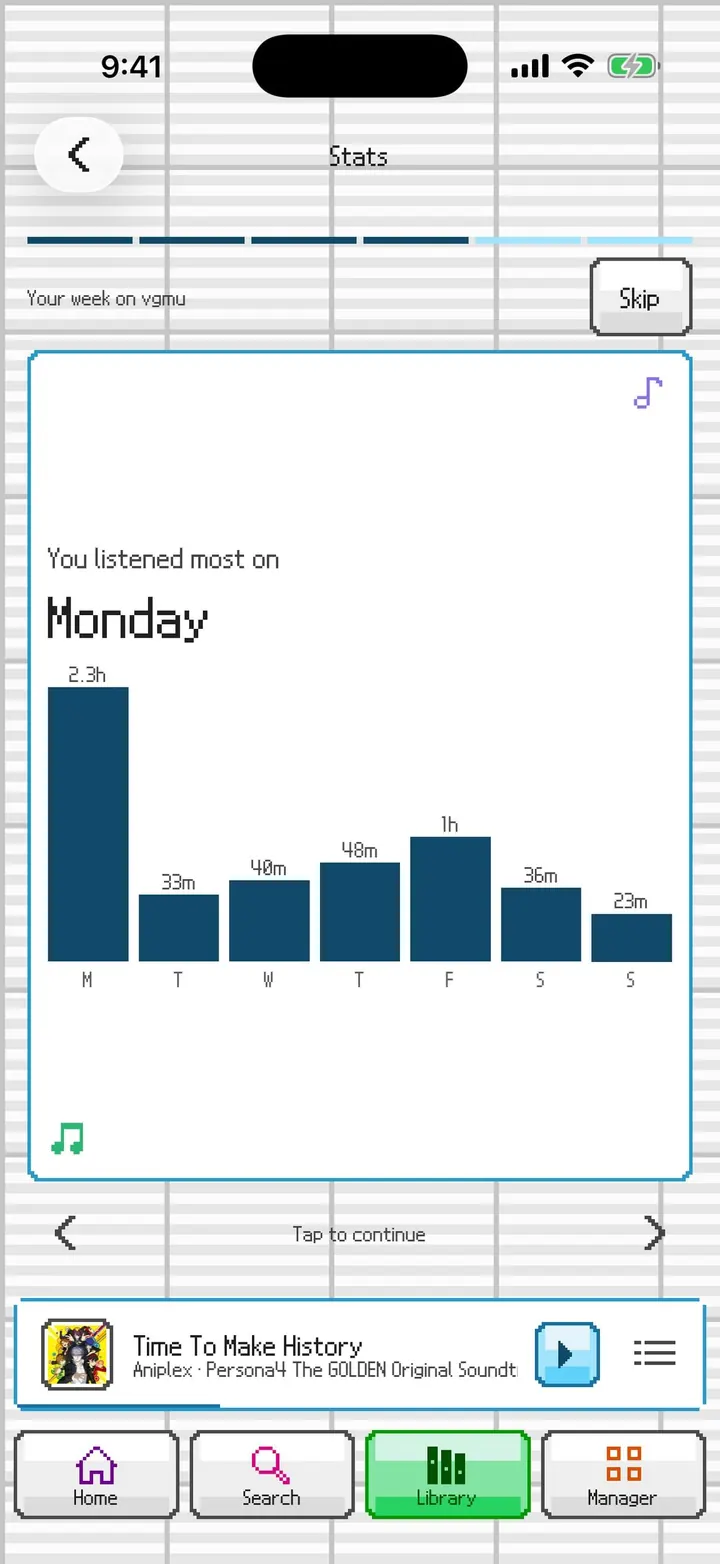
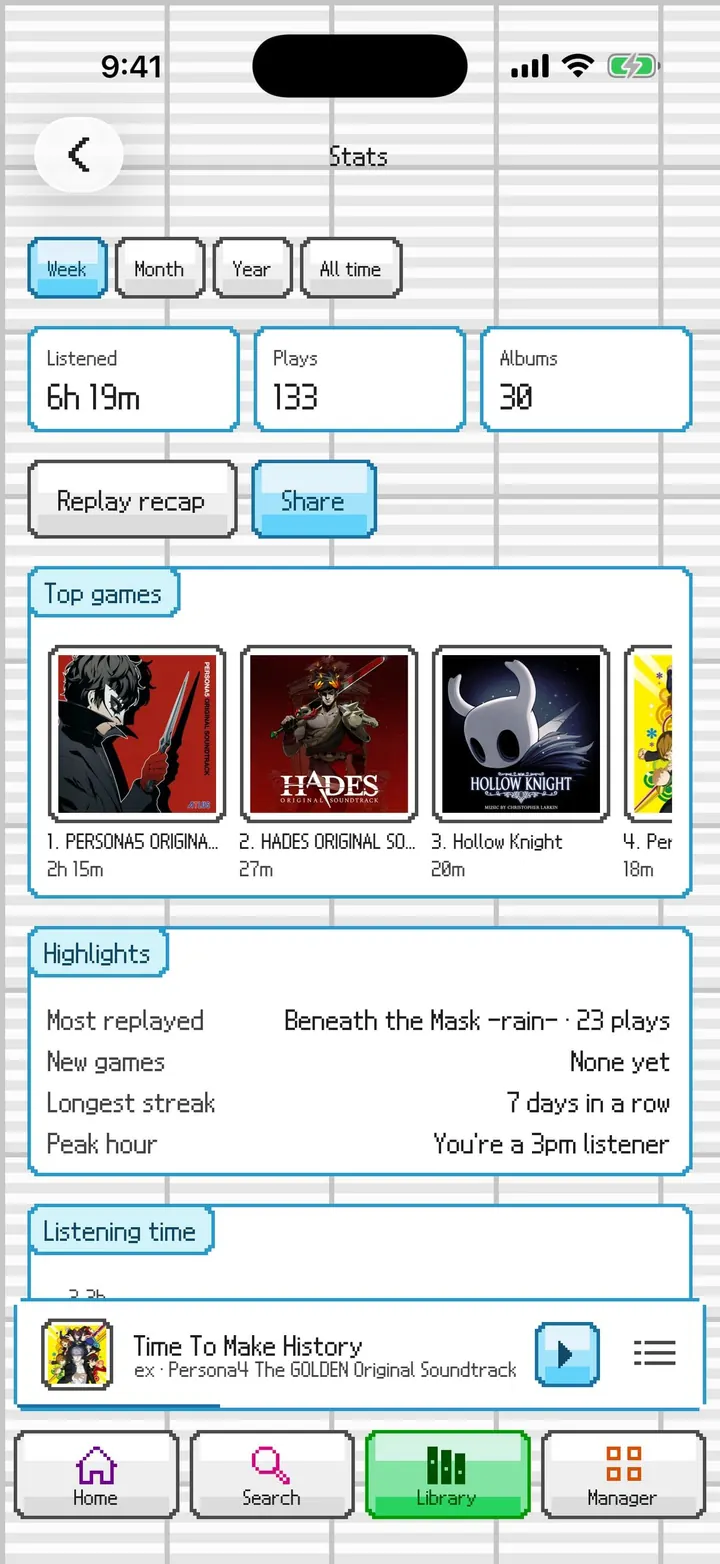
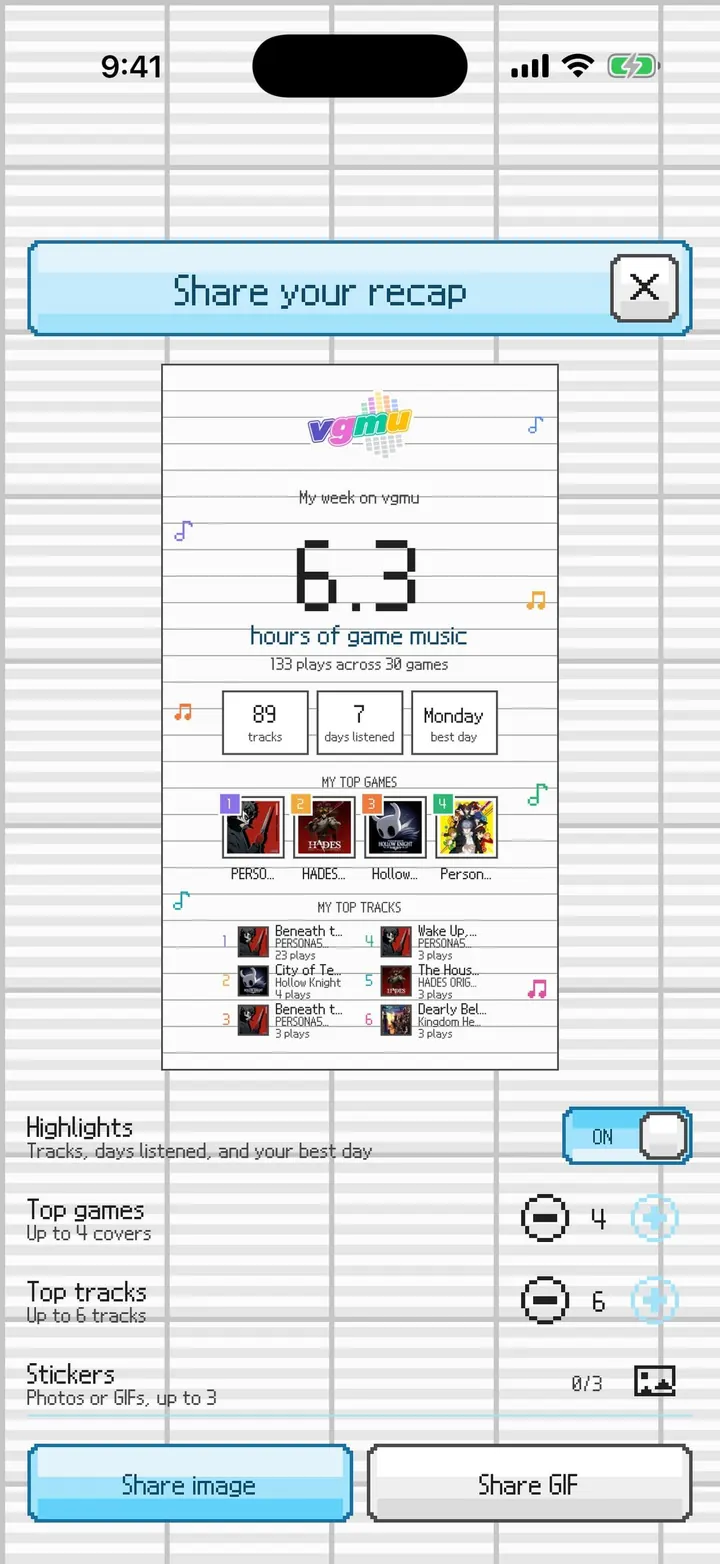
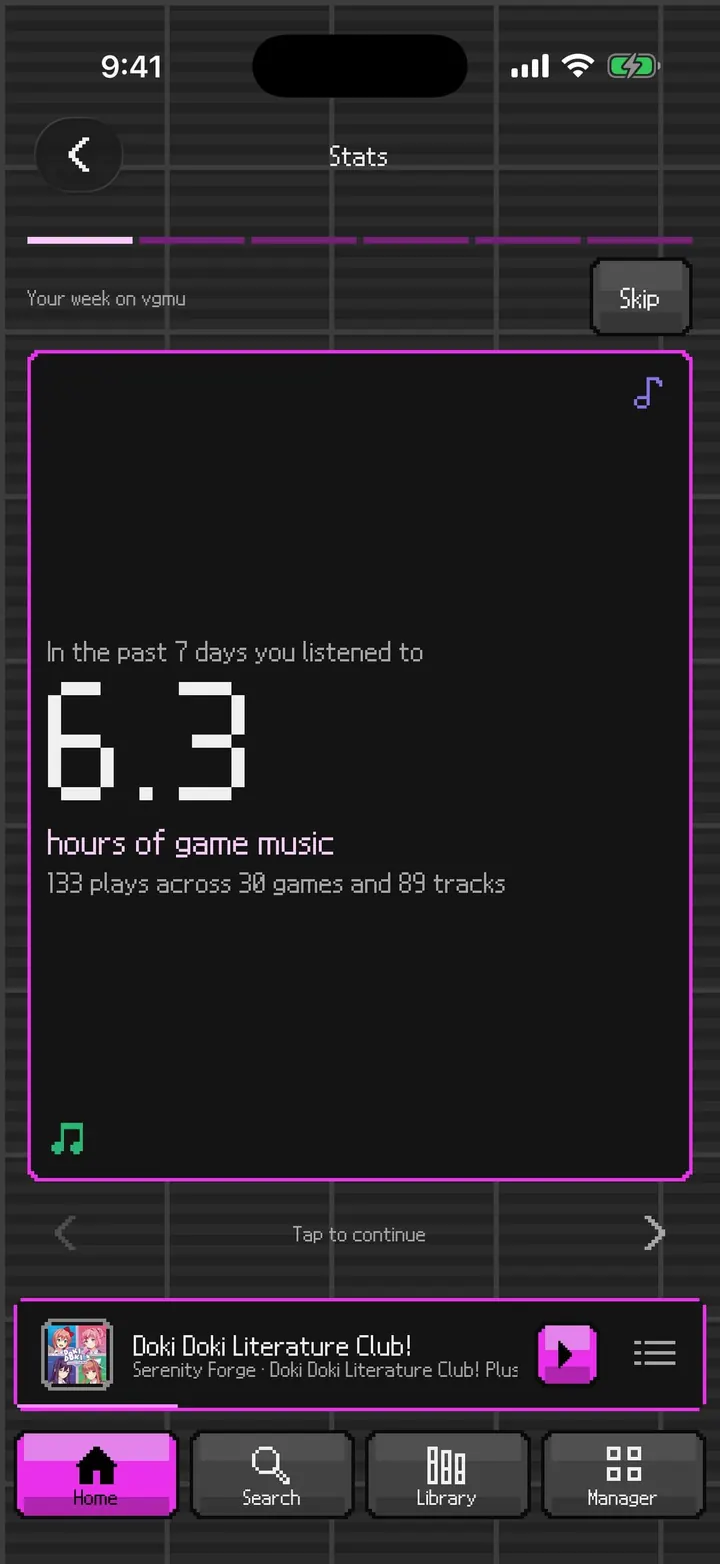
⤢Recap: time listened The week's listening in big pixel numbers.⤢Recap: top game Your most-played game, framed in pixels.⤢Recap: busiest day The week charted in your DS color.⤢Recap: top games Your top games as numbered messages.⤢Stats summary Totals, top games, and highlights, in DS panels.⤢Share your recap The share card, drawn on PictoChat's grid.⤢Recap in dark The recap on the dark canvas in pink.
Clean Home and library
Clean is the original, restrained vgmu look, with the same Home, Library, and features. It keeps the color themes and the Simple UI accent colors.
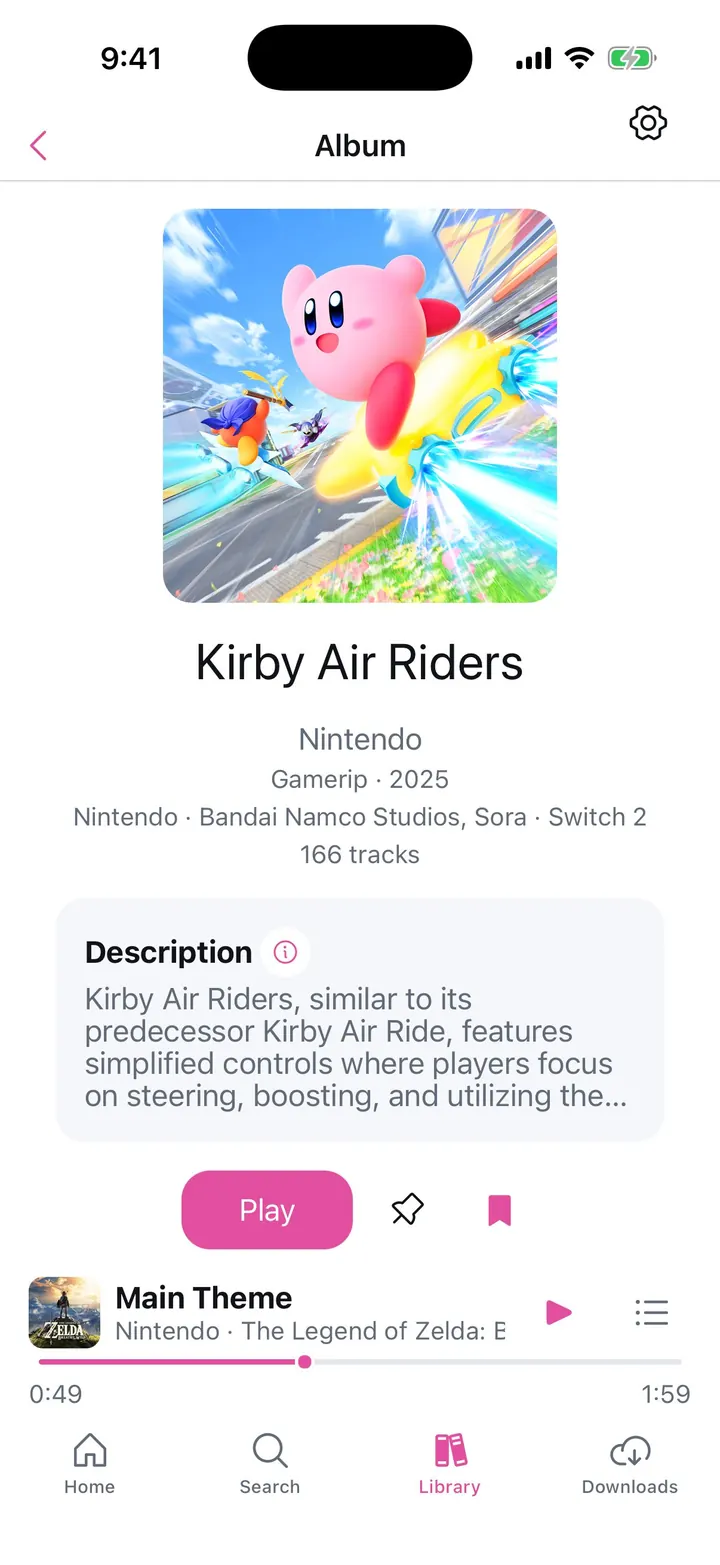
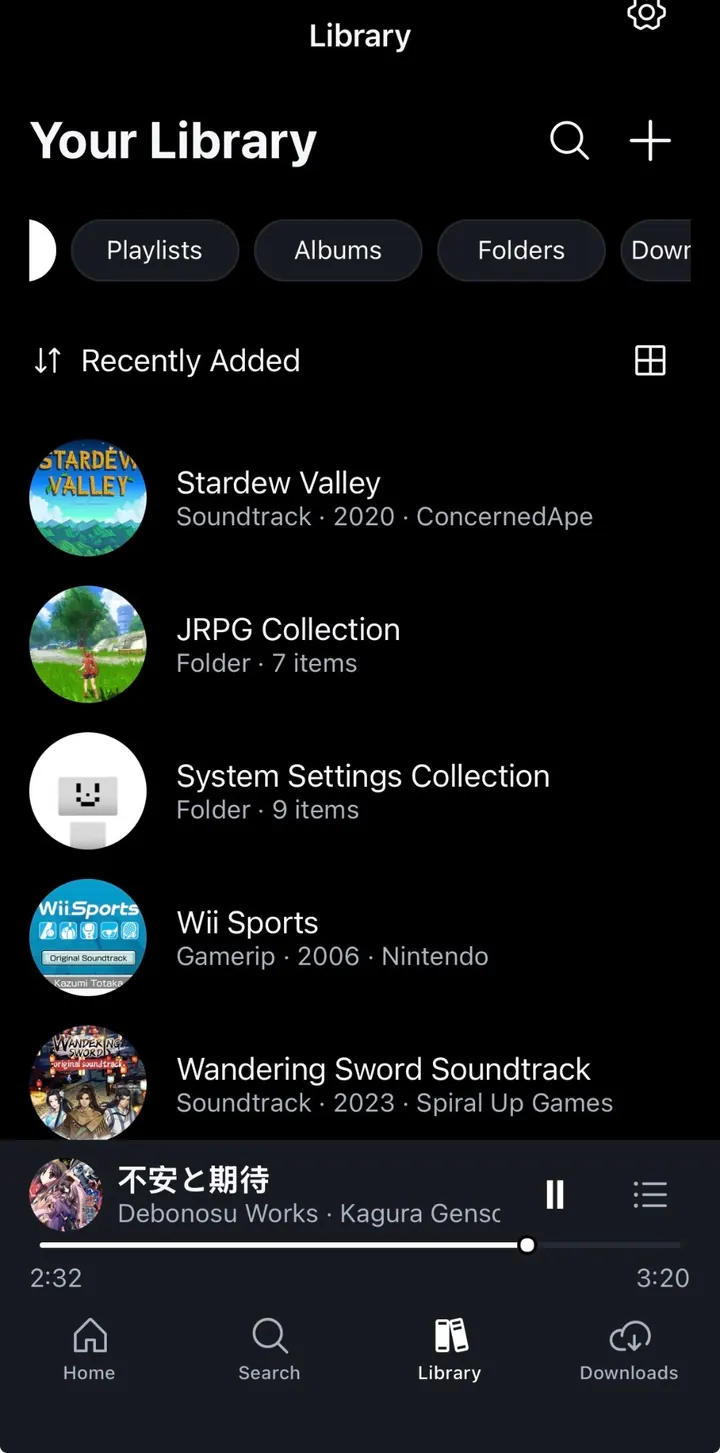
⤢Home and greeting The greeting under the Home title, then Continue listening and Jump back in, drawn plainly with nothing animating.⤢Home The same Home rows as Console and PictoChat, turned on or off in Settings.⤢Home in dark Simple UI follows the device's dark appearance.⤢Library Filter chips, sort, and a list or grid.⤢Library grid Large rounded covers.⤢Library in dark The Library in dark appearance.⤢Playlist A playlist with its own cover and description.⤢Folder A folder with a collage cover of the albums inside.⤢Liked Tracks Liked Tracks in the accent color.⤢Home with your library Clean's Home, filled in, with its row of recent collections and a pink accent.⤢Library in a dark theme The Library in Catppuccin, one of Clean's color themes.
Clean Browse, albums, and playback
Browse, albums, and Now Playing in Clean.
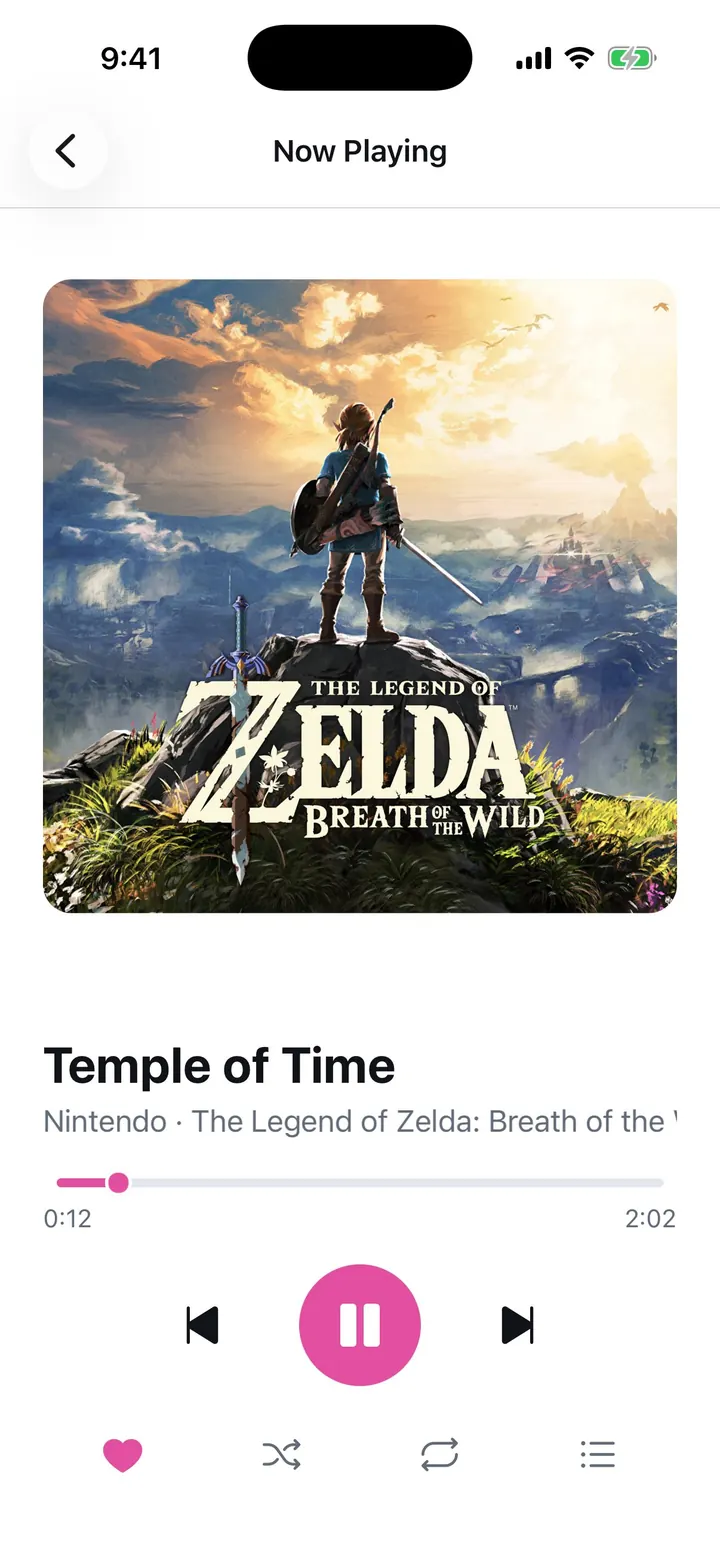
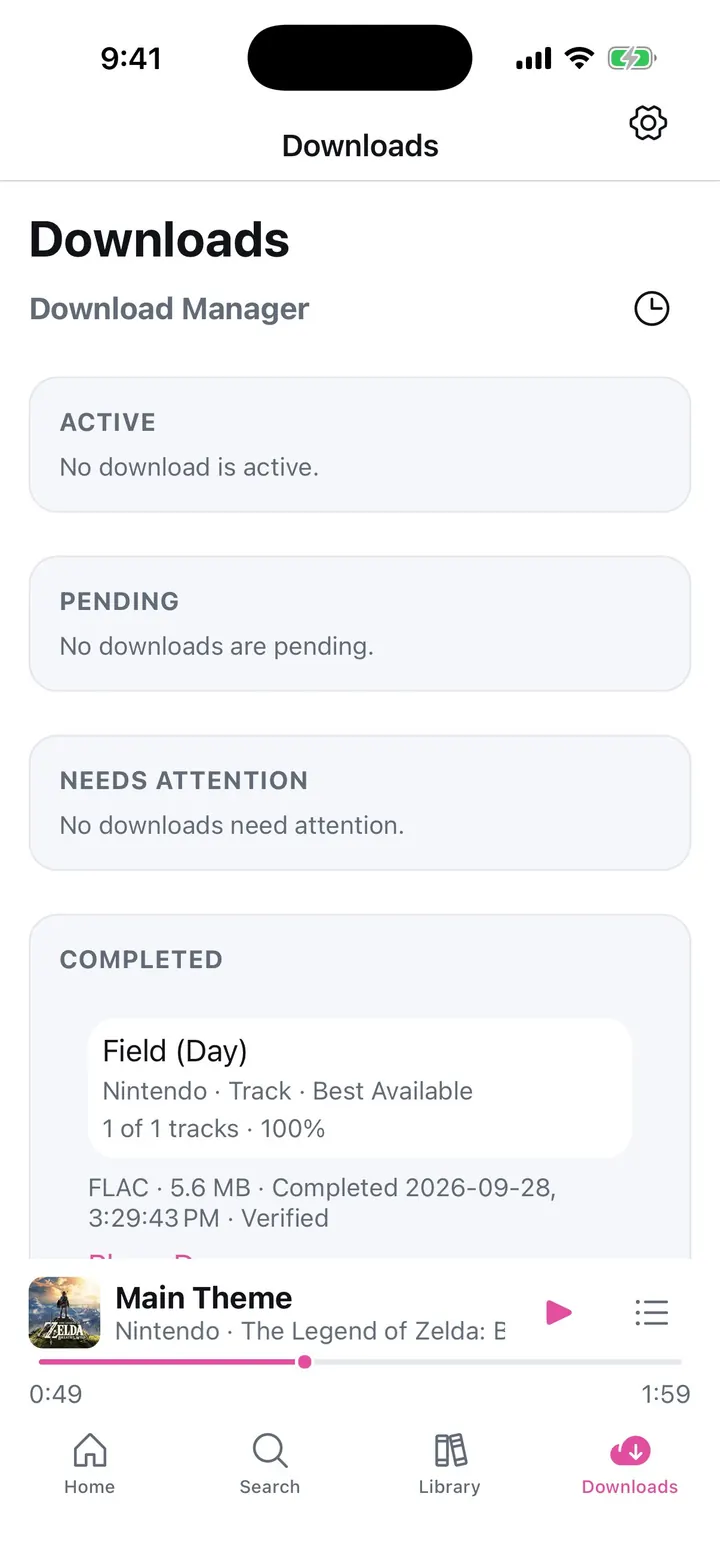
⤢Browse: All-Time Top 100 Random Album, Random Song, and the chart presets.⤢Album Album metadata and description with Play, Pin, and Save.⤢Now Playing The classic player with like, shuffle, repeat, and the queue.⤢Downloads The download manager in Clean.
Clean Settings and themes
Clean keeps Simple UI's accent colors and the full set of color themes.
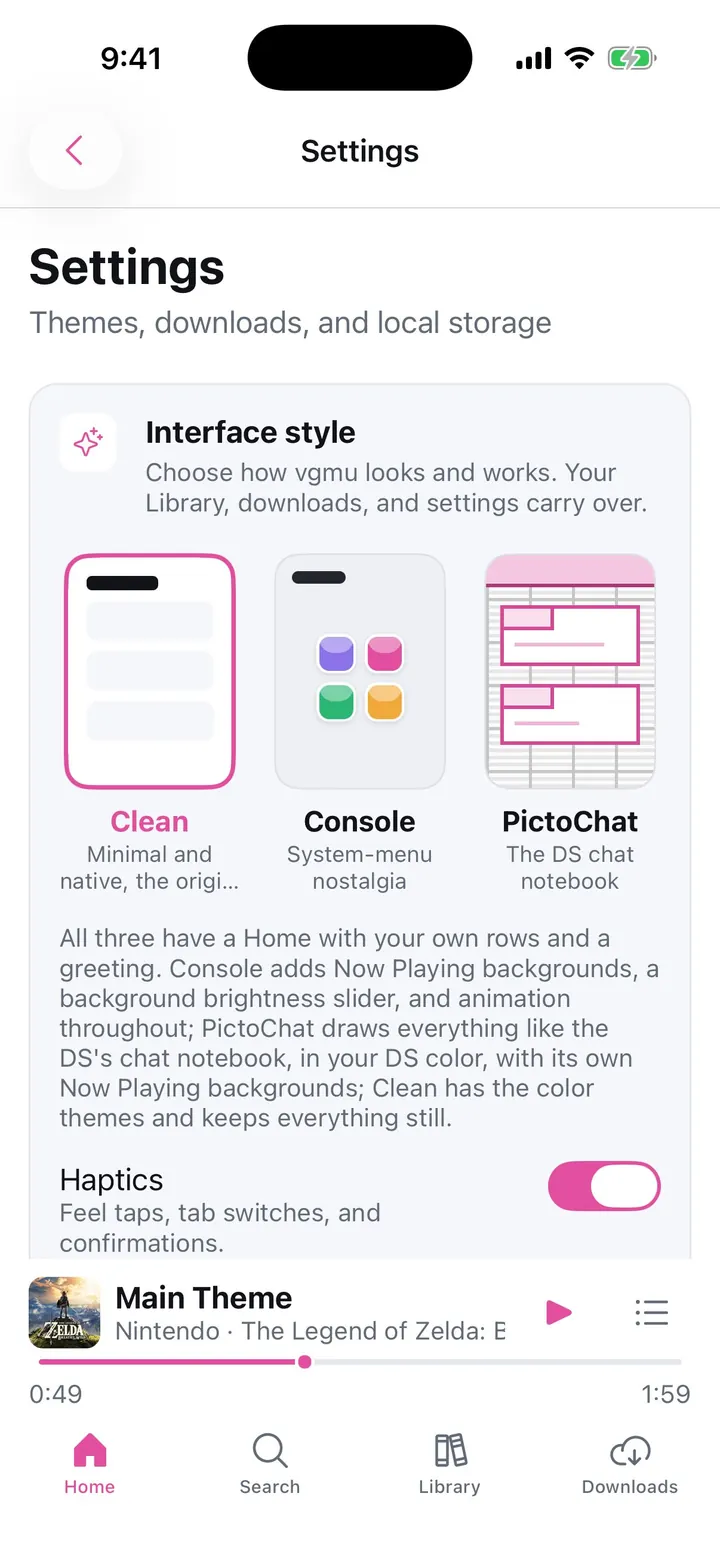
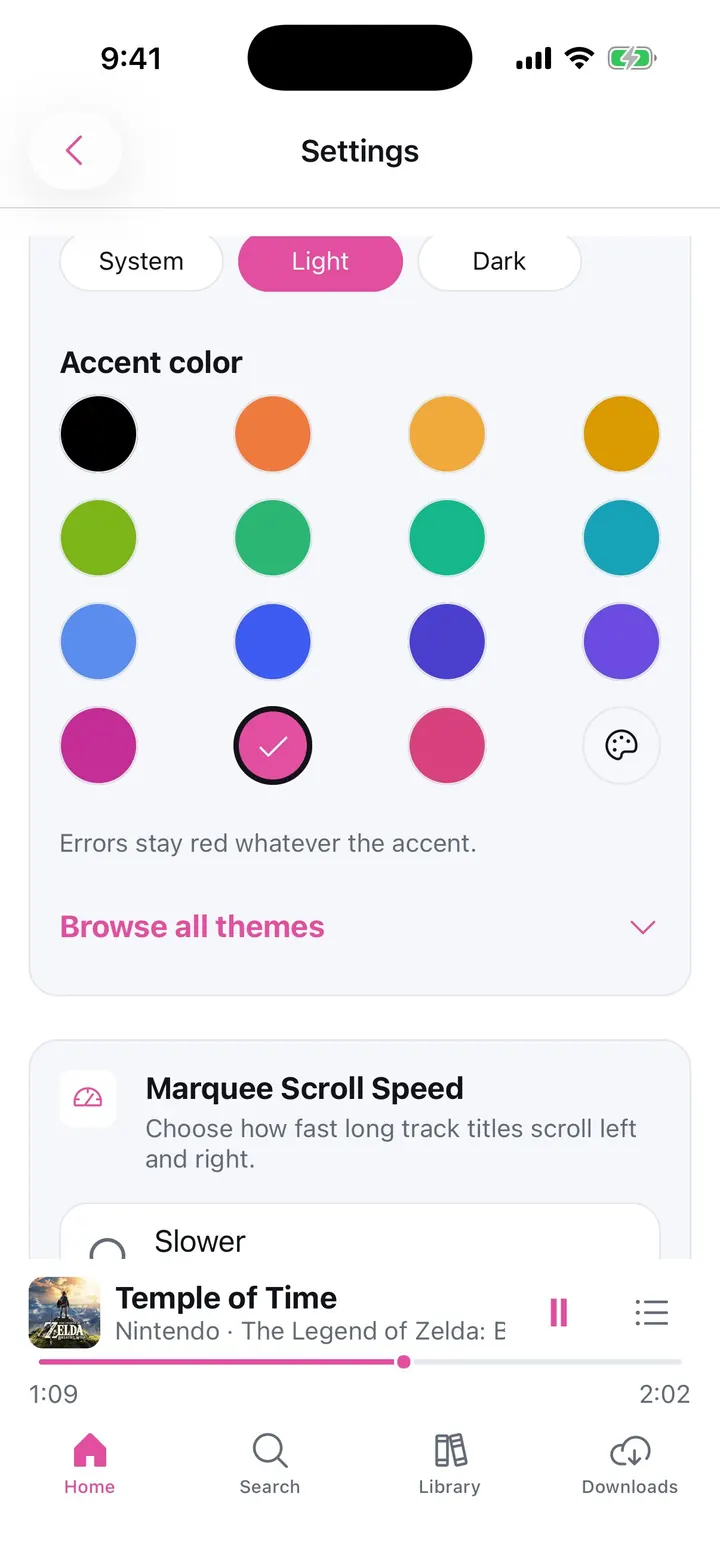
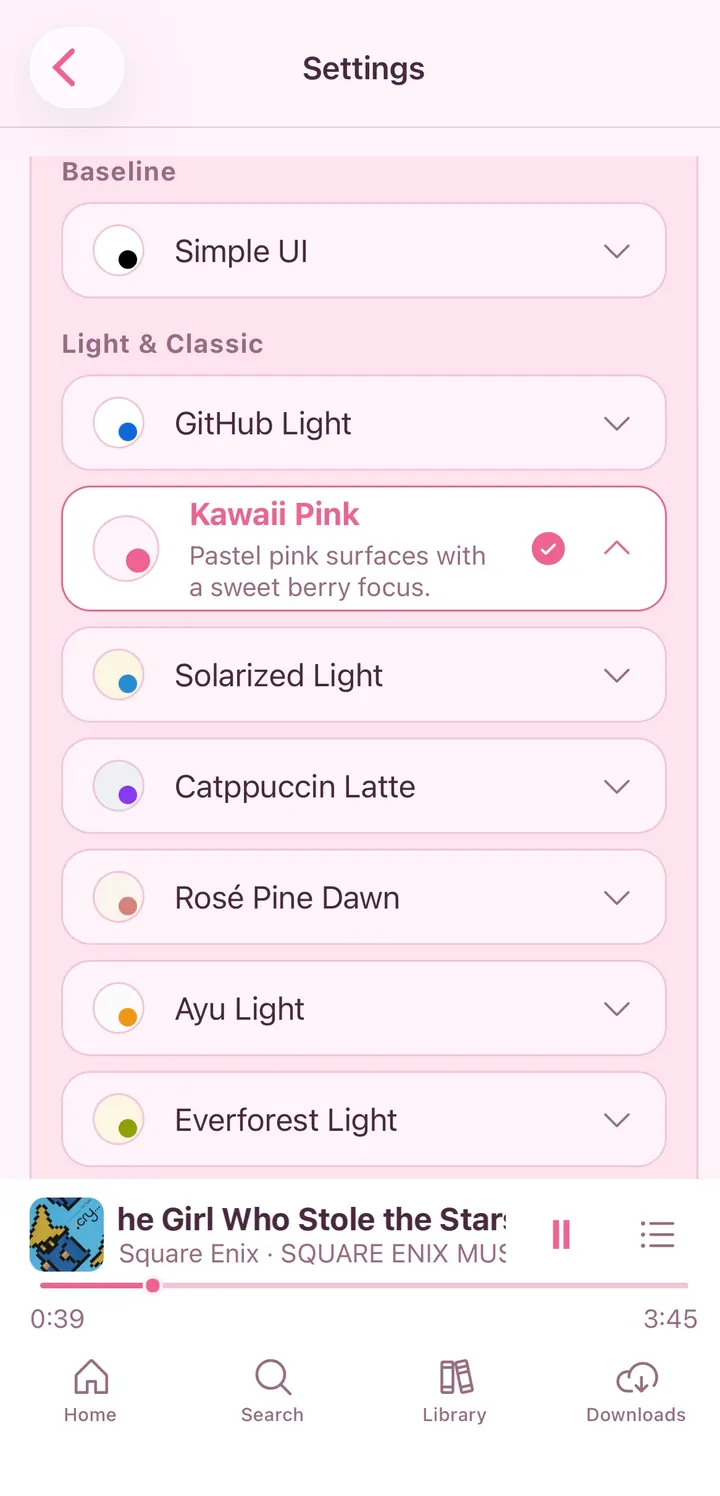
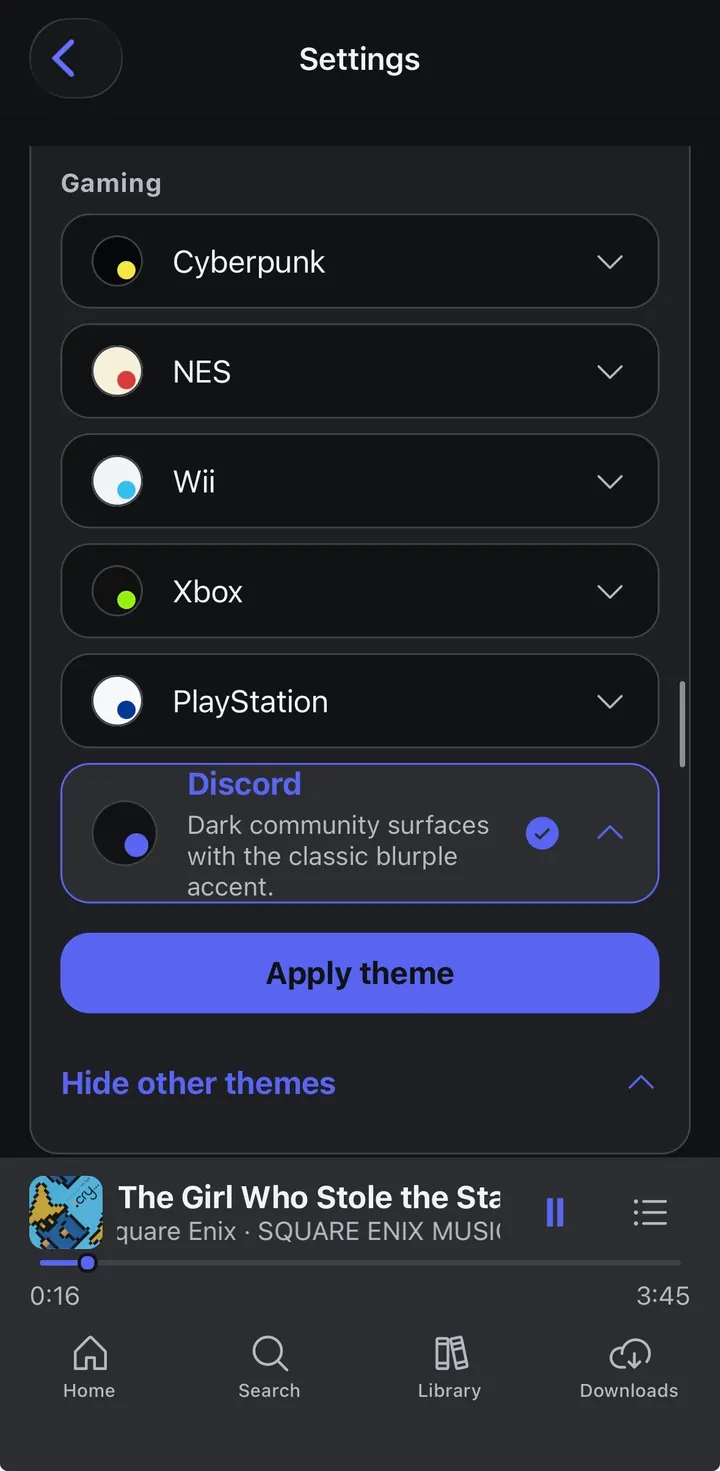
⤢Interface style The Interface style cards in Clean.⤢Simple UI accent Appearance, the accent swatches with a custom color, and Browse all themes.⤢Kawaii Pink theme Pastel surfaces with a sweet berry accent.⤢Discord theme One of the gaming themes: dark community surfaces with the classic blurple accent.⤢Backup & Restore Export, Import, and Auto Backup.⤢Help The in-app guide.⤢About Version and update check.⤢Settings in blue Settings with a blue accent, including the same Interface style picker.⤢Synthwave '84 theme A color theme reaches Now Playing too.⤢NES theme Album pages take on each theme, here a cream and red one after the NES. In Clean, a track's folder icon adds it to a folder.
Everywhere · Albums and library tools
Features that work the same in every interface (shown here in Clean).
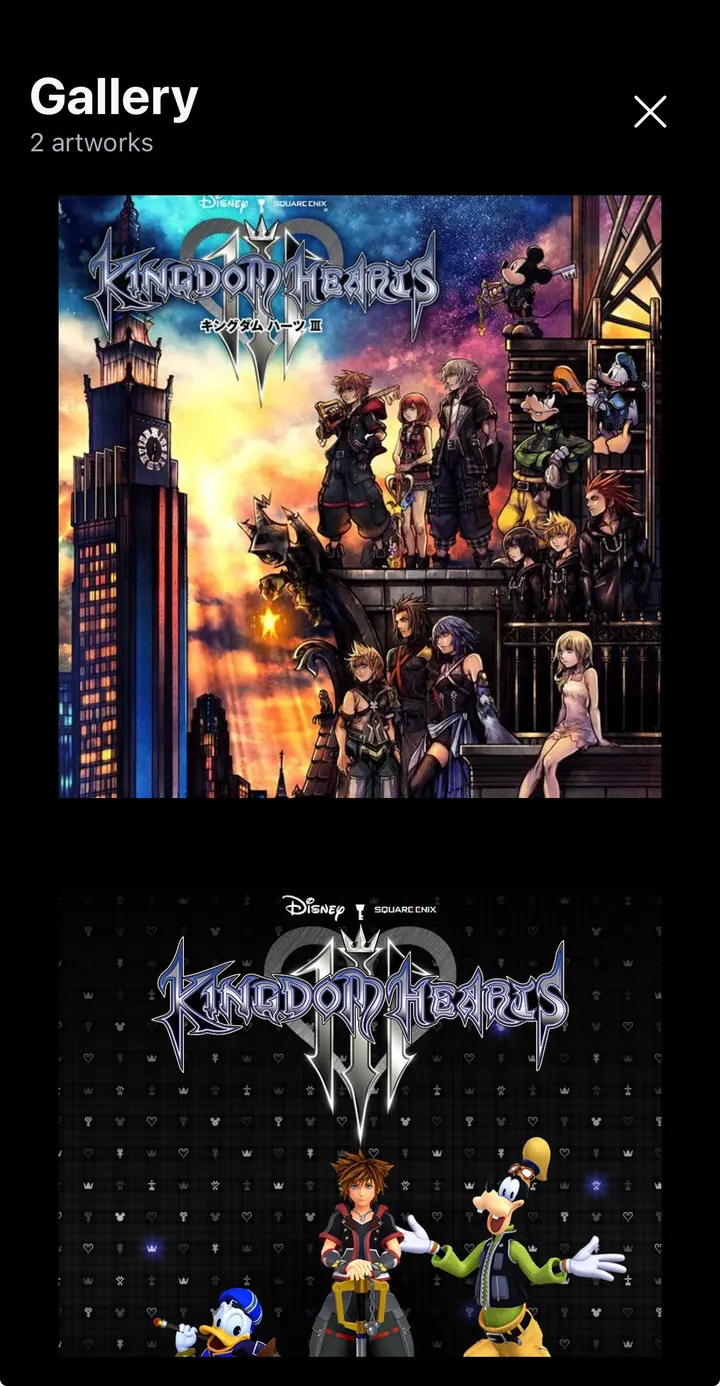
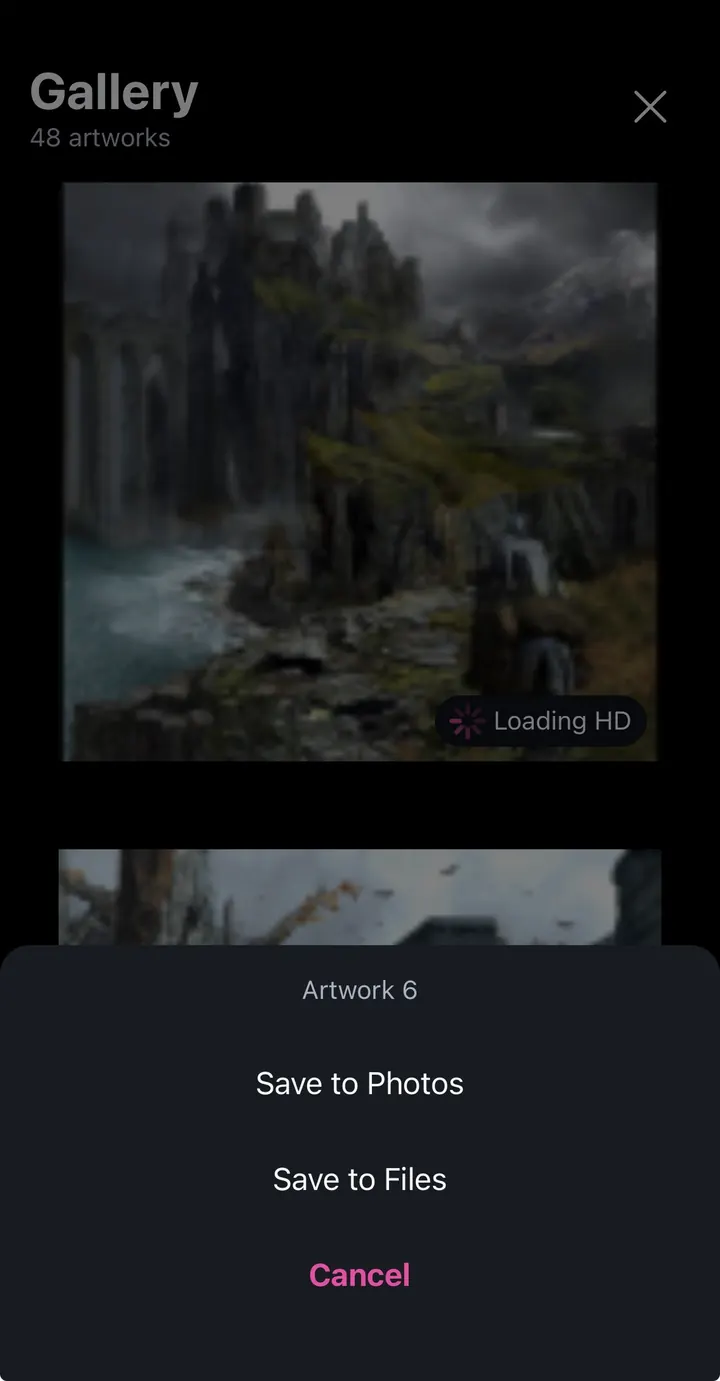
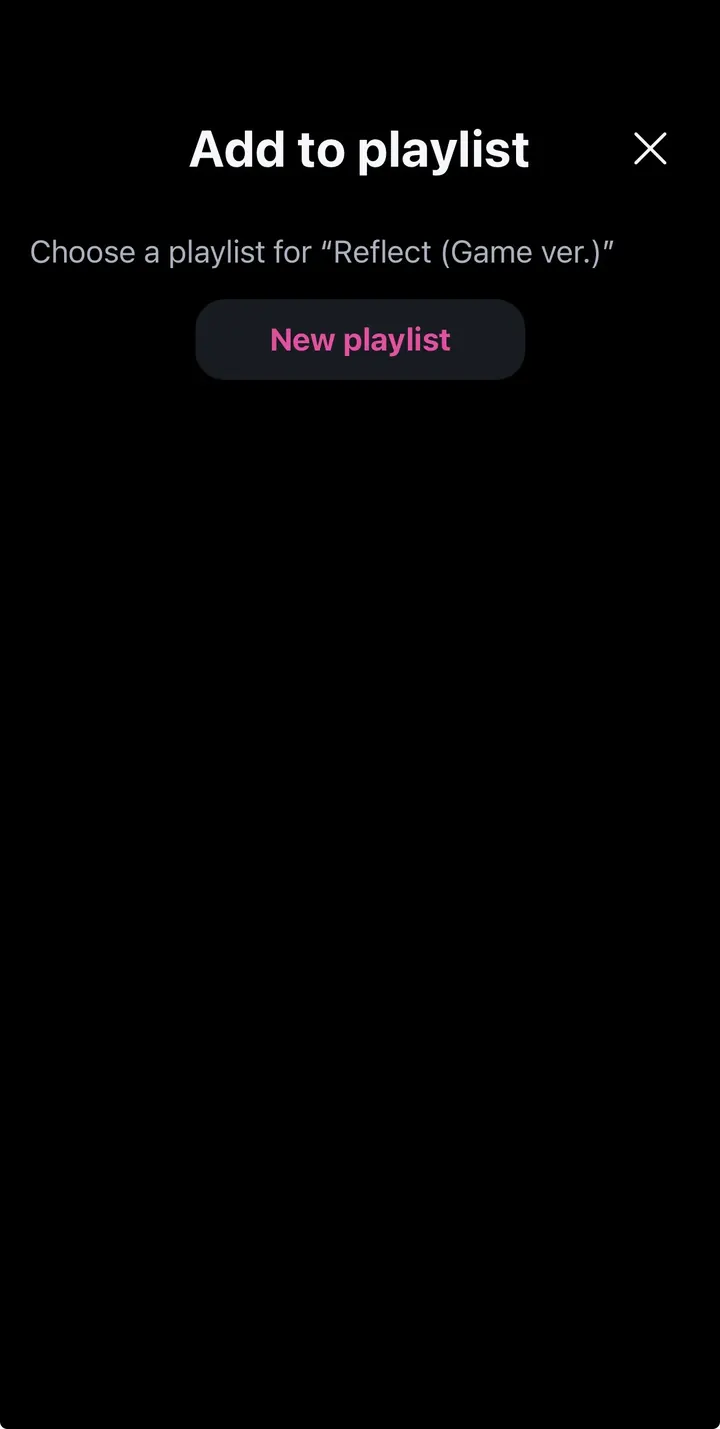
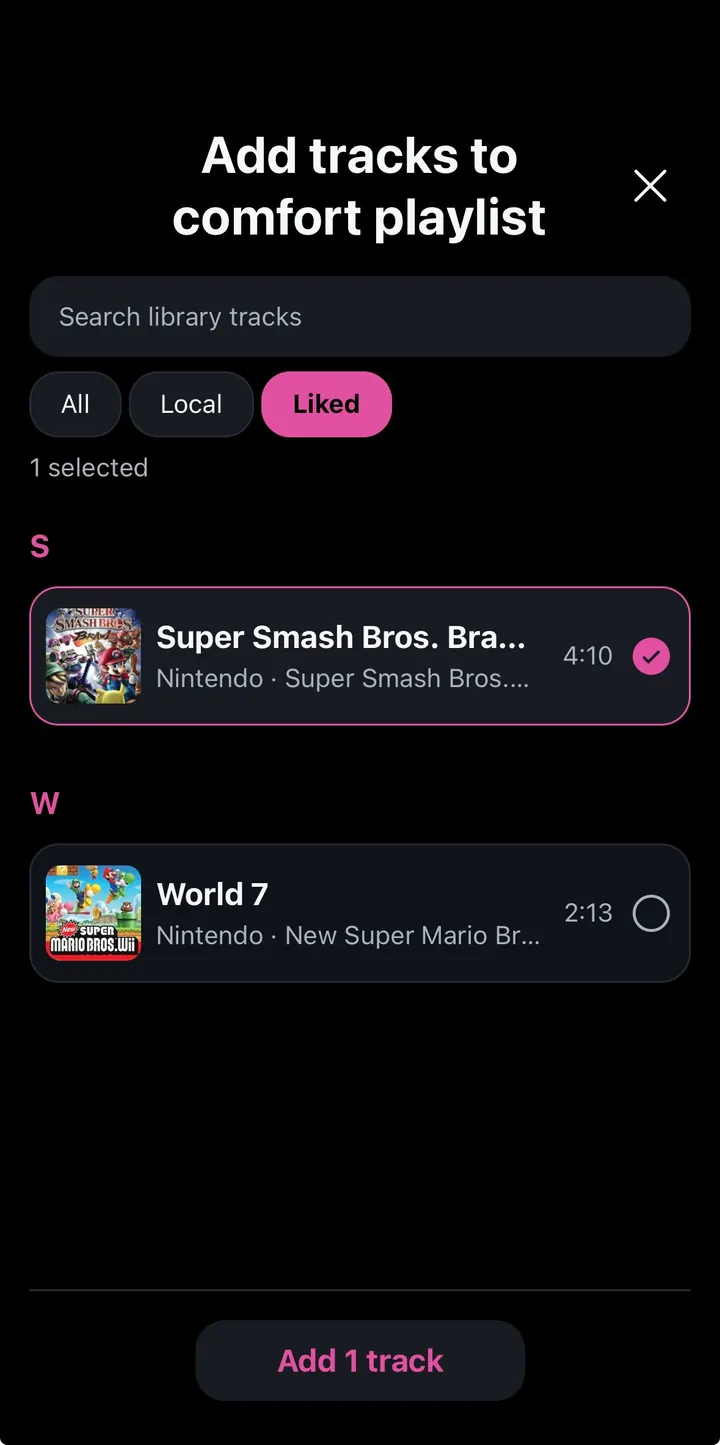
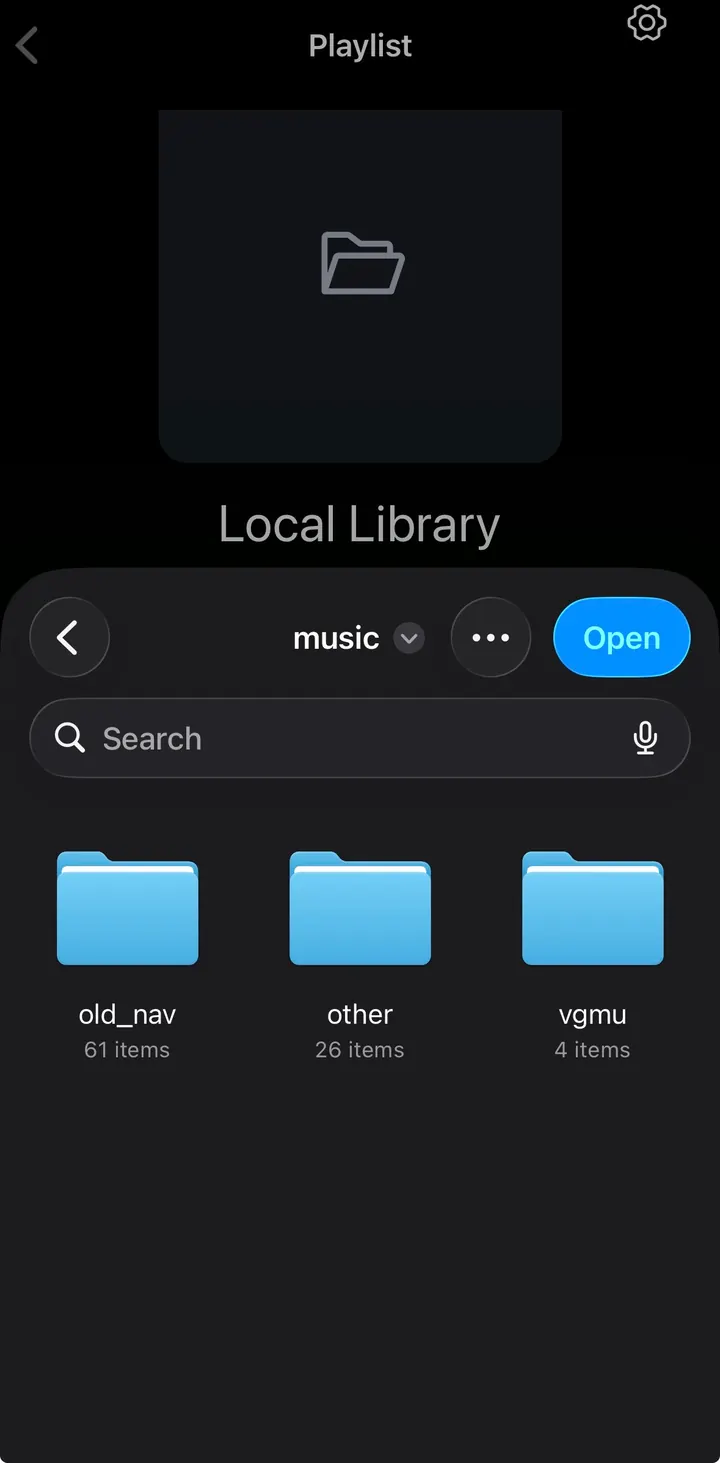
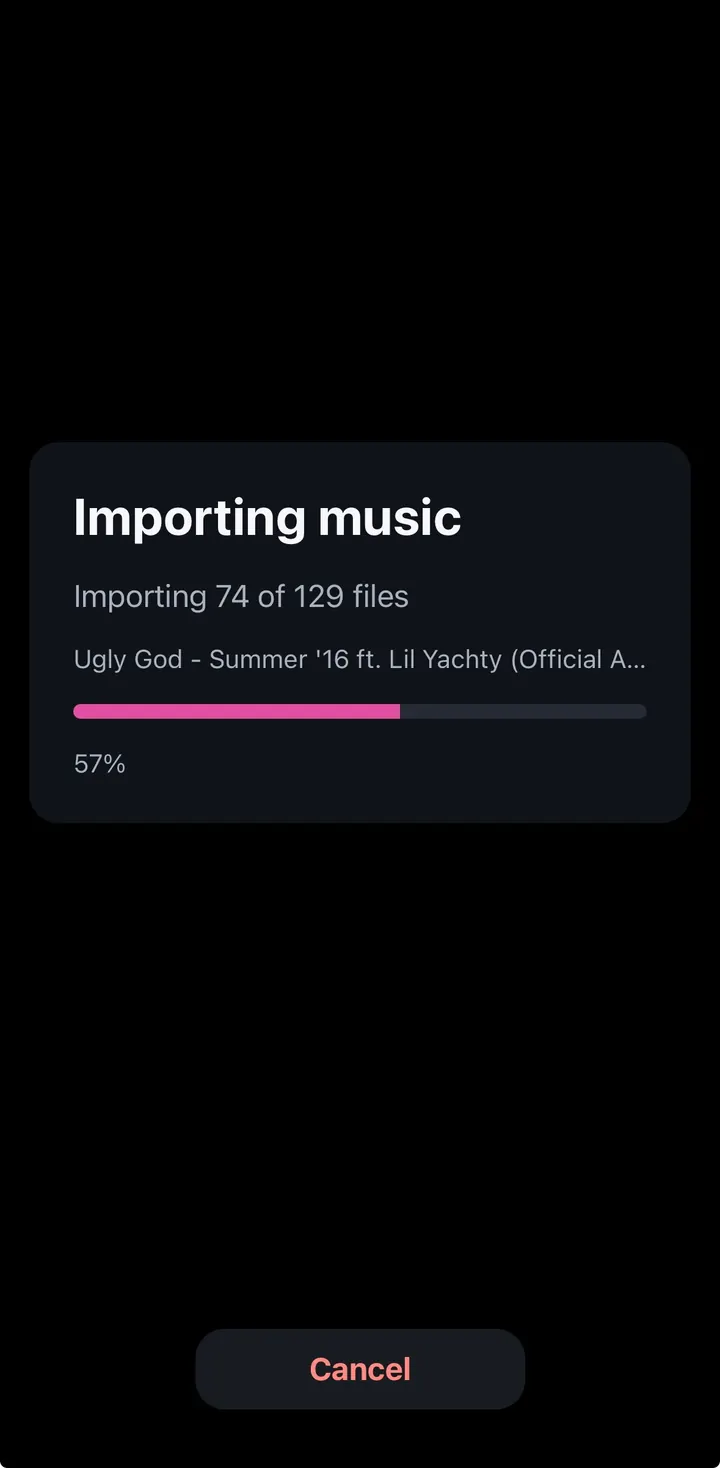
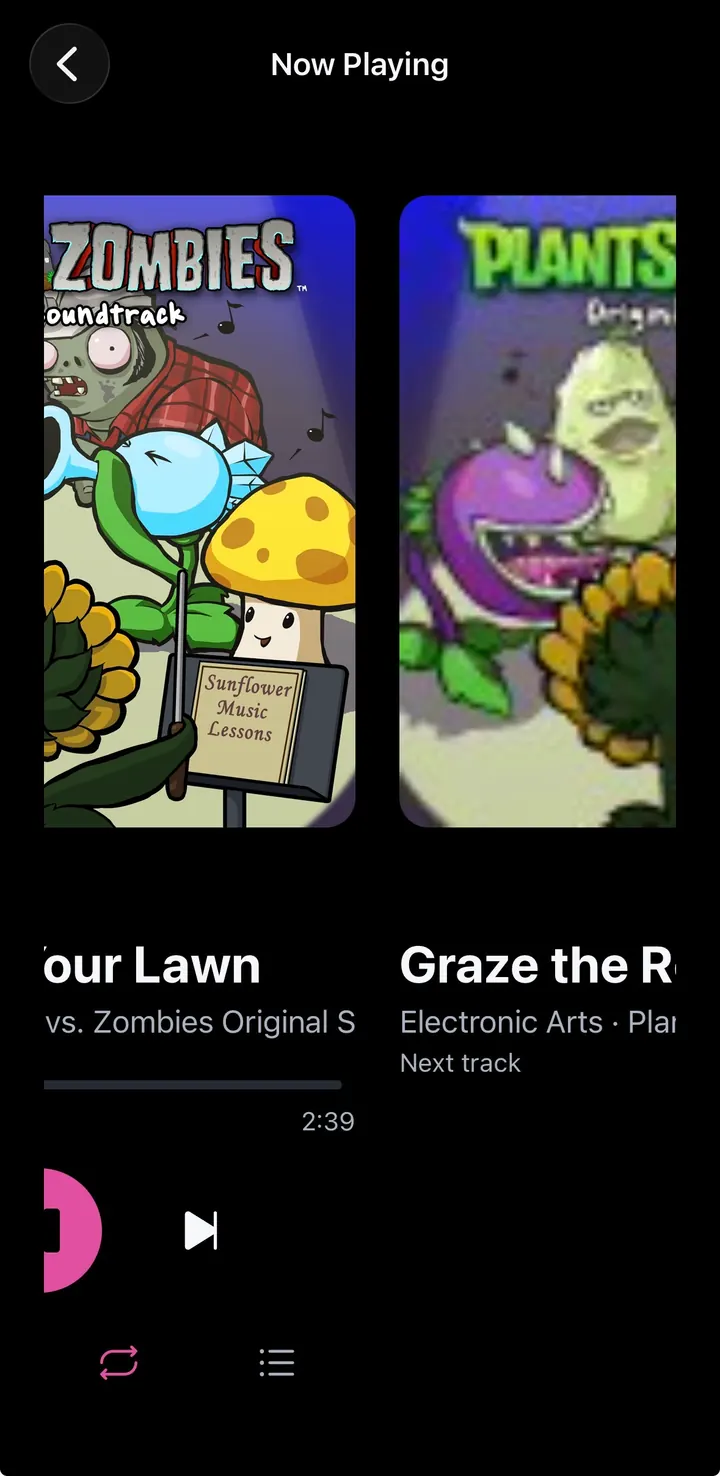
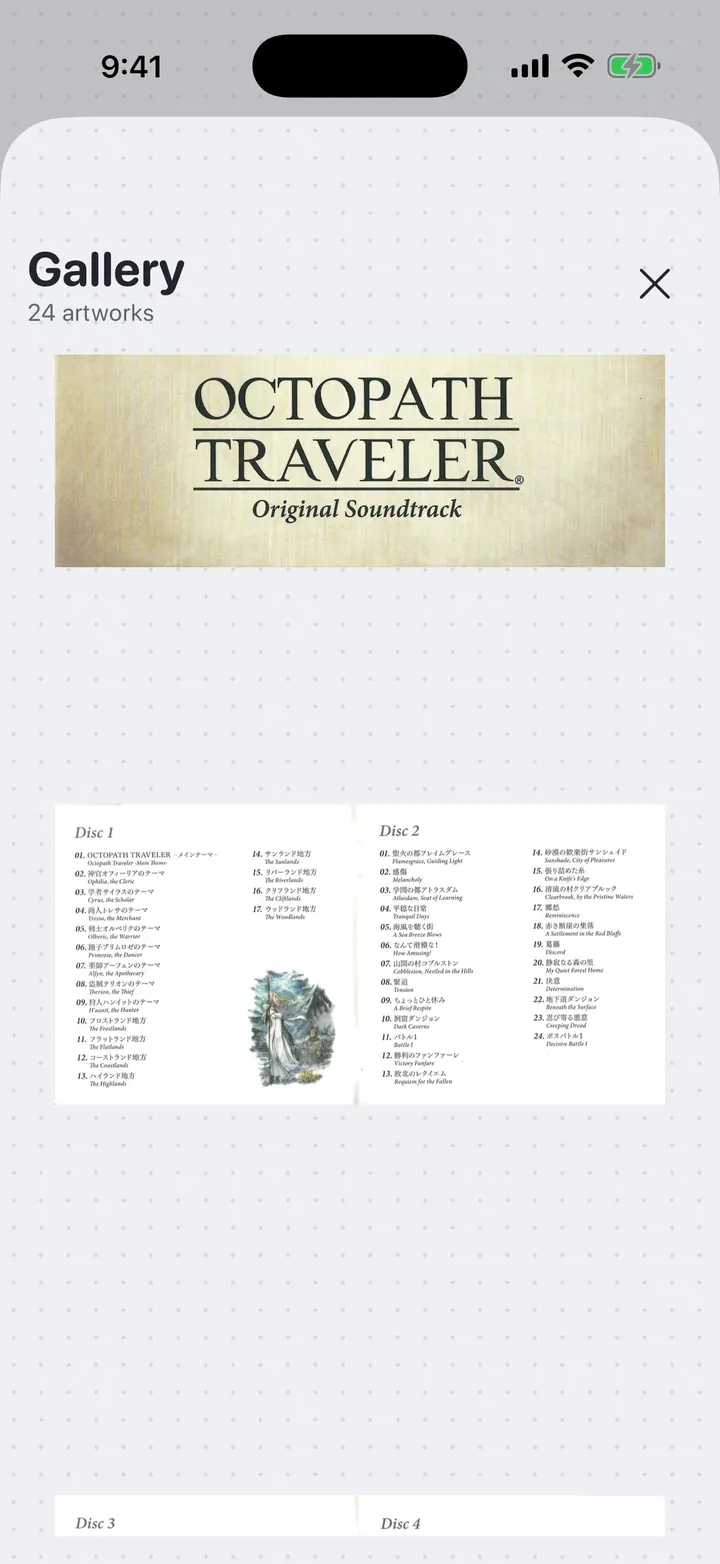
⤢Artwork gallery Browse alternate cover art and logo variants from the catalog.⤢Save artwork Save high-resolution artwork to Photos or Files.⤢Add to playlist Choose a playlist for a track, or start a new one.⤢Add tracks Pick tracks from All, Local, or Liked views.⤢Local Library import Import audio straight from the device's files.⤢Import progress Batch-importing local files with a live progress bar.⤢Rounded artwork Circular cover art, turned on in Settings.⤢Swipe to next track Swipe the player sideways to change tracks.⤢Booklet pages Many albums' galleries include scans of the booklet alongside the covers.
Everywhere · Downloads and backups
Offline saving and backups, in every interface.
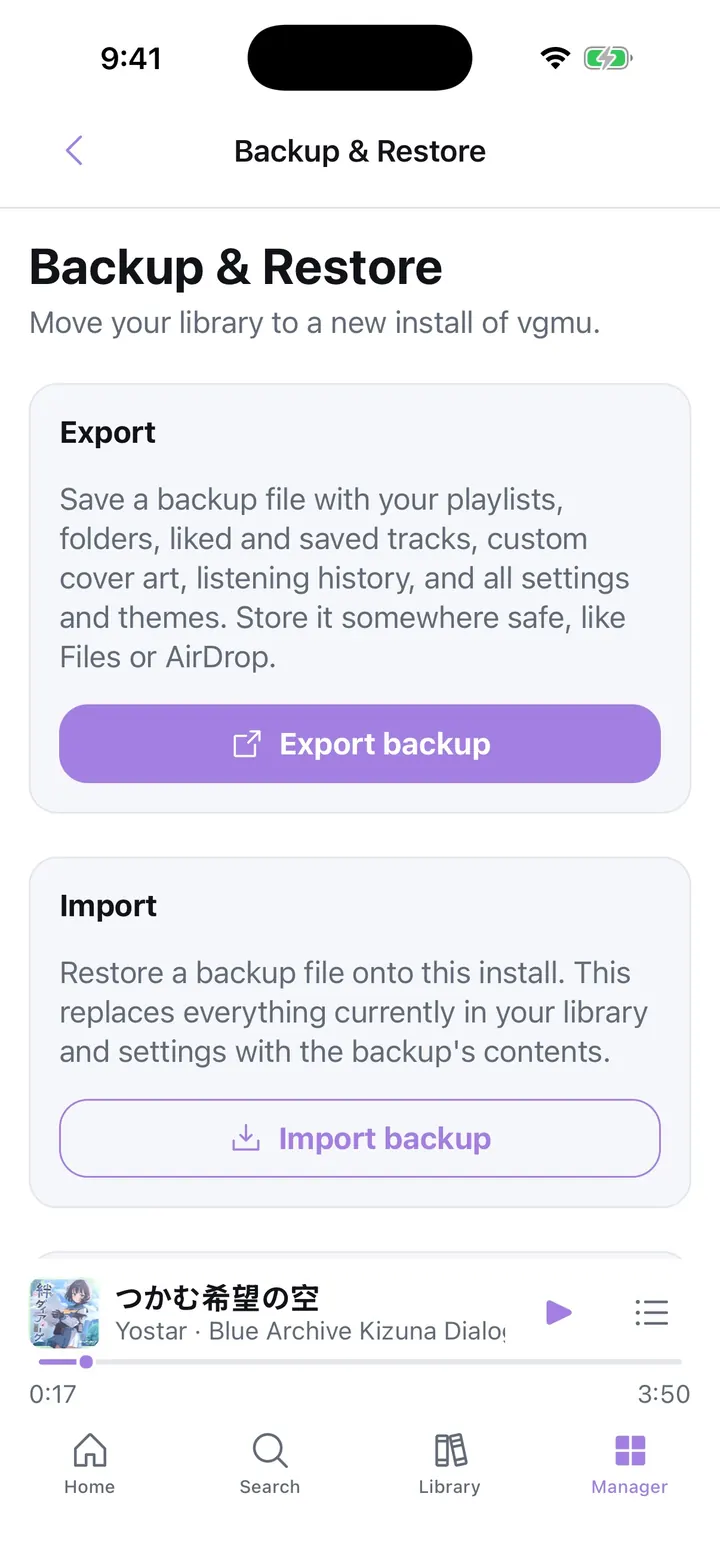
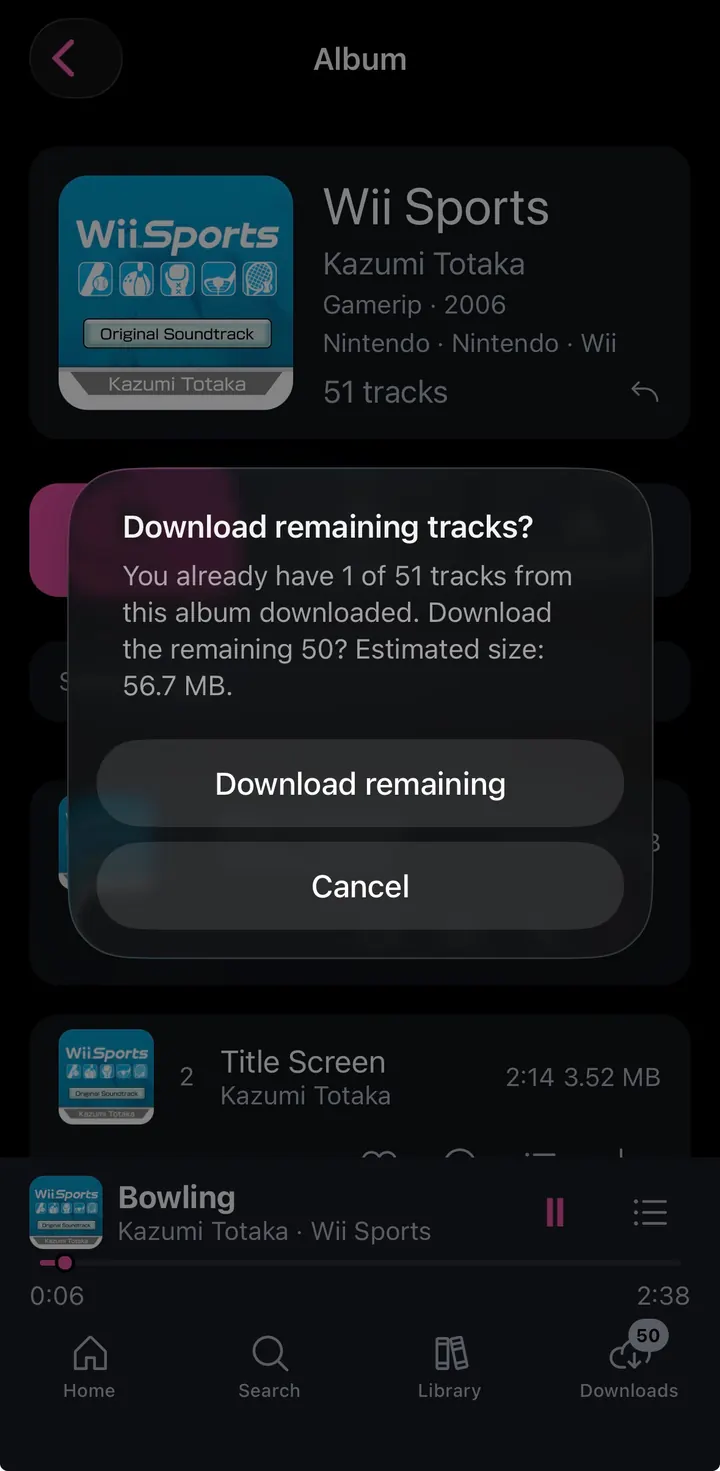
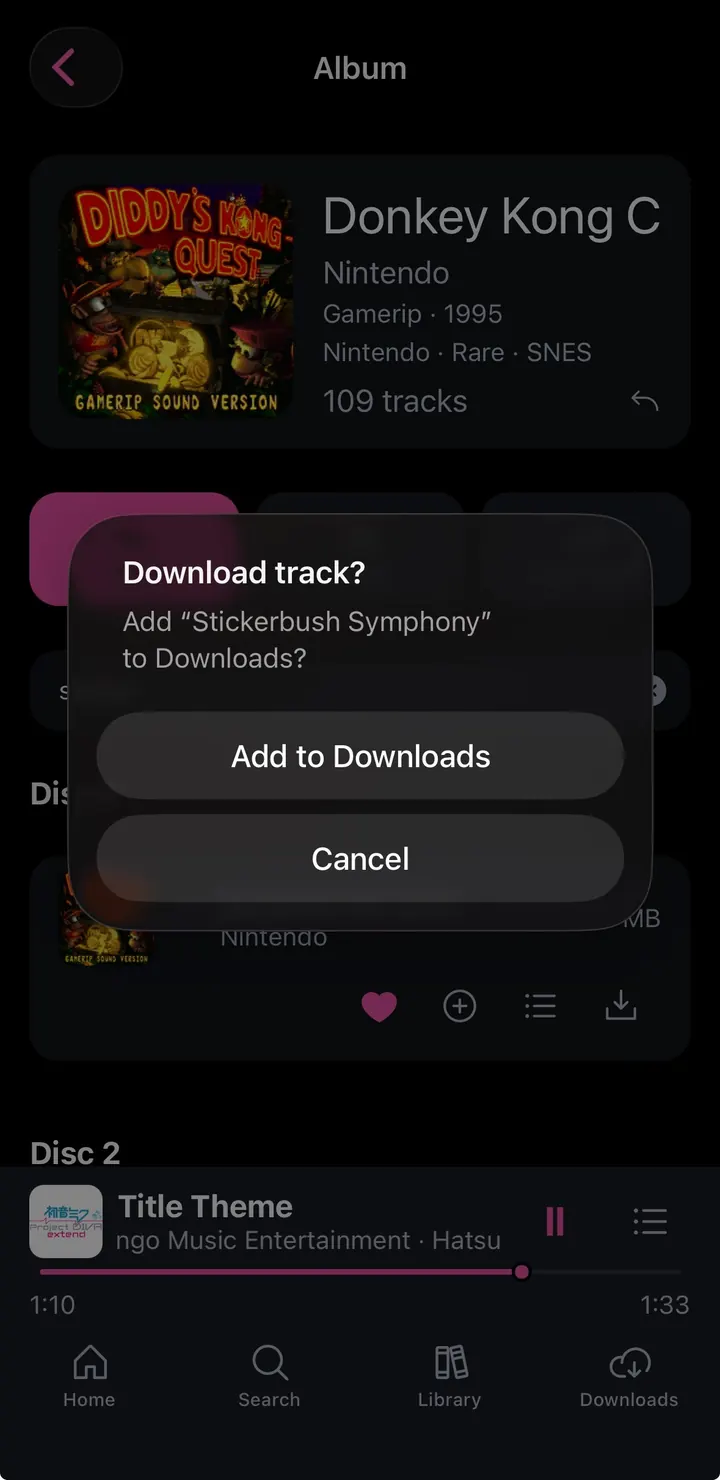
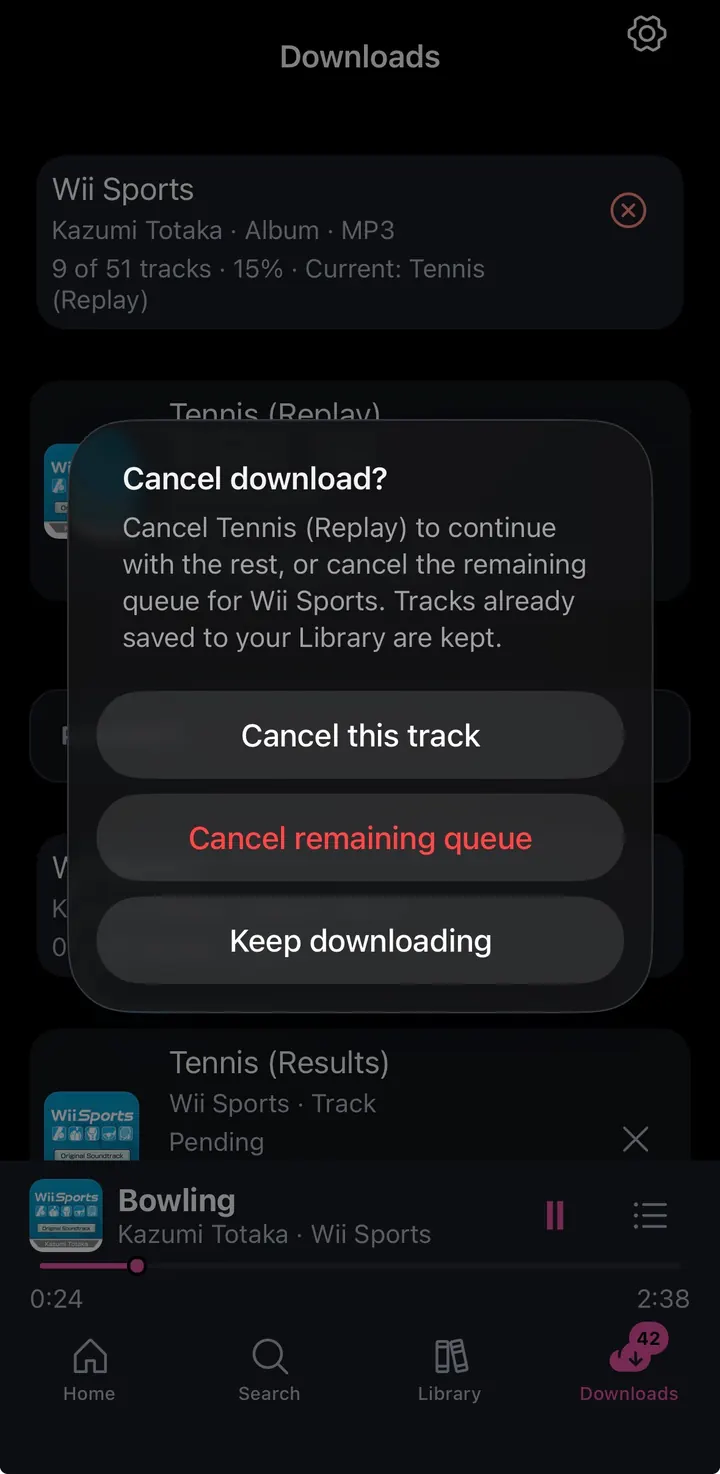
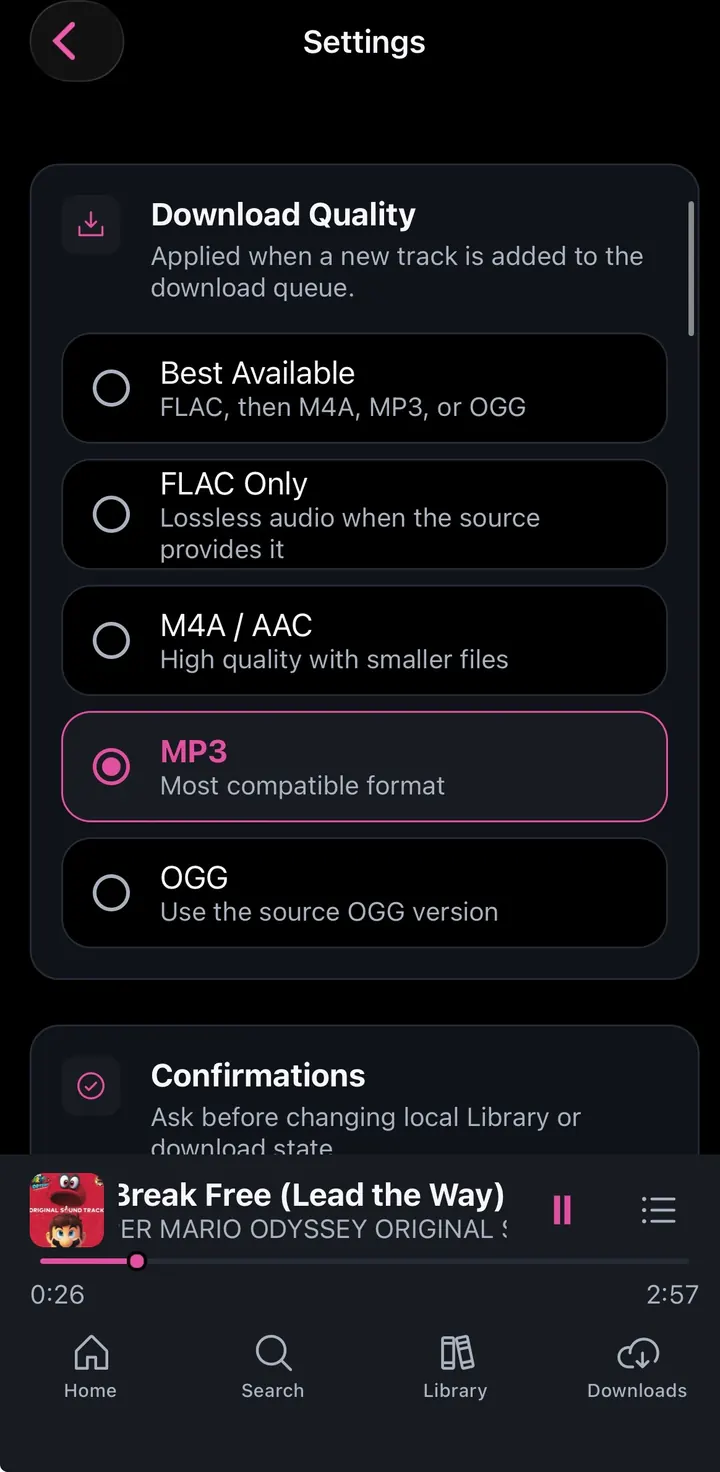
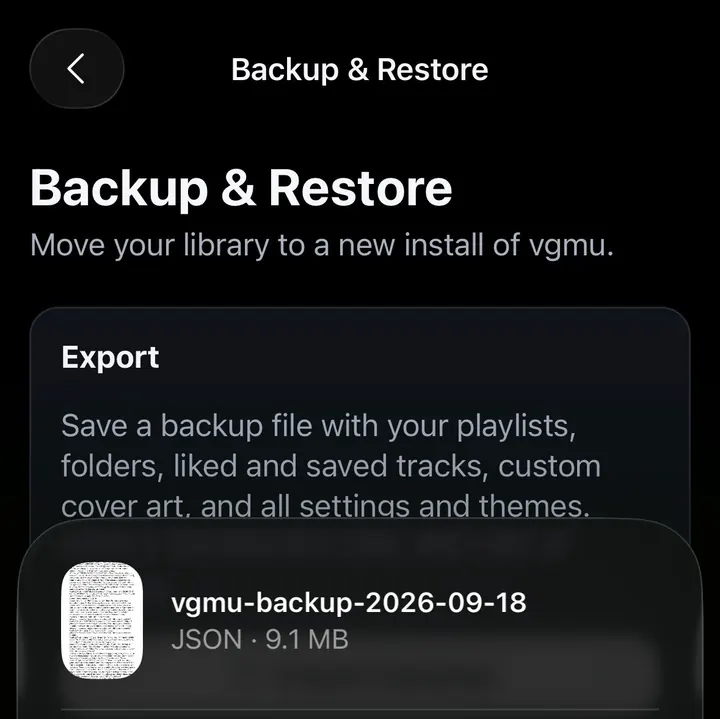
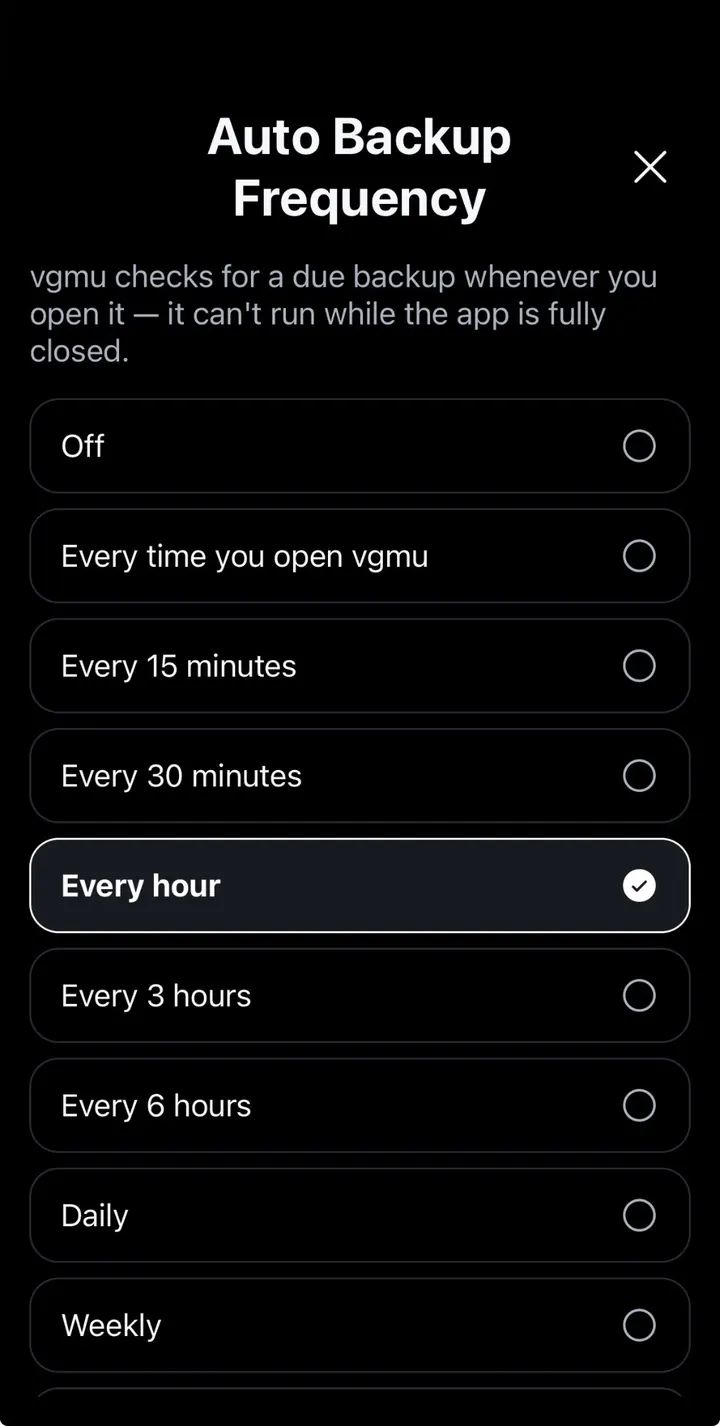
⤢Batch download Grab the rest of an album's tracks in one go.⤢Download confirmation Confirm a download before it starts (optional).⤢Cancel options Cancel one track, the rest of the queue, or keep going.⤢Download quality Best Available, FLAC, M4A/AAC, MP3, or OGG.⤢Export a backup Playlists, folders, likes, custom art, and settings in one file, through the share sheet.⤢Auto Backup Back up automatically, from every app open to weekly.
Everywhere · System and Discord
Lock screen controls, the Home Screen icon, and Discord Rich Presence.
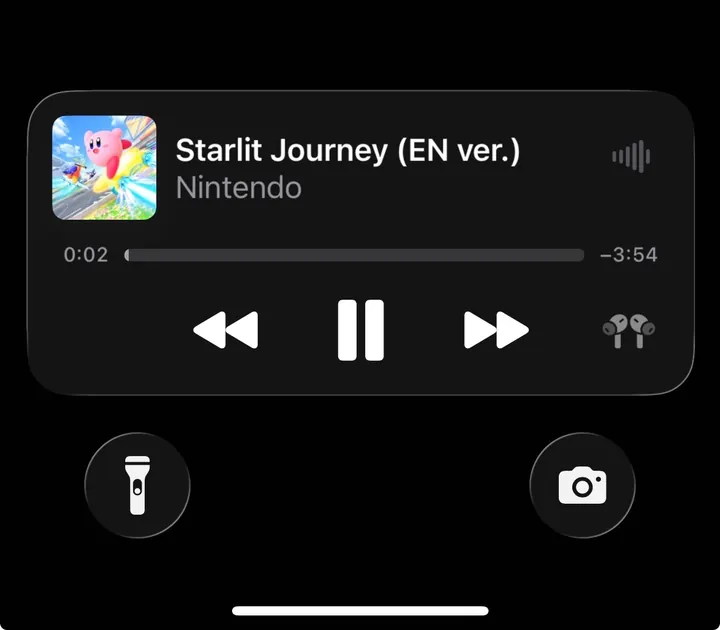
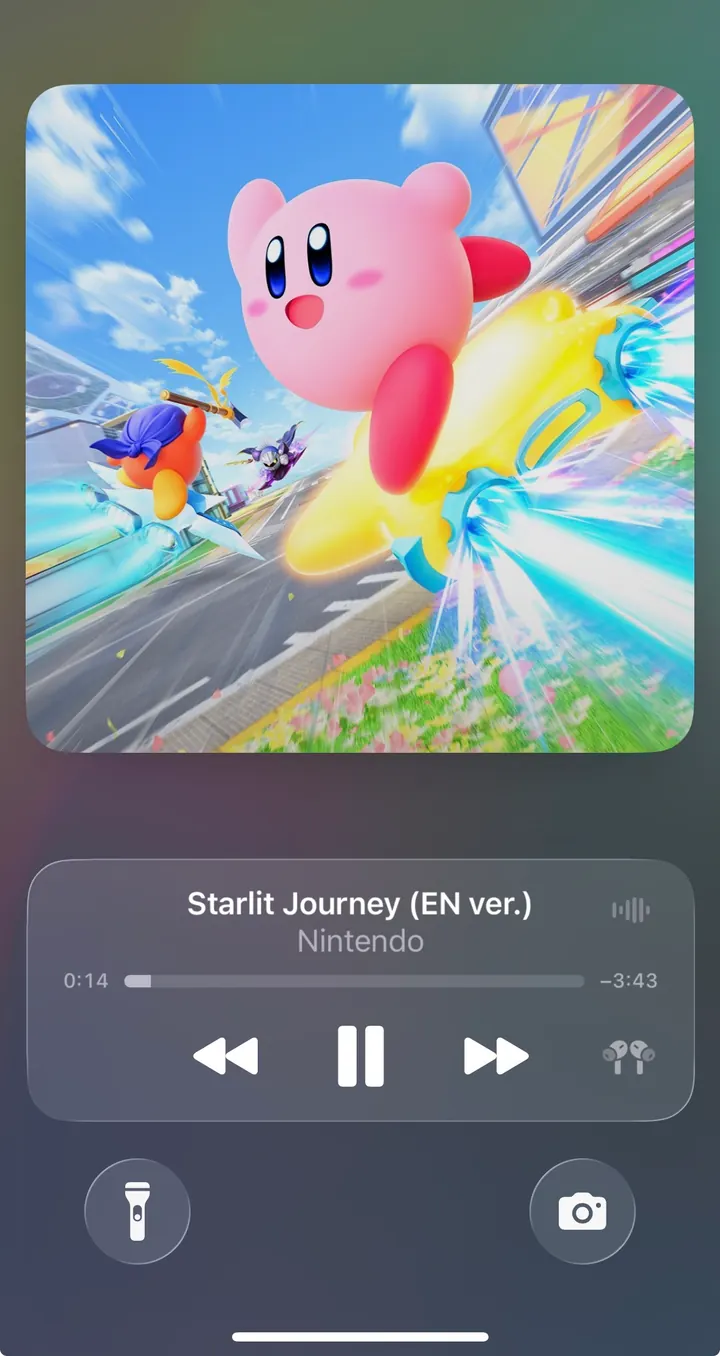
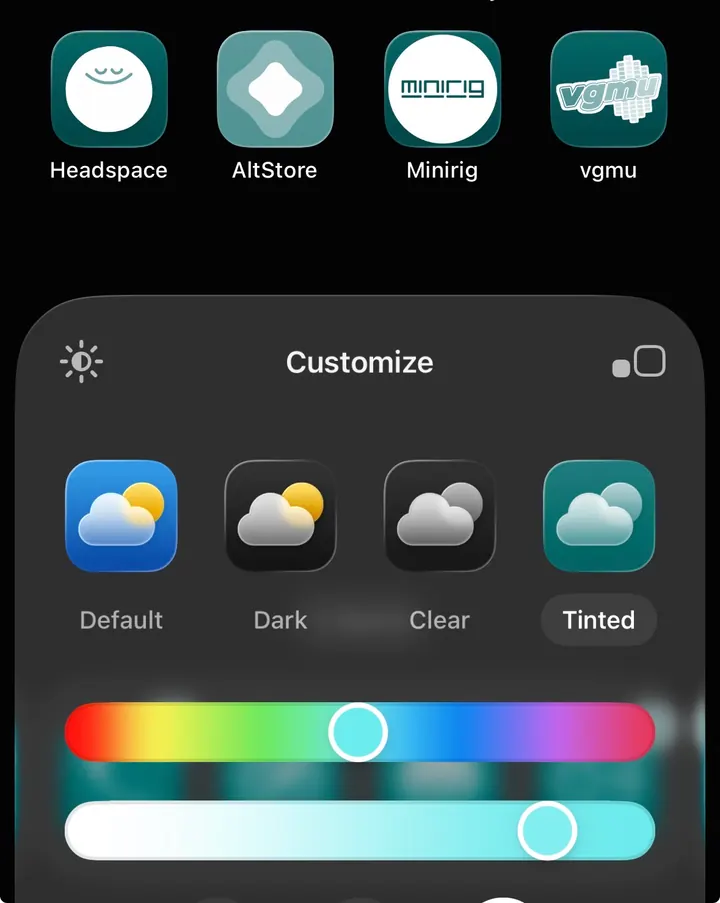
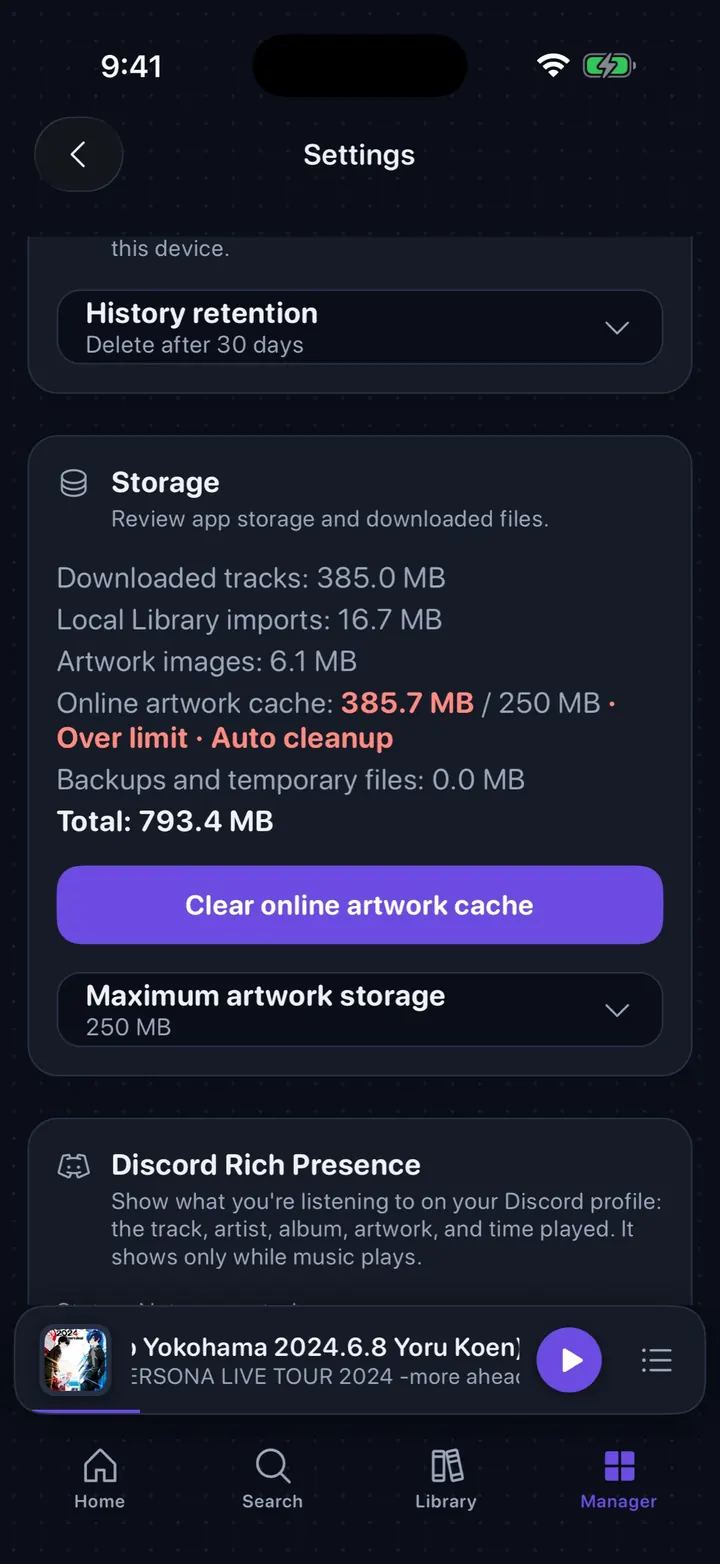
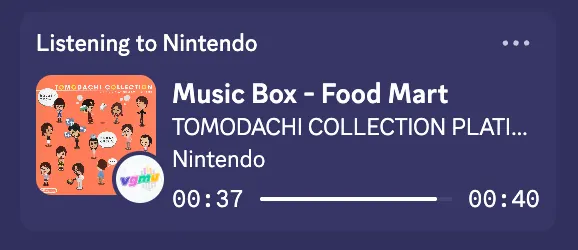
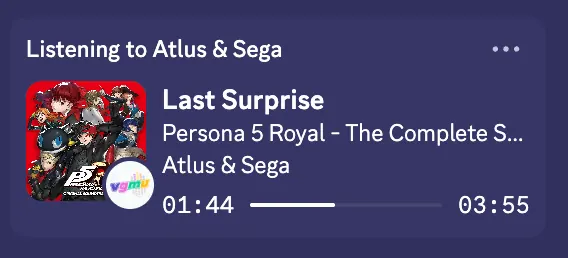
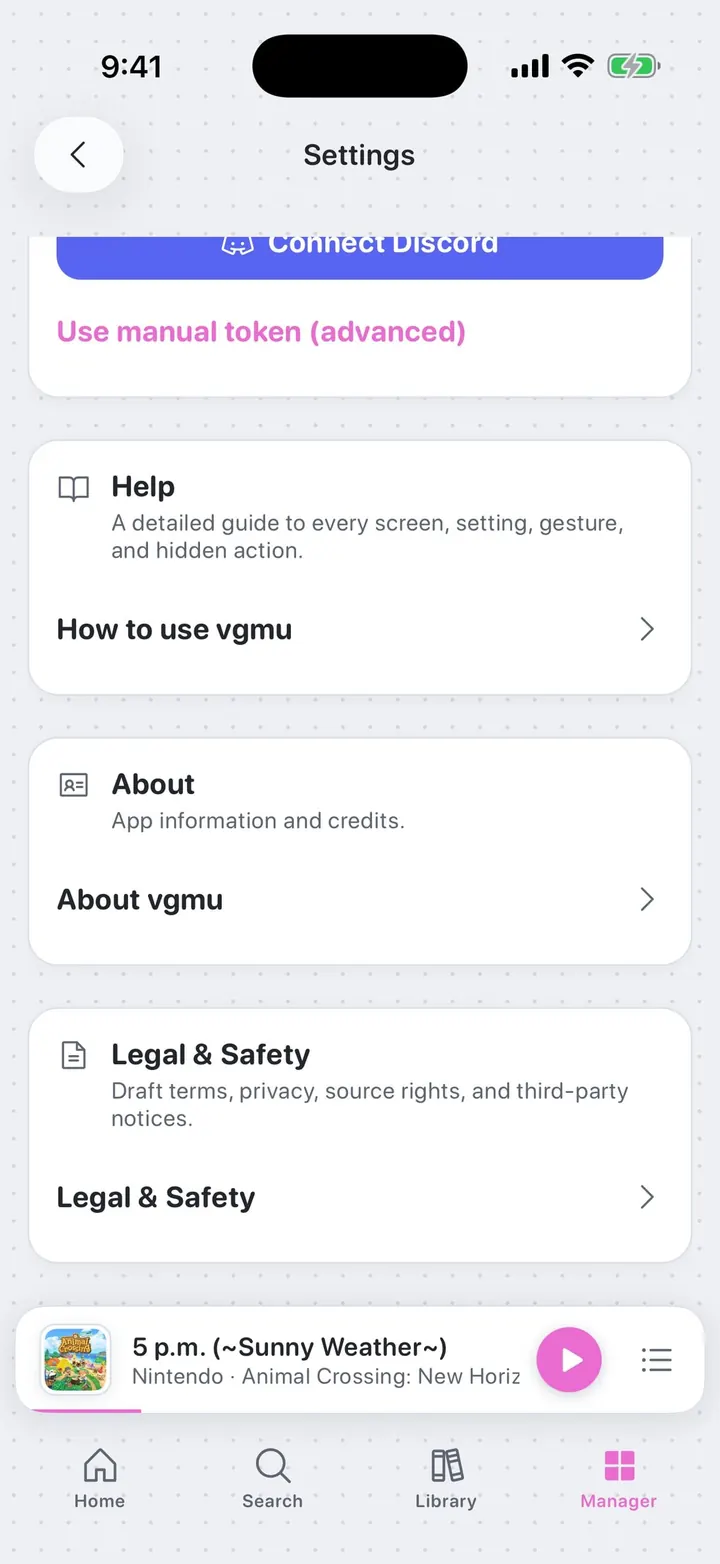
⤢Lock screen controls System playback controls while the phone is locked.⤢Lock screen artwork Full album art on the lock screen during background playback.⤢iOS icon Default, Dark, Clear, and Tinted Home Screen icons.⤢Storage Storage by type, a warning when online artwork is over its limit, and Maximum artwork storage on iPhone.⤢Discord profile What you are playing, live on your Discord profile.⤢Discord progress "Last Surprise" from Persona 5 Royal with a live progress bar.⤢Connect Discord Settings has a Connect Discord button that uses Discord's official sign-in. The older manual token is under Use manual token (advanced).
Everywhere · Listening stats
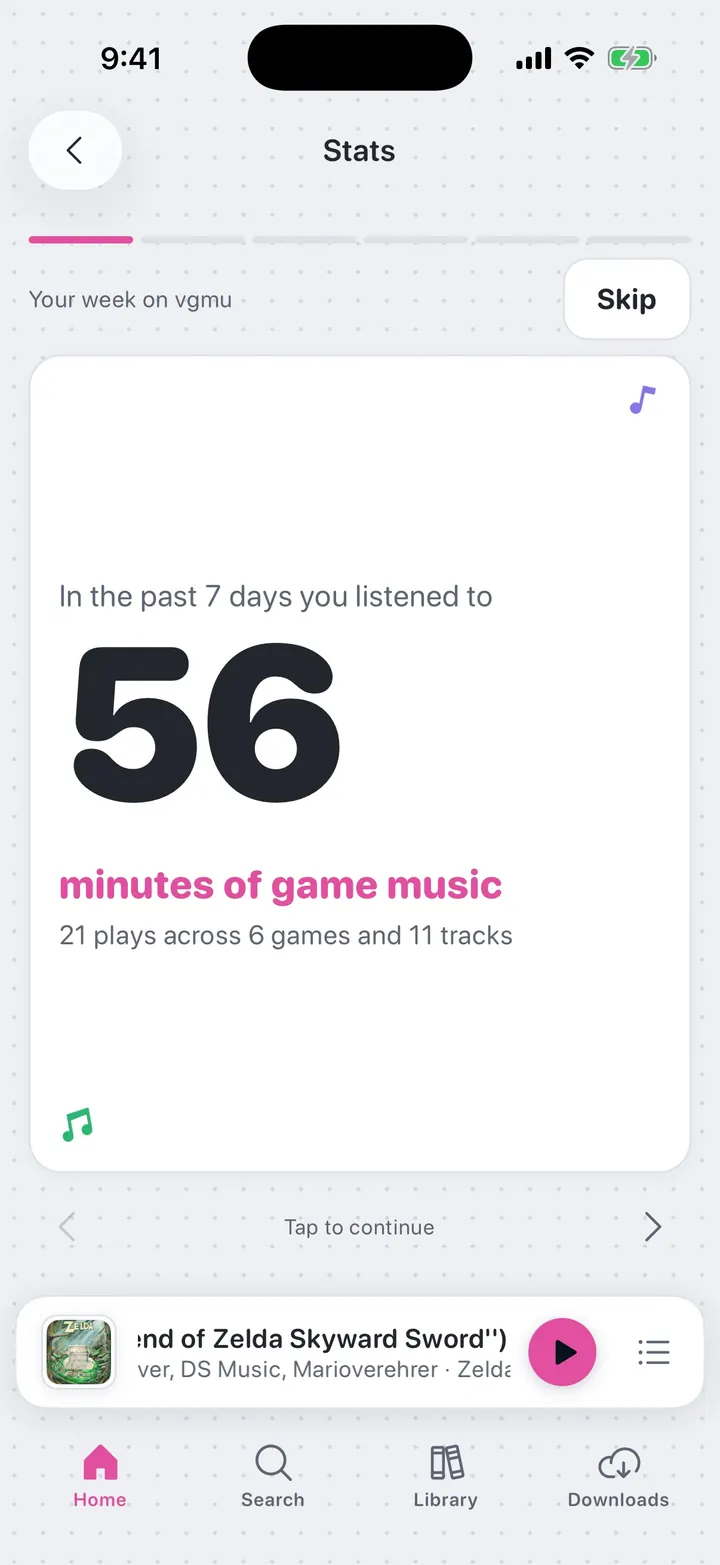
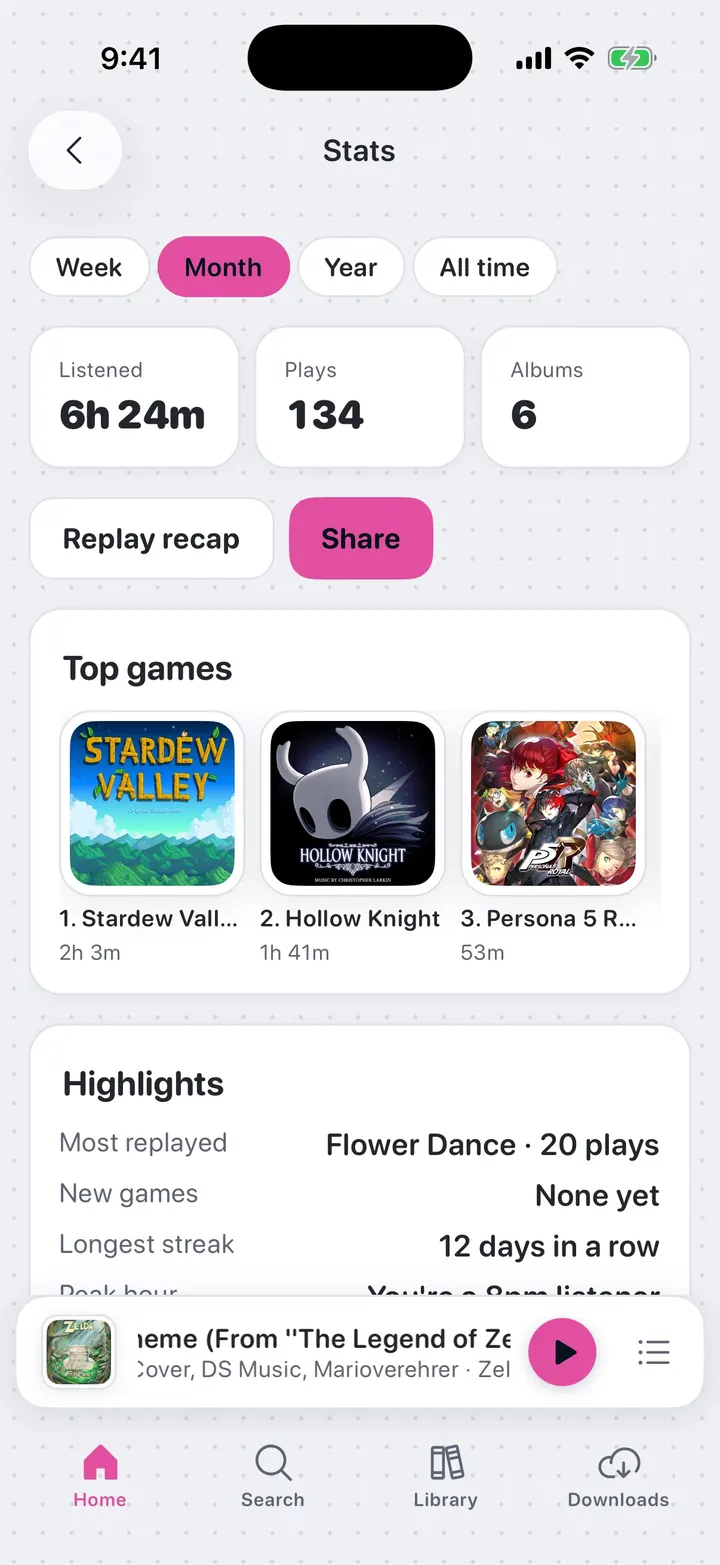
New in 1.2: Stats turns your plays into a short recap story, a summary, and a card you can share. Open it from the chart button on Home.
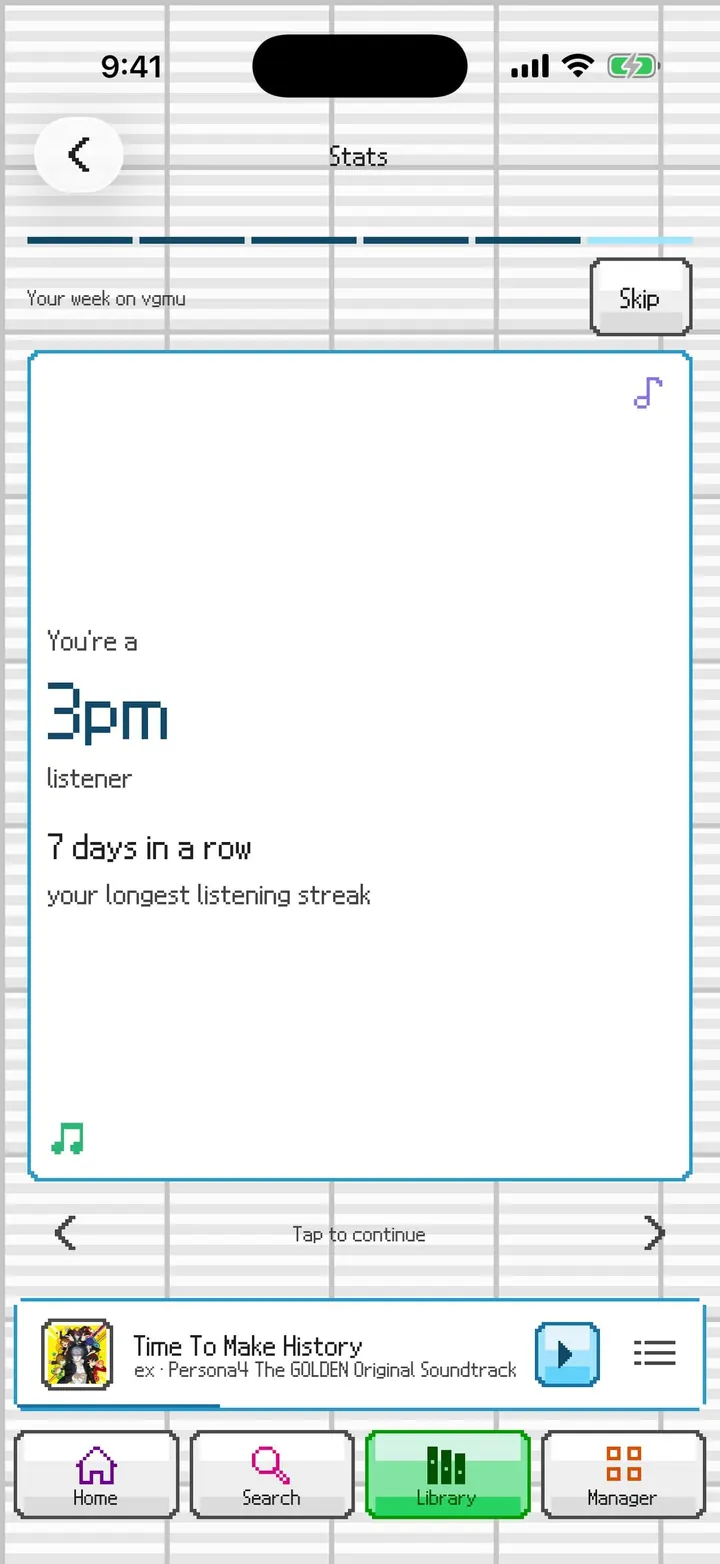
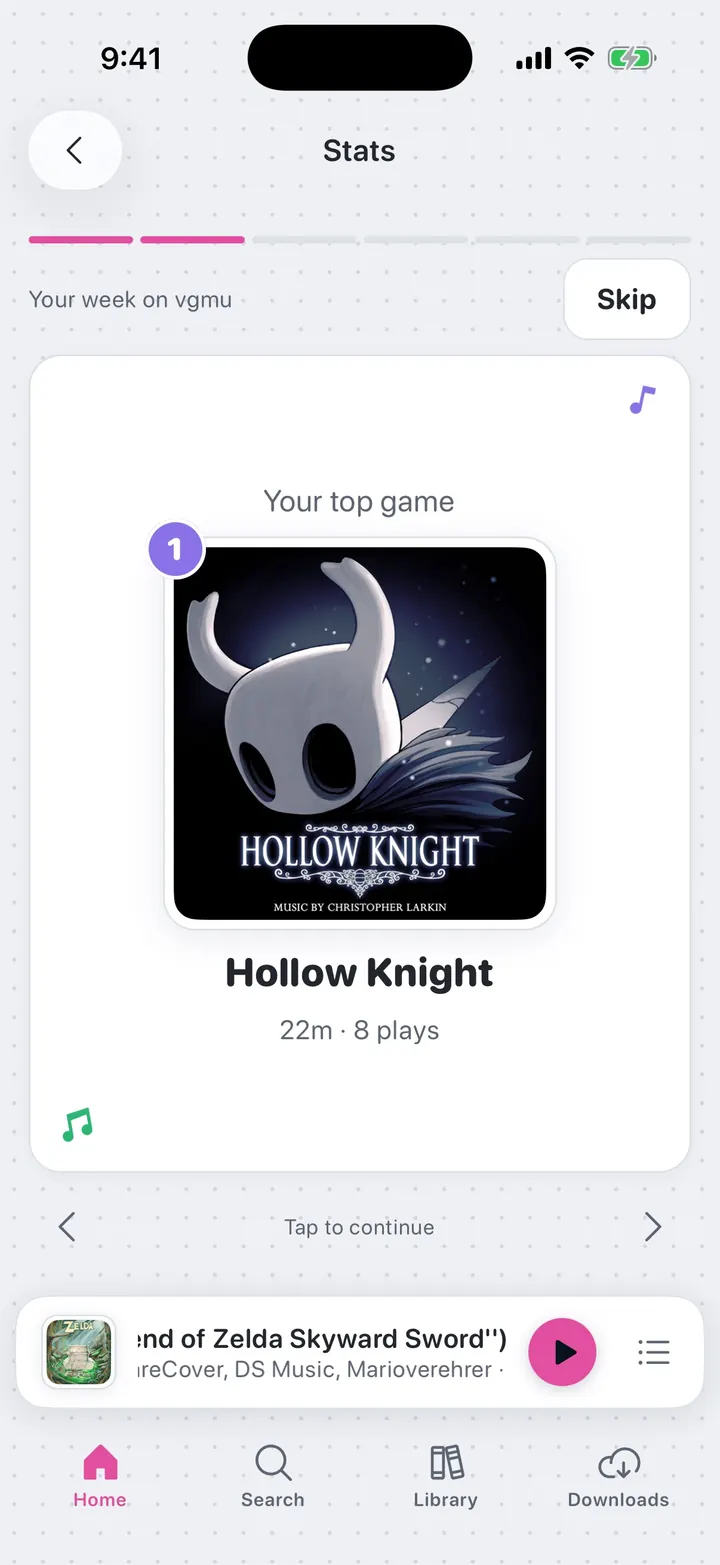
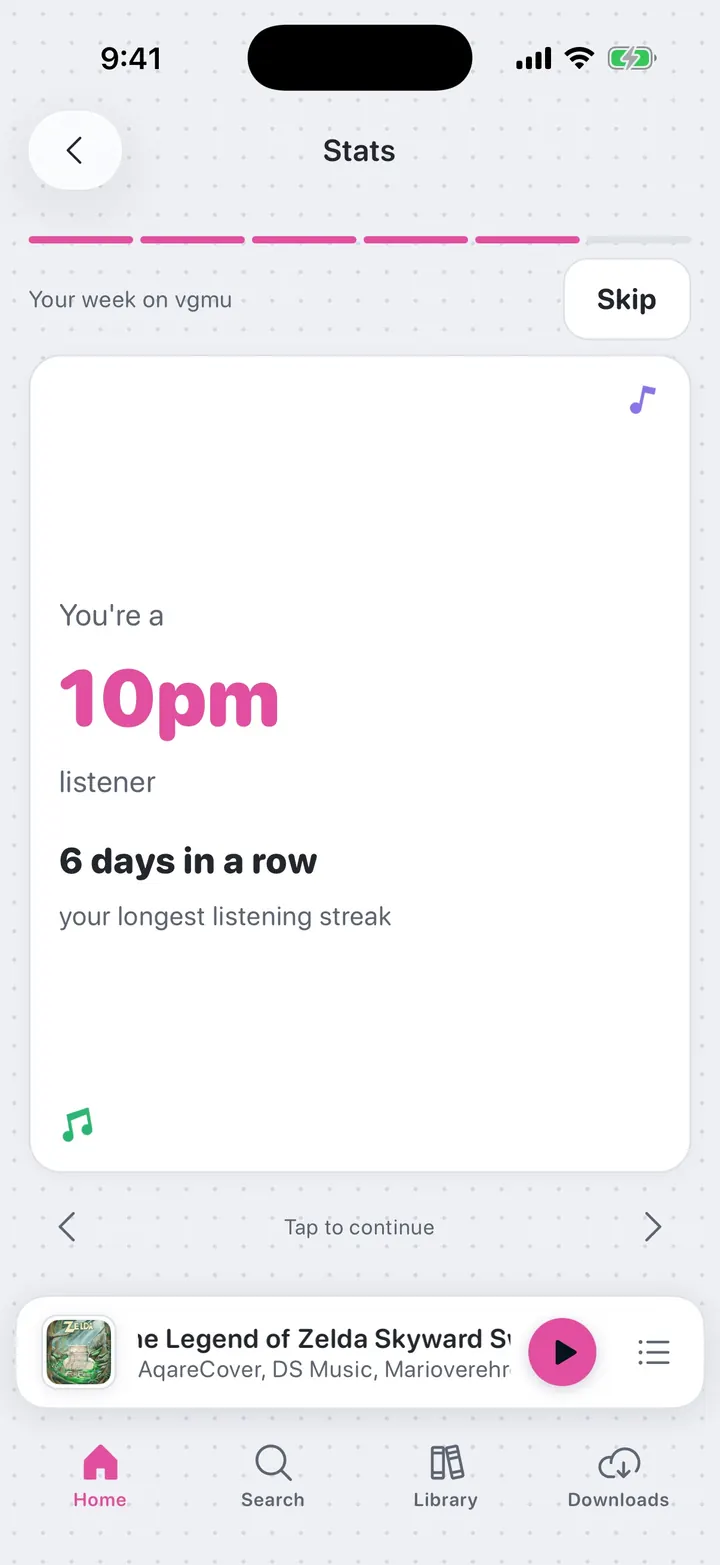
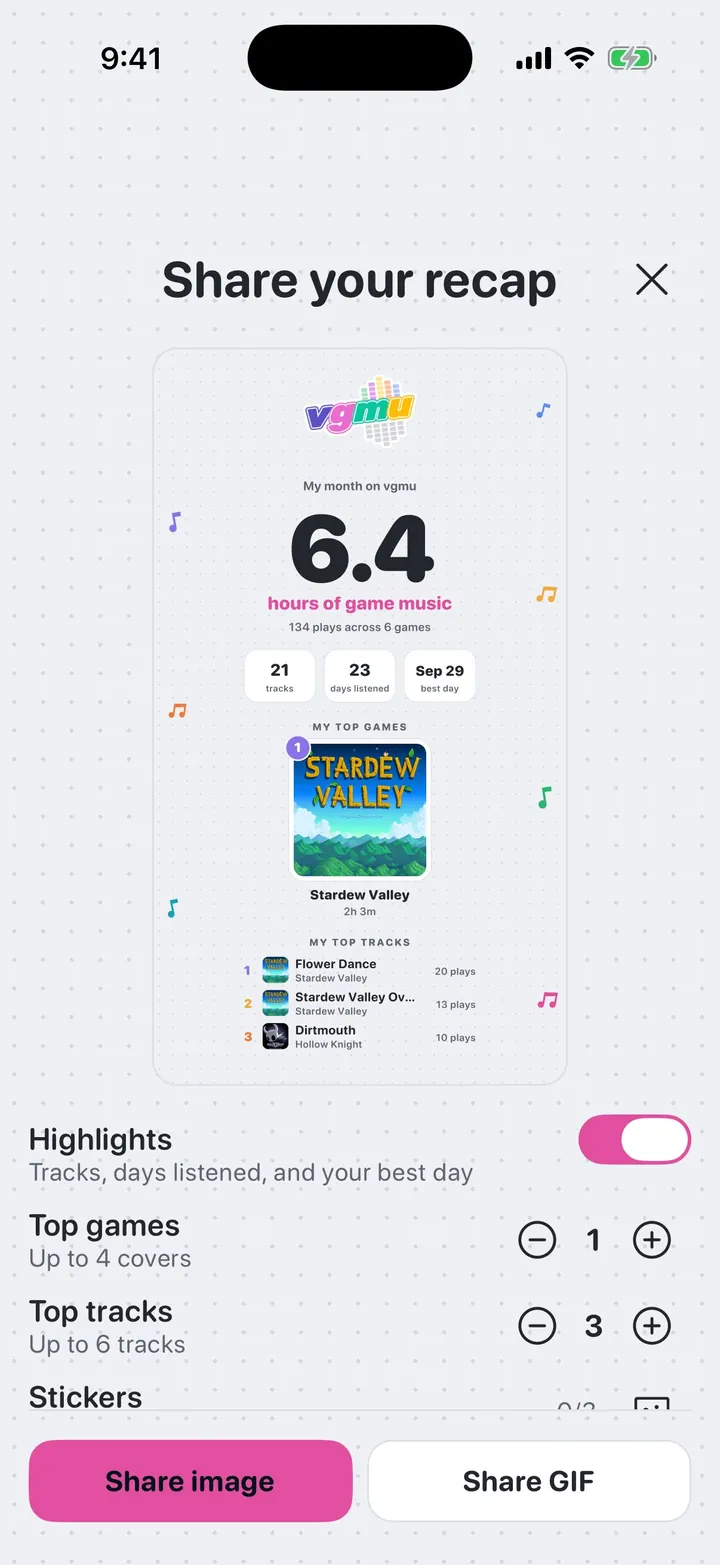
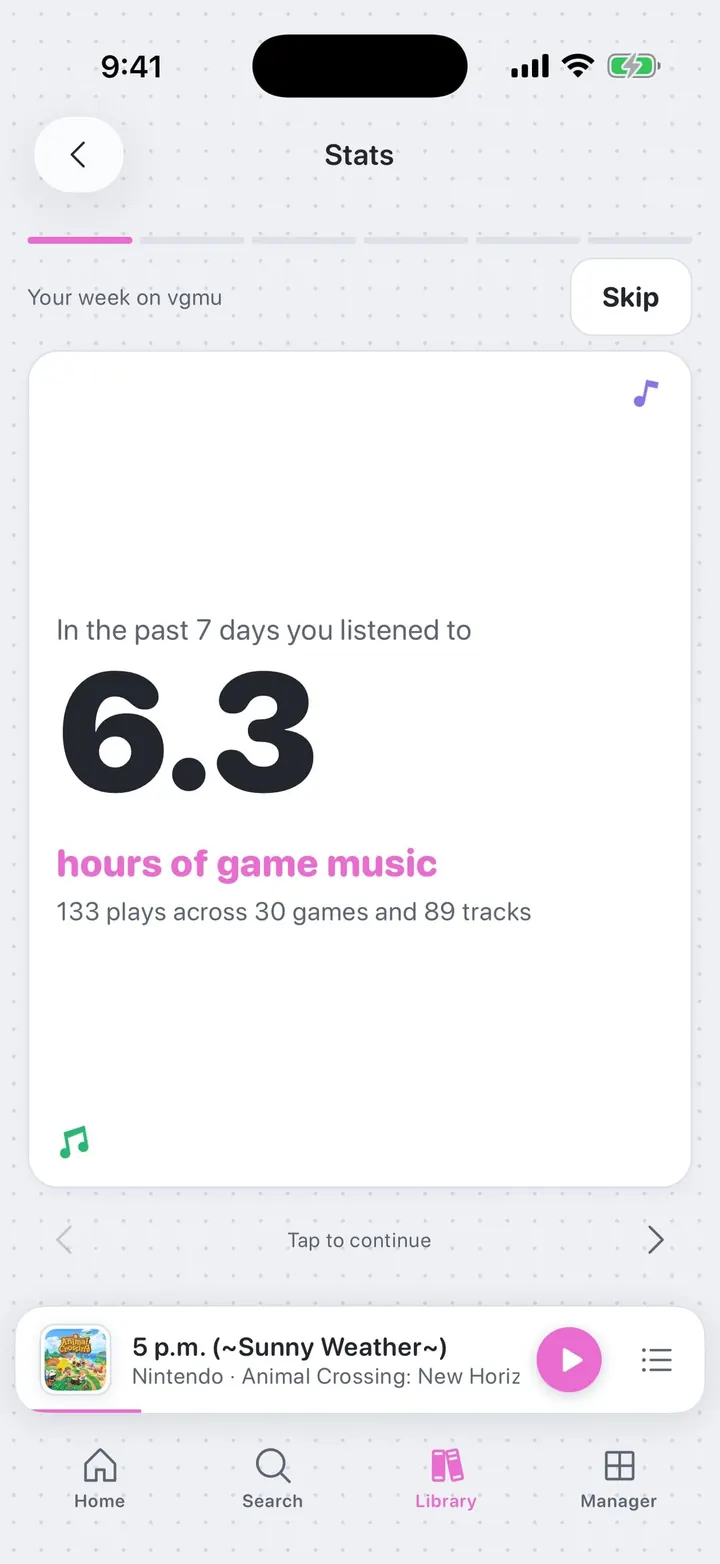
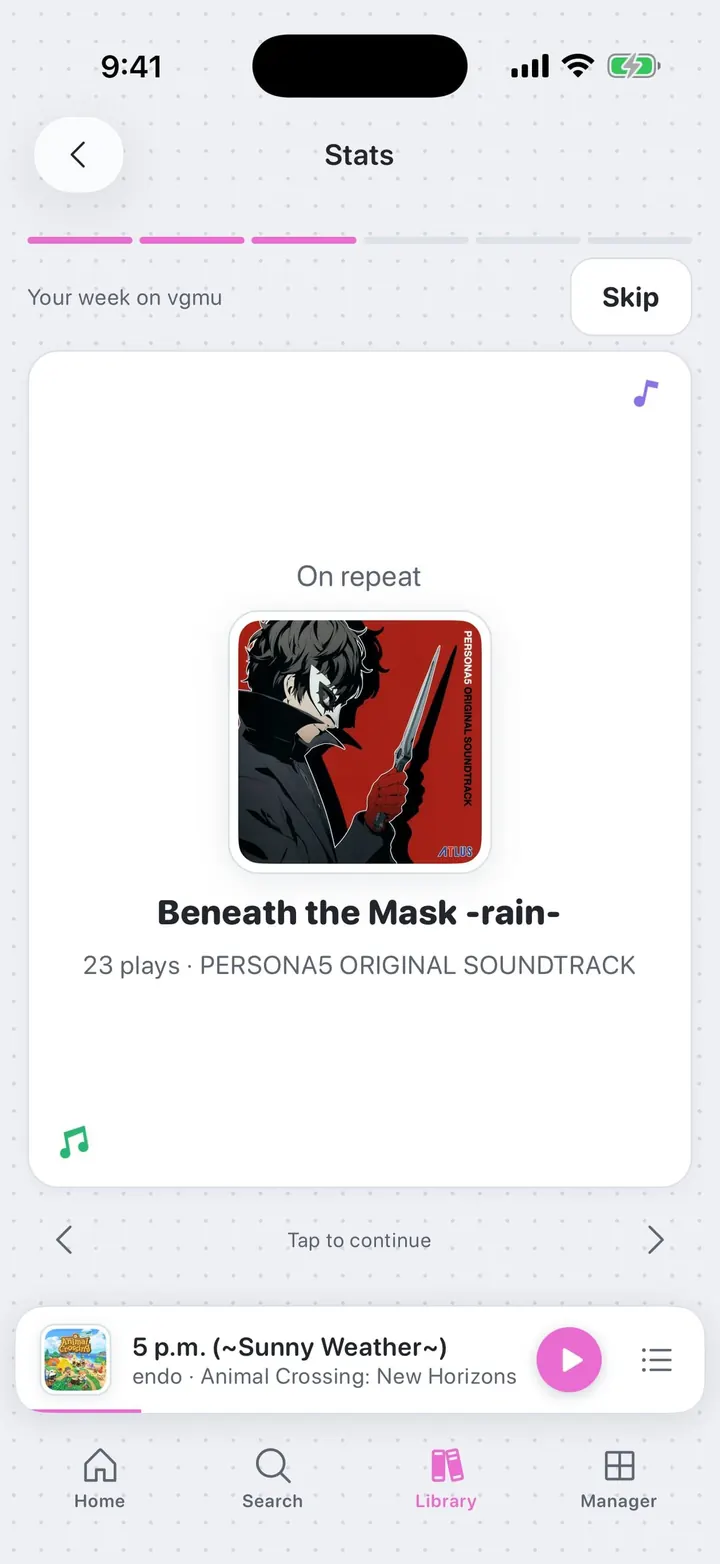
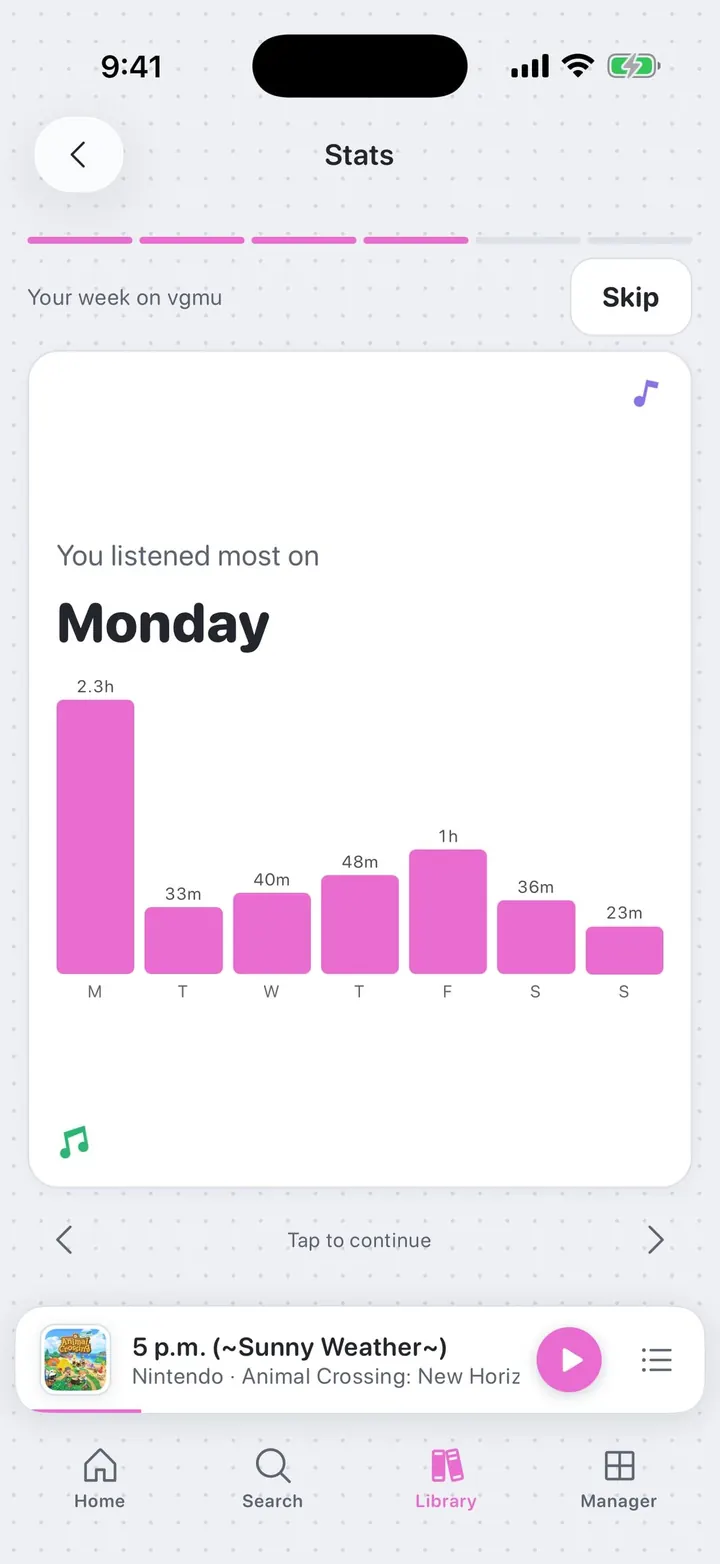
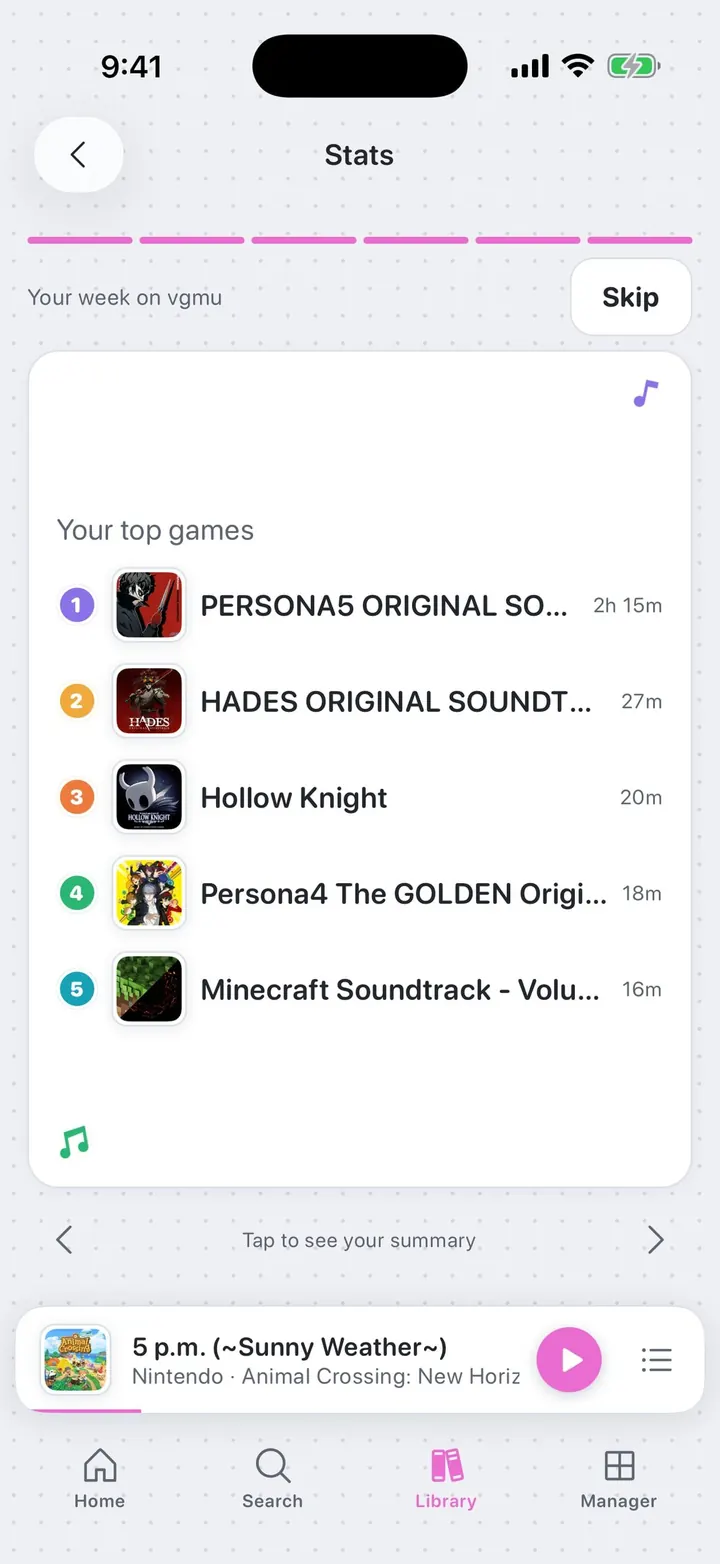
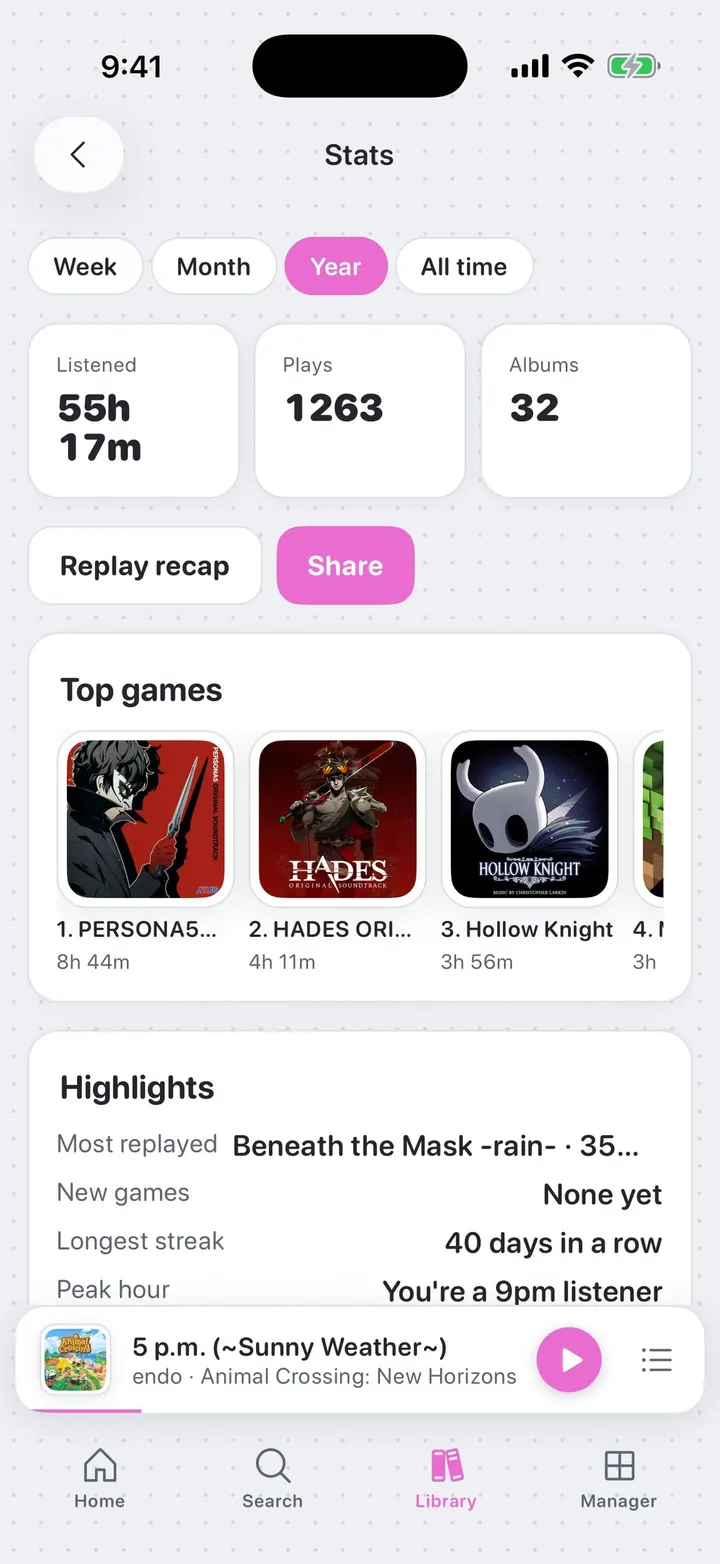
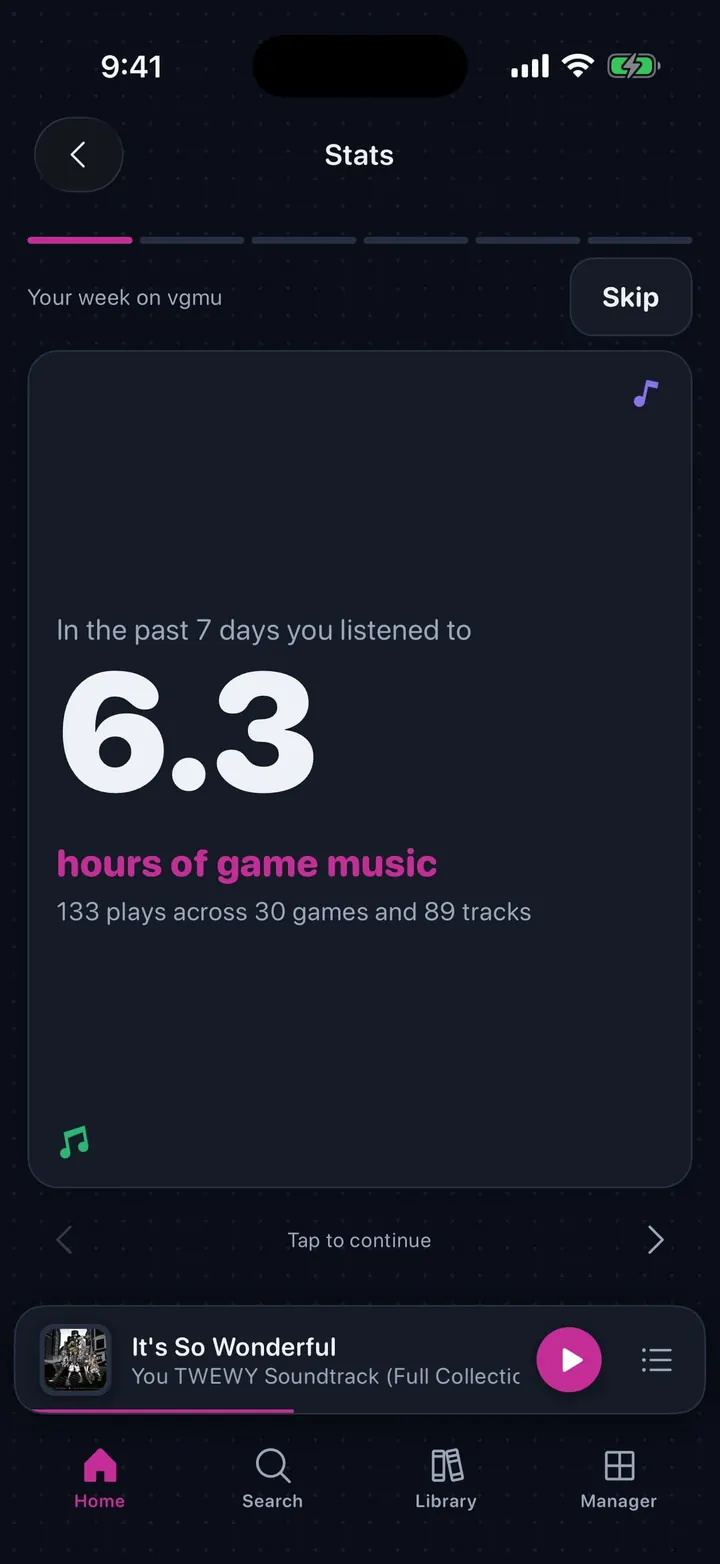
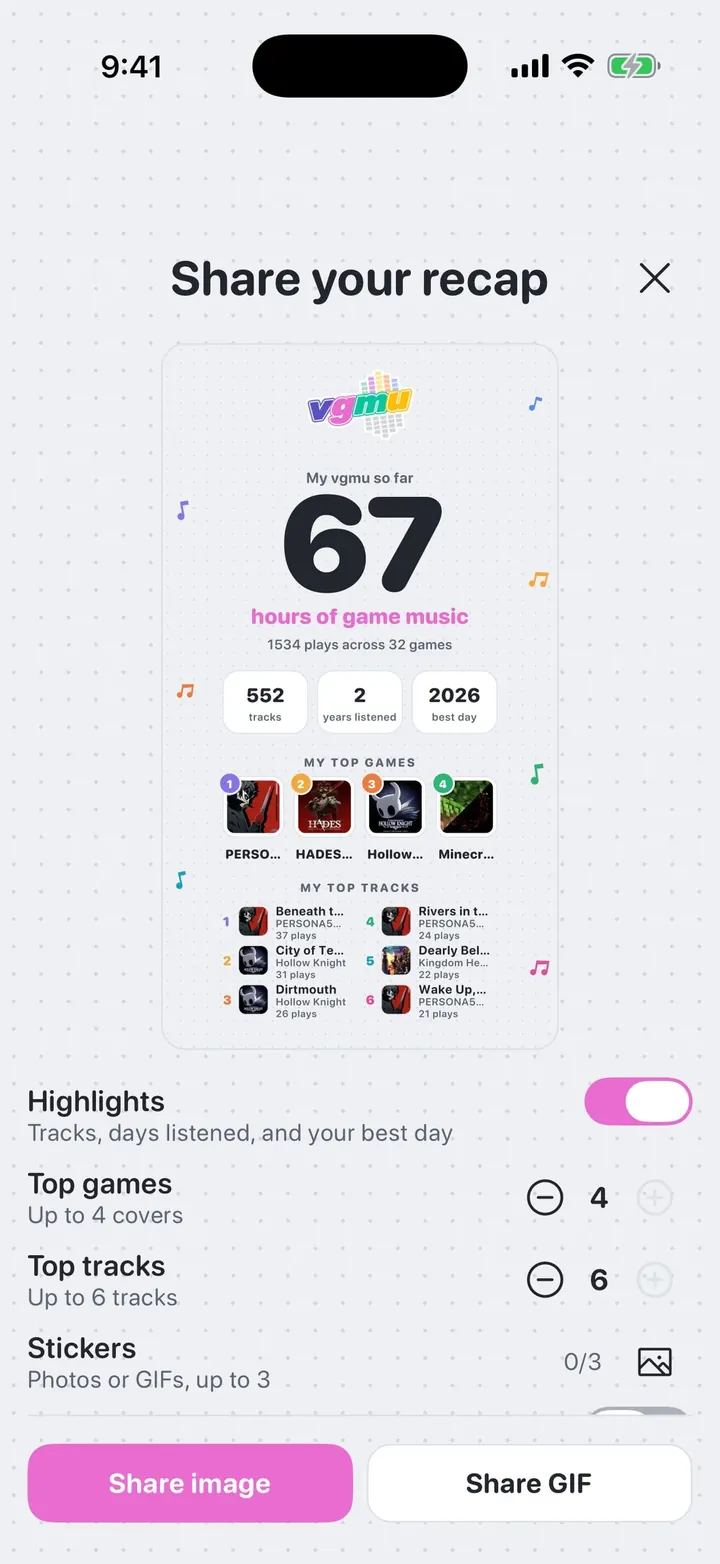
⤢Recap: time listened How much game music you played this week, across how many games and tracks.⤢Recap: top game The soundtrack you spent the most time with.⤢Recap: peak hour and streak The hour you listen most and your longest run of days in a row.⤢Stats summary Week, Month, Year, or All time, with your top games and highlights.⤢Share your recap A story-sized card in your interface style. Pick what it shows, add photo or GIF stickers, and share it as an image or a GIF.⤢Recap: a bigger week The opening card scales from minutes to hours as you listen more.⤢Recap: on repeat The track you played most that week.⤢Recap: busiest day Your biggest listening day, with the whole week charted.⤢Recap: top games Your five most-played games with their listening time.⤢Stats for the year Switch the summary between week, month, year, and all time.⤢Recap in dark The recap on the dark shell.⤢A fuller share card Choose how many covers and tracks the card shows.
Everywhere · Sound Lab
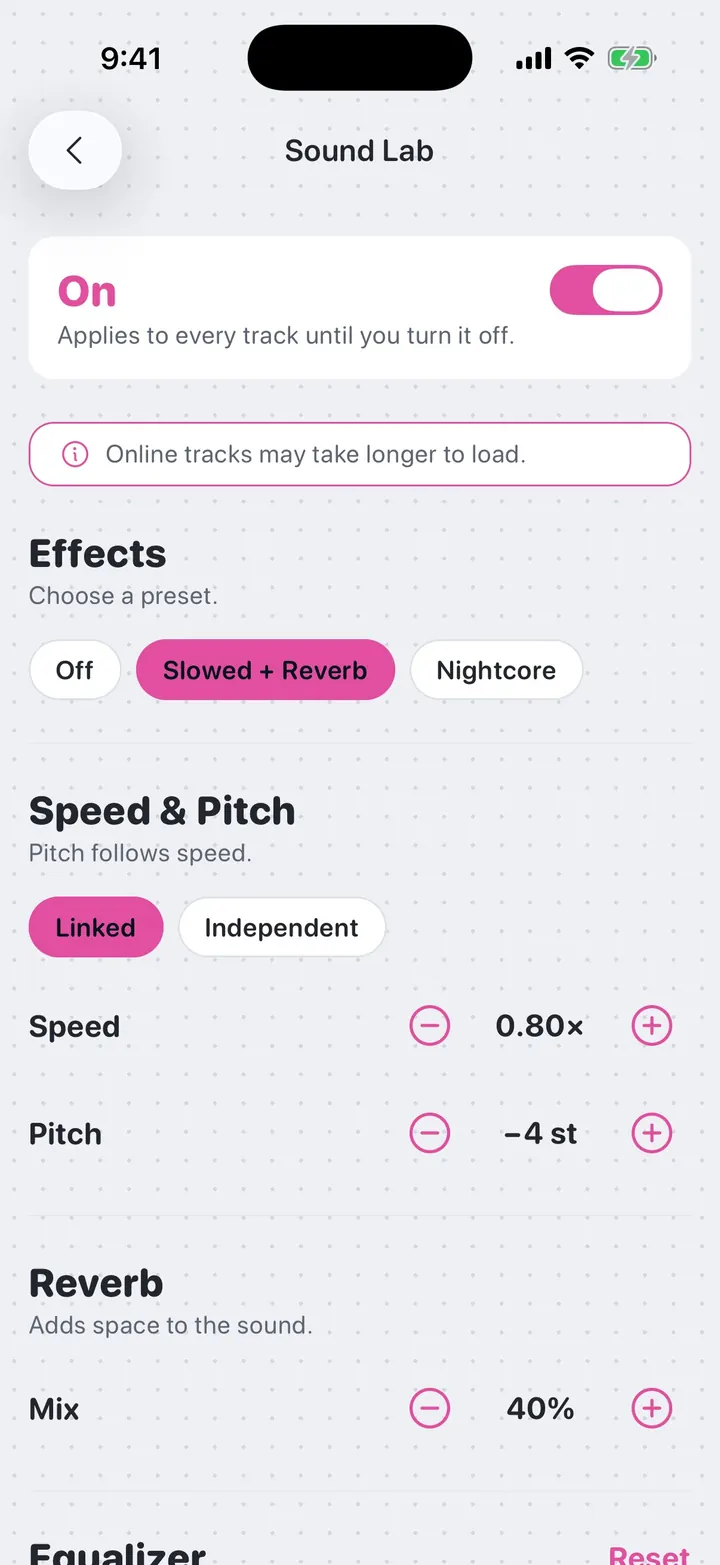
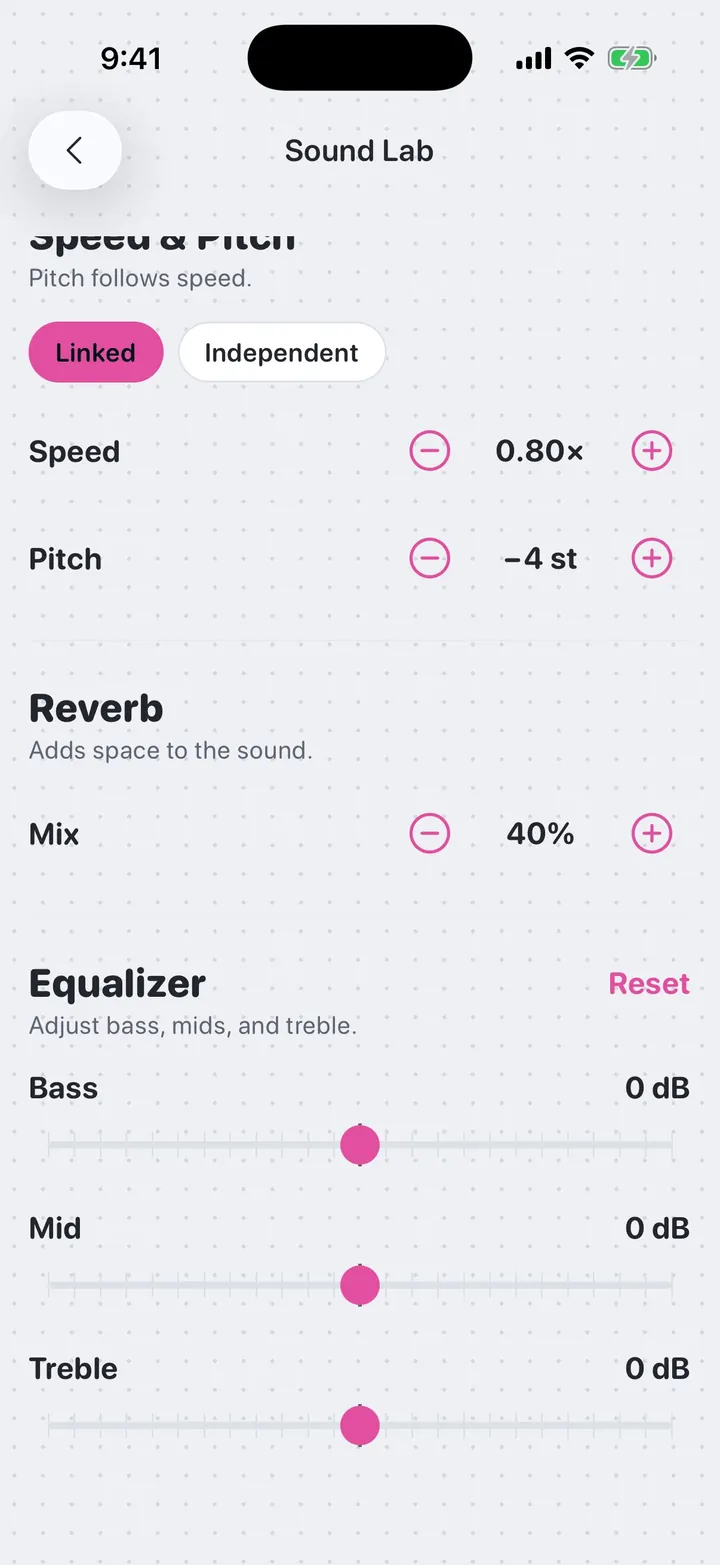
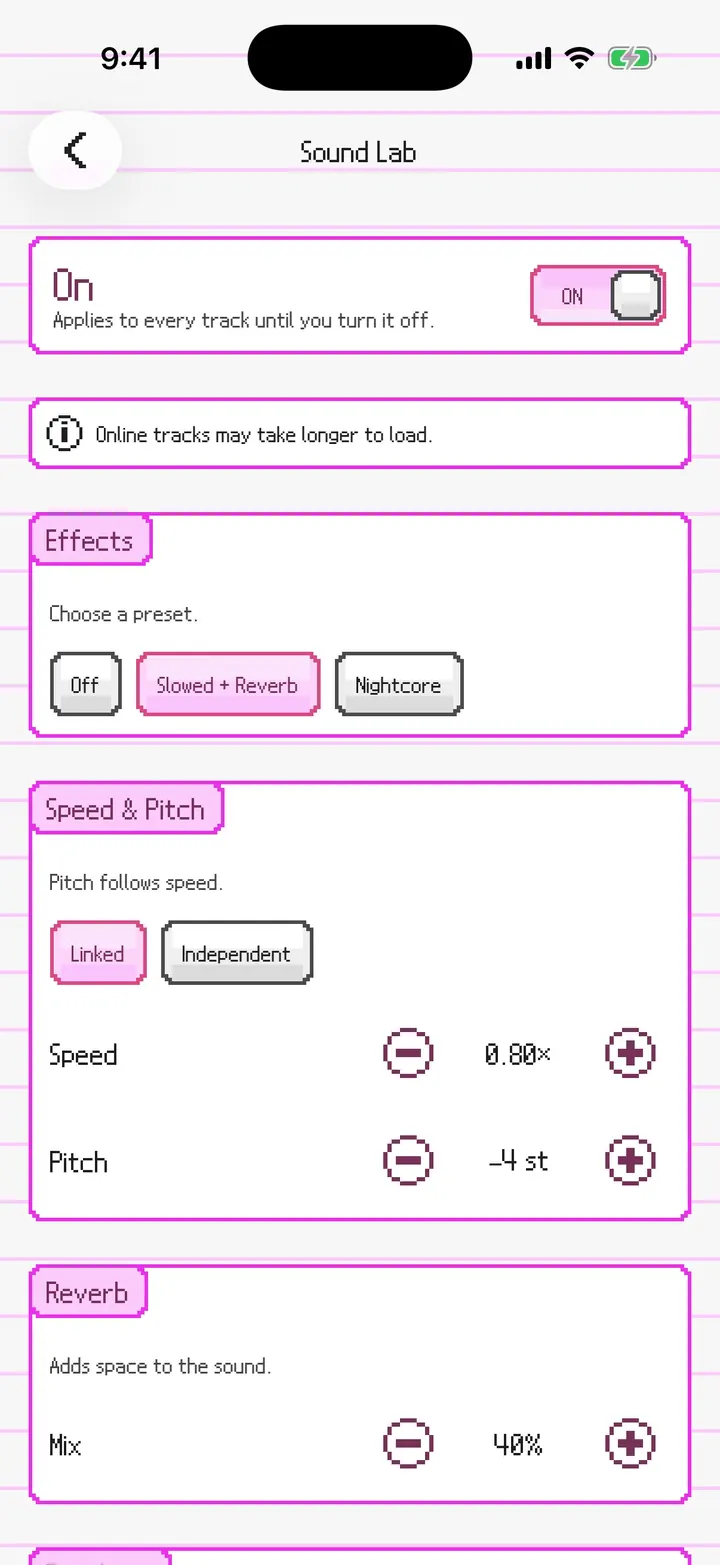
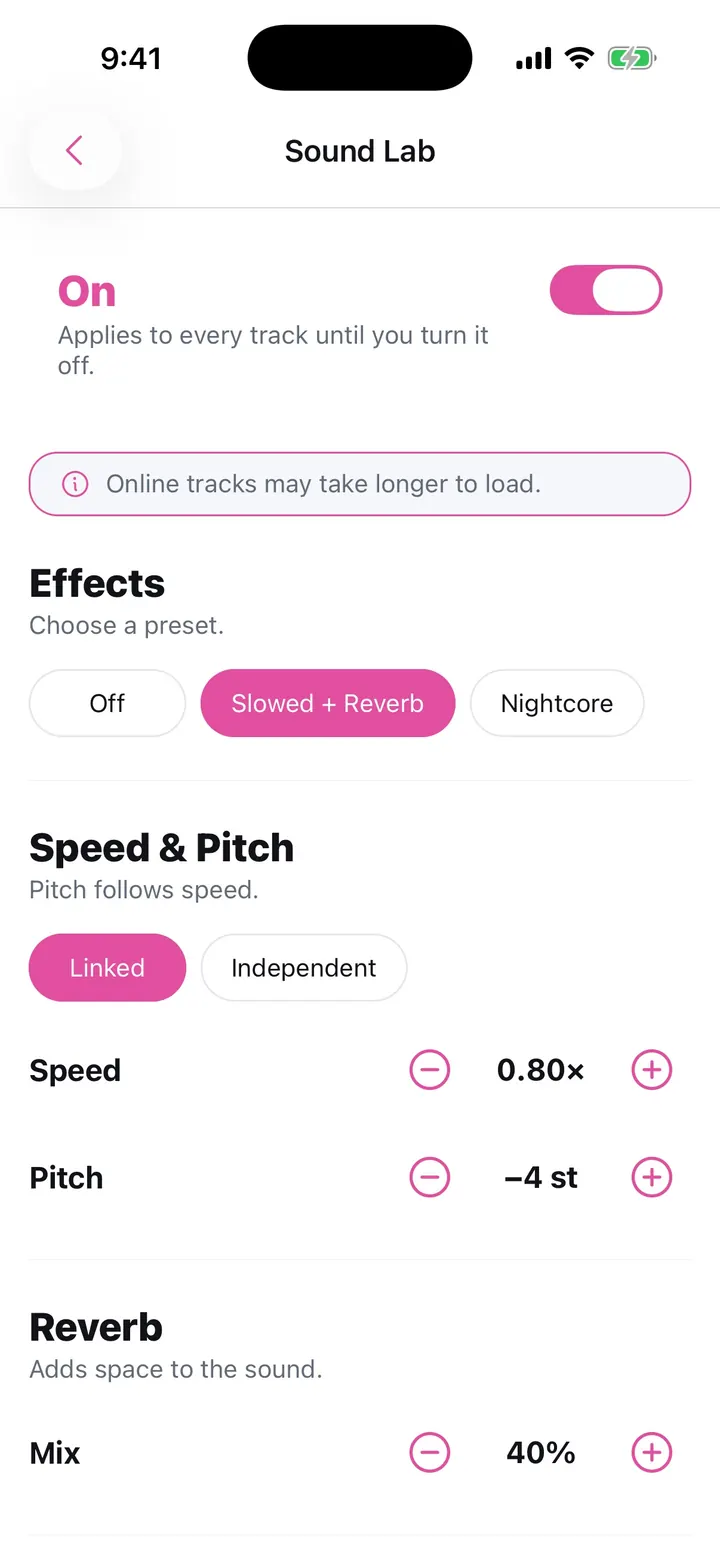
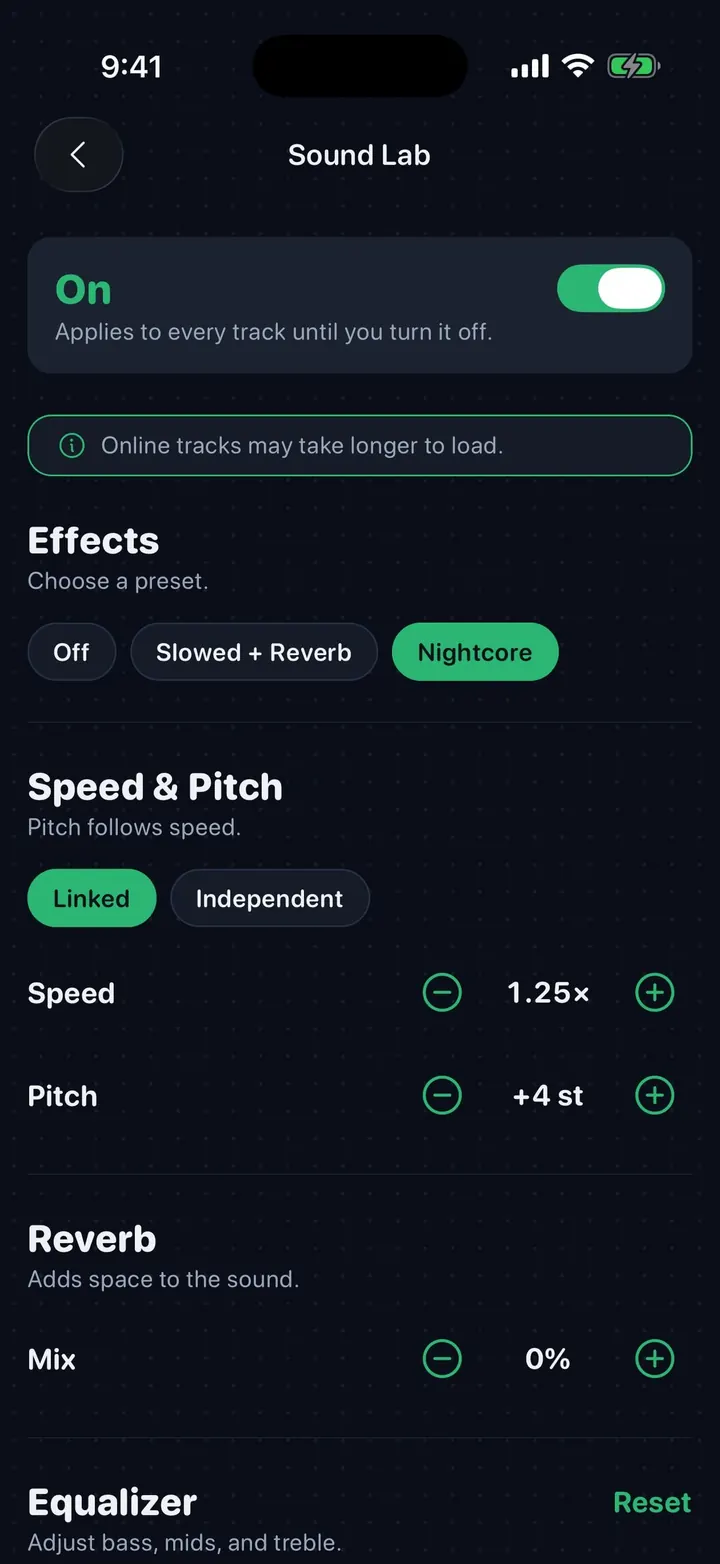
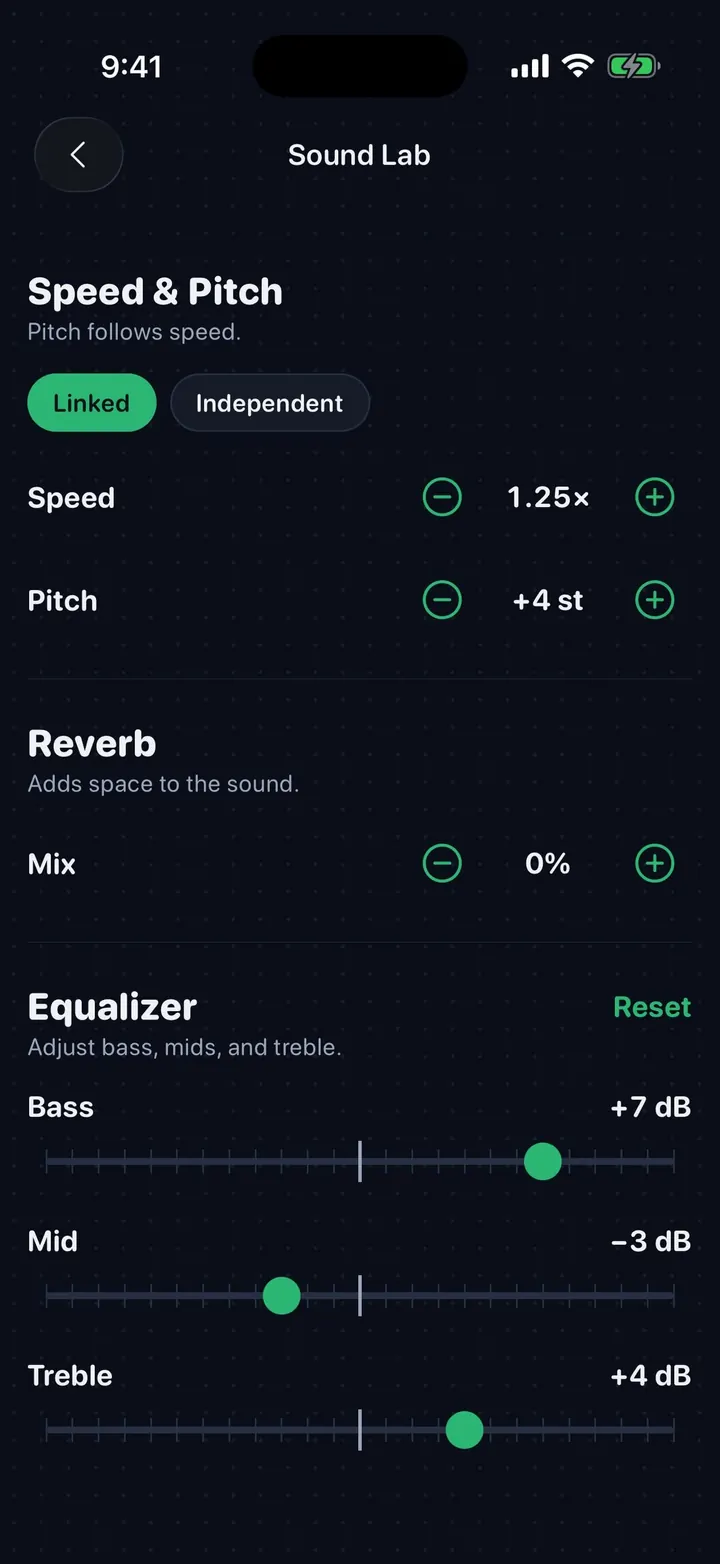
New in 1.2: speed, pitch, reverb, and a three-band equalizer for every track. Open it from the sliders button in Now Playing or from the Manager tab.
⤢Sound Lab: Slowed + Reverb One tap for the Slowed + Reverb or Nightcore preset, or set speed and pitch yourself. Linked pitch follows speed like a record player.⤢Reverb and equalizer Add reverb, then shape bass, mids, and treble.⤢Sound Lab in PictoChat DS buttons and switches throughout.⤢Sound Lab in Clean The original look with your accent color.⤢Nightcore in dark The Nightcore preset on the dark shell, with a green accent.⤢Equalizer in dark Bass, mids, and treble, each with its own slider.
Everywhere · Manager and Transfer Hub
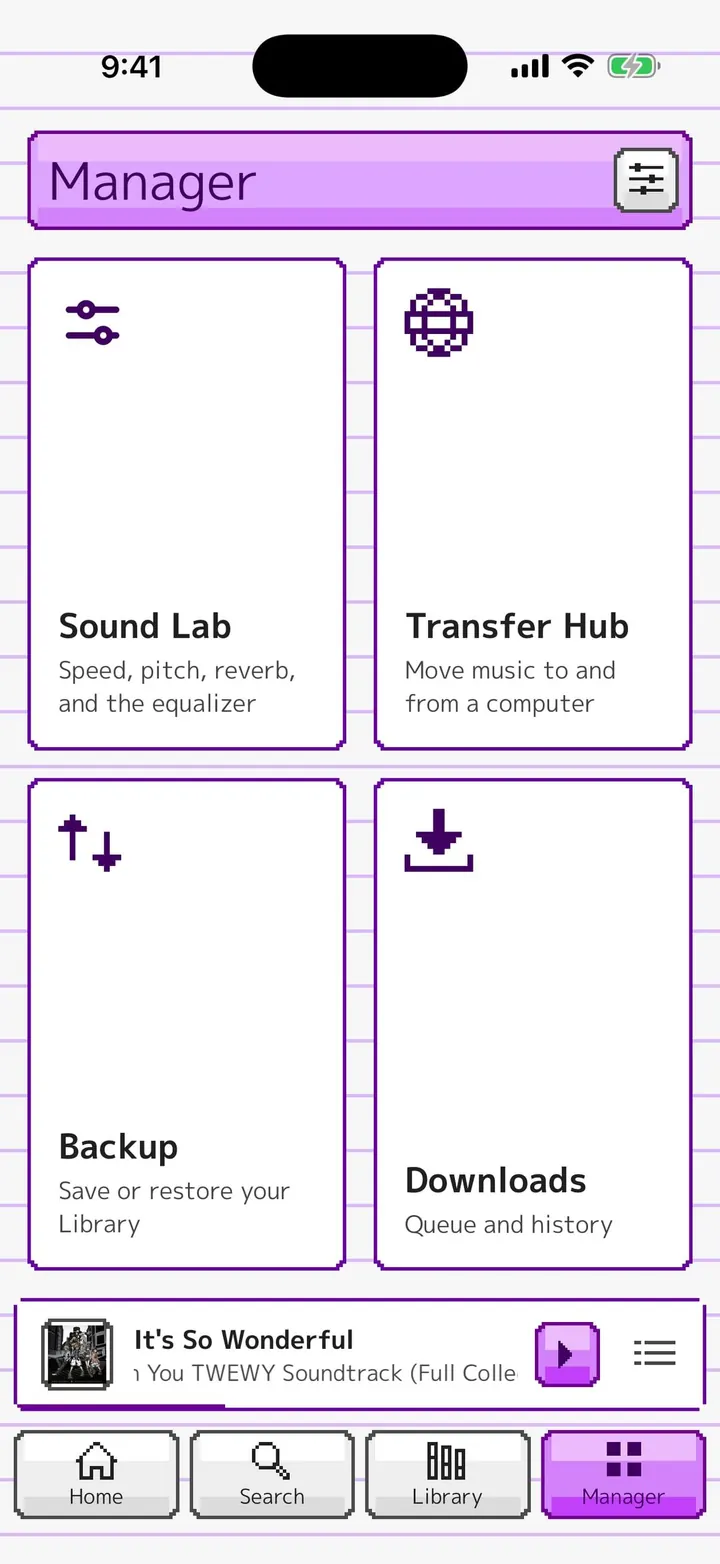
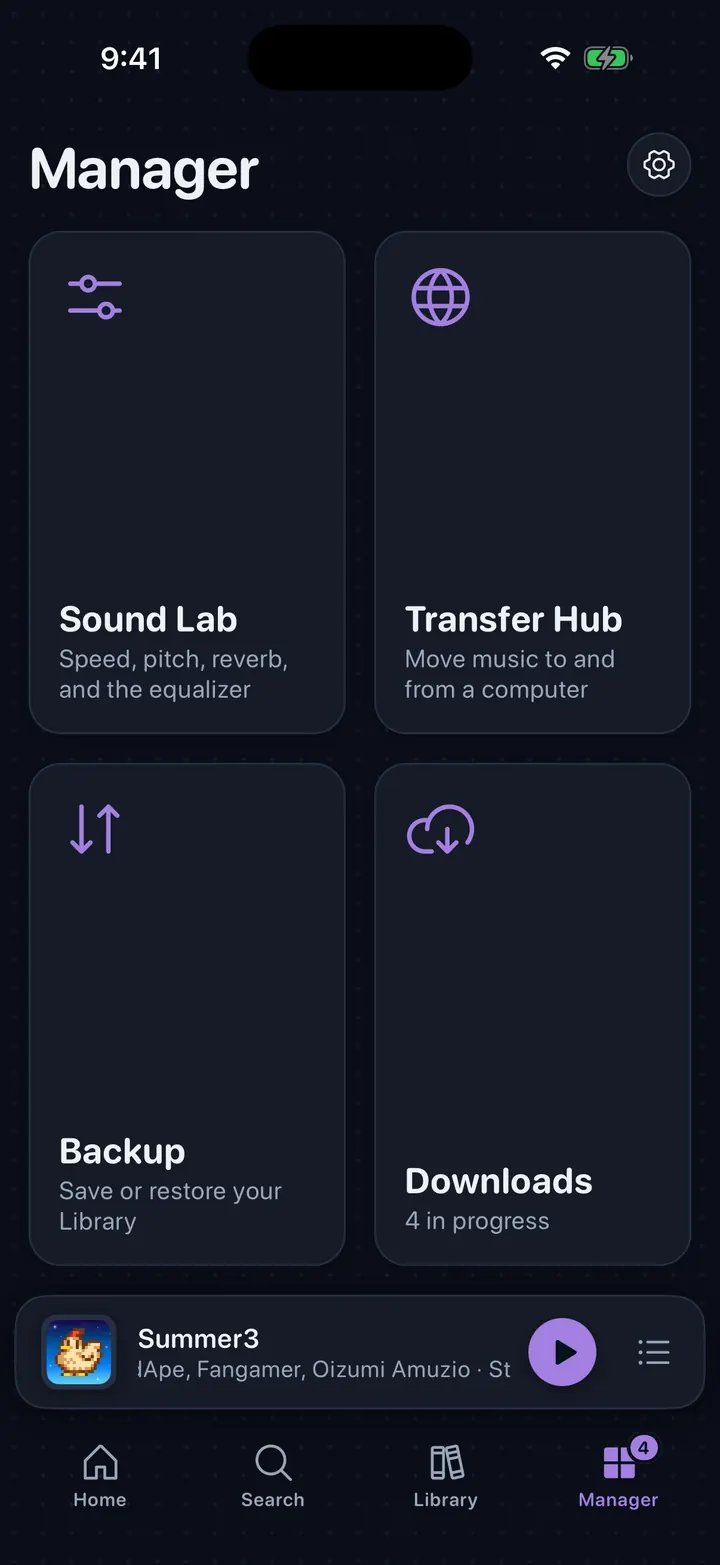
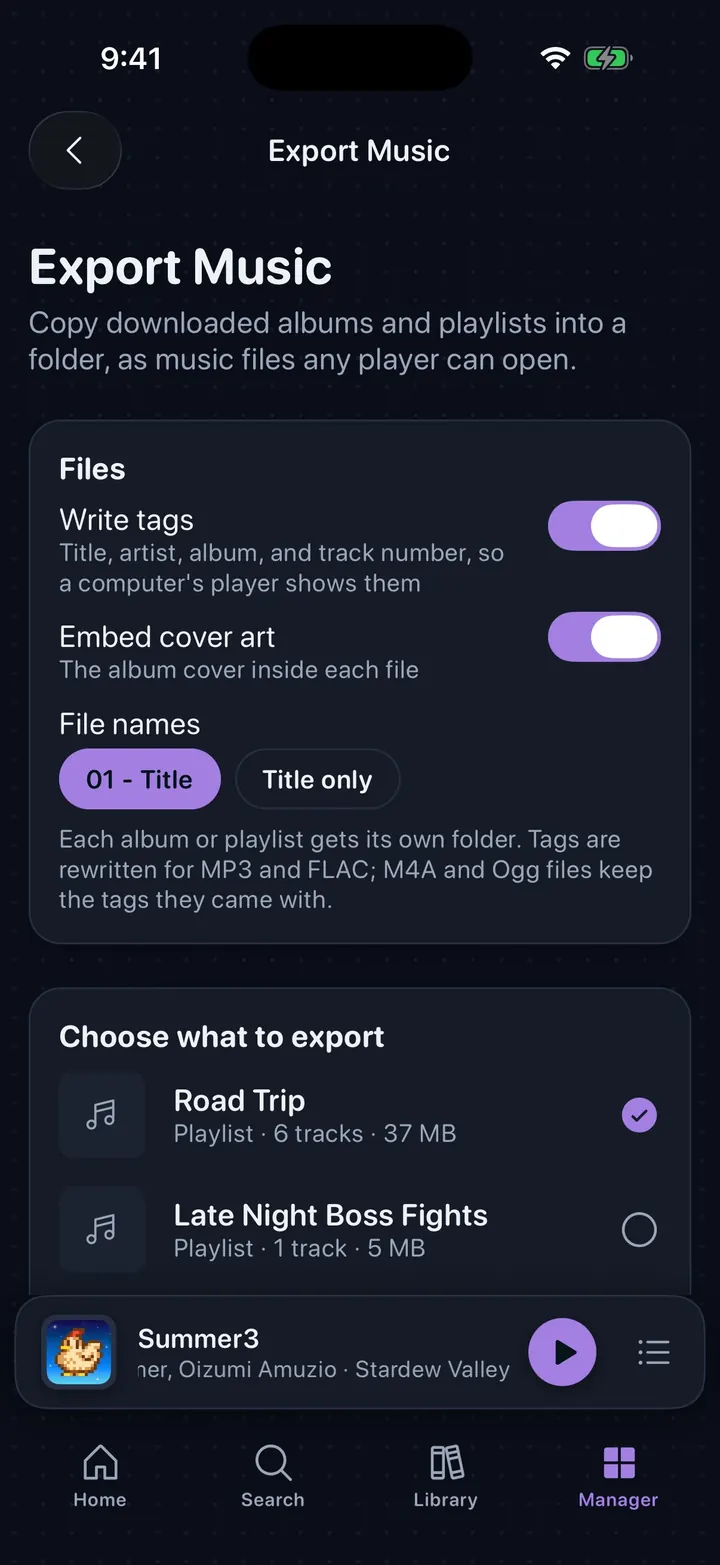
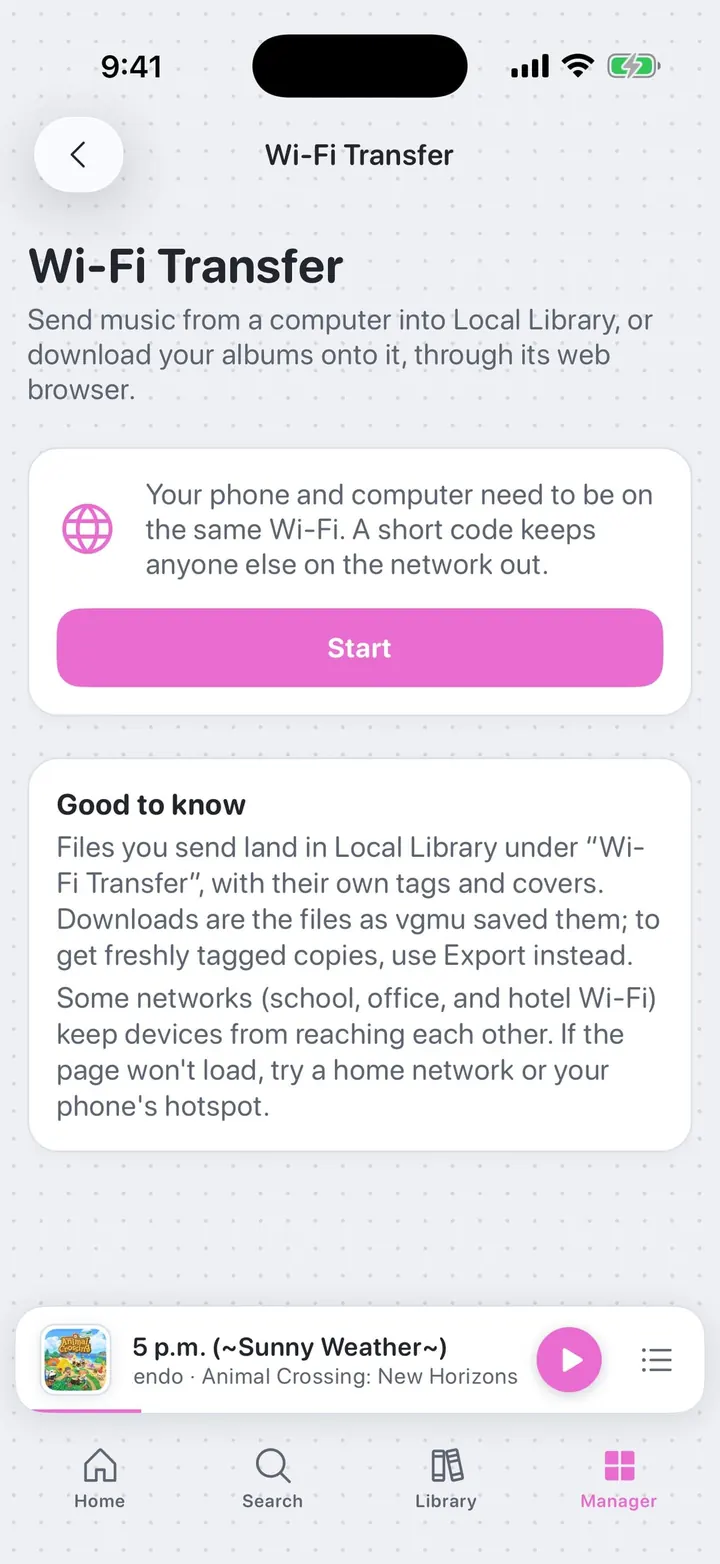
New in 1.3: the Downloads tab is now Manager, home to Sound Lab, Transfer Hub, Backup, and Downloads. Move music to and from a computer over Wi-Fi, or export it as tagged files.
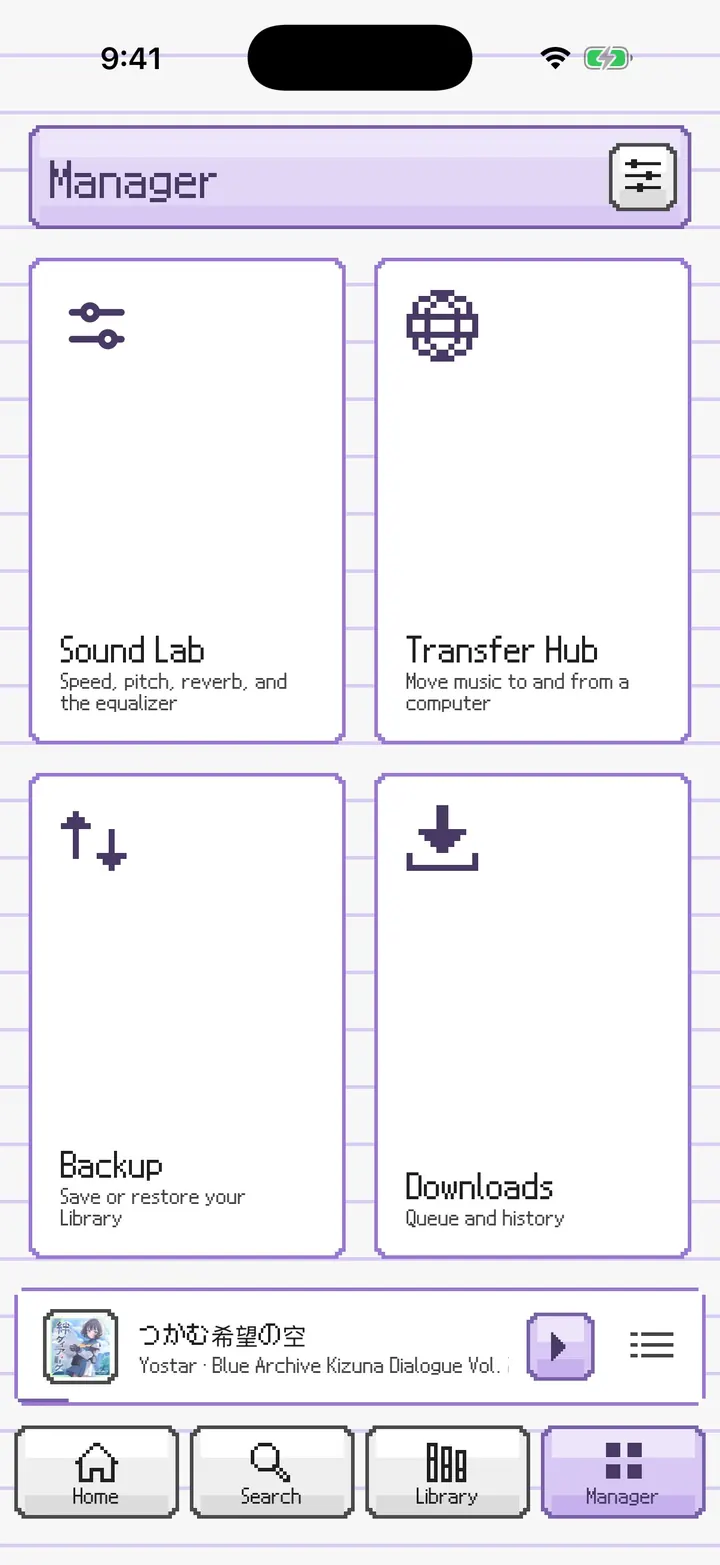
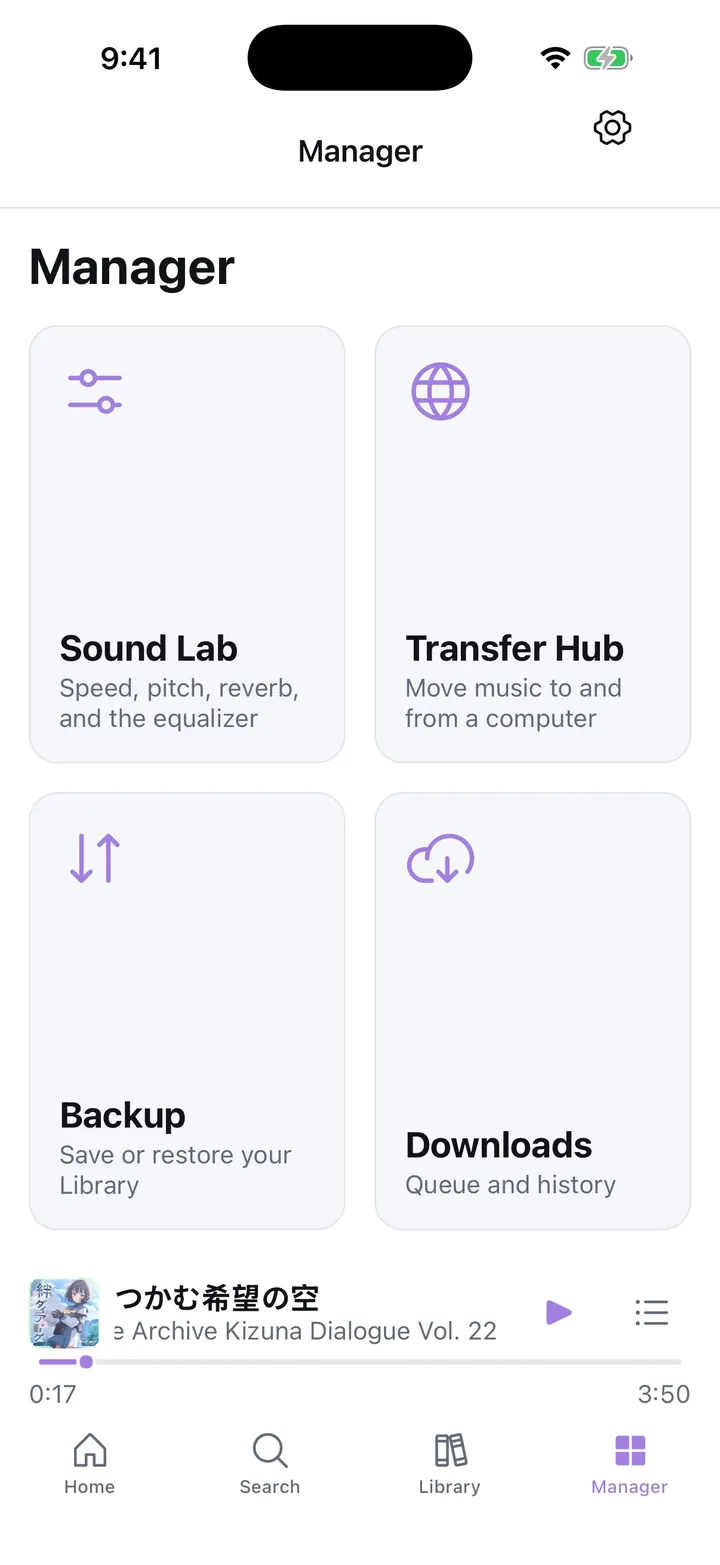
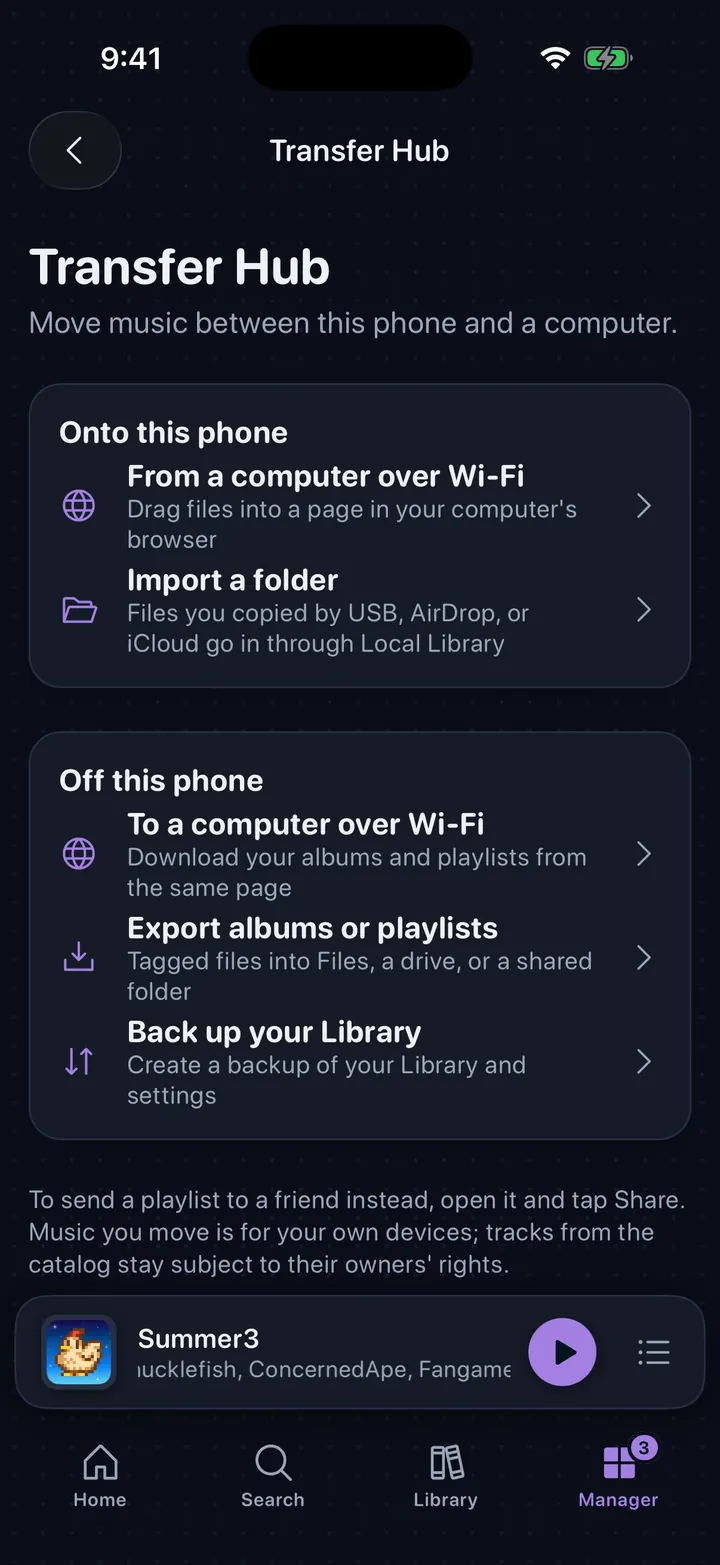
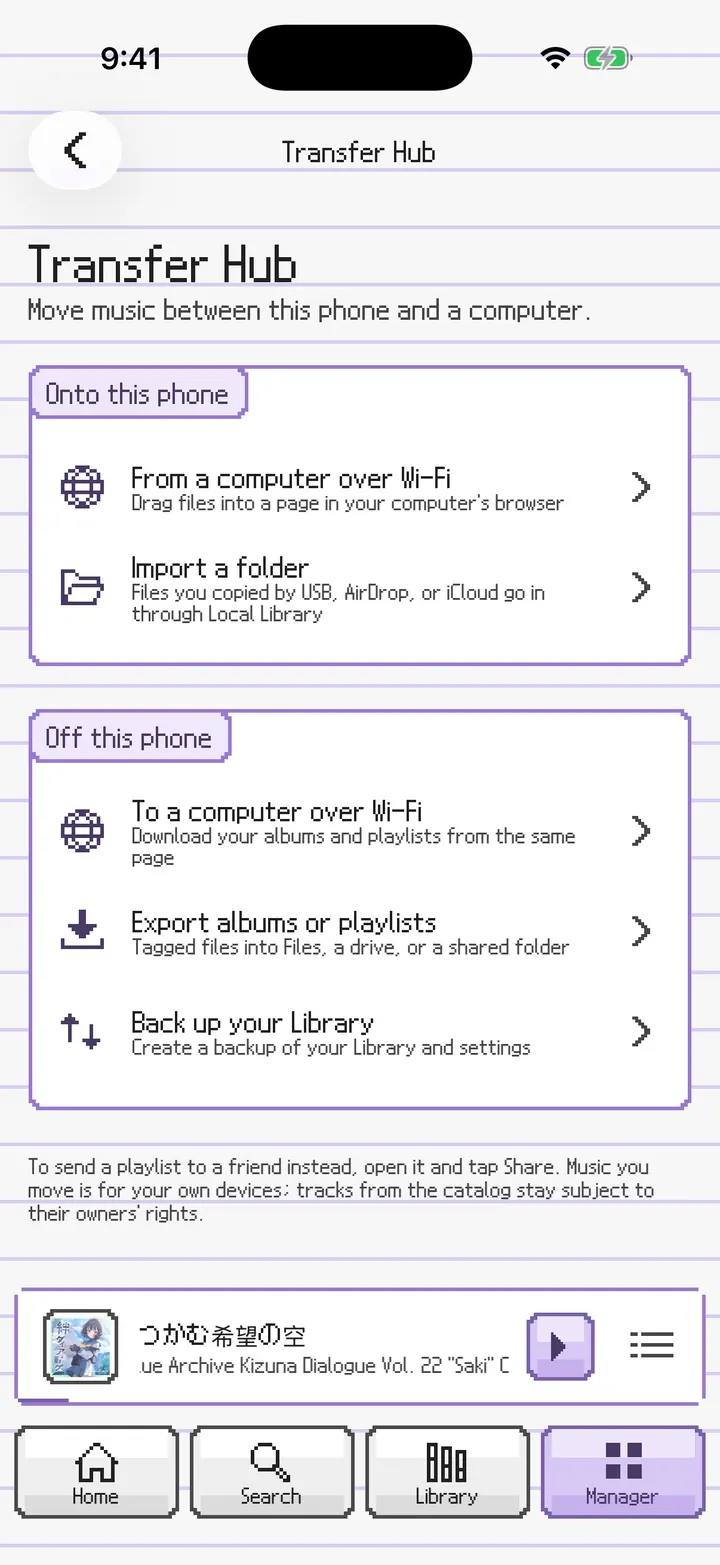
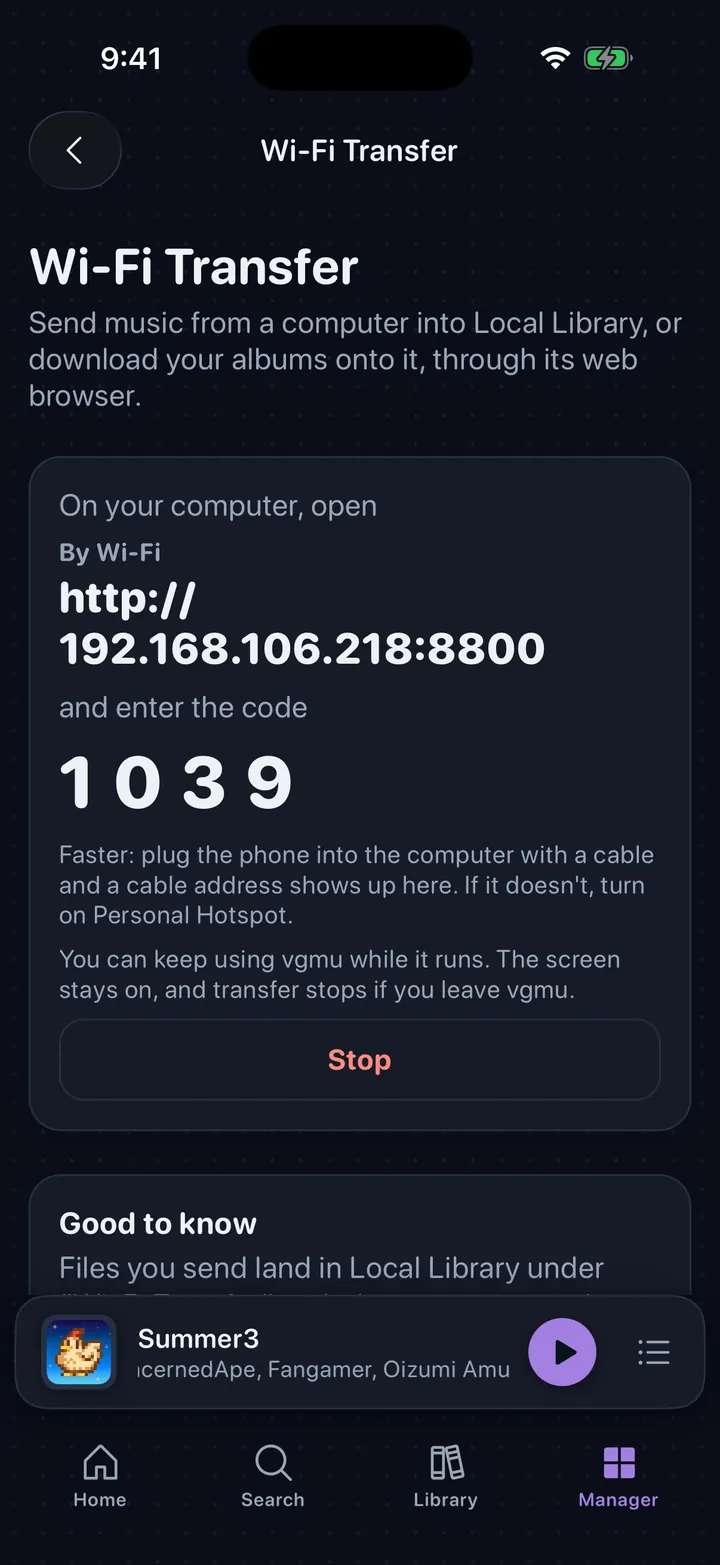
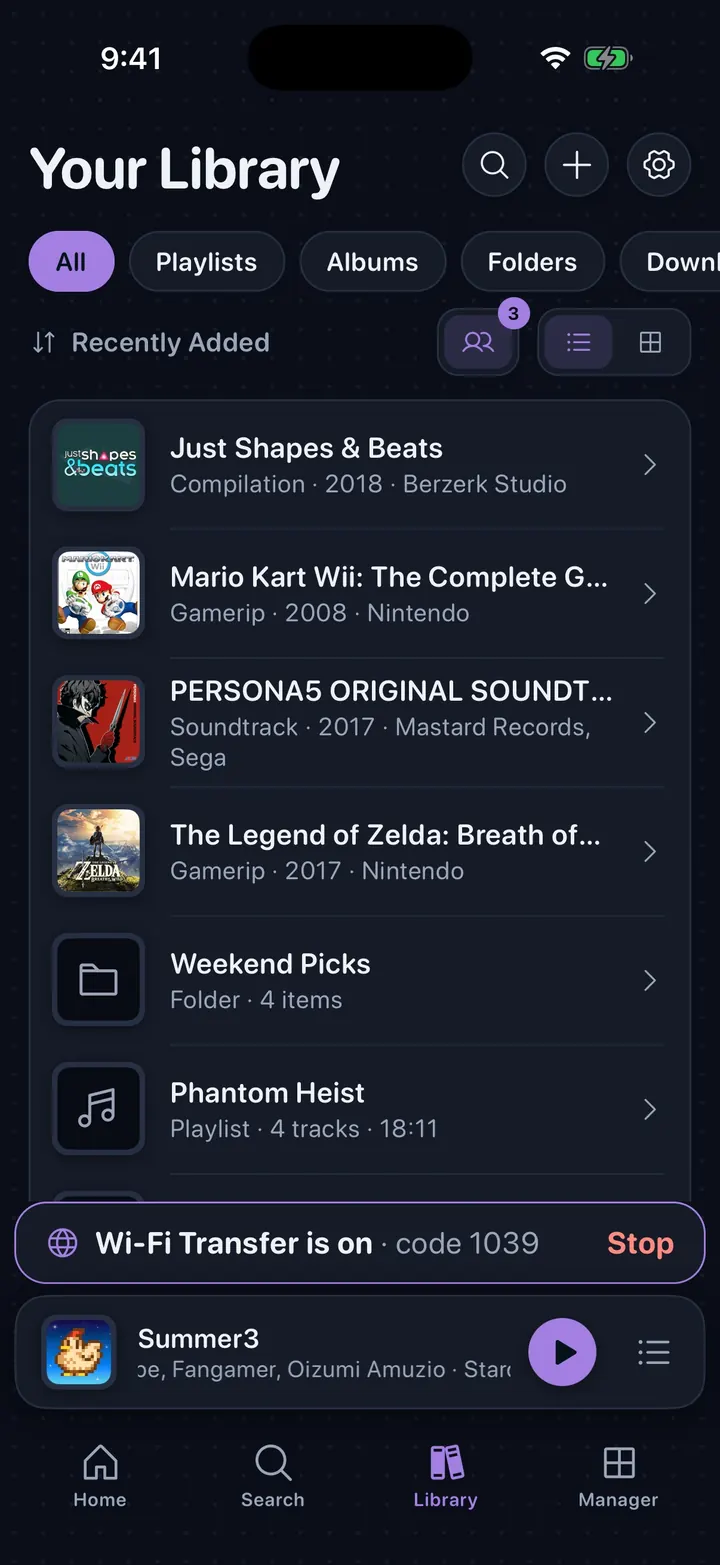
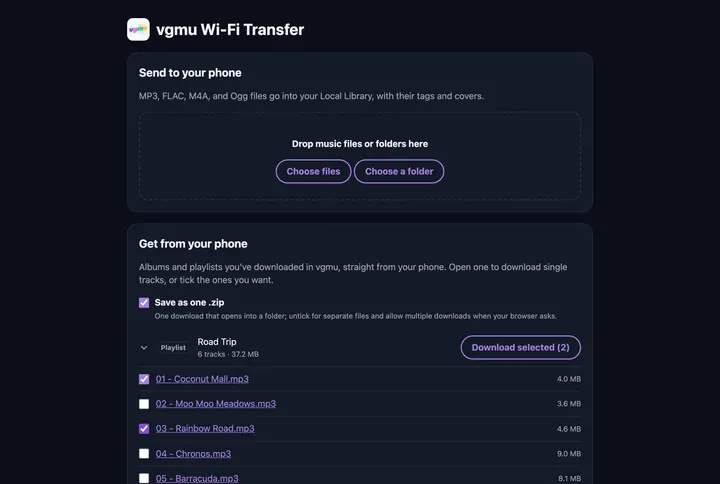
⤢Manager The new fourth tab: Sound Lab, Transfer Hub, Backup, and Downloads, one tap each. Downloads shows how many are still in progress.⤢Manager in PictoChat The same four tiles, drawn as DS panels.⤢Manager in Clean The original look with your accent color.⤢Transfer Hub Everything that moves music between this phone and a computer, grouped by direction.⤢Transfer Hub in PictoChat Onto this phone and Off this phone, as message panels.⤢Wi-Fi Transfer Open the address on a computer on the same Wi-Fi and enter the code. Plug in a cable for a faster direct address.⤢Keeps running while you browse Wi-Fi Transfer stays on as you move around vgmu, with its code and a Stop button above the player.⤢The page on your computer Drop music files or folders in, or download albums and playlists: all of one, single tracks, or the ones you tick, as one .zip or separate files.⤢Export Music Copy downloaded albums and playlists into any folder as tagged files, with cover art, that any player can open.⤢Before you start Wi-Fi Transfer explains what it needs and what to expect before it starts.
Everywhere · Sharing
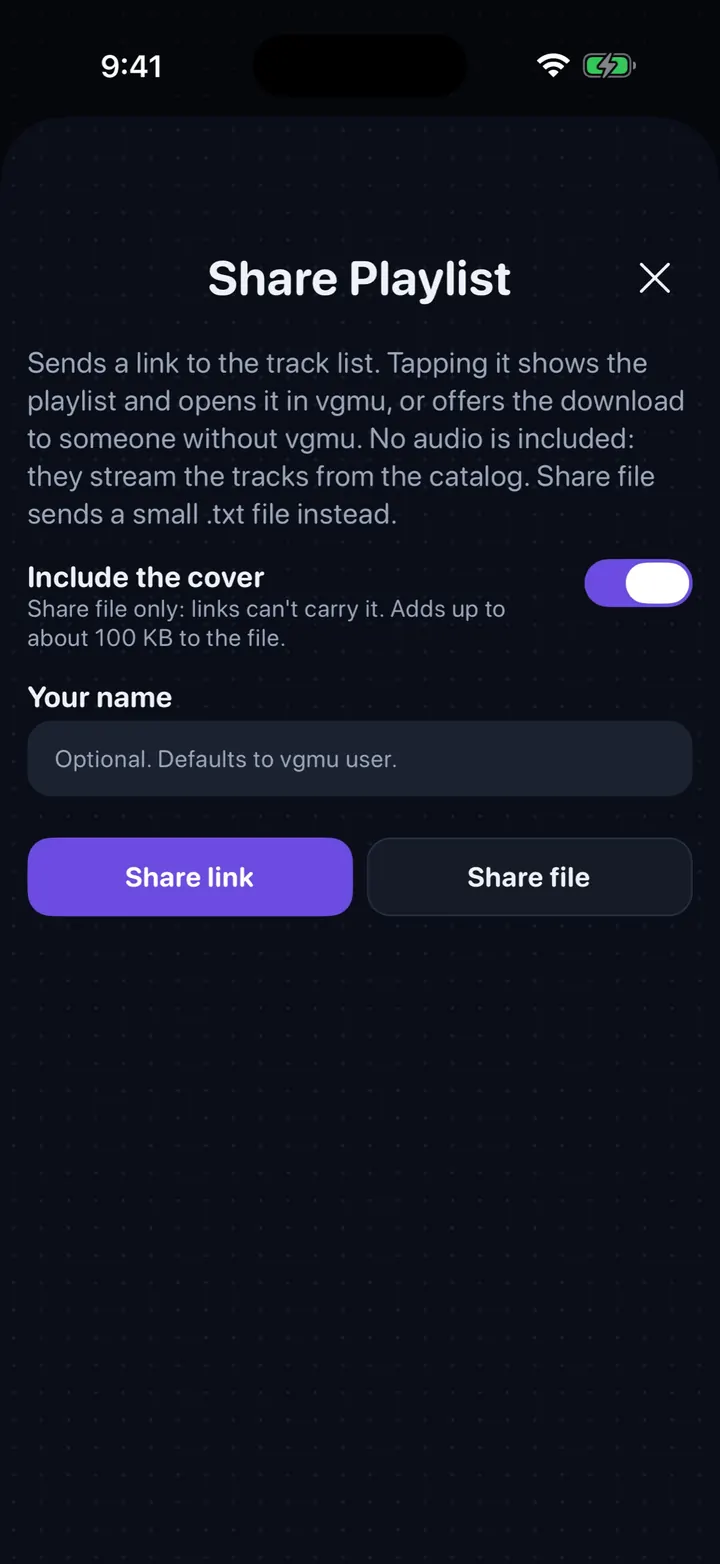
New in 1.3: send a playlist or a whole folder to a friend as a link or a small file. They open it in vgmu and stream it from the catalog.
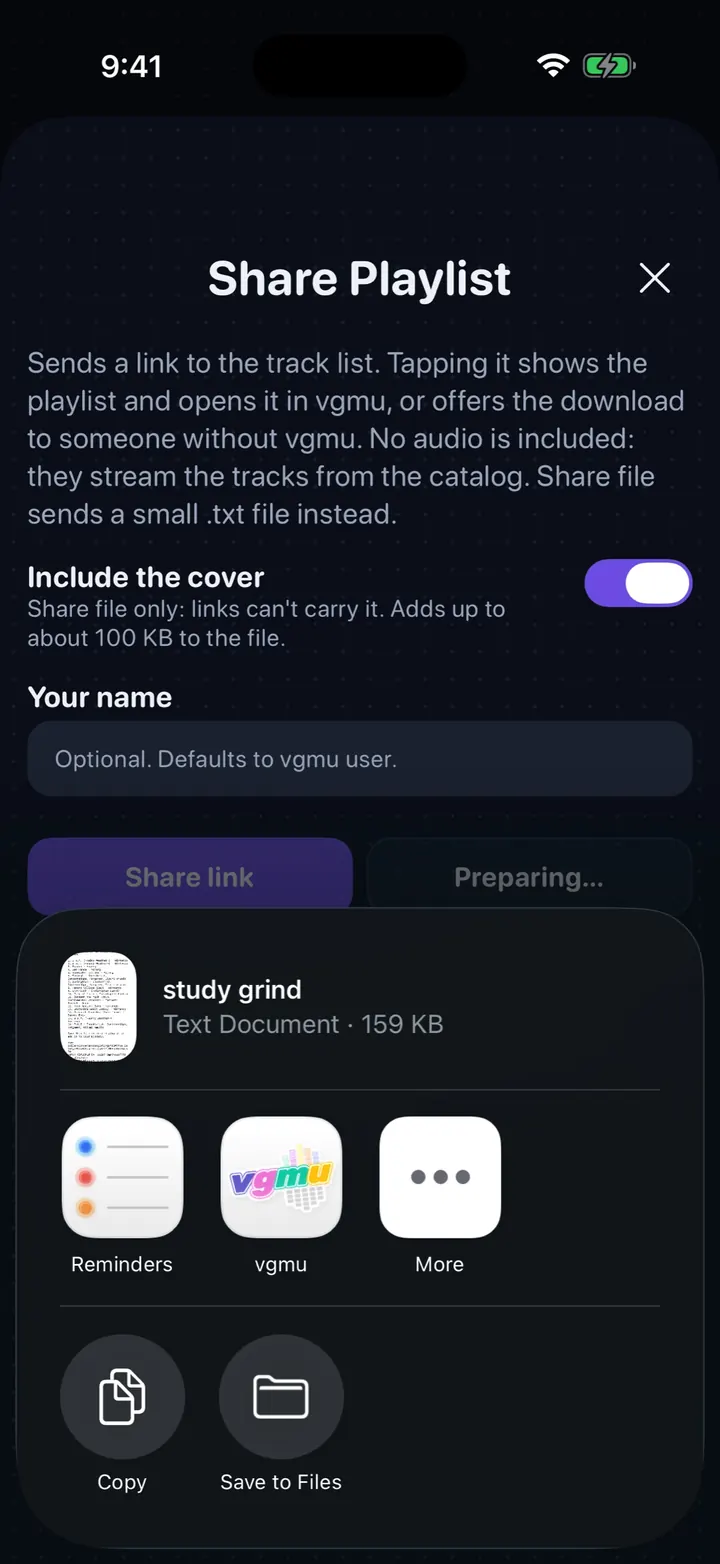
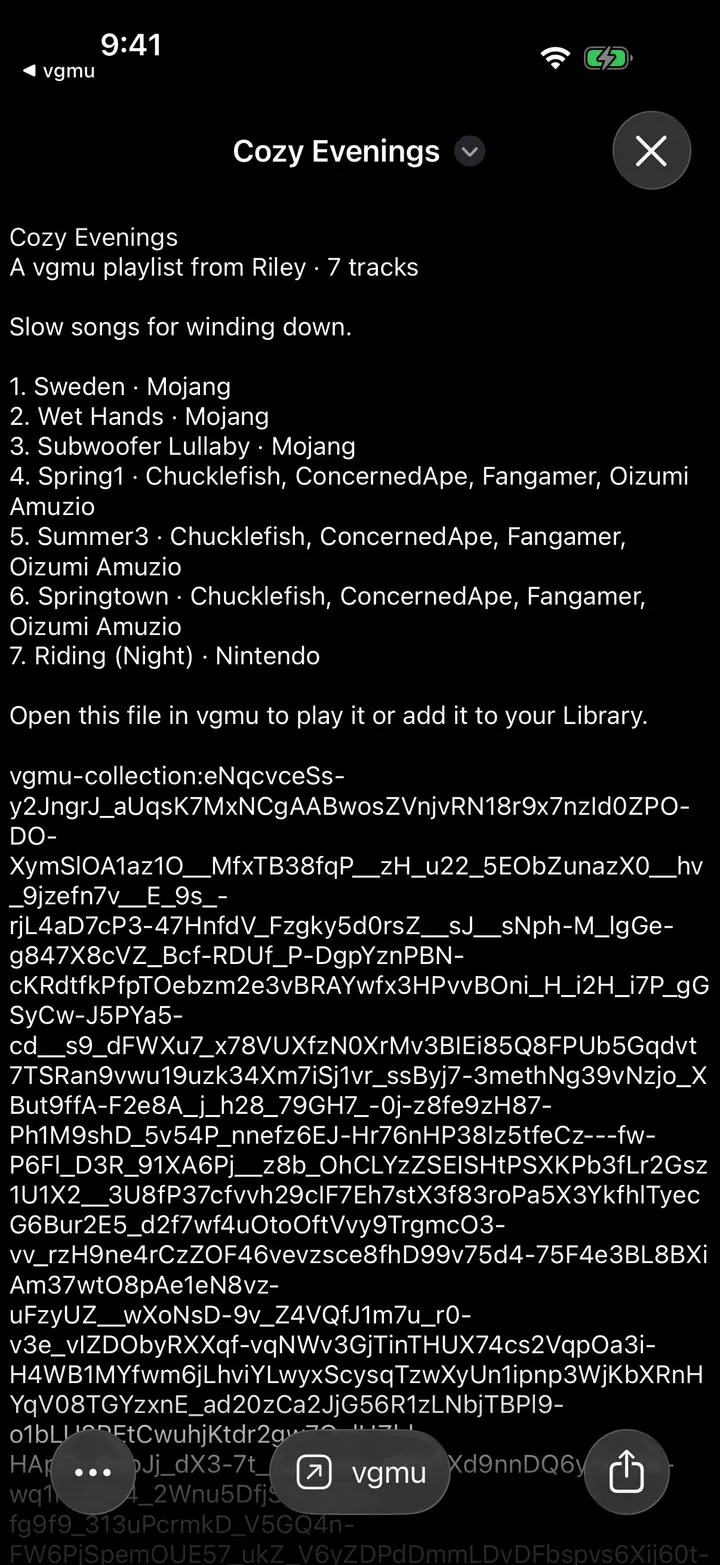
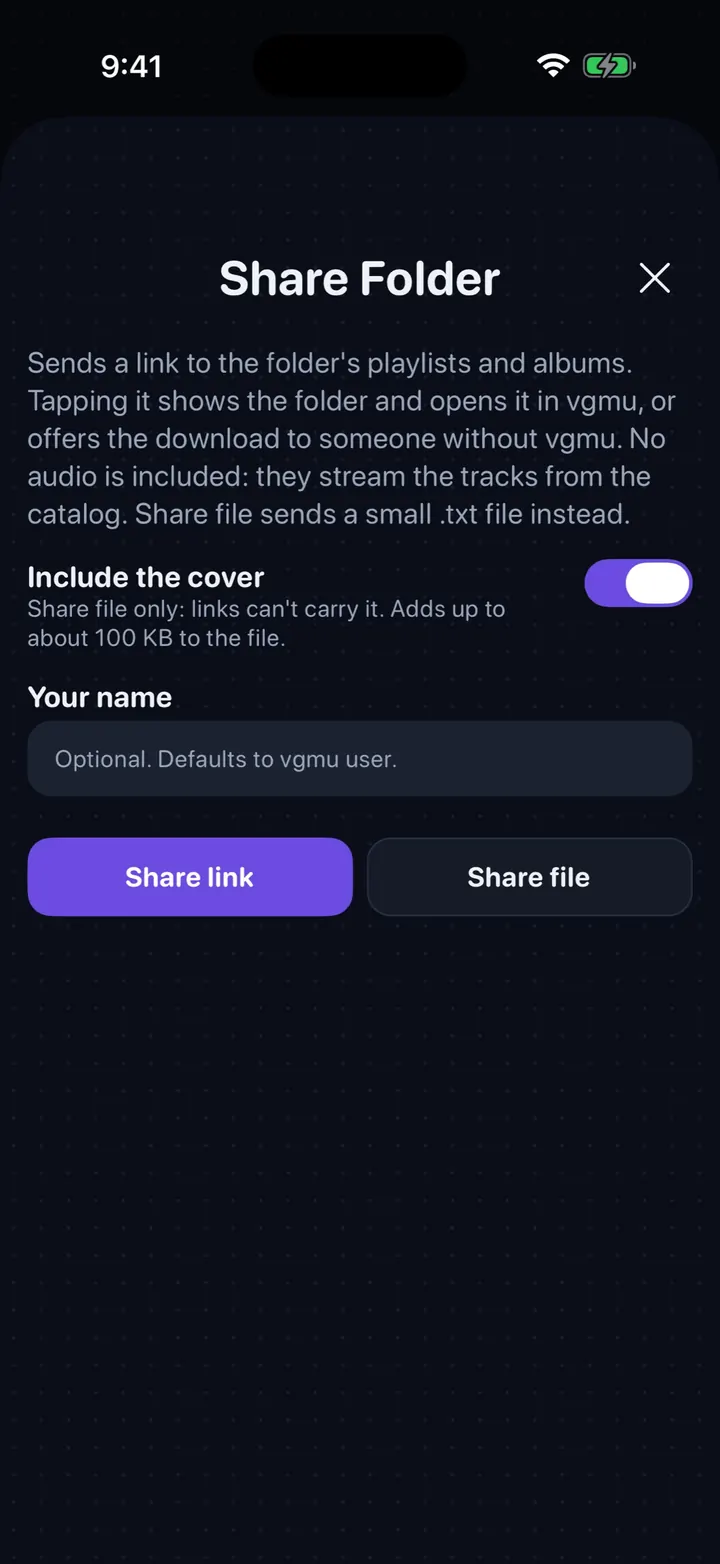
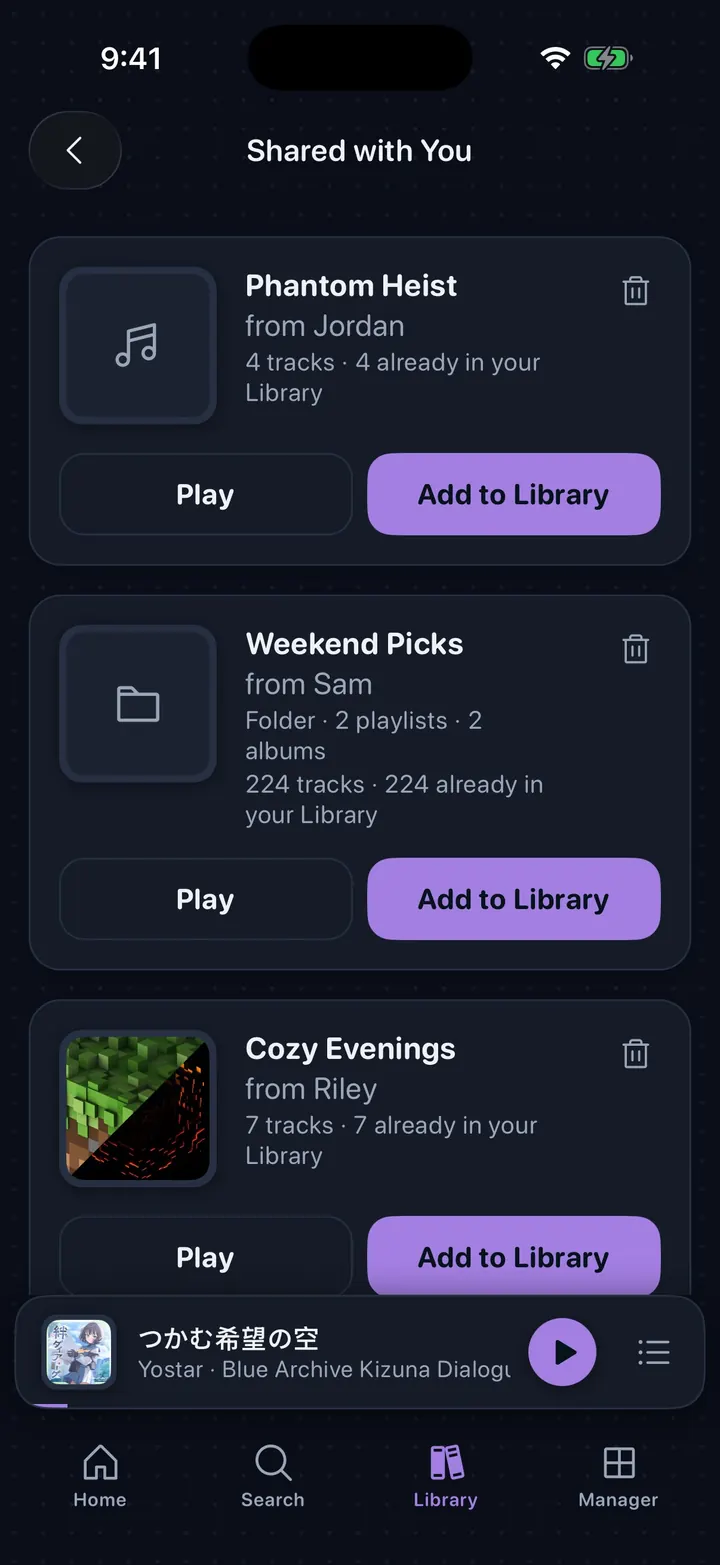
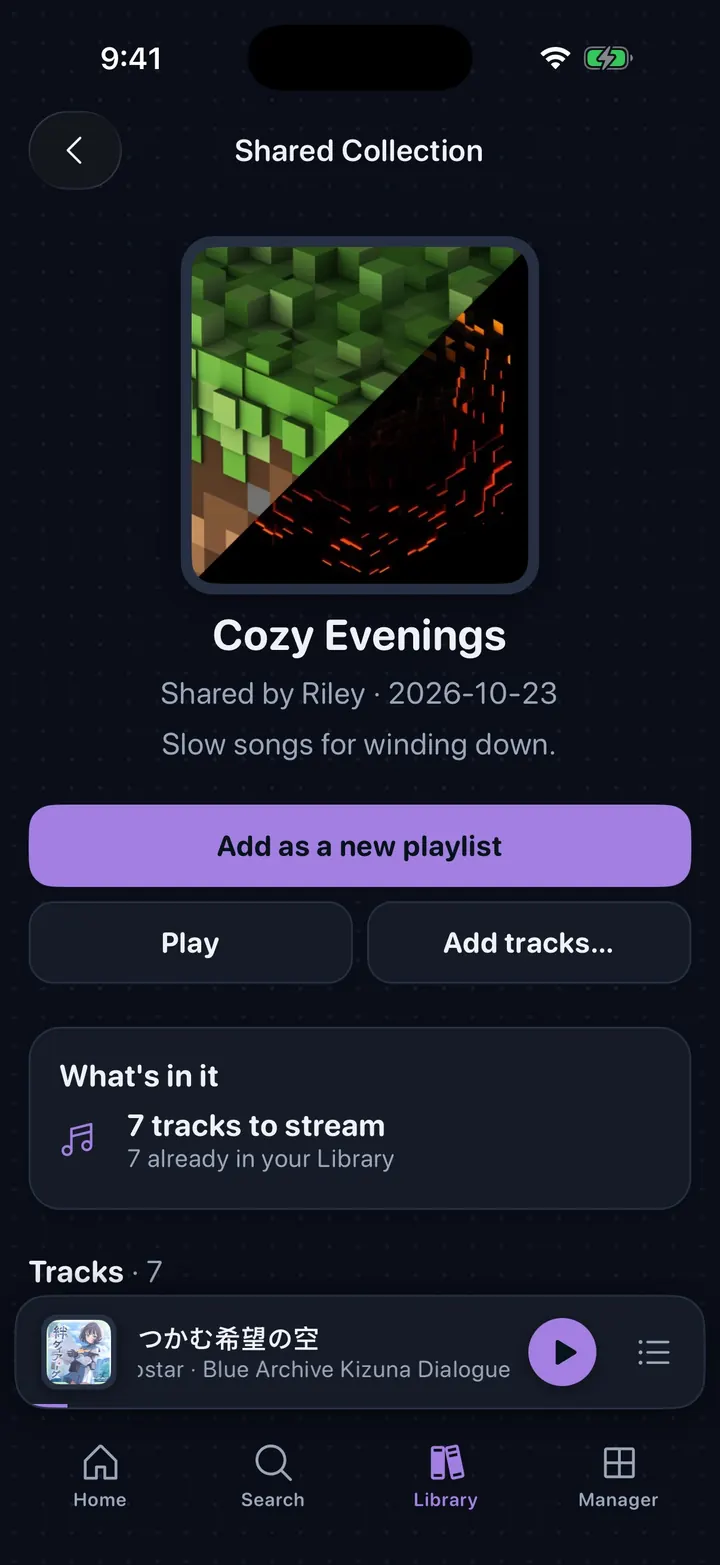
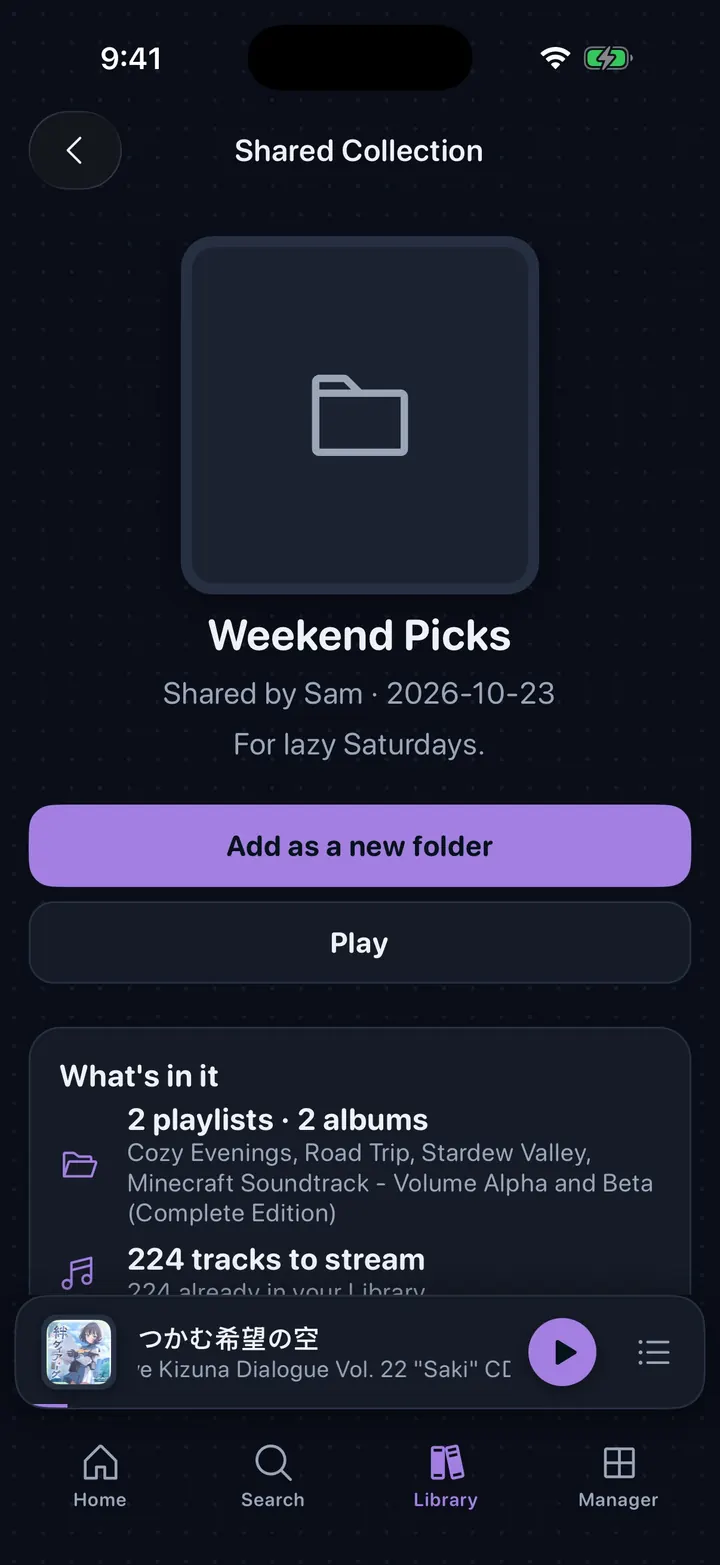
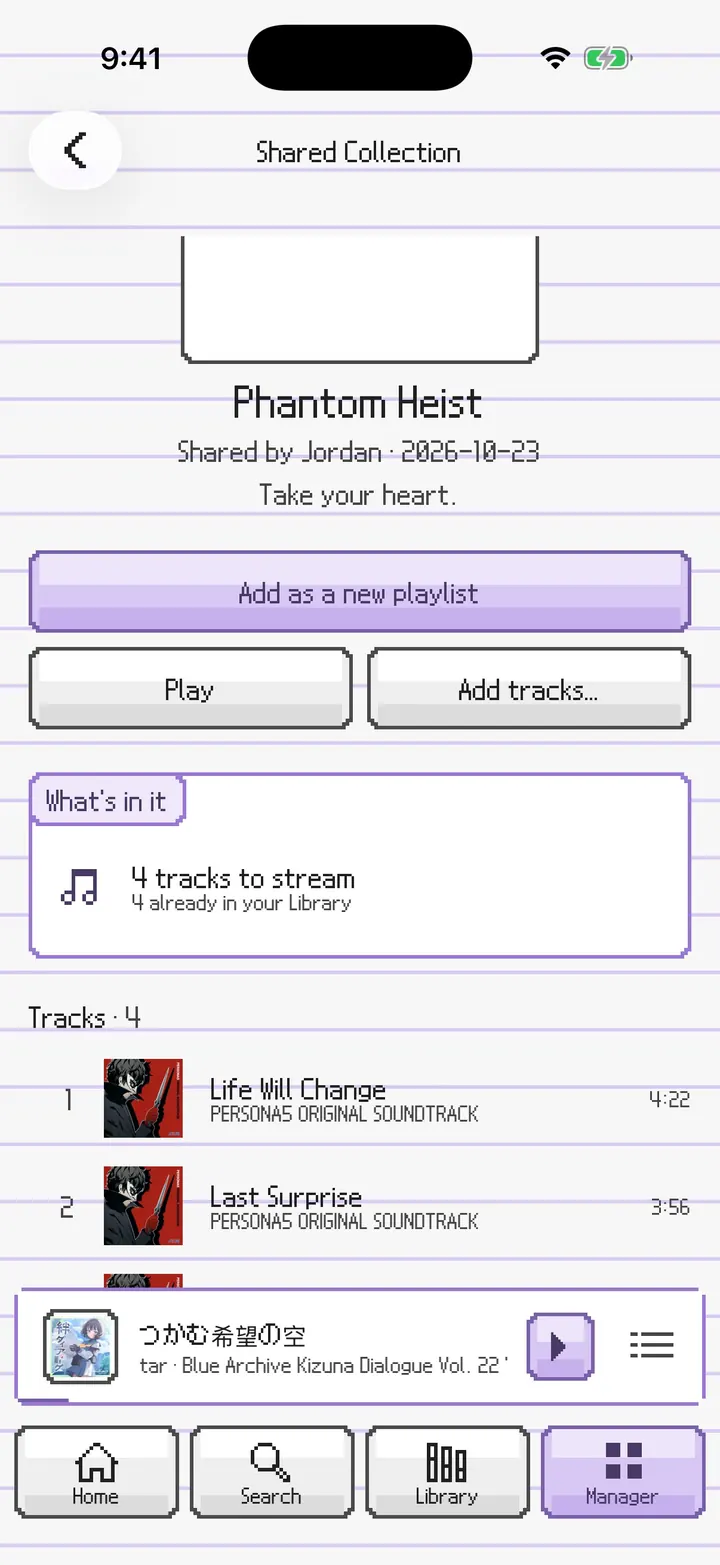
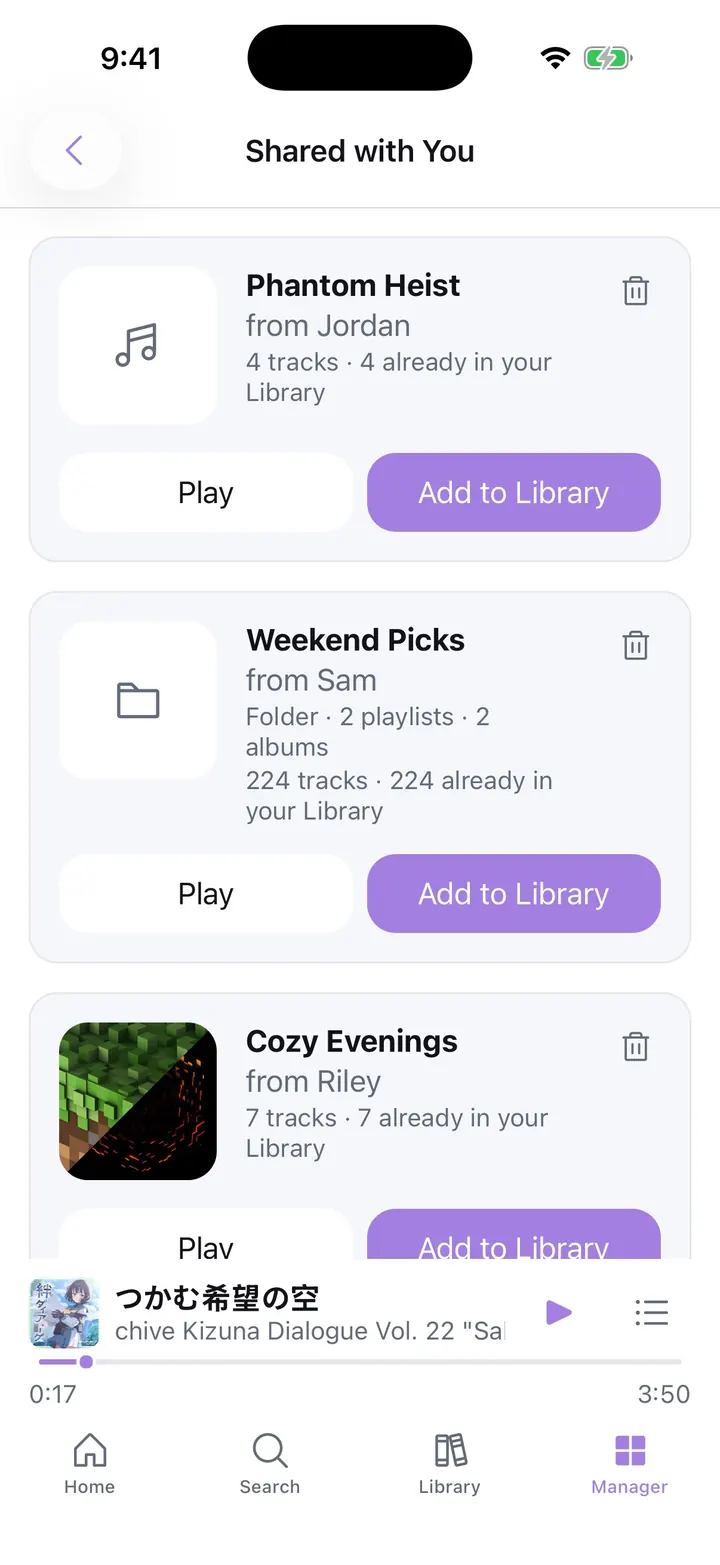
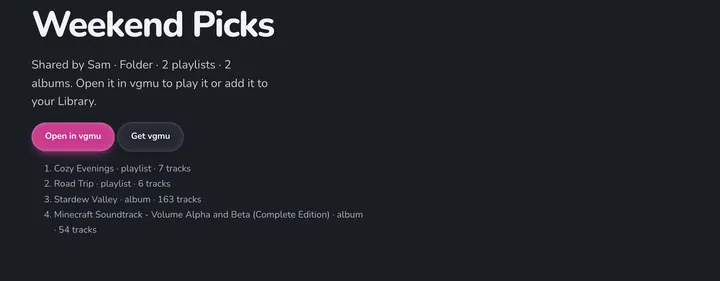
⤢Share a playlist Send a link or a small text file. Only the track list travels: whoever opens it streams the tracks from the catalog.⤢Share as a file Send the file through Messages, AirDrop, Discord, or anywhere else. It can carry the playlist's cover too.⤢Readable without vgmu A shared file opens as plain text anywhere, so the track list shows even on a phone without vgmu.⤢Share a folder Share a whole folder of playlists and albums the same way.⤢Shared with You Everything sent to you, with who sent it and how much is already in your Library. Play it first or add it.⤢A shared playlist Play it as is, add it as a new playlist, or add its tracks to one you already have.⤢A shared folder Add it as a new folder with all of its playlists and albums.⤢Shared playlist in PictoChat A friend's playlist, drawn the DS way.⤢Shared with You in Clean The same cards in the original look.⤢Opening a link A share link opens a page with the playlist or folder and an Open in vgmu button, or a way to get vgmu.
Everywhere · New in 1.5
New in 1.5: see custom covers full size, and look inside completed downloads.
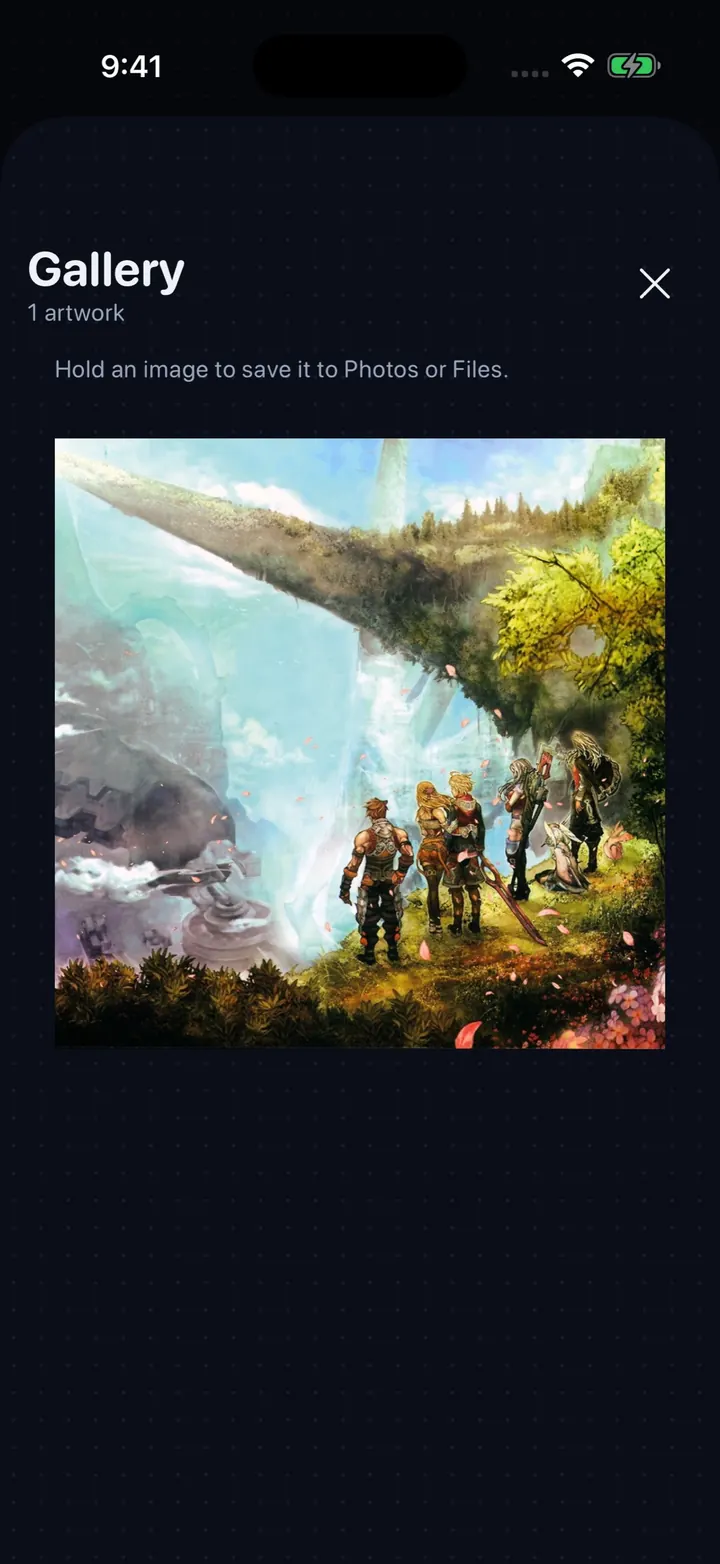
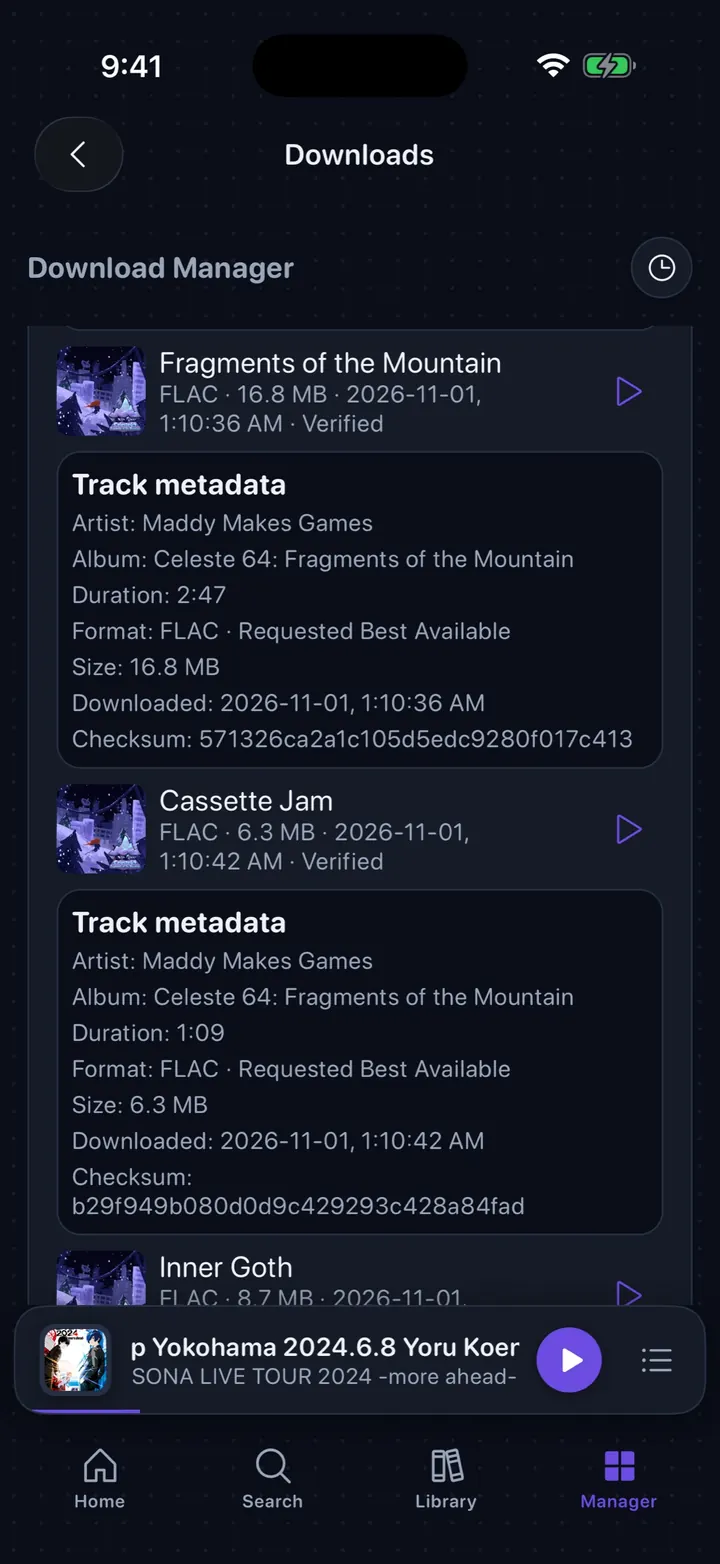
⤢Custom covers, full size Tap a custom cover to see it full size, then hold it to save it to Photos or Files.⤢Inside a completed download Tap a completed batch to see its tracks, play one, or check its format and size.