
Welcome!
vgmu is a mobile app for discovering, organizing, and enjoying video game music, online or fully offline. This guide walks through your first few minutes with the app.
The four tabs
vgmu has four tabs at the bottom of the screen, plus a Settings button in the top-right corner of every screen.
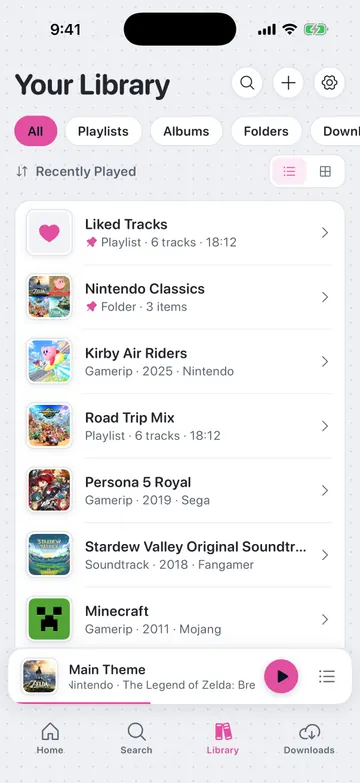
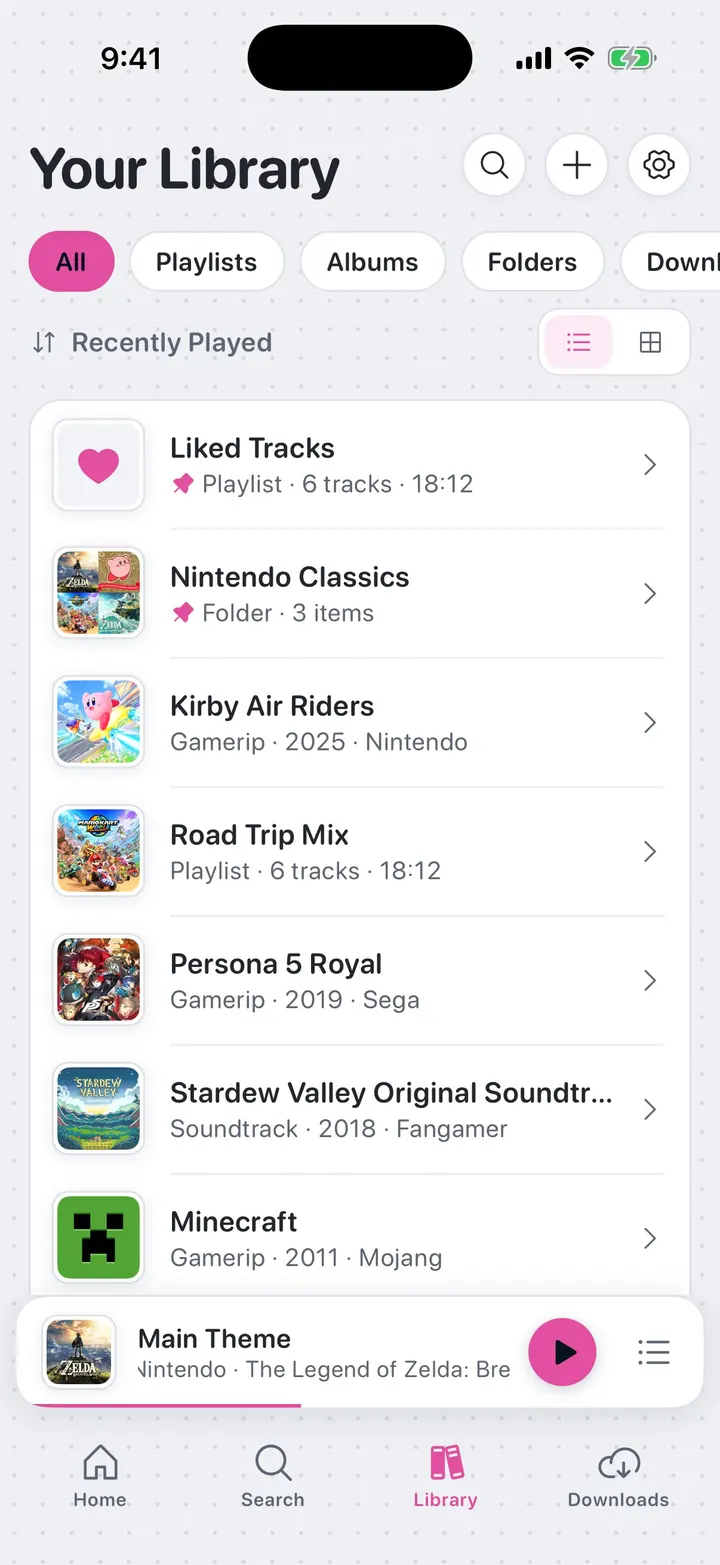
Tab What it's for Home Discover music in curated sections from the online catalog Search Find a specific album or soundtrack Library Your likes, playlists, folders, and saved albums Manager Downloads, the Sound Lab, Transfer Hub, and backups Tap the settings button on any screen to open Settings.
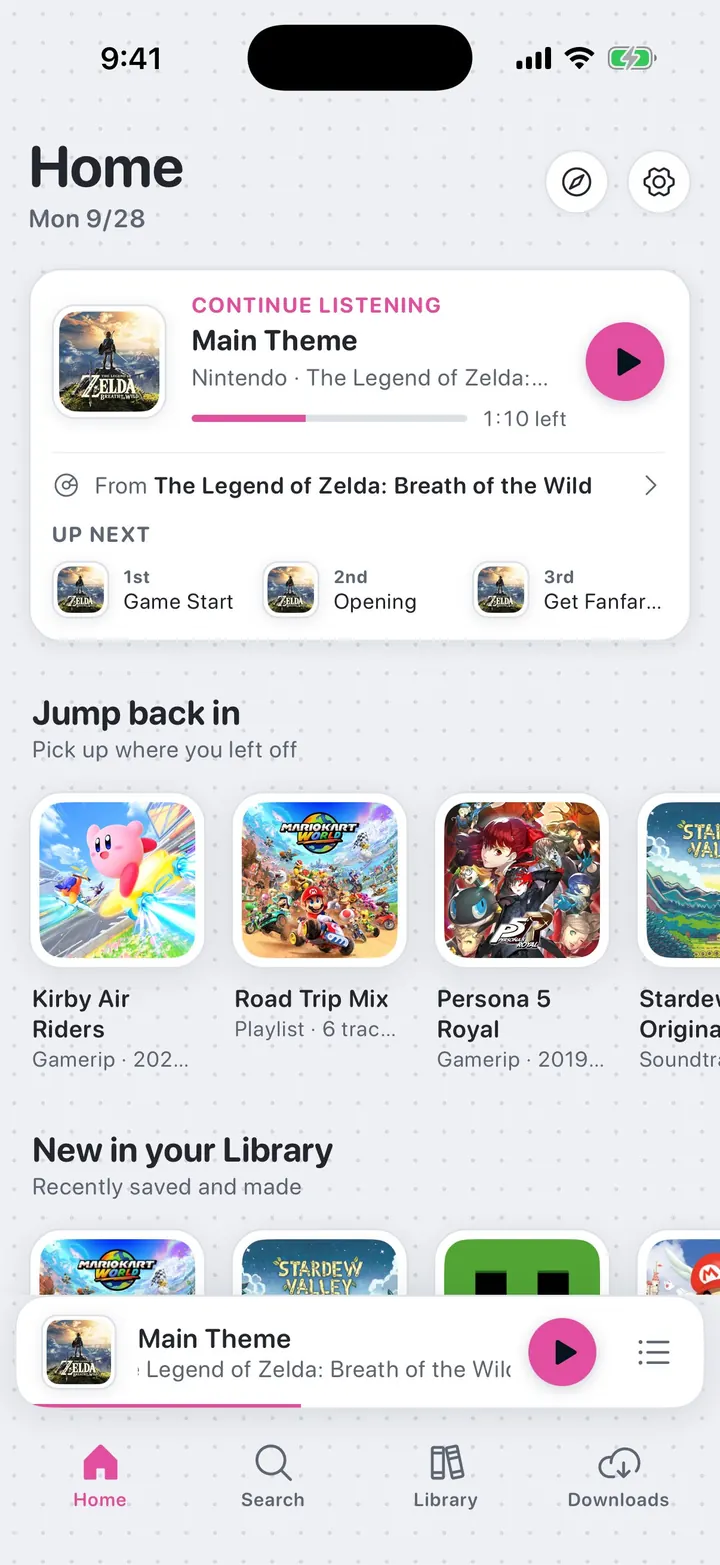
Explore Home
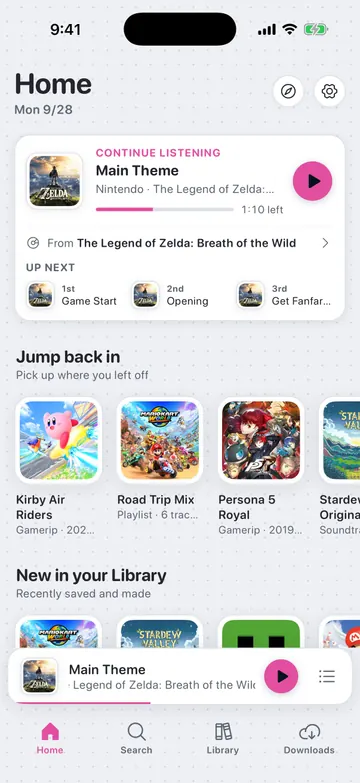
Home starts with your own rows (a greeting, Continue listening, Jump back in, your likes, and more), then three sections pulled from the online catalog:
- Latest: recently added soundtracks
- Top 40: currently popular albums
- Most Favorites: all-time favorites
Pull down to refresh. The chart button at the top opens your listening stats, a recap of your week, month, year, or all time that you can share as an image or GIF (see Usage guide: Listening stats). Tap Browse in the header for more ways to discover music (see Usage guide: Browse).
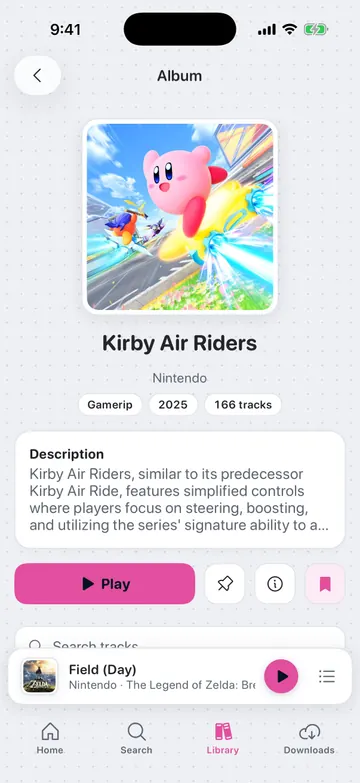
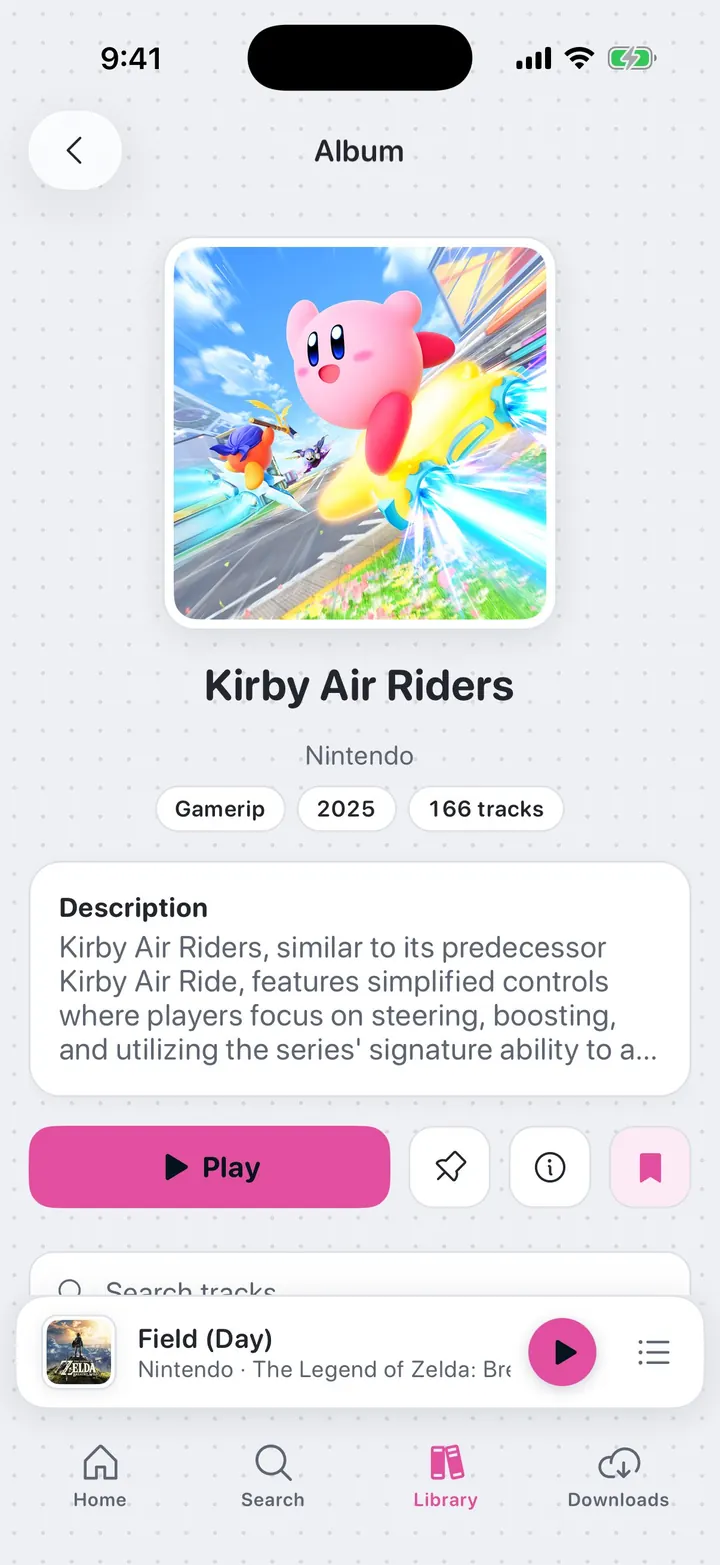
Tap any album card to open its album page.
Play your first track
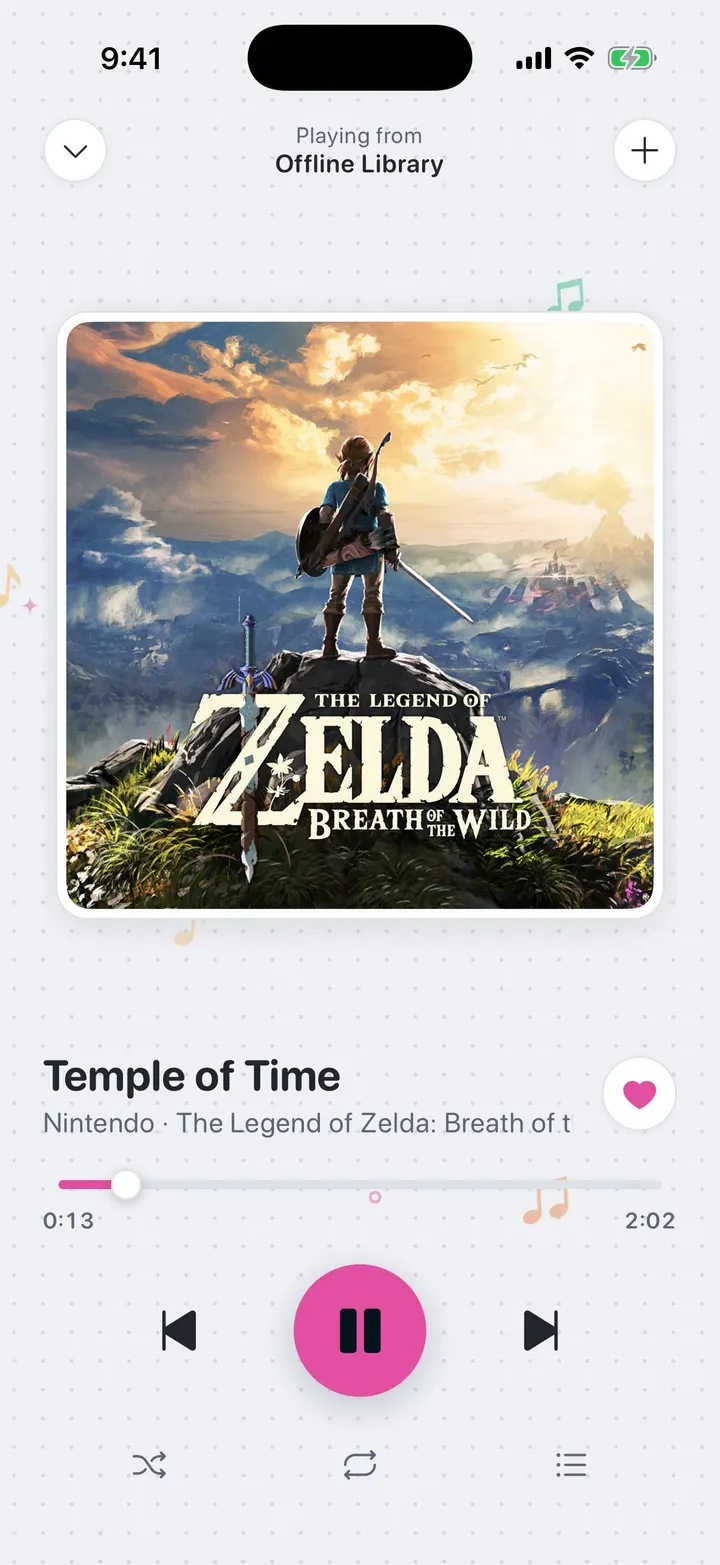
On an album page, tap any track to start playing it instantly. No download required. A mini-player appears at the bottom of the screen showing the artwork, title, and playback controls. Tap the mini-player to open the full player with larger artwork, a seek bar, shuffle, repeat, and queue controls. Its sliders button opens the Sound Lab, where you can change speed, pitch, and reverb, or shape the sound with an equalizer (see Usage guide: Sound Lab).
You'll need an internet connection to play a track this way. Playback continues if you lock your device or switch apps, and you can control it from your lock screen or notification shade.
Save music for offline listening
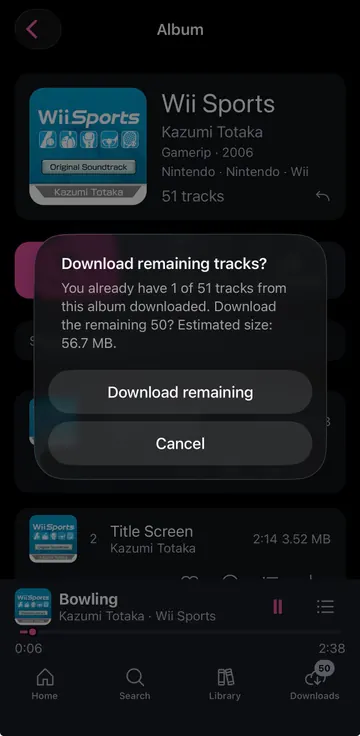
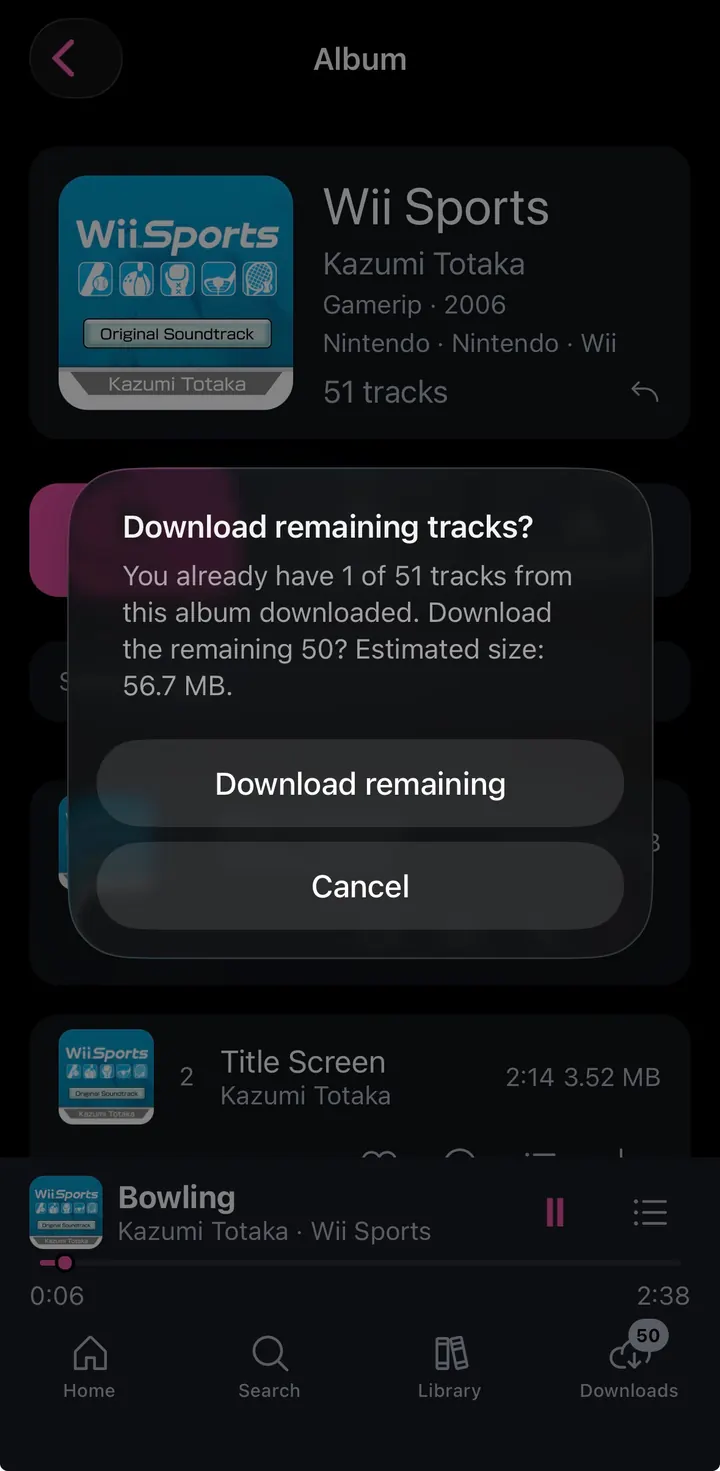
Tap the download icon on a track or an entire album to save it to your device. Downloads are handled one at a time in a queue. Watch progress in Manager → Downloads; the Manager tab shows a live count badge of anything in progress.
Once a download finishes and is verified, it's added to Library → Offline Library, where it plays without any internet connection.
Build a playlist
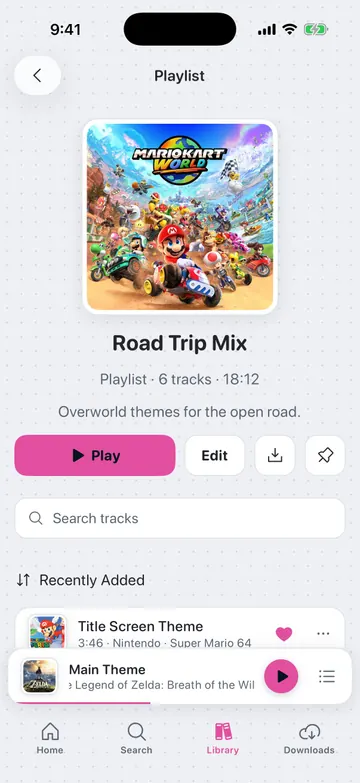
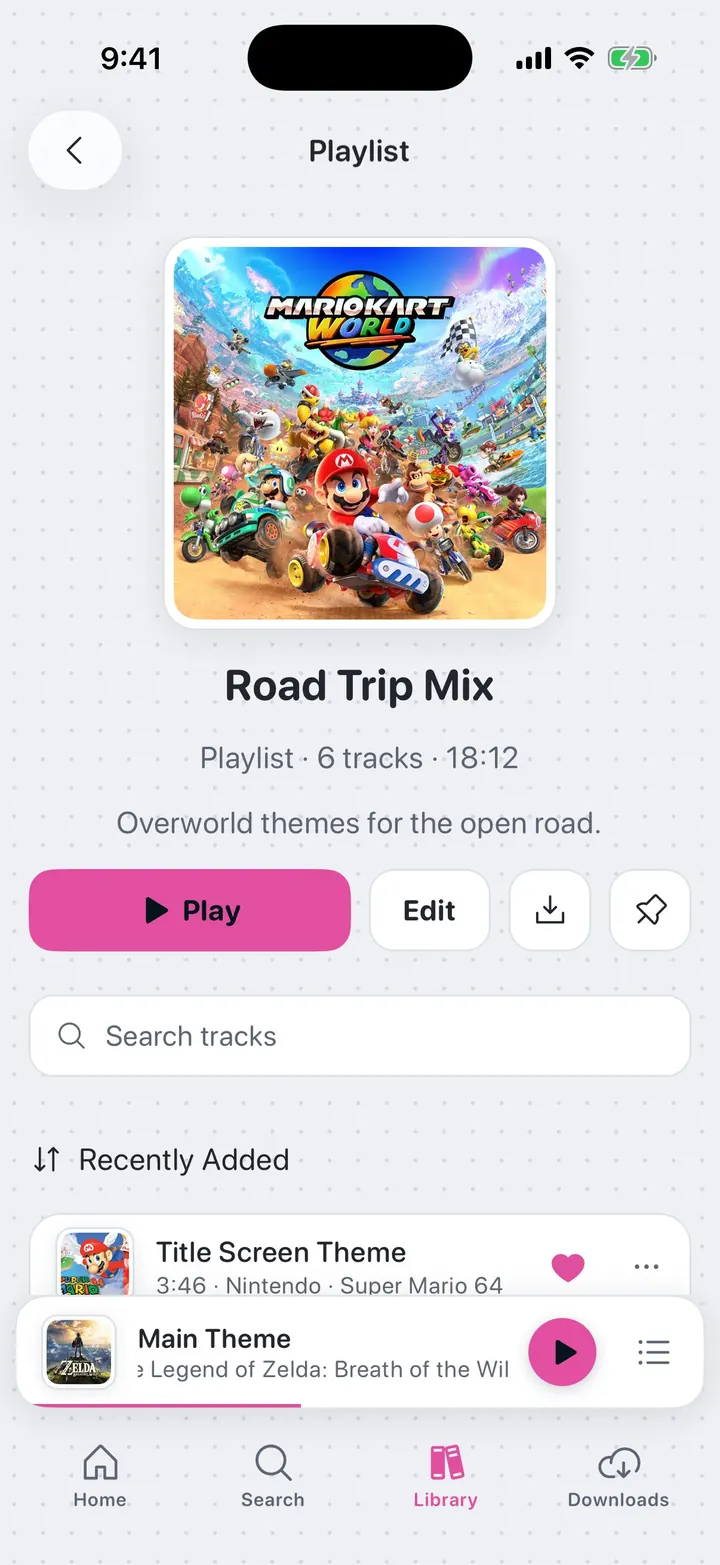
Go to Library, tap the + (Create) button, and choose Create Playlist. Give it a name and, optionally, a description and cover photo. Add tracks to it from any album page, search result, the full player's queue menu, or by holding the like button in the full player.
You can also create Folders to group playlists, saved albums, and single tracks together.
To send a playlist or folder to a friend, open it and tap Share: they get a link or a small .txt file that opens in vgmu (see Usage guide: Sharing playlists and folders). To move music to or from a computer, use Manager → Transfer Hub (see Usage guide: Transfer Hub).
Adjust settings
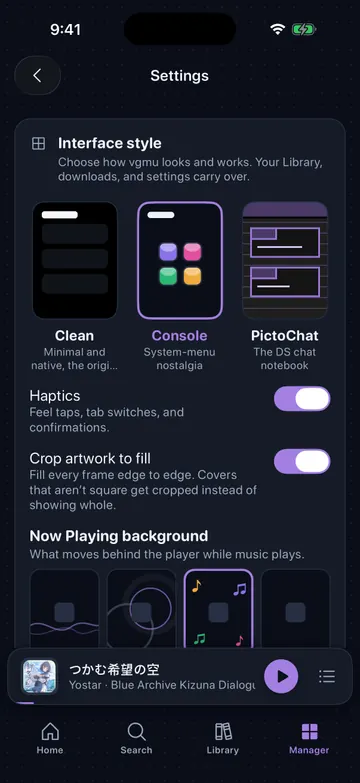
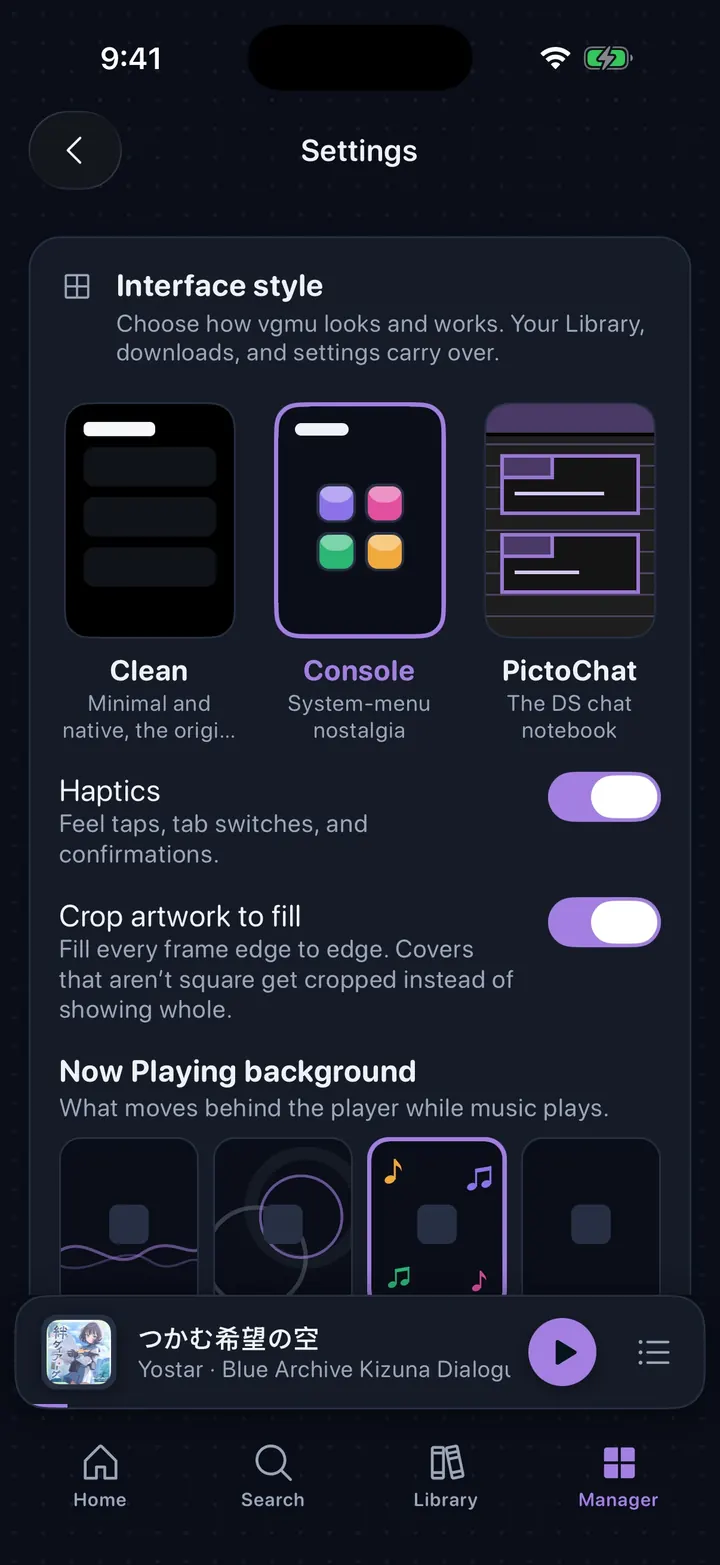
Tap the settings button to open Settings, where you can:
- Pick an interface style: Console (a home-menu look), PictoChat (the Nintendo DS chat app), or Clean (the original look). See Usage guide: Interface styles
- In Clean, change your theme: from a simple light/dark "Simple UI" with an accent color, to dozens of full fixed-palette presets (Dracula, Nord, Tokyo Night, Catppuccin, Gruvbox, and many more)
- Choose your preferred download quality/format
- Choose whether Home can refresh over cellular data
- Connect Discord Rich Presence, which is optional (see Usage guide: Discord Rich Presence for what it shares and how to connect)
- Check your library's storage usage
- Set your default tab on launch
Back up your Library, or turn on Auto Backup, under Manager → Backup.
See the full usage guide for a complete tour of every setting and feature, or Settings → Help in the app itself for a quick in-app reference.
Next steps
- Read the usage guide for a complete feature reference
- Check Support if something isn't working
- Keep an eye on the Home tab, since its sections refresh with new content over time
Enjoy the music!